

Contents
On this page
Blocks - Plugixa Video
The plugin adds its player and pages to the block editor, so you can build video pages without shortcodes. All the blocks are in the Media category of the block inserter: type “video” to find them. They print the same thing as the shortcodes, drawn on the server and filled in by the public app once the page opens.
| Block | What it shows |
|---|---|
| Plugixa Video | The player for one video. |
| Video browse page | Search, filters and rows of videos by category. |
| Member video library | The signed-in member’s library. |
| Video channels | A grid of all channels. |
| Video channel | One channel and its videos. |
| Video series PRO | One series with its seasons and episodes. |
| Video playlist | One playlist, in its own order. |
| Video grid | A grid or sliding row of videos. |
| Video hero | A full-width slideshow of videos. |
| Video genres | One tile per video category. |
| Channel list | A compact list of channels, for a sidebar. |
| Video details | The current video’s title, channel, buttons and description. |
| Up next | Related videos PRO, or the playlist being watched. |
The page views and the composed blocks show an outline of their layout in the editor, not your real videos: the public app that fills them does not run in the editor.
A page view block for an app that is switched off in the App manager is not offered. A page that already has it keeps the block, which prints nothing until the app is back on.
Plugixa Video
The player. Choose the video with the Video search box in the block, or in the sidebar.
| Setting | Notes |
|---|---|
| Video | Search your videos by title. Drafts and other statuses are shown with their status. |
| Autoplay | Starts the video as soon as it loads, where the browser allows it. |
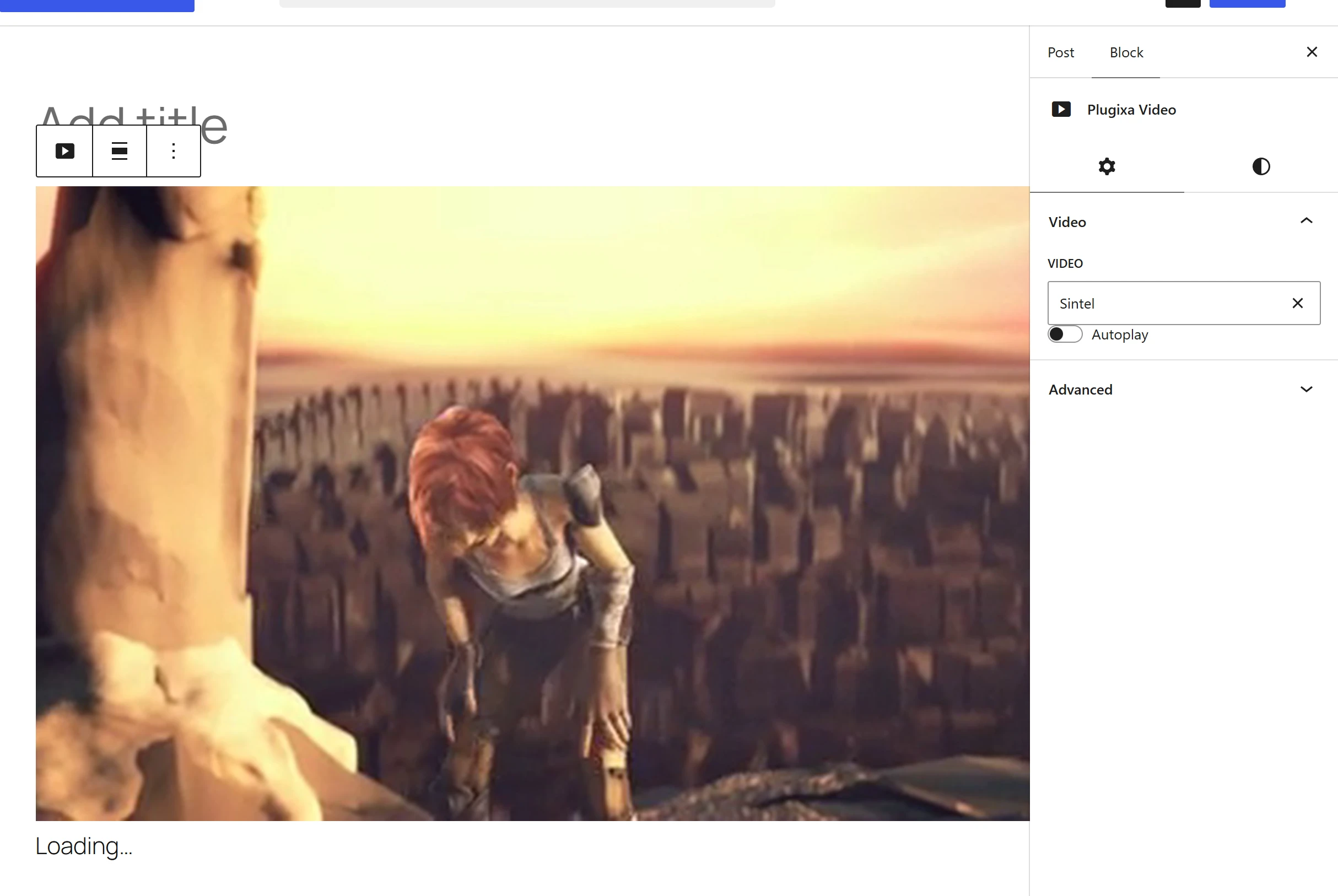
The block can be set to wide or full width. With no alignment chosen, it follows the Width on the site setting. Its own colors are not offered, because the player’s colors come from Appearance.
In a video page template, leave Video empty: the block plays the video of the page being viewed. The editor says “The video of the page being viewed plays here.”
Page views
Video browse page, Member video library, Video channels, Video channel, Video series and Video playlist each print their shortcode. Those that show one record have a picker in the block: Channel, Series or Playlist. Until one is chosen, the editor says “Choose the channel to show.” and the page shows nothing.
In a channel or series template, leave the picker empty: Video channel or Video series then shows the channel or series whose page is being viewed. Video series and the series page template are part of Pro.
They support wide and full width. With neither, they follow Width on the site.
Video grid
A grid of videos, chosen by the block’s settings.
| Setting | Choices | Default |
|---|---|---|
| Videos from | The whole library, The category, tag or channel being viewed, or Continue watching (signed-in viewers). | The whole library |
| Heading | A heading above the grid. | none |
| Layout | Grid or Sliding row. | Grid |
| Card shape | Wide (16:9) or Poster (2:3). | Wide |
| Number the videos, like a Top 10 | A big number on each card. | Off |
| Order | Latest, Most viewed or Title. | Latest |
| Videos per page | 1 to 48. | 12 |
| Columns (0 = automatic) | 0 to 6. | 0 |
| “Load more” button | More videos below the grid. | On |
| Compact cards | Smaller cards. | Off |
- The category, tag or channel being viewed suits the category, tag and channel templates: the grid shows that page’s videos.
- Continue watching (signed-in viewers) shows the viewer’s unfinished videos, under the heading Continue watching if you give none. Guests see nothing, not even the heading.
- A Sliding row shows one row of the first videos and no Load more button.
The block’s patterns, Latest videos and Most viewed videos, are ready-made grids with a heading, in the Video pattern category.
Video hero
A large slideshow of videos with a poster, title and watch button, full width by default.
| Setting | Choices | Default |
|---|---|---|
| Style | Poster thumbnails, Arrows or Picture with details beside it. | Poster thumbnails |
| Order | Latest or Most viewed. | Latest |
| Number of videos | 1 to 8. | 5 |
| Seconds per video (0 = stay) | 0 to 30. 0 stops it moving on by itself. | 7 |
Video genres
A row of tiles, one per video category that has videos, each showing its newest video’s poster, the category’s name and its number of videos. Click a tile to open the category.
| Setting | Choices | Default |
|---|---|---|
| Heading | A heading above the row. Left empty, it reads Genres. | none |
| Number of categories | 1 to 24. | 8 |
| Tile shape | Wide or Poster. | Wide |
Channel list
A compact list of your channels, made for a sidebar.
| Setting | Choices | Default |
|---|---|---|
| Heading | A heading above the list. | none |
| Number of channels | 1 to 30. | 12 |
Video details
The current video’s title, channel bar with Subscribe, the like, favorite, save and share buttons, and its description. Made for the video page template: it shows the video of the page being viewed.
| Setting | Default |
|---|---|
| Title | On |
| Channel | On |
| Like, save and share buttons | On. With Pro, also holds the Transcript button PRO, see Subtitles and transcript. |
| Description | On |
Up next
Related videos, or the playlist the viewer came from, for the video page template. The block, the playlist list and the playlist countdown are free; the related videos in it come with Pro PRO. When the video ends, it counts down to the next one. See Related videos and Up next.
| Setting | Choices | Default |
|---|---|---|
| Layout | List or Grid. | List |
| Number of videos | 1 to 12. | 12 |
| Start the next video automatically | Off hides the Autoplay checkbox and the countdown. | On |
Styles, colors and spacing
The blocks other than the page views have the editor’s design settings that suit them, such as alignment, color, spacing, typography, border and shadow.
Plugixa Video, Video details, Up next and Video grid also offer the looks as block styles: Cinema, Studio, Spotlight and Creator, and the looks Pro adds. A style gives that one block a different look from the rest of the site. See Appearance.
Video data in core blocks
A core block, such as a Heading, Paragraph or Button, can show a field of the video whose page
is being viewed, through the block bindings source plugixa-video/video. The fields are
title, views, duration, date, channel, permalink and poster. For example, in
the code editor of the video page template:
<!-- wp:paragraph {"metadata":{"bindings":{"content":{"source":"plugixa-video/video","args":{"key":"views"}}}}} -->
<p></p>
<!-- /wp:paragraph -->
Nothing is shown for a password-protected video, or one the visitor may not open. Add your
own fields with the plugixa_video_binding_fields filter: see
Hooks.
Patterns
The Video pattern category holds ready-made layouts:
- the three video page layouts, Standard, Theatre and Focus, offered when you replace the video page template;
- Latest videos and Most viewed videos: a heading and a video grid;
- Video home page, and one Video home pattern per site style, such as Video home: Marquee: complete home pages built from these blocks.
Quick Links
Share