

Contents
On this page
Audio tracks - Plugixa Video
Audio tracks PRO lets one video carry more than one soundtrack: a dubbed language, an audio description or a director’s commentary. Viewers pick the one they want in the player, without leaving the page.
Audio tracks is an app in the App manager, on by default in Pro. It needs the Media app, because the tracks belong to videos you upload and convert on your own server. It does not apply to YouTube, Vimeo or pasted links.
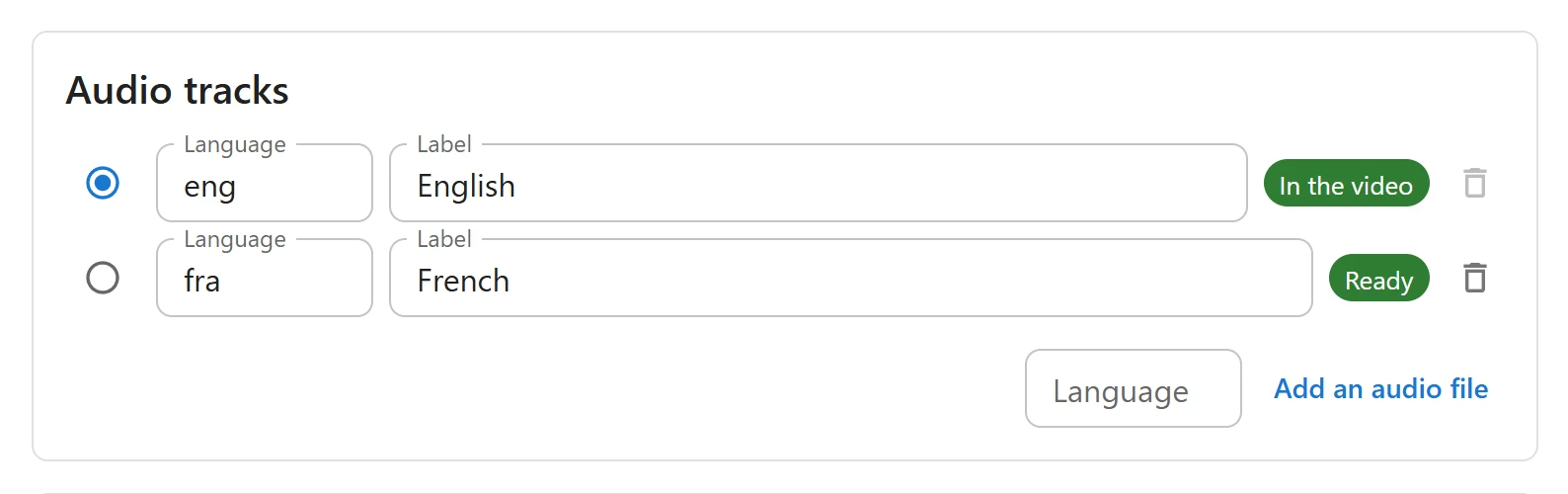
Where the tracks come from
The Audio tracks panel is on the video form, below Content type, once the video has been saved. Anyone who can edit the video can use it.
There are two sources:
- Inside the uploaded file. When you upload a video file, every audio stream in it is listed. The first one is the main track: it is already part of every quality of the video, so its chip reads In the video and there is nothing to generate. The others are listed as Not generated. A stream’s language is taken from the file’s own language tag; an untagged stream gets a label such as “Track 2”.
- A separate audio file. Type the track’s language code in the small Language field at
the bottom of the panel, for example
fr, then click Add an audio file and choose the file. Accepted files:.m4a,.mp3,.aac,.wav,.ogg,.opus,.flacand.mka. The file is kept on your server and queued for encoding at once.
If the video has no uploaded file yet, the panel says “Upload a video file to list its audio tracks. Files with several languages are detected automatically.”
Generating the extra tracks
- Click Generate audio tracks. The button is there while at least one extra track is Not generated or Failed.
- Each track moves through Queued, Encoding… and Ready. The panel refreshes on its own every few seconds while a track is encoding. Hover a Failed chip to read the error.
Each extra track is encoded in the background to stereo AAC at 128 kbit/s, as its own stream next to the video’s qualities. A viewer who never switches downloads nothing extra.
Encoding audio needs FFmpeg on your server, as for converting videos. Without it the panel answers “FFmpeg was not found. Install it or set its path in Settings.” See Uploading and encoding.
Naming the tracks and choosing the default
Each row has:
| Control | What it does |
|---|---|
| Plays first (radio button) | The track that plays when a viewer starts the video. The main track until you choose another. |
| Language | A language code such as en, fr, pt-br or the three-letter eng. Left empty when the code is not valid. |
| Label | The name viewers see in the player menu, for example “English” or “Director’s commentary”. |
| Bin button | Removes the track and its files. The main track cannot be removed, nor a track while it is encoding. |
Names, languages and the default are saved with the video’s Save button. Generating, adding a file and removing a track take effect at once.
How viewers switch
As soon as at least two tracks are Ready (the main track counts), the player’s settings menu (the gear button) gets an Audio section listing each track by its label. The viewer clicks one and playback carries on in that language.
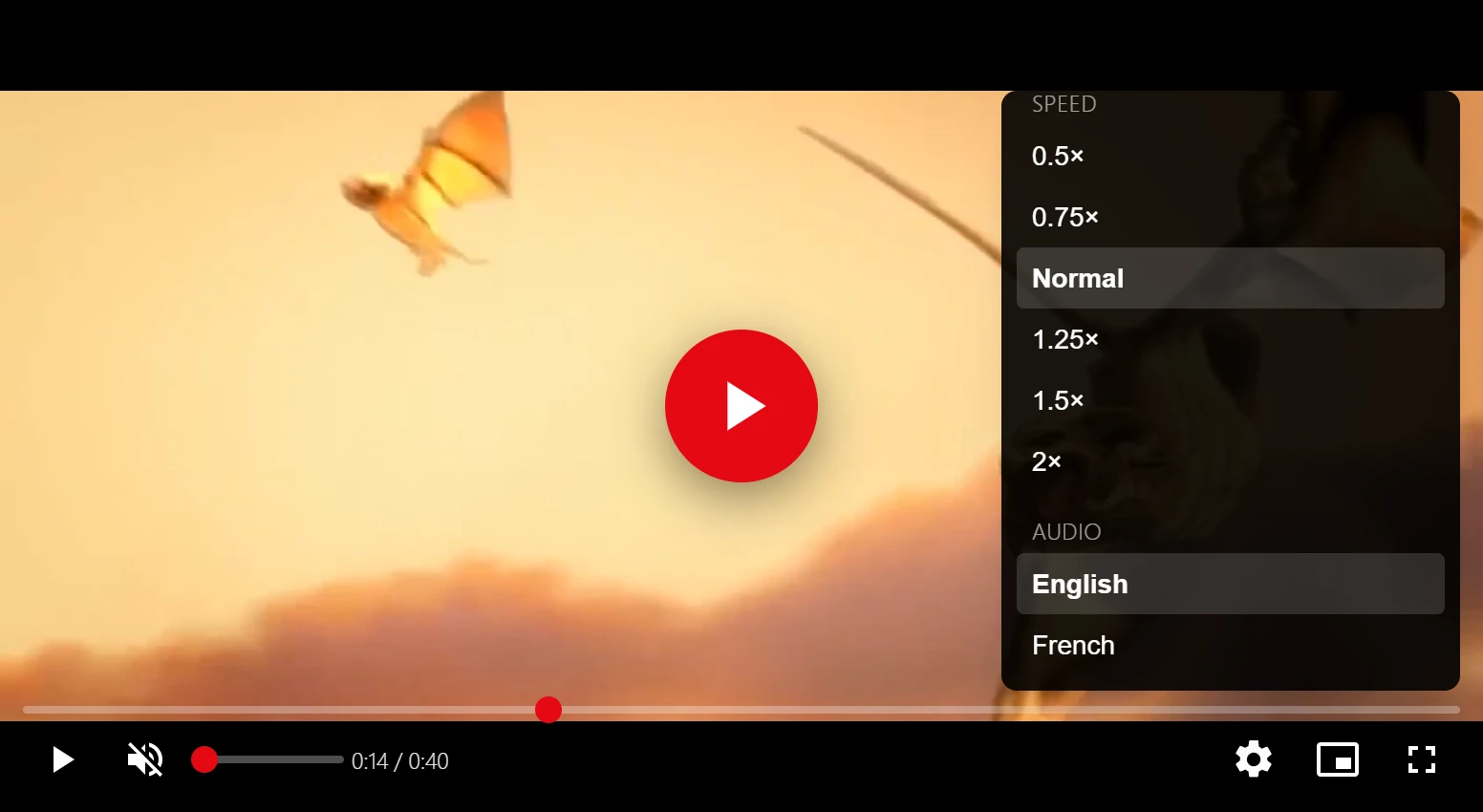
With only the main track ready, the Audio section is not shown.
Uploading a new file
When you replace a video’s file, the tracks found inside the old file are dropped and the new file’s streams are listed instead. Audio files you added separately are kept. Generate the extra tracks again afterwards.
Good to know
- Tracks are listed for files uploaded while the Audio tracks app is on. A video uploaded before that has no track list: upload its file again to have its streams detected.
- With Bunny Stream chosen for conversion, the extra audio tracks are still encoded by FFmpeg on your server.
- Subtitles in several languages are a separate feature. See Subtitles and transcript and AI subtitles.
Quick Links
Share