

Contents
On this page
Browse and search - Plugixa Video
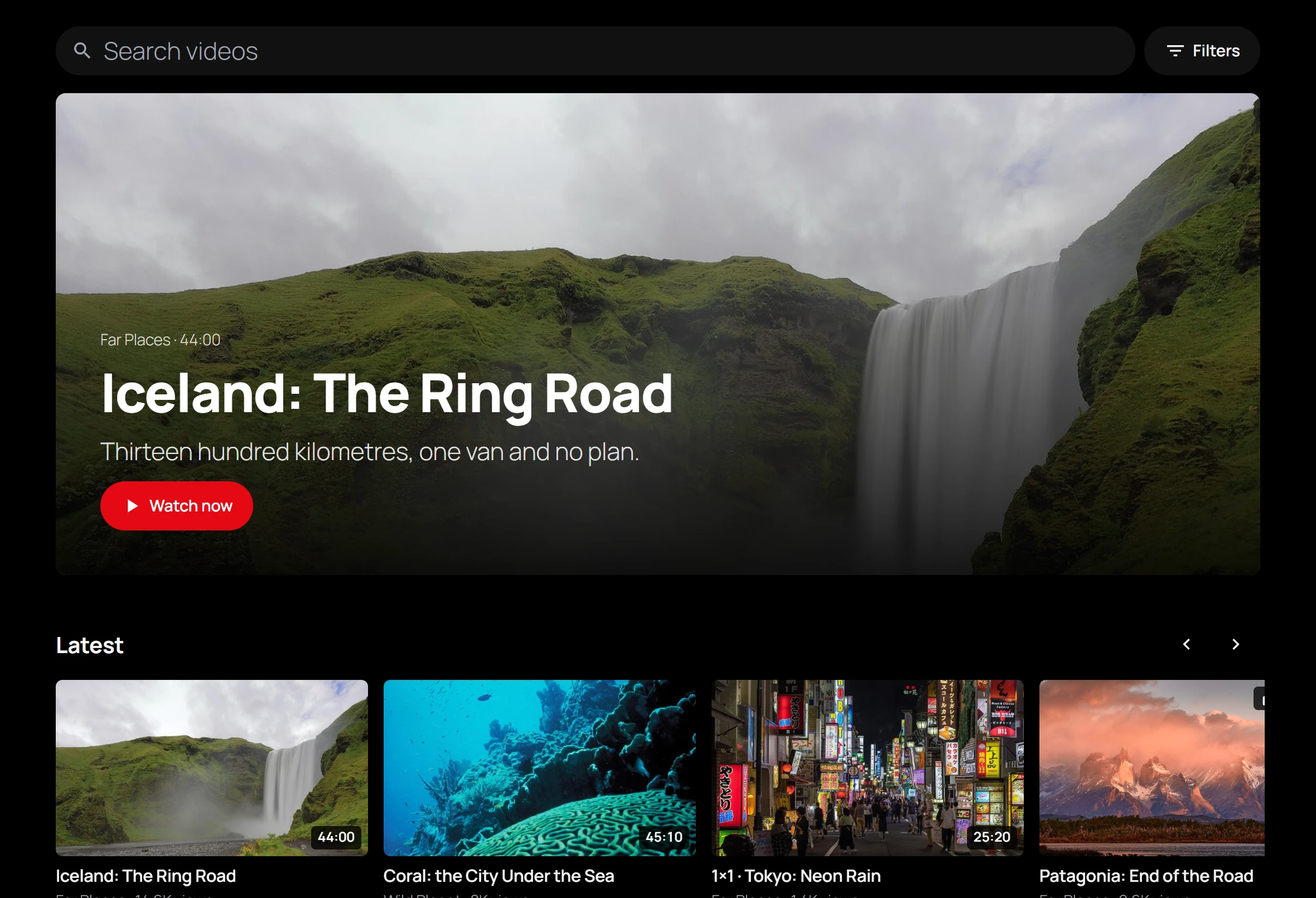
The browse page is the front door of your video site: a large feature at the top, rows of videos below it, a search box and a filter panel. Visitors find what to watch without knowing what you have.
Create the browse page
The setup wizard creates it for you: a page called Videos holding the shortcode. To make one yourself:
-
Add a page and put the shortcode in it:
[pvx_browse]Or add the Video browse page block, or the Elementor widget of the same name.
-
On a block theme, choose the Video: Full-width page template for the page, so the rows can use the whole width. See Appearance.
-
Publish the page.
-
In Settings -> General -> Pages, choose it as Browse page. Links and emails that send visitors to your videos point there.
The shortcode takes one attribute, width. See
Shortcodes.
What the page shows
With no search or filter, the page is built from your catalog, top to bottom:
| Section | What is in it |
|---|---|
| Hero | The newest video that has a poster, with its channel, length, excerpt and a Watch now button. |
| Continue watching | The signed-in viewer’s started, unfinished videos. Not shown to guests. |
| Latest | The 12 newest videos. |
| Series PRO | Your series, as posters. See Movies and series. |
| Featured playlists | One row per featured playlist, under the playlist’s name. See Playlists. |
| Popular | The 12 most viewed videos. |
| Categories | One row per category that has videos, up to 8 categories, under the category’s name. |
A section with nothing in it is left out, so a new site does not show empty rows. Each row slides sideways and holds up to 12 videos.
A small library, with 6 videos or fewer, gets one plain grid of them instead of the Latest, Popular and category rows, which would only repeat each other.
With no published video, the page says “No videos have been published yet.”, and someone who can add videos also sees an Add your first video button.
Search
The Search videos box searches as the visitor types: results show a moment after they stop typing, with no button to press. Results replace the rows with one grid of 24 videos, and a Load more button brings the next ones. With no match: “No videos match your search.”
Search looks at the videos’ titles and descriptions. With Pro, custom fields can be made searchable too: see Custom fields.
Filters
Filters opens a panel at the side of the page. Each filter starts at Any.
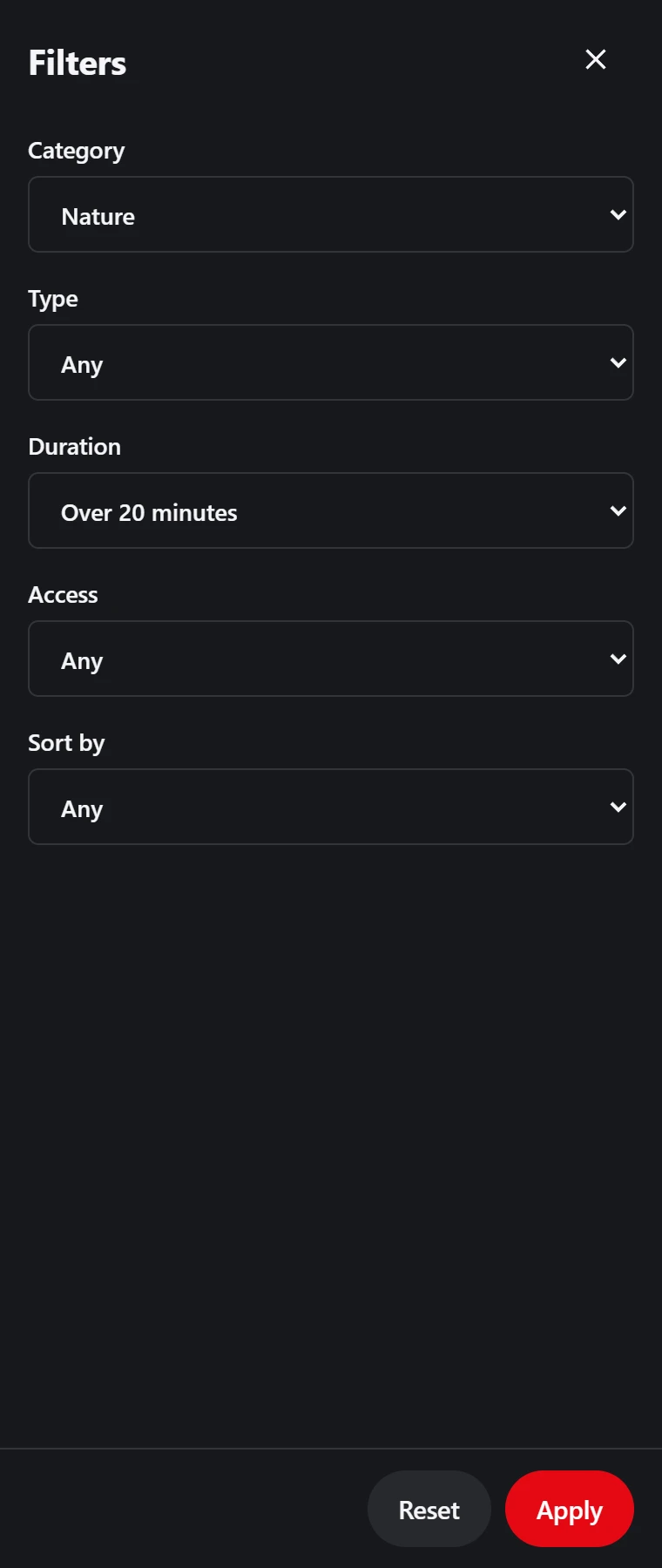
| Filter | Choices |
|---|---|
| Category | Your video categories. Only shown when you have categories. |
| Type PRO | Videos, Movies or Episodes. |
| Duration | Under 4 minutes, between 4 and 20 minutes, or Over 20 minutes. |
| Access | Free, Members or Paid. |
| Sort by | Newest, Most viewed or Title. |
Apply shows the results, and Reset clears every filter. The button then reads, for example, Filters (2), and each active filter shows as a chip above the results, such as “Duration: Over 20 minutes”. Click a chip to remove that filter. Search and filters work together.
Who sees which videos
The browse page lists published videos. Unlisted, private, draft and scheduled videos stay out of the rows, the search and the filters. A members or paid video is listed like any other, so visitors can discover it, and the player asks for access when they open it. See Access control.
Playlist links
A link to a playlist, such as /videos/?pvx_list=916, opens that playlist in place on the
browse page, so a playlist needs no page of its own. The featured playlist rows use these
links. The same works on the library, channel and channels pages.
Related pages
- Member library: the signed-in viewer’s own page.
- Categories and tags: what fills the category rows and the Category filter.
- Blocks: the Video grid and Video hero blocks, to build your own browse page from parts.
Quick Links
Share