

Plugixa Exam 1.4.4: The Exam Studio, Certificates in Arabic and Fonts From Your Own Site
Plugixa Exam 1.4.4 is out, and it changes the screen you spend the most time on. Building an exam now happens in the Exam Studio, one full-window screen where the whole paper sits in front of you. The release also rebuilds certificates, so Arabic and Persian names print properly, keeps past results exactly as they were answered, and lets you pick a Google font that your own site serves.
The Exam Studio
New exam, or Edit on any exam, now opens the Studio. The outline of sections and questions is on the left with the running totals, the question you are working on is in the middle, and its settings are on the right.
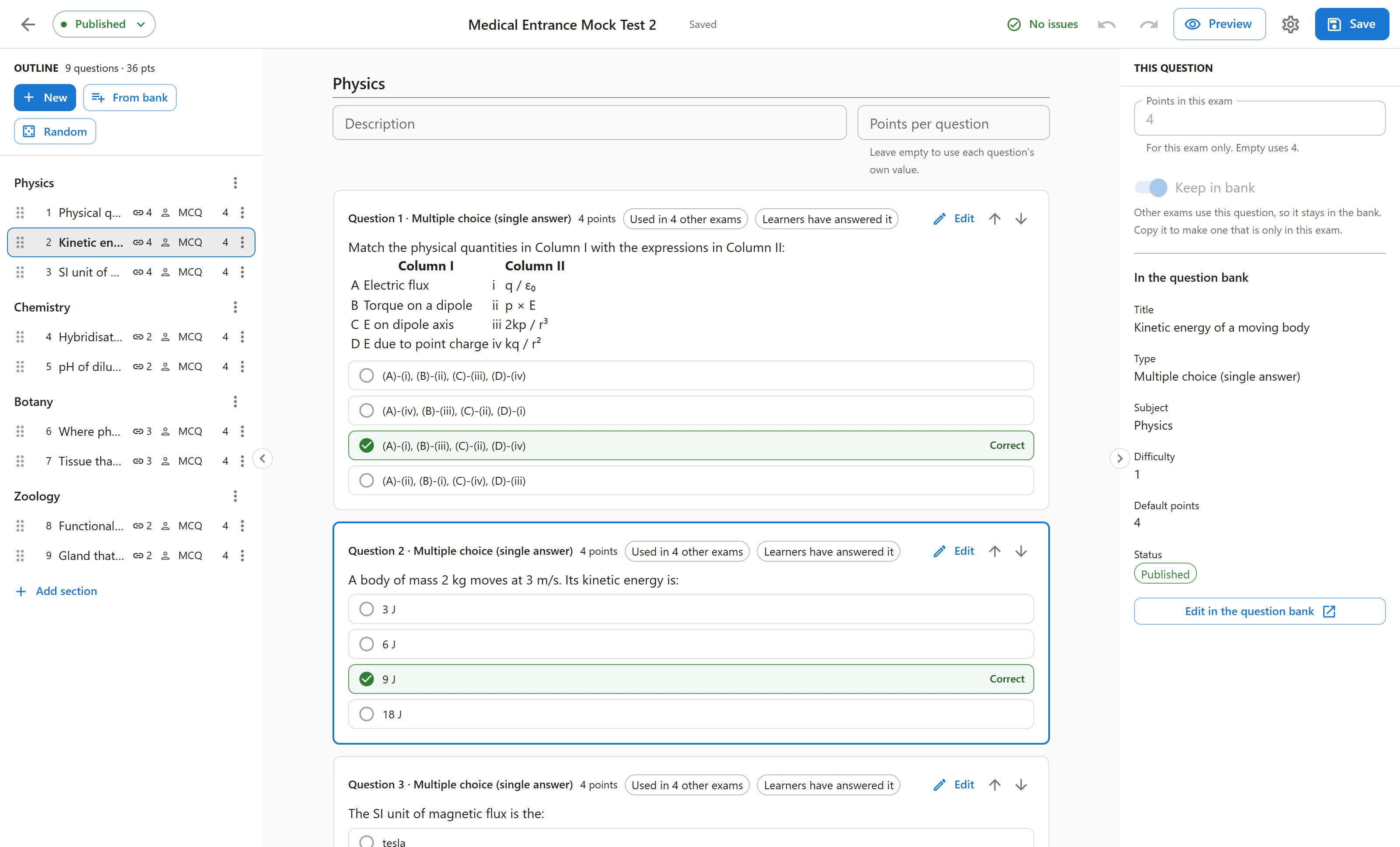
Three buttons above the outline do most of the work:
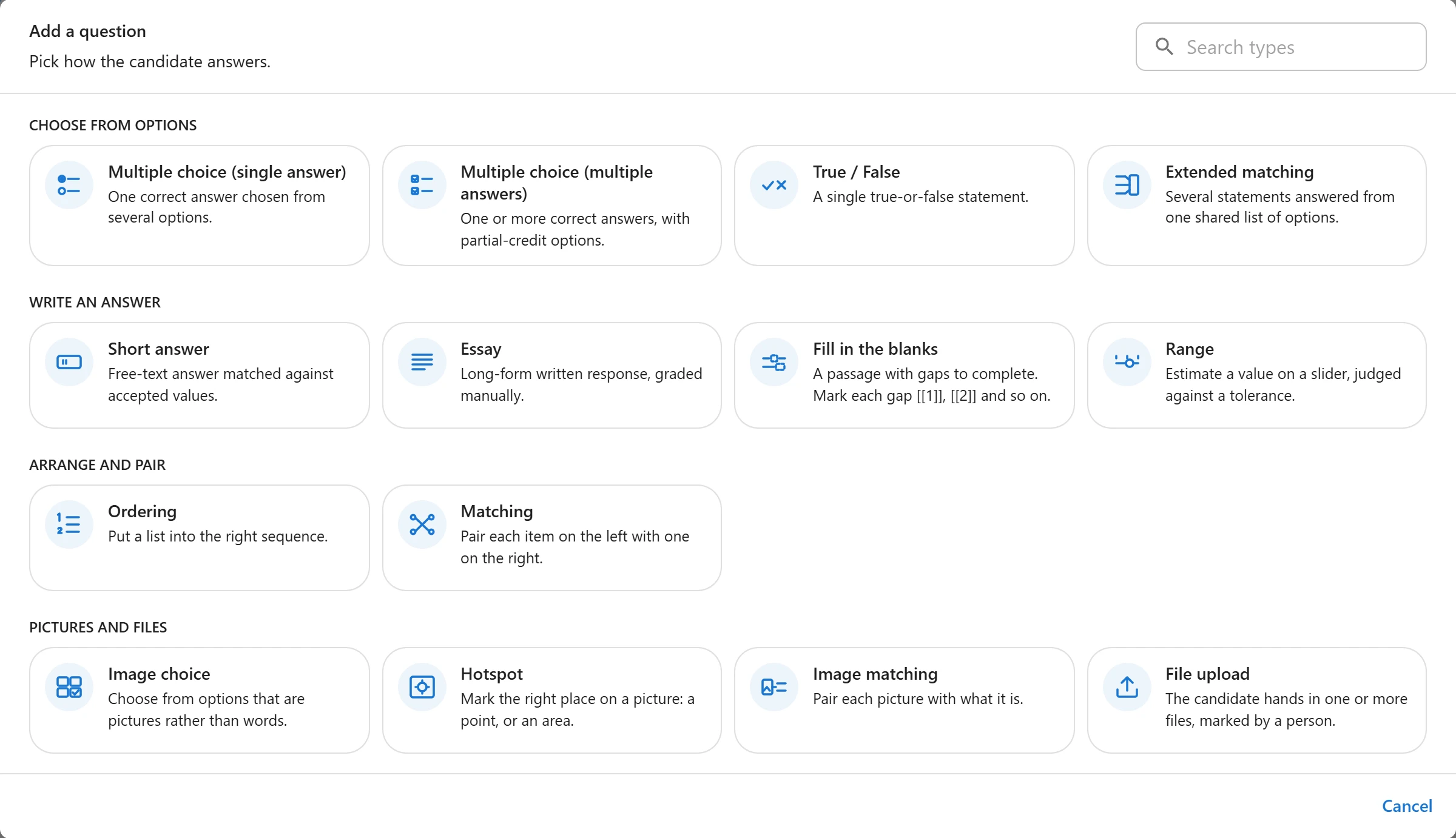
- New writes a question right there in the paper, with the same fields as the question bank. It starts with a grid of question types, grouped by how the candidate answers, with a search box.
- From bank opens the question bank in a picker, so you can tick several questions and add them together.
- Random adds a draw: “this many questions, picked when the attempt starts”, filtered by subject, tags, difficulty and type.
Drag rows to reorder them, inside a section or across sections. Undo and redo cover everything, including a question removed by mistake, and Ctrl+S saves.
Picked and random questions in one section
A section no longer has to be one or the other. Two fixed questions, then a draw of three, then one more fixed question: the paper keeps that order. A draw never picks a question you already placed by hand in the same exam, so nobody gets the same question twice.
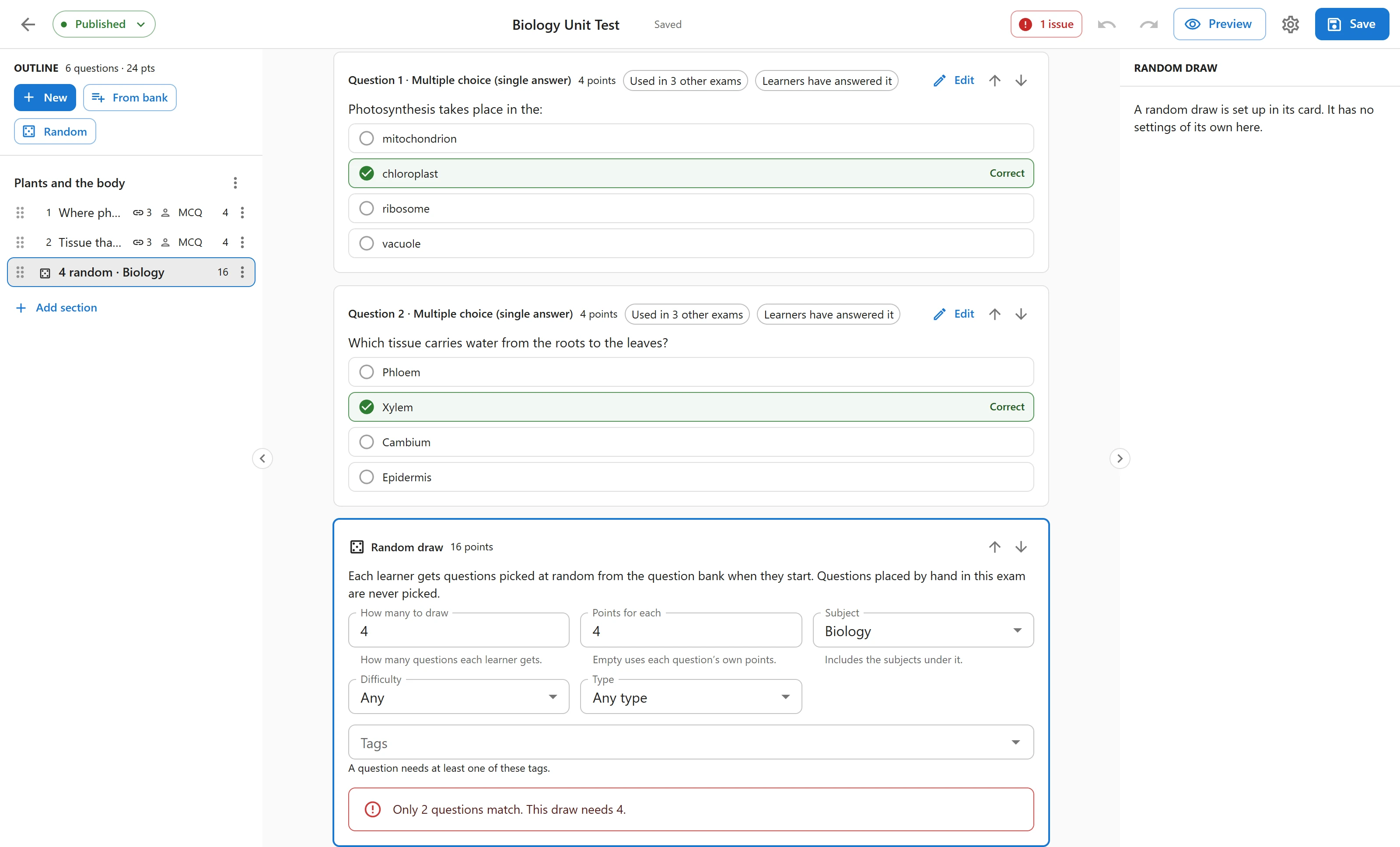
While you edit a draw, the Studio counts the questions that match. If the bank cannot fill it, it says so at once.
Warnings before you publish
The issues badge in the top bar counts what would stop the exam from working as you expect: a draw the bank cannot fill, a draft or deleted question, the same question twice, an empty exam. Publishing with open issues asks you to confirm.
The Studio also protects your work. If a colleague saves the exam while you are editing it, your save stops and you choose to reload their version or keep yours. If the browser closes before you save, the exam offers your changes back next time.
Prefer the old way? Settings > Exam editor switches the whole site back to the classic tabbed editor, and each editor can open an exam in the other one.
Past results keep what was asked
Every attempt now remembers the exact version of each question it was given. Fix a typo or change an answer key next month, and the results already given stay as they were: reviews, marking and certificates still show what the learner actually saw. This is in the free version.
When a question is used in other exams, the Studio asks what an edit should mean: Edit everywhere, or Copy for this exam and leave the others alone.
New in Pro: exam-only questions and a learner preview
Some questions belong to one paper. Turn off Keep in bank and the question stays out of the question bank, out of random draws and out of exports. A setting can make this the default for every new question.
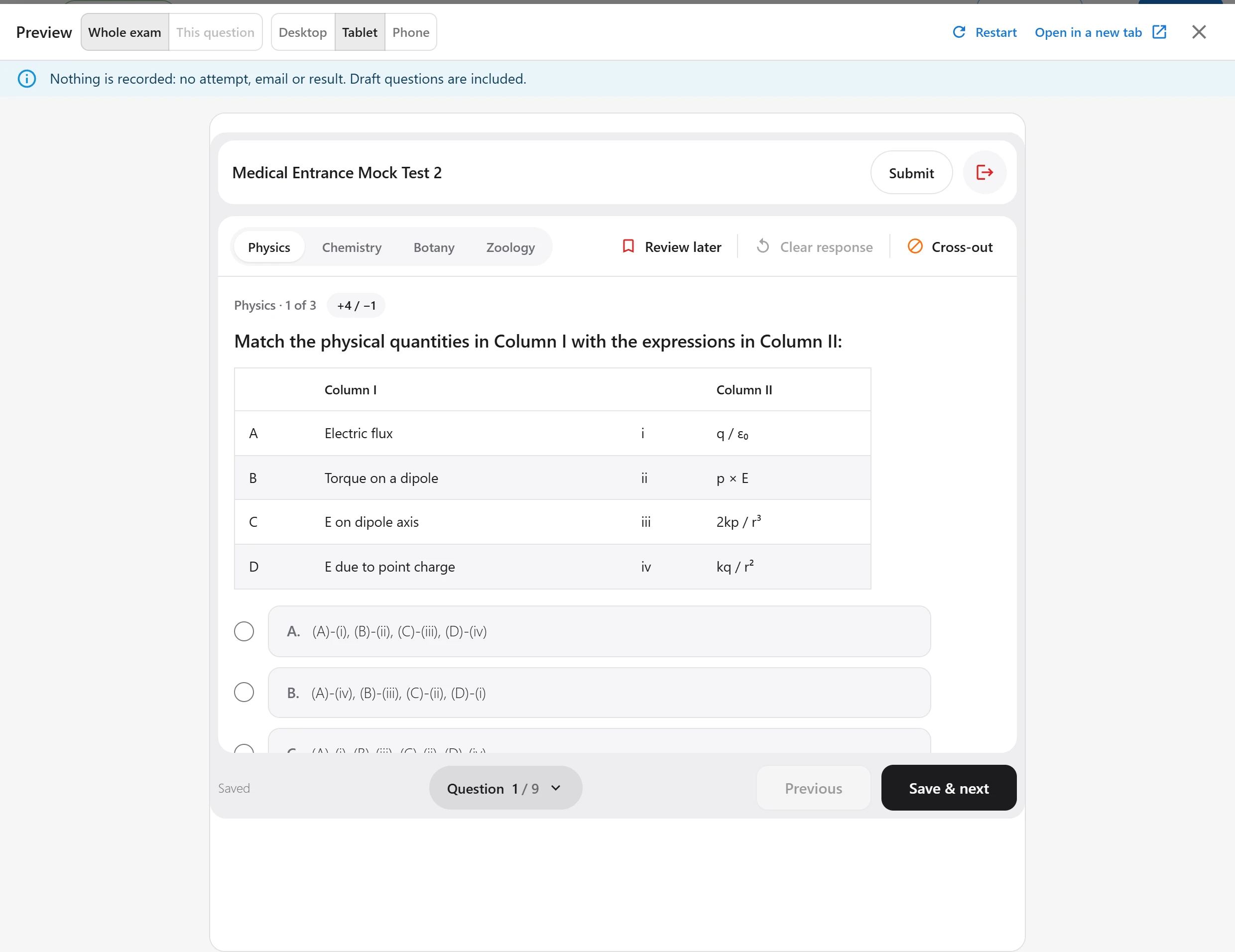
Preview shows the exam the way a learner sees it, on your real exam screen, at desktop, tablet or phone width. Nothing is recorded: no attempt, no email, no result.
Certificates, rebuilt
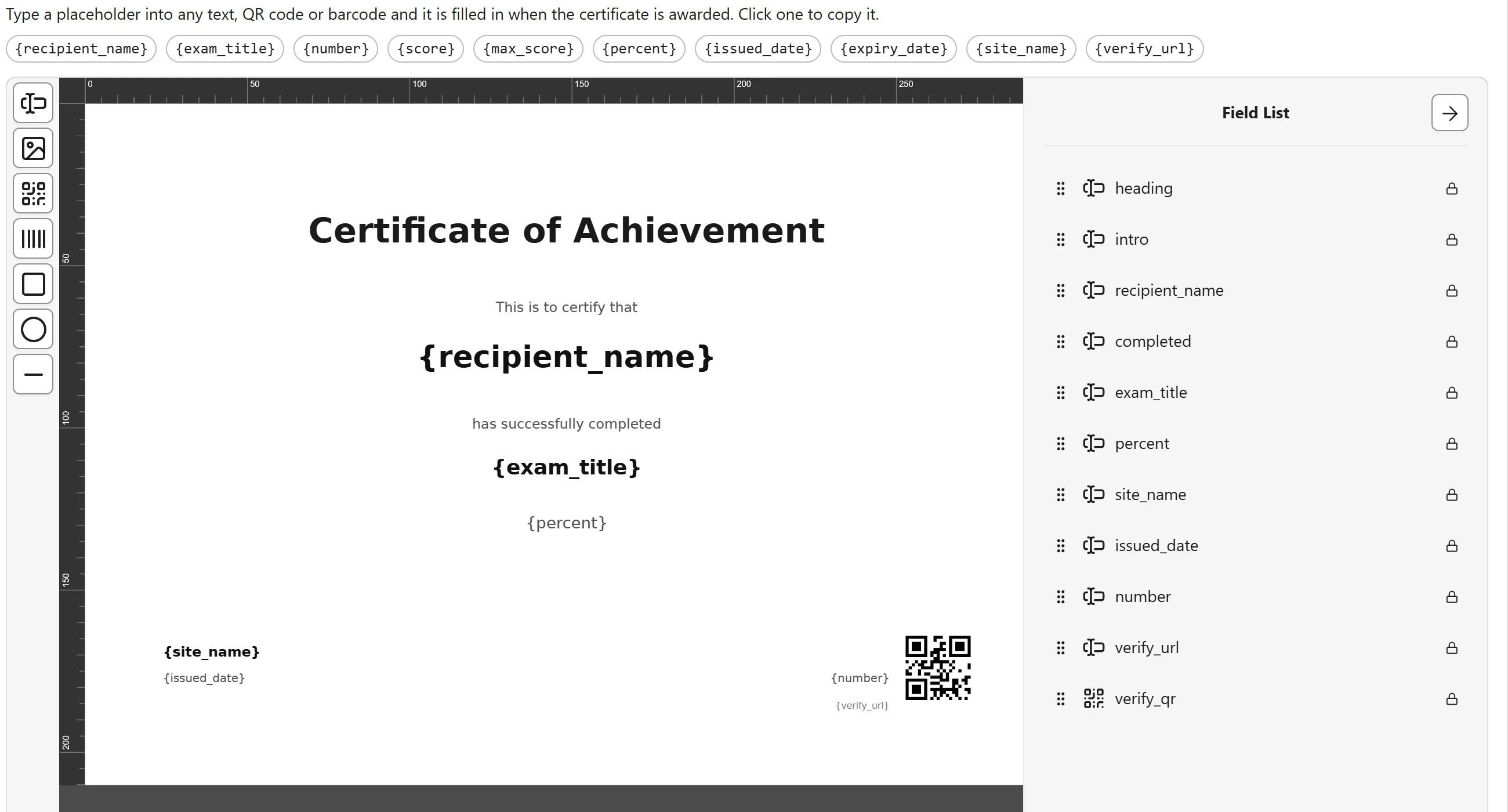
Certificates are now made with Dompdf. Arabic and Persian print with properly joined letters, right to left, and the download is smaller. Existing designs are converted automatically. Preview PDF shows a design before you save it, and Preview with Arabic names shows it with an Arabic name and exam title.
In Pro, the certificate designer is rebuilt. Drag text, images, QR codes, barcodes and shapes onto the page, and fill them with placeholders such as {recipient_name}, {exam_title} or {verify_url}.
Your font, served from your site
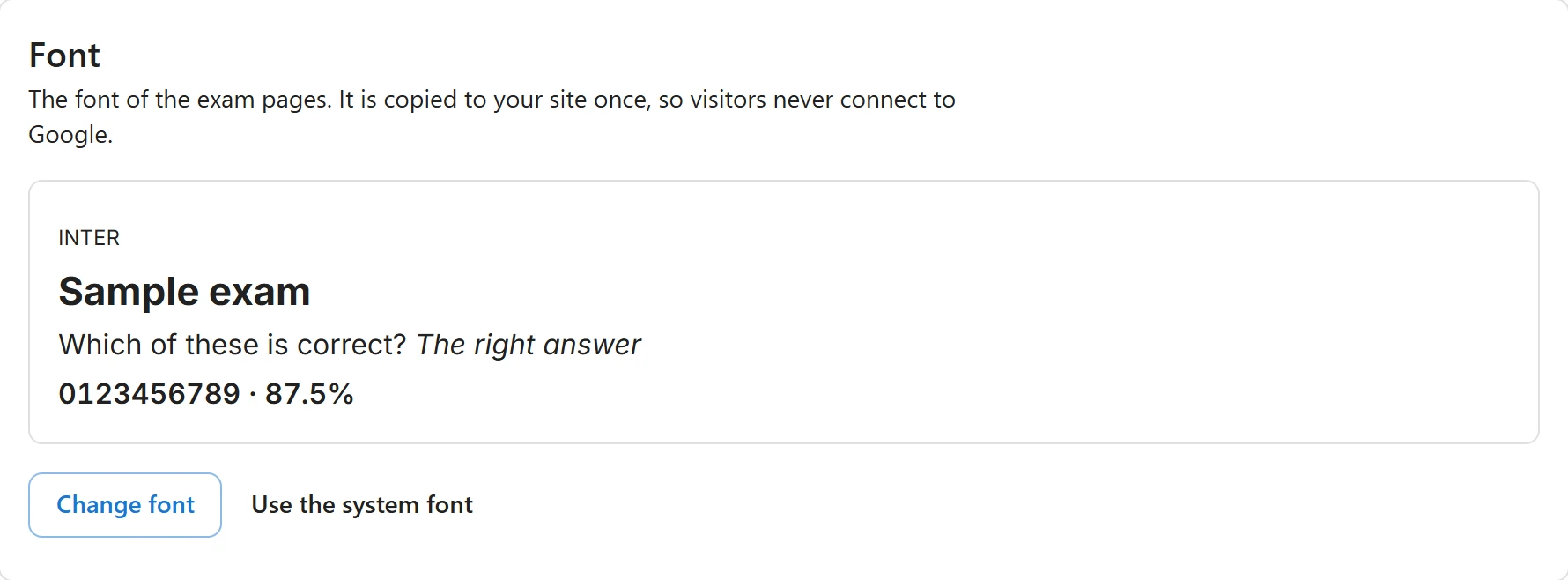
Settings > Colours > Font lists the Google fonts. Pick one and your site downloads it once and serves it itself, so a visitor’s browser never connects to Google. That keeps the exam pages GDPR friendly.
The exam logo is now chosen with the WordPress media window, the same Add media button as the question editor.
Cover images and a new exam list
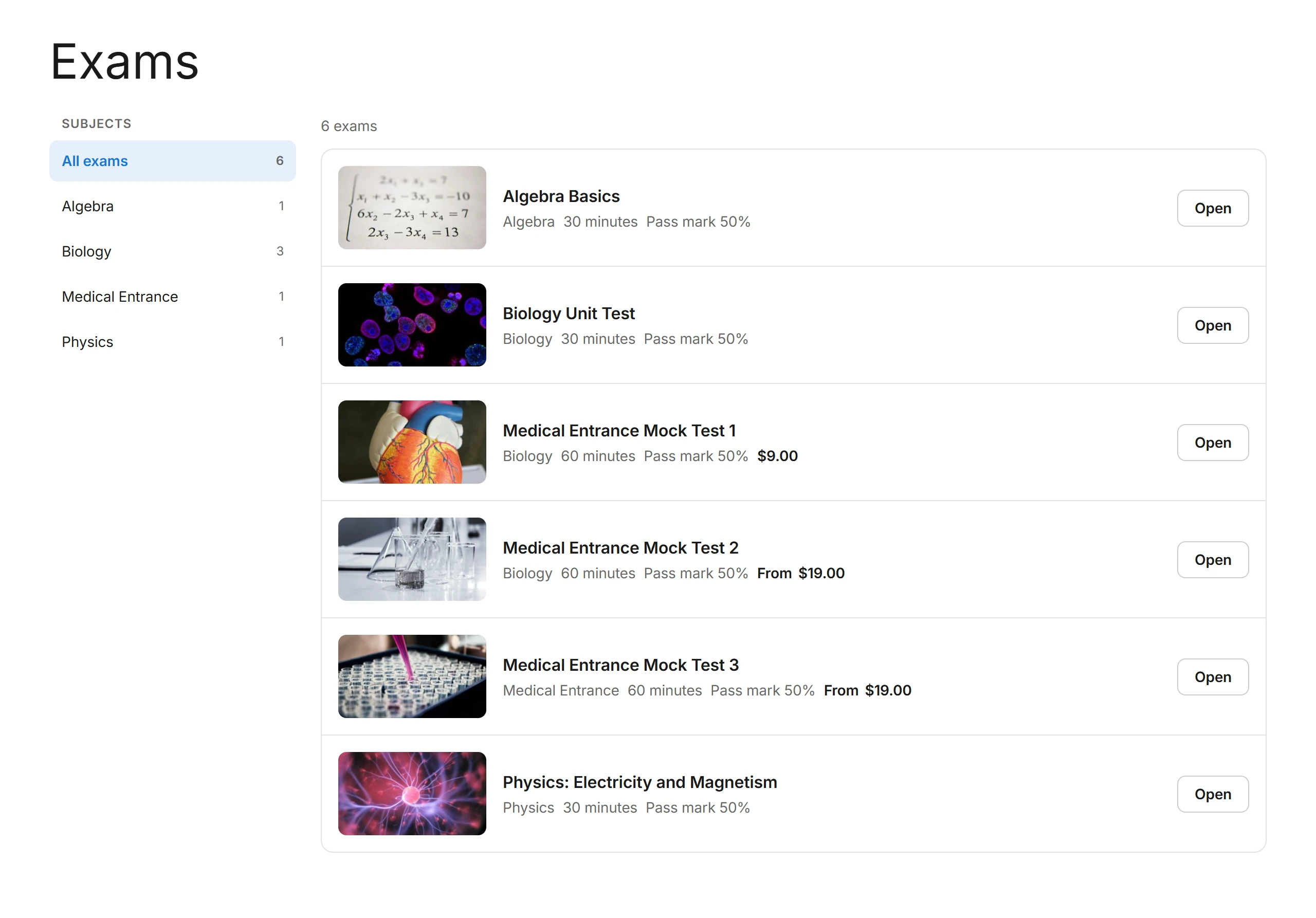
Every exam can have a cover image, shown on its card and at the top of its page. The exam list and exam pages have a new look, Clean cards, with a subject filter when your exams span more than one subject.
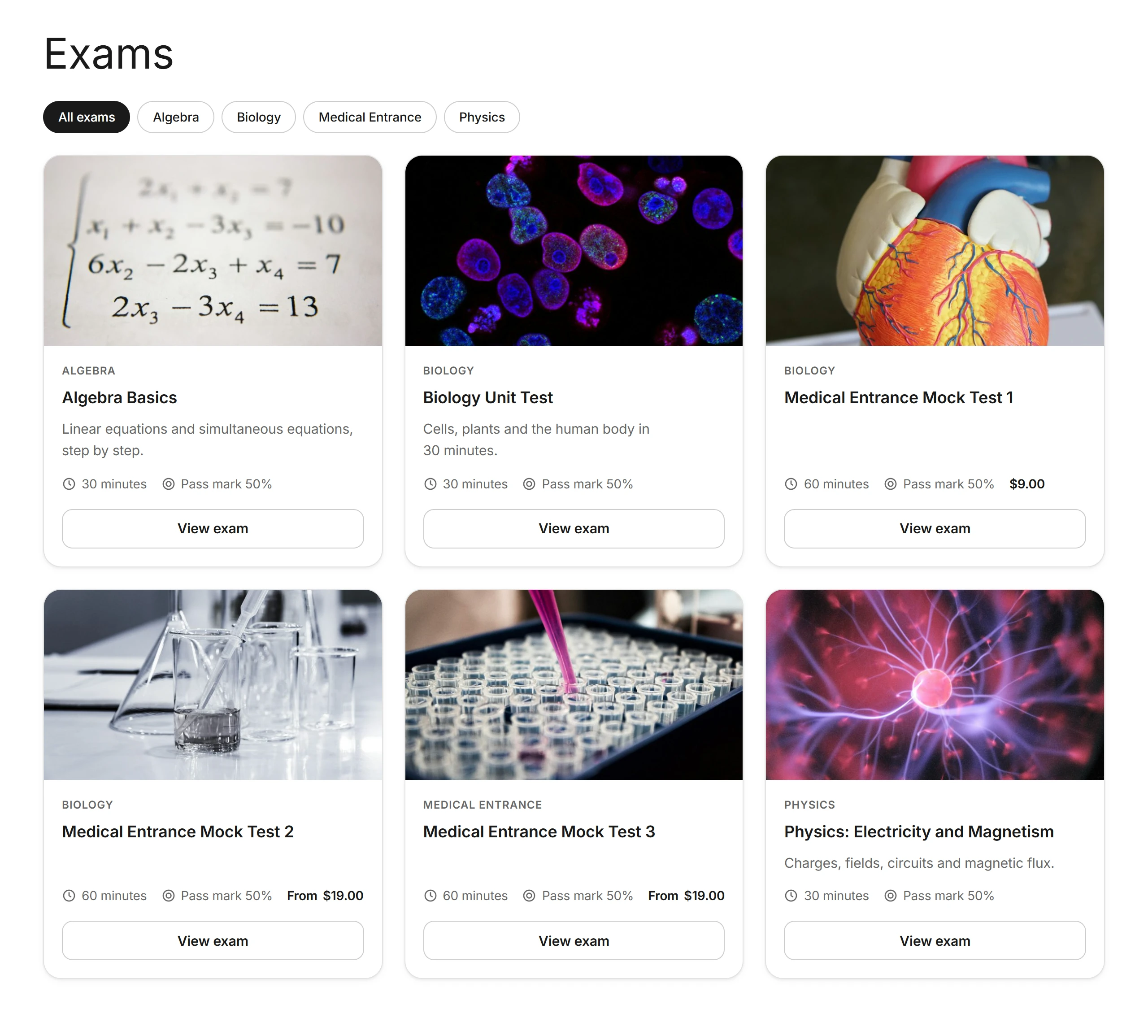
Pro adds two more styles under Settings > Visitor screens: Image first, with big covers and the first exam featured, and Compact list, rows with small covers for sites with many exams.
Also since the last article
- 1.4.3, Members only (Pro): lock exams behind a tagDiv Opt-In Builder subscription, with a different plan per exam or subject. Visitors who are not members see a Subscribe button that brings them back after paying.
- 1.4.2: a site with its own Exams page no longer shows a second copy at
/exams/. The built-in address forwards to the page chosen in Settings > Pages, and that screen now says what each address is doing.
Updating
Update from Plugins in WordPress as usual. Nothing needs setting: existing exams open in the Studio, existing certificate designs are converted, and attempts made before 1.4.4 keep the questions they were given. The plugin licence is now GPL-2.0-or-later, as the new PDF library requires.
Read more in the documentation: Exam Studio, Visitor screen styles, Certificate designer and the full changelog.