

Contents
On this page
Exam Studio - Plugixa Exam
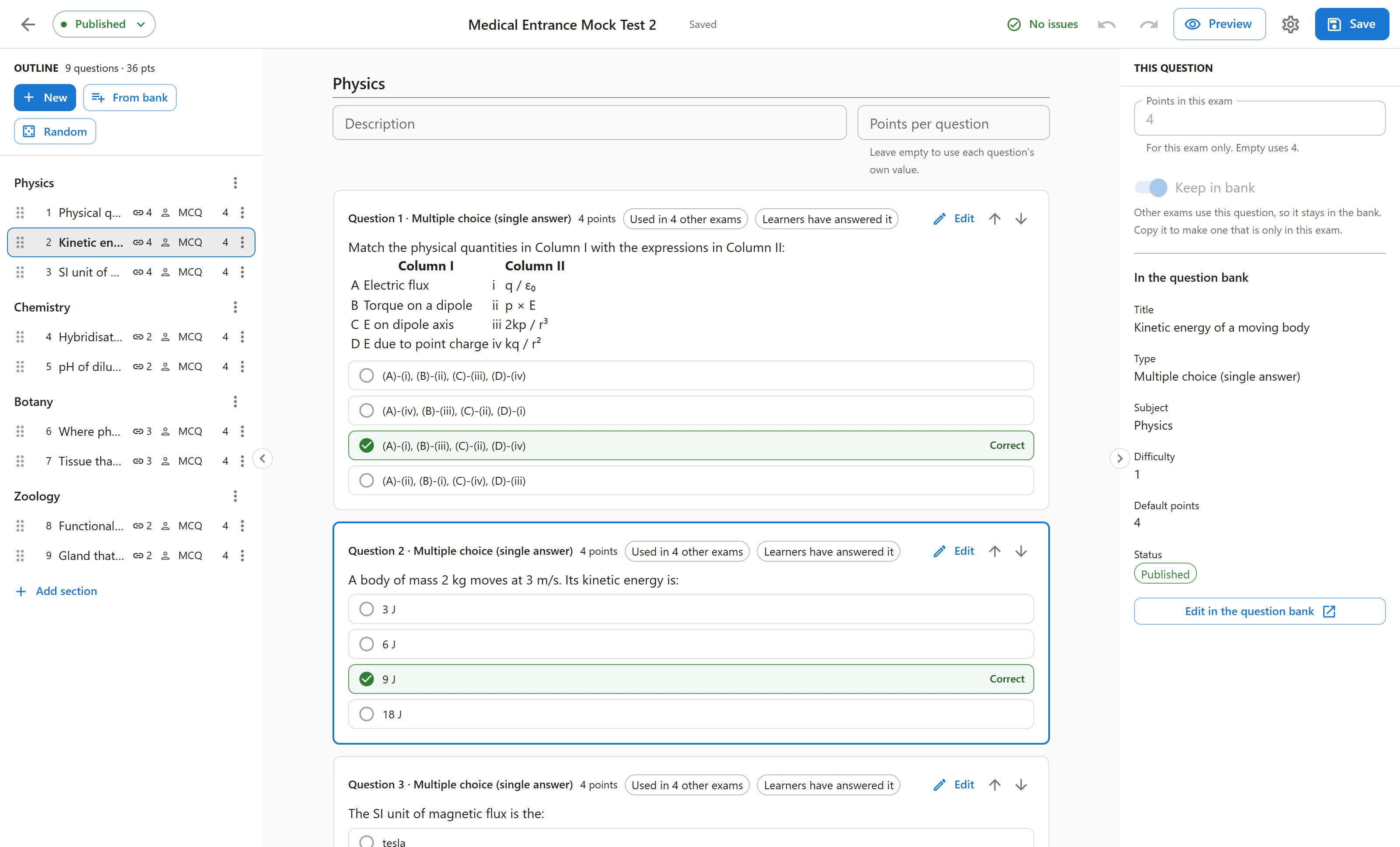
New exam, or Edit on any exam, opens the Exam Studio. It fills the window so the paper has room, and it shows the exam the way you think about it: a list of questions, in order, with the settings of whichever one you are looking at.
Prefer the earlier tabbed form? Settings > Exam editor switches the whole site to the classic editor, and Classic editor at the bottom of Exam settings opens one exam in it. See Exams.
The layout
| Area | What it holds |
|---|---|
| Top bar | The title, the status (Draft or Published), the issues badge, Undo and Redo, Exam settings, Preview PRO and Save |
| Outline (left) | The sections and every row in them, with the totals: how many questions and how many points |
| The paper (middle) | The selected question, open for editing, or a random draw’s rules |
| The inspector (right) | The settings of the selected row: its points in this exam, where else it is used, and the actions. Hide panel folds it away |
On a narrow screen the paper takes the whole width, and the outline and the inspector open as panels over it when you need them. The Studio works on a tablet.
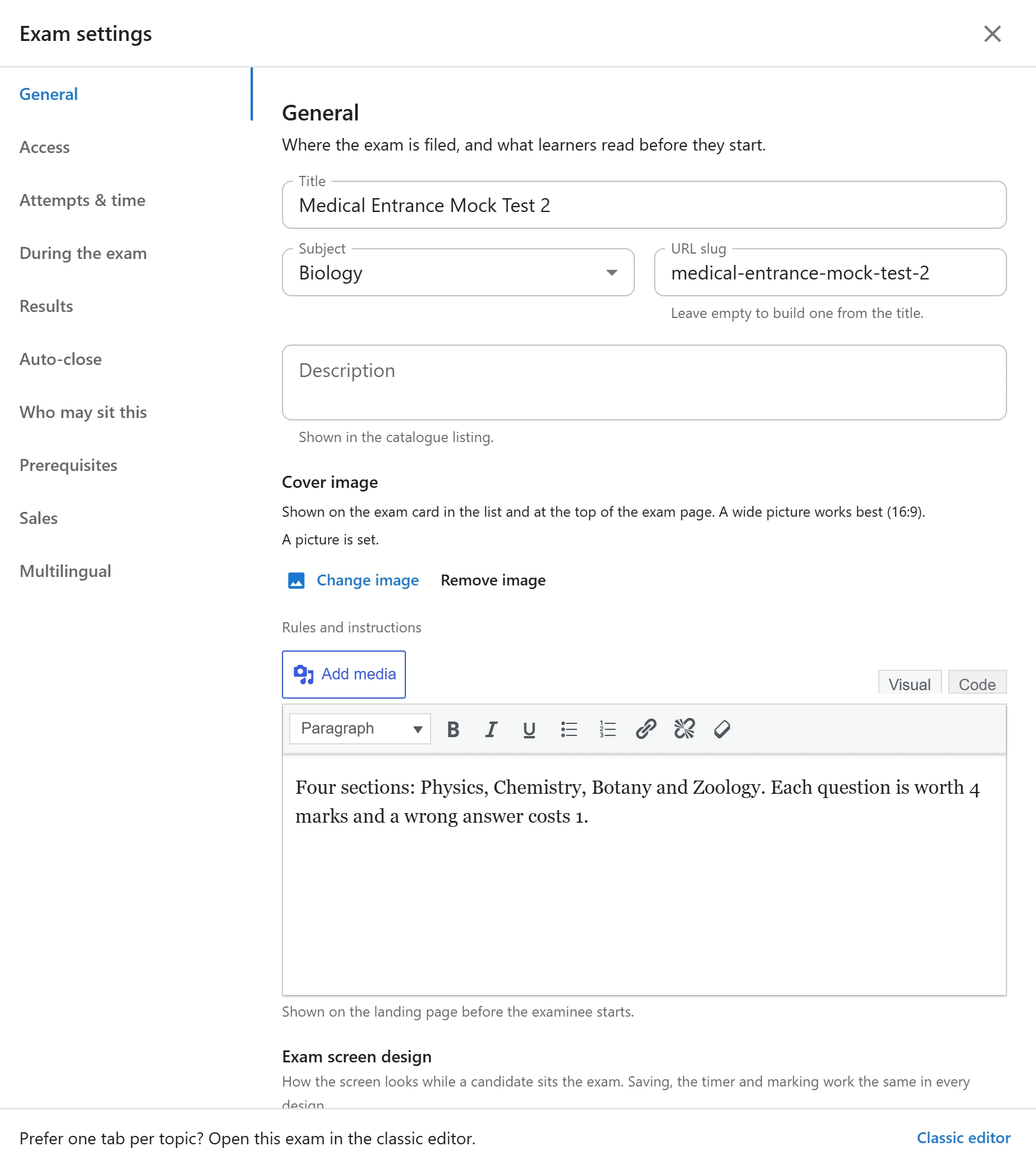
Exam settings opens a drawer with everything that is not the paper itself:
| Tab | Decides |
|---|---|
| General | Title, URL slug, subject, cover image, description and the instructions read before starting |
| Access | Who can take the exam |
| Attempts & time | Time limit, attempts allowed, the wait between them, pauses, and when the exam opens and closes |
| During the exam | Layout, shuffling, the review step, and the mode |
| Results | Pass mark, when results show, and the pass and fail messages |
| Auto-close | What happens to an attempt somebody started and walked away from |
Premium modules add their own tabs after these, such as Prerequisites, Sales and Multilingual.
Adding questions
The three buttons above the outline add just below the selected row, or at the end of the last section when nothing is selected.
New
Writes a new question right there in the paper, with the same fields as the question bank. It is saved into the bank when you save the exam. Roles that may not create questions do not see this button.
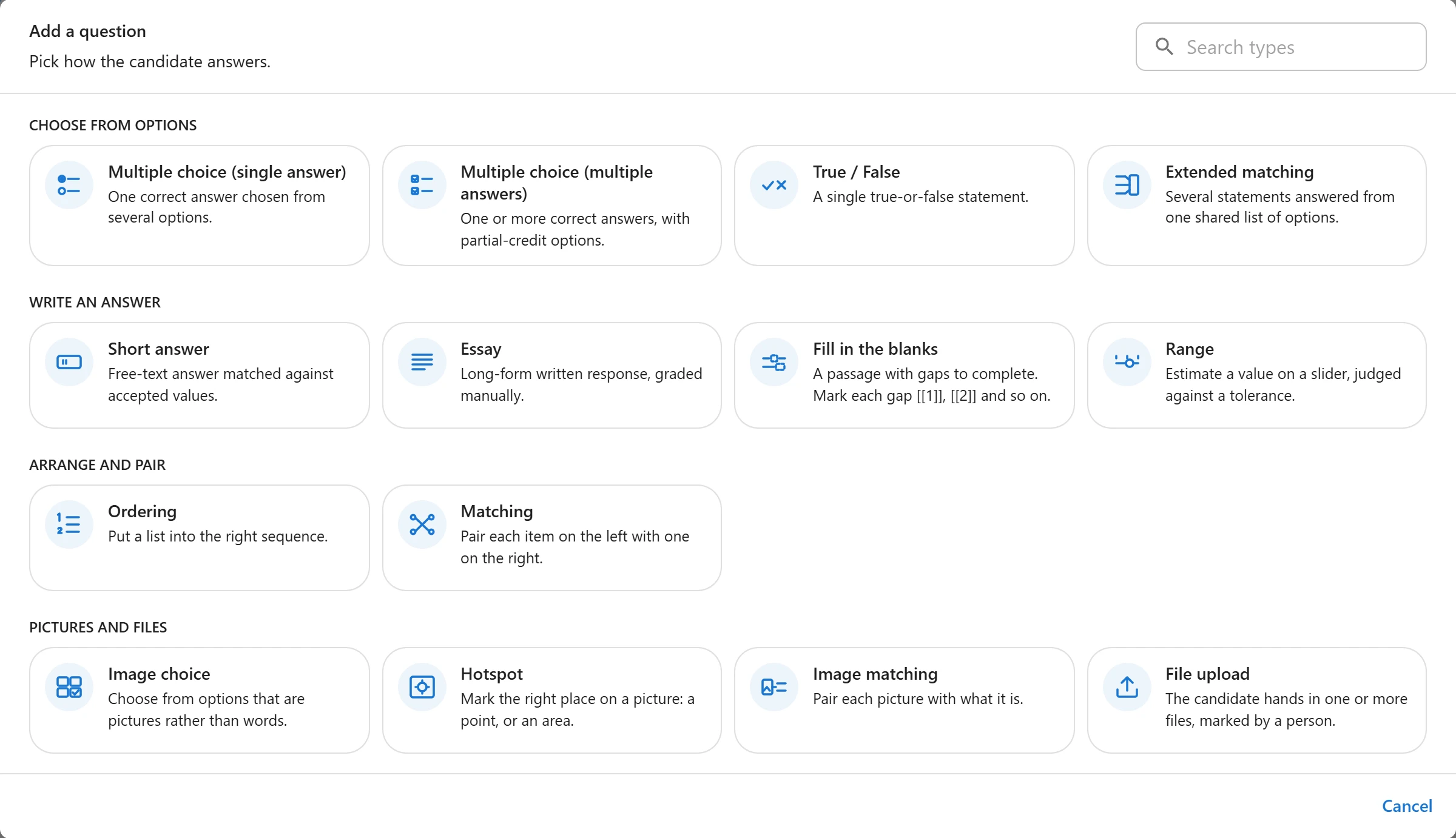
It starts by asking for the question type. The types are tiles in four groups (Choose from options, Write an answer, Arrange and pair, Pictures and files), each with a short description, and a search box finds one by name. The Type field in the question bank opens the same picker.
From bank
Opens the question bank in a picker. Search and filter as usual, tick what you want, and the questions are added together.
Random
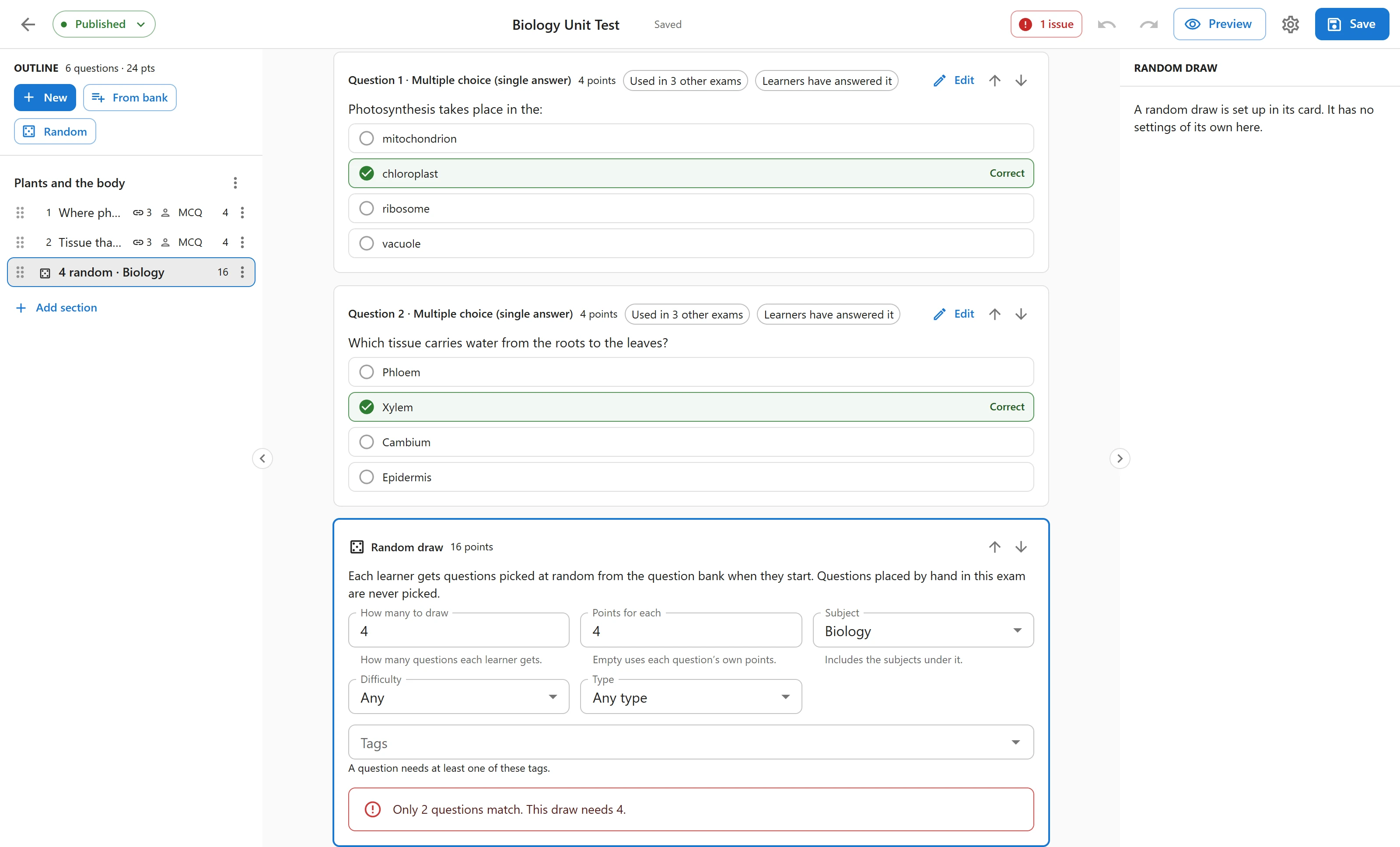
Adds a random draw: a row that stands for “this many questions, picked when the attempt starts”. Its rules are:
| Rule | What it does |
|---|---|
| Subject | Draw from one subject. It includes the subjects under it |
| Tags | A question needs at least one of these tags |
| Difficulty | Any, or one level |
| Type | Any, or one question type |
| Draw | How many questions each learner gets |
| Points per question | Leave empty to use each question’s own value |
While you edit the rules, the Studio counts the questions that match. If the bank cannot fill the draw, it tells you at once: Only 3 questions match. This draw needs 5.
A draw never picks a question you have already placed by hand in the same exam, so nobody gets the same question twice. The count already leaves those out.
See Sections and Pools for how draws behave once people sit the exam.
Sections
Add section starts a new part. Each section has a title and a Section actions menu: Rename, Move up, Move down and Remove section. Removing a section does not throw its questions away; they move into the section before it.
An exam with one untitled section shows no section headings at all, so a simple exam stays simple.
A section can hold hand-picked questions and random draws side by side, in any order. Drag rows to reorder them, inside a section or from one section into another, including into an empty one.
Points
Select a question and set Points in this exam in the inspector. Leave it empty and the question uses its own default from the bank. The outline totals say at least when a draw has no fixed points, because the total then depends on what gets drawn.
Keyboard shortcuts
| Keys | Action |
|---|---|
| Ctrl+S (Cmd+S on a Mac) | Save |
| Ctrl+Z | Undo |
| Ctrl+Shift+Z or Ctrl+Y | Redo |
| Ctrl+D | Duplicate the selected question |
| Delete or Backspace | Remove the selected row from the exam |
| Up and Down arrows | Select the previous or next row |
Only Save works while you are typing in a field, so the shortcuts never eat a keystroke you meant for the text. Undo covers everything you do to the paper, including removing a question by mistake.
Saving
Nothing is written until you press Save. The top bar says Unsaved while you have changes, and closing the tab asks first.
When you save, the questions you wrote or edited are saved first, then the exam. If a question fails, for example because a required field is empty, the exam is not saved either, and the issues badge points at the question. That way the exam never refers to a question that does not exist yet.
When someone else saved first
Two people can open the same exam. If the other person saves while you are still working, your save stops and the Studio says Someone else saved this exam. You choose:
- Reload to take their version and drop your changes.
- Overwrite to keep yours and replace theirs.
- Cancel to decide later.
The same check protects each question, so you cannot silently undo somebody’s edit to a shared question either.
After a crash
The Studio keeps a copy of your unsaved work in this browser. If the tab closes or the computer restarts before you save, opening the exam again asks: You have changes to this exam that were never saved. Restore them?
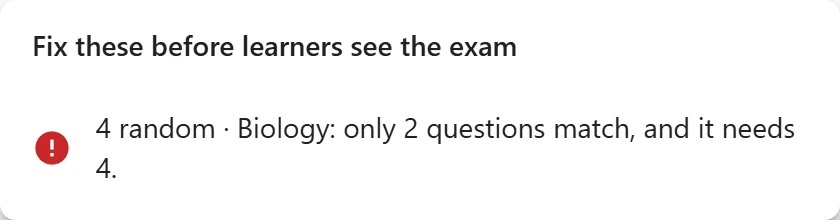
The issues badge
The badge in the top bar counts what would stop the exam from working as you expect. Click it for the list; each line jumps to the row it is about.
| Issue | Why it matters |
|---|---|
| The exam has no title | You cannot save it |
| The exam has no questions | Nobody can take it |
| A draw cannot be filled | Learners get a shorter paper than you planned |
| A question is a draft | Learners will not get it until it is published in the bank |
| A question no longer exists | It was deleted from the bank; remove it from the exam |
| The same question twice | Learners get it only once |
| A question could not be saved | The exam was not saved yet |
Publishing while issues are open asks you to confirm. Sometimes that is what you want, so it is a warning, not a lock.
Questions shared with other exams
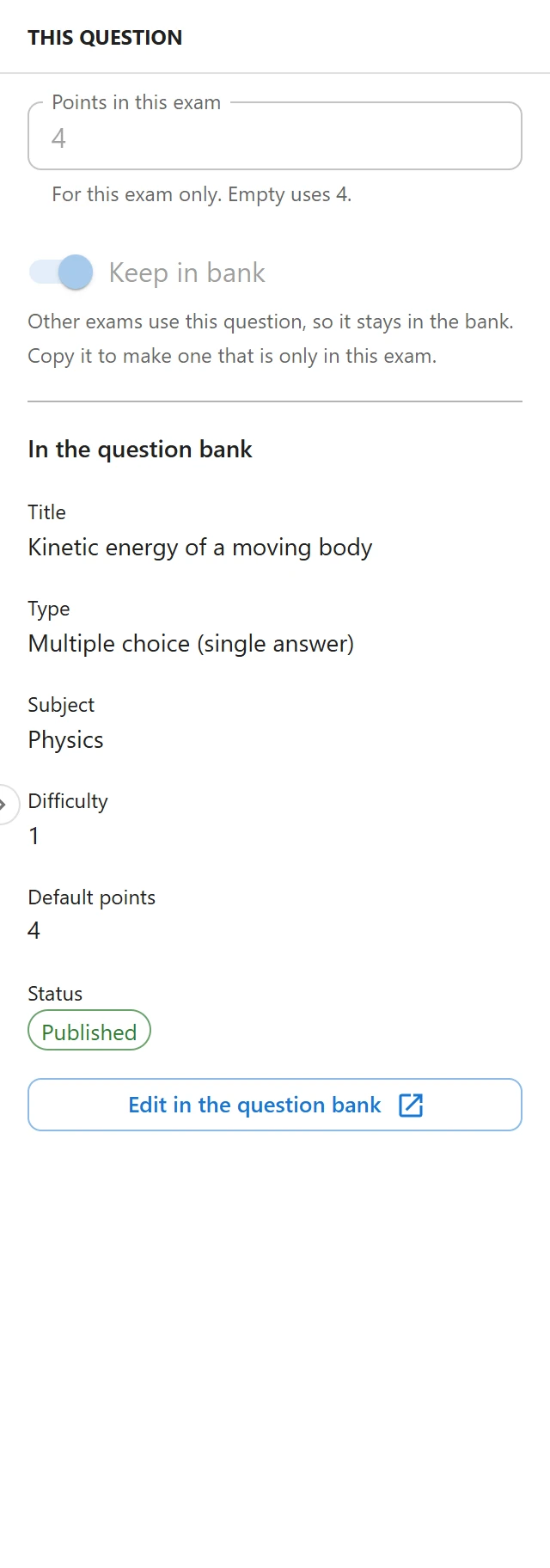
A question in the bank can sit in many exams. When the selected question is also used elsewhere, the inspector says Used in 2 other exams, and the question is locked until you choose what an edit should mean:
- Edit everywhere changes the question in the bank, so every exam that uses it changes too.
- Copy for this exam makes a separate copy for this exam only, and leaves the other exams alone.
Duplicate (Ctrl+D) also makes a copy, placed just below the original.
Past results keep what was asked
Every time a question is saved, the previous wording is kept as a version, and every attempt remembers which version it was given. So when you fix a typo or change an answer key, results that were already given do not change: reviews, marking and certificates still show what the learner actually saw.
The inspector says Learners have answered it on questions that already have answers, as a reminder that the change only affects new attempts.
To read and restore old versions, see Version History PRO.
Exam-only questions PRO
Some questions belong to one exam: a passage set written for one paper, or a question you do not want anybody to reuse. Turn off Keep in bank in the inspector and the question lives only in this exam.
An exam-only question:
- does not appear in the question bank list or the From bank picker;
- is never picked by a random draw, in this exam or any other;
- is left out of bulk exports.
The exam has to be saved once before its questions can be made exam-only, and a question that other exams already use stays in the bank (use Copy for this exam first). Turn Keep in bank back on to return a question to the bank.
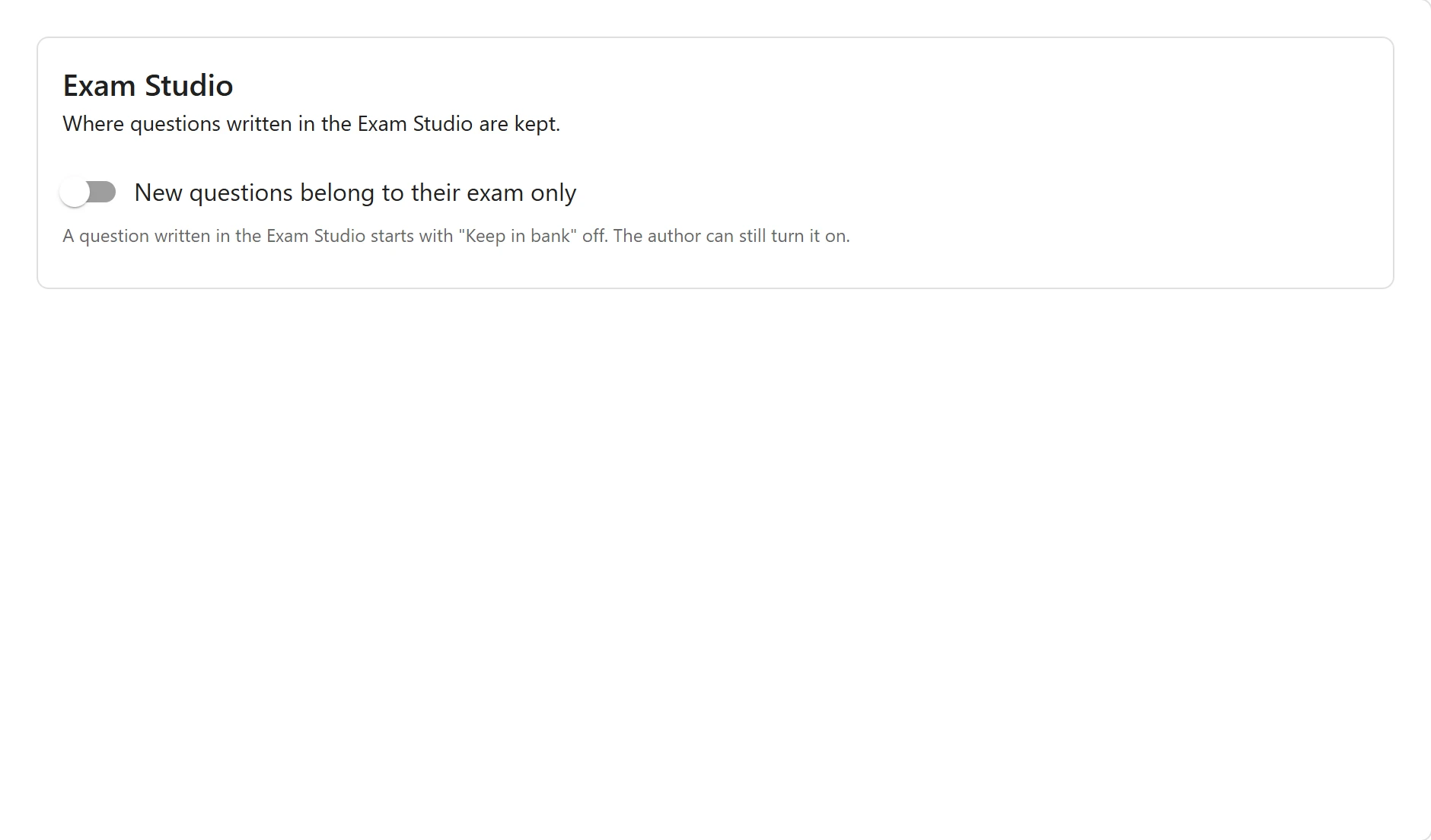
To make exam-only the starting point, go to Settings > Exam Studio and turn on New questions belong to their exam only. Every question then written in the Studio starts with Keep in bank off; the author can still turn it on. Questions picked from the bank are not affected.
Preview PRO
Preview opens the exam the way a learner sees it, on the real exam screen with your site’s design, inside the Studio.
- Switch between Desktop, Tablet and Phone widths.
- Choose Whole exam, or This question to check only the selected one.
- Restart starts the preview again; Open in a new tab gives it the full window.
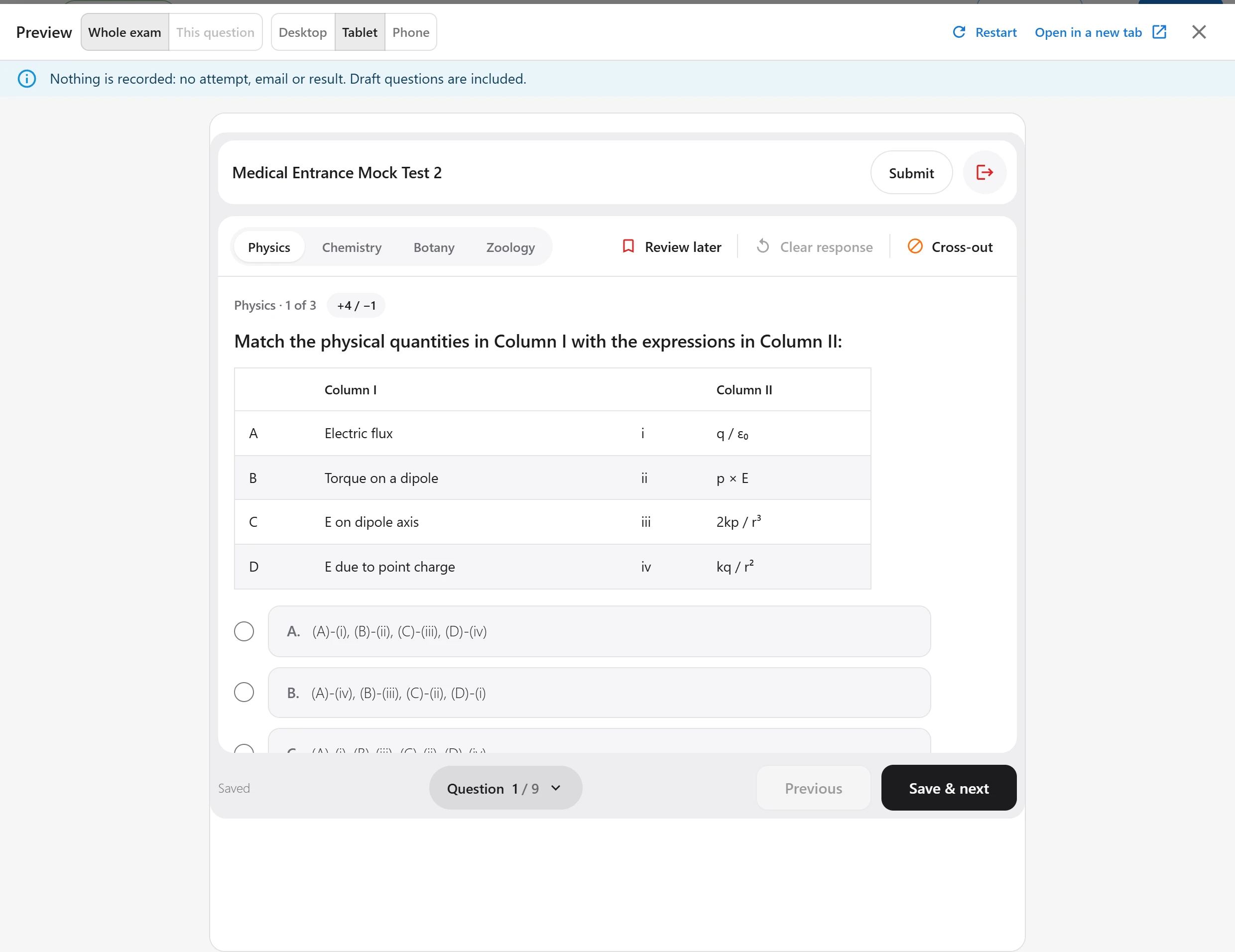
Nothing is recorded: no attempt, no email, no result. Draft questions are included, so you can check them before you publish them.
The preview shows what is saved, so save first. The link works only for you, and only for 15 minutes.
Troubleshooting
| Symptom | Usual cause |
|---|---|
| There is no New button | Your role cannot create questions. Ask for the question permission, or use From bank. |
| A question will not let me type | It is used in other exams. Choose Edit everywhere or Copy for this exam. |
| Save did nothing to the exam | A question failed to save. Open the issues badge. |
| Someone else saved this exam | Another person saved while you worked. Reload, or Overwrite on purpose. |
| A draw says it cannot be filled | Its rules match fewer questions than it draws. Hand-placed questions in the same exam are not counted. |
| The preview shows an old version | The preview reads the saved exam. Save, then Restart. |
| An exam-only question vanished from the bank | That is the point of exam-only. Open the exam to edit it. |
What to do next
- How draws, shuffling and points play out for candidates: Sections and Pools.
- Publishing, duplicating and deleting exams: Exams.
- Writing questions in the bank: Questions.
Quick Links
Share