

Contents
On this page
Reading and listening passages - Plugixa Exam
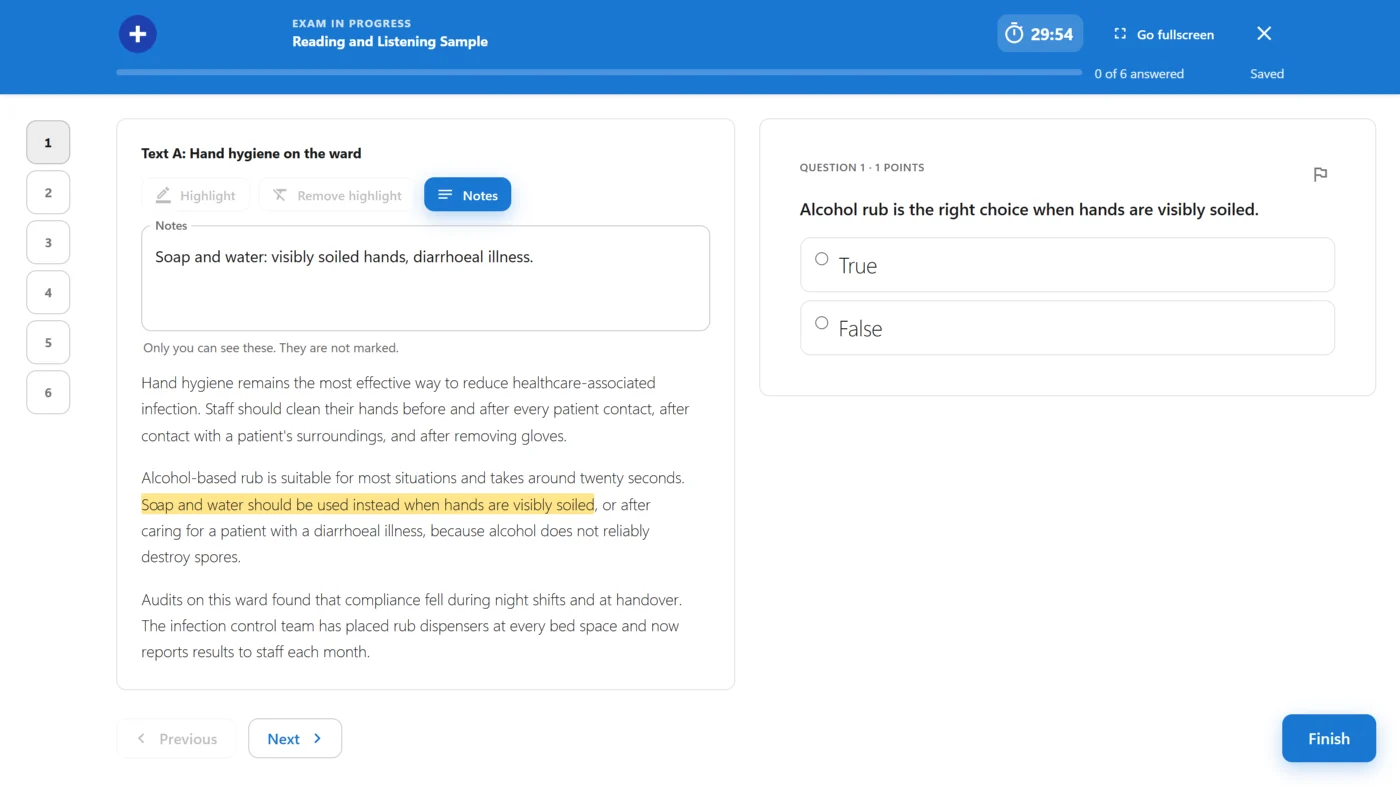
Premium. A passage is a text, a recording, or both, that several questions read from. In the exam it stays on screen beside those questions. Any question type can use one, and nothing about marking changes.
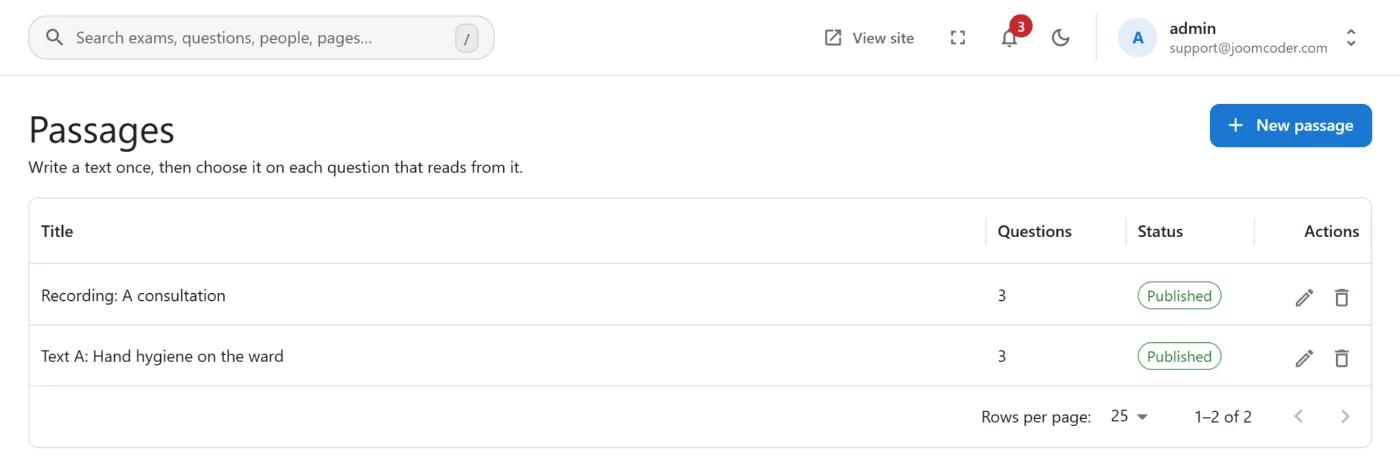
Passages is a capability in the App manager, on by default, under Authoring.
Writing a passage
- Go to Passages and choose New passage. Give it a title and the text.
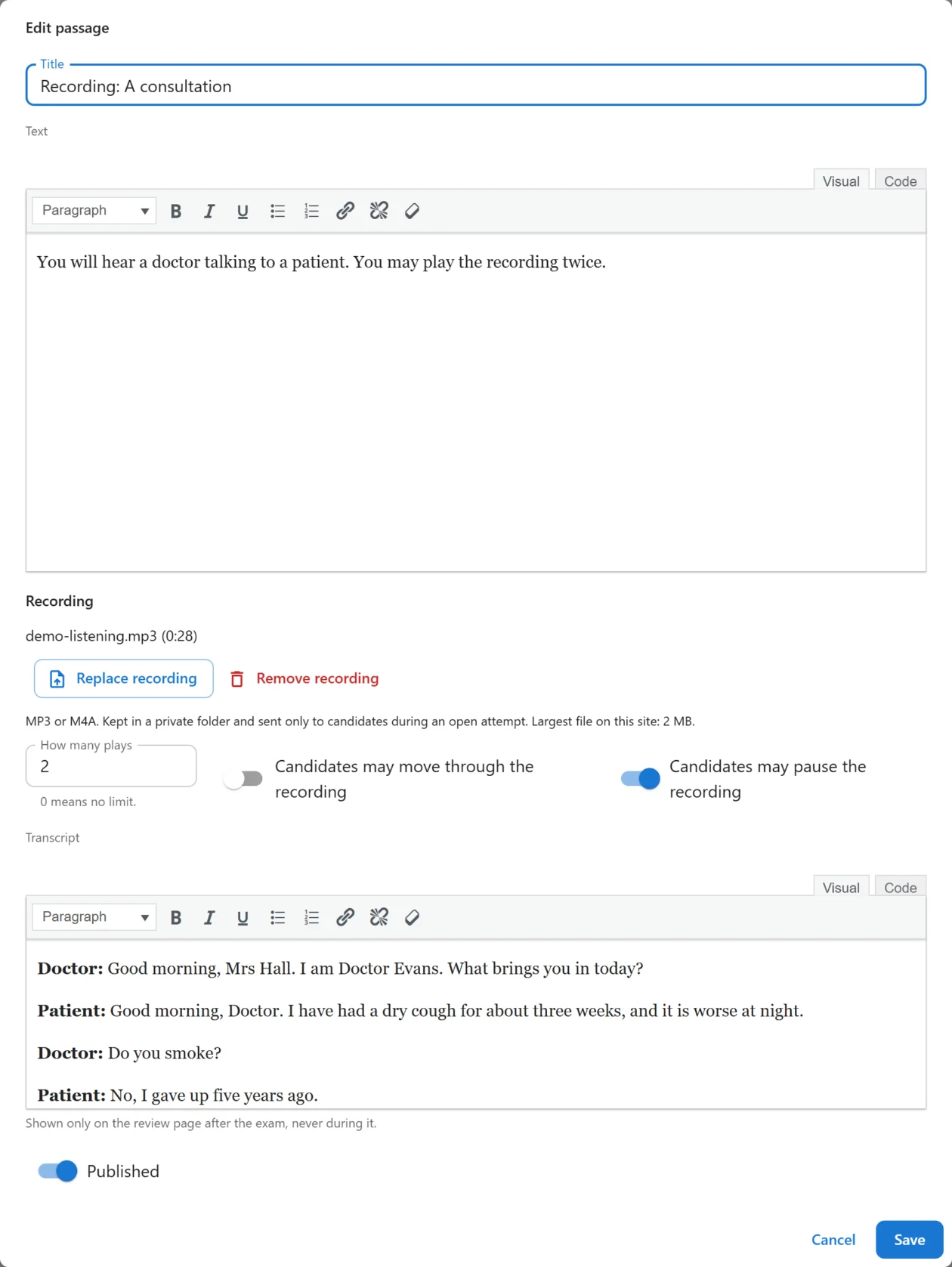
- To add a recording, save the passage, edit it again and choose Upload recording.
- Open each question that reads from it and choose the passage under Reads from a passage. A new question has to be saved first.
- Add the questions to an exam as usual.
The choice on the question is one field, below its other settings:

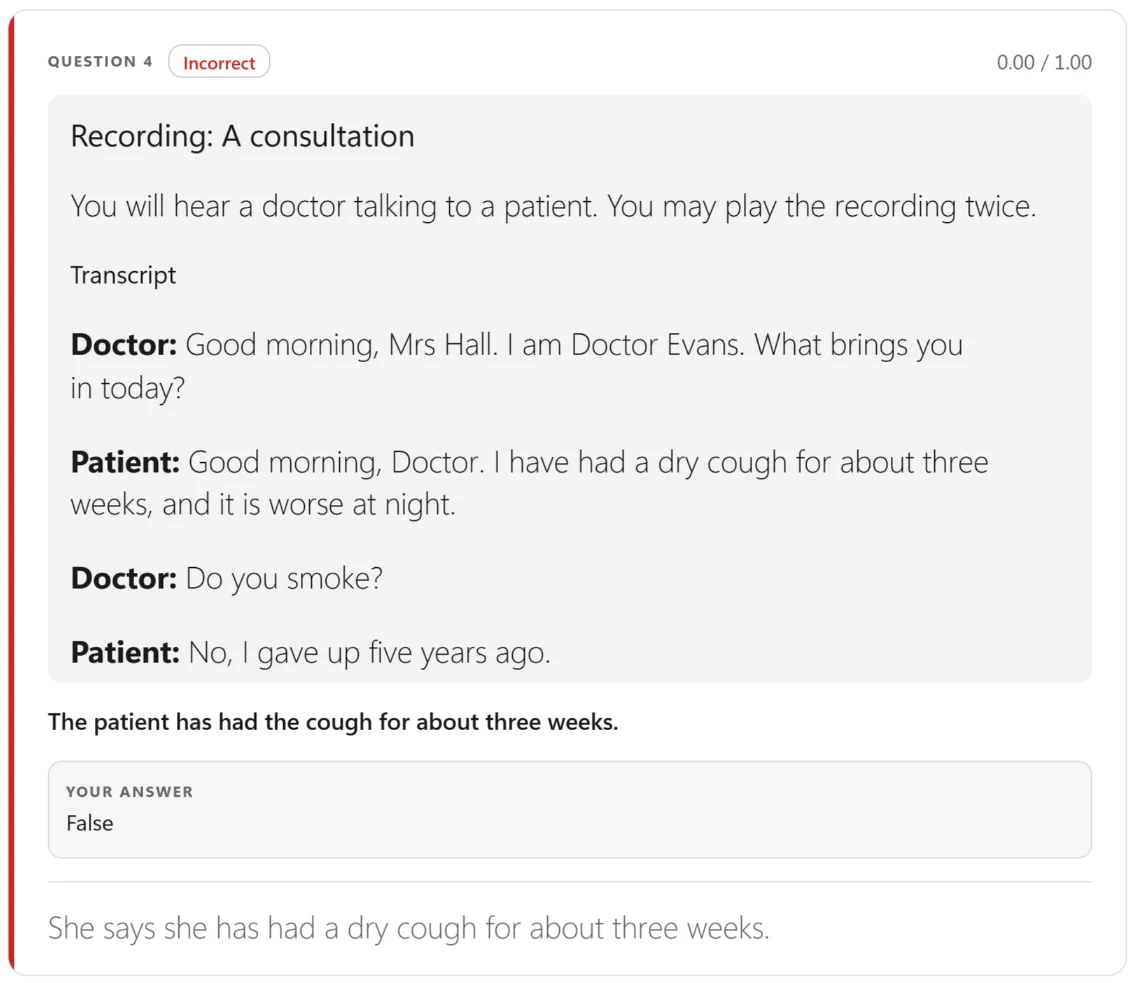
A transcript is shown only on the review page after the exam, never during it, so it is safe to include the answers in one.
What the candidate sees
| Screen | What happens |
|---|---|
| Wider than about 900 px | The passage on one side and the questions on the other. The passage scrolls on its own. |
| A phone | The passage above the question, with a button to hide it. |
| Review page | The passage and transcript, once, above the first of its questions, if the exam shows answers. |
One question per page suits an exam that mixes passages with stand-alone questions: a question with no passage gets the normal single column. On a single page layout the passage column stays in place while the candidate scrolls, so a question with no passage is shown beside the nearest passage.
A shuffled exam, or a random pool, keeps a passage’s questions together. The shuffle still decides where the group falls and the order inside it.
Highlights and notes belong to the candidate. They save with their answers and come back after a reload. They carry no marks, and markers do not see them.
Recordings
MP3 or M4A, up to 200 MB or the site’s own upload limit if that is lower. Each file must parse as real audio. WAV and OGG are refused: a WAV is about ten times the size for the same speech and is held in the candidate’s memory while it plays, and older Safari does not play OGG. Convert them to MP3 first; 64 to 128 kbps is plenty for speech.
Check your upload limit first. The Recording section shows it. PHP often defaults to 2 MB and a
40-minute recording is 15 to 40 MB, so most sites need their host to raise upload_max_filesize
and post_max_size.
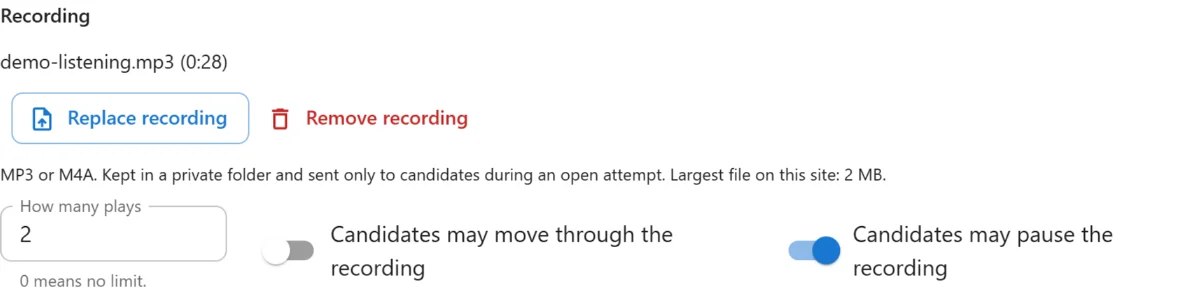
- How many plays:
0means no limit. The server counts plays, so repeated or simultaneous requests cannot get another download once they are used. See the limits below. - Candidates may move through the recording: off means no seeking.
- Candidates may pause the recording: appears once there is a limit on plays. Off removes the Pause button, so a play runs straight through. A reload, or moving to a question on another passage, still interrupts it; the candidate resumes from the saved place without spending a play, so a technical fault does not cost them the recording. The place is saved every 15 seconds, so a reload can repeat up to that much.
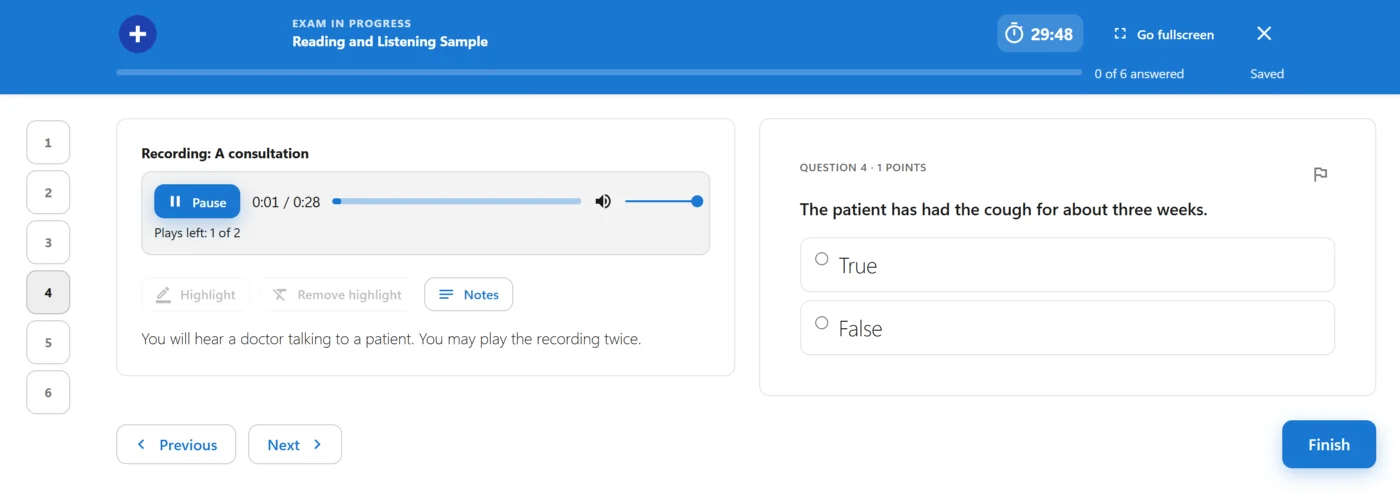
Pressing Play downloads the whole recording once and plays it from memory, so a dropped connection does not interrupt a recording already fetched. Reloading the page during a play carries on from the last saved position without spending another play. Leaving a passage pauses its recording.
Moving to another question that reads from the same passage on a one question per page paper keeps playing. Moving to a different passage stops it.
What protecting a recording does and does not do
The file is not in the media library and has no public link. It is sent only during an open attempt, only to that attempt’s candidate, and only for a passage on their paper. The player has no download button.
This deters casual saving. It cannot prevent it. Anybody can record their own computer’s sound, and a technical user can read what their own browser has downloaded. Treat a recording as protected from sharing a link, not from a determined candidate.
nginx
Recordings live in wp-content/uploads/plugixa-exam-audio/. Apache refuses direct requests through
the .htaccess file the plugin writes there. nginx ignores that file, so on nginx only the
random file name protects a recording until you add this to the server block:
location ~* ^/wp-content/uploads/plugixa-exam-(audio|submissions)/ {
    deny all;
}
Limits in this version
- Passages are not translated by the Multilingual module.
- Passages are not included in question import or export.
- The marking screen does not show the passage.
- Maths in a passage is not rendered.
- The no-JavaScript paper shows a passage’s text. A recording needs JavaScript.
For developers
The module adds to a paper through generic hooks in free code. See hooks:
plugixa_exam_paper_questions, plugixa_exam_runner_paper, plugixa_exam_no_js_before_question,
and a context_html key on plugixa_exam_review_item.
Quick Links
Share