

Plugixa Inventory 1.2.0: Stock Takes, Purchase Orders and Lot Tracking
Plugixa Inventory 1.2.0 is out. It covers the two ends of a stockroom that the plugin did not reach before: buying stock in, and checking that what the system says is really on the shelf. Pro now has stock takes, suppliers and purchase orders, a Reorder screen, lot and expiry tracking, and serial numbers. Here is what each one does.
Count a warehouse, post the differences
A stock take compares the shelf with the system. Choose a warehouse, or one category in it, and start the count. Scan each unit with a barcode scanner, or type the counts in, or print a count sheet and walk the aisles with a clipboard. The screen shows how many lines are done and, line by line, what is short or over.
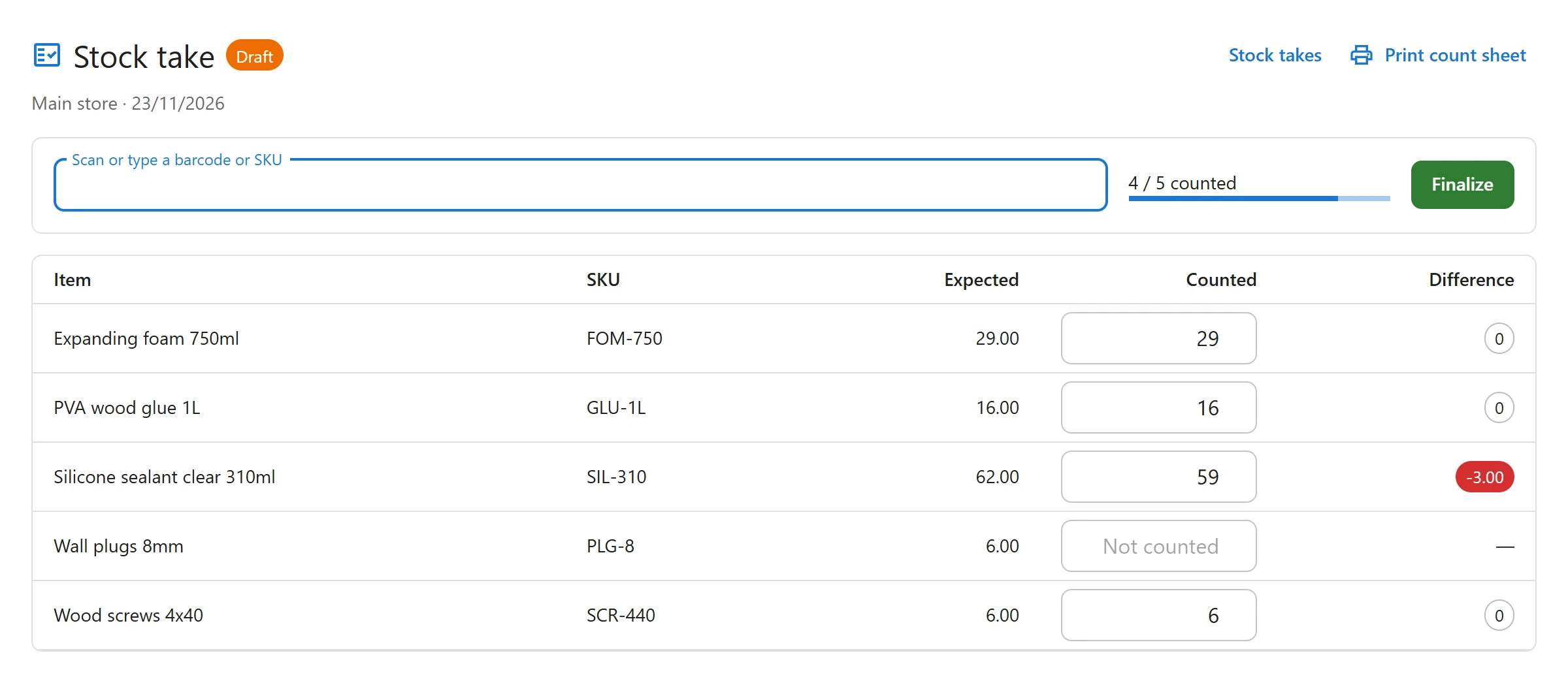
A blind count hides the expected quantity from the person counting, so they count what is there rather than confirm a number. The server enforces it, so the numbers are not just hidden on screen.
Finalize sets every counted item to what you counted, in one step, and the count gets its STK reference. The best part is what happens when the shop keeps selling during the count: the correction is worked out against the stock on hand at the moment you finalize, so a sale made while you were counting is never taken off twice.
Suppliers and purchase orders
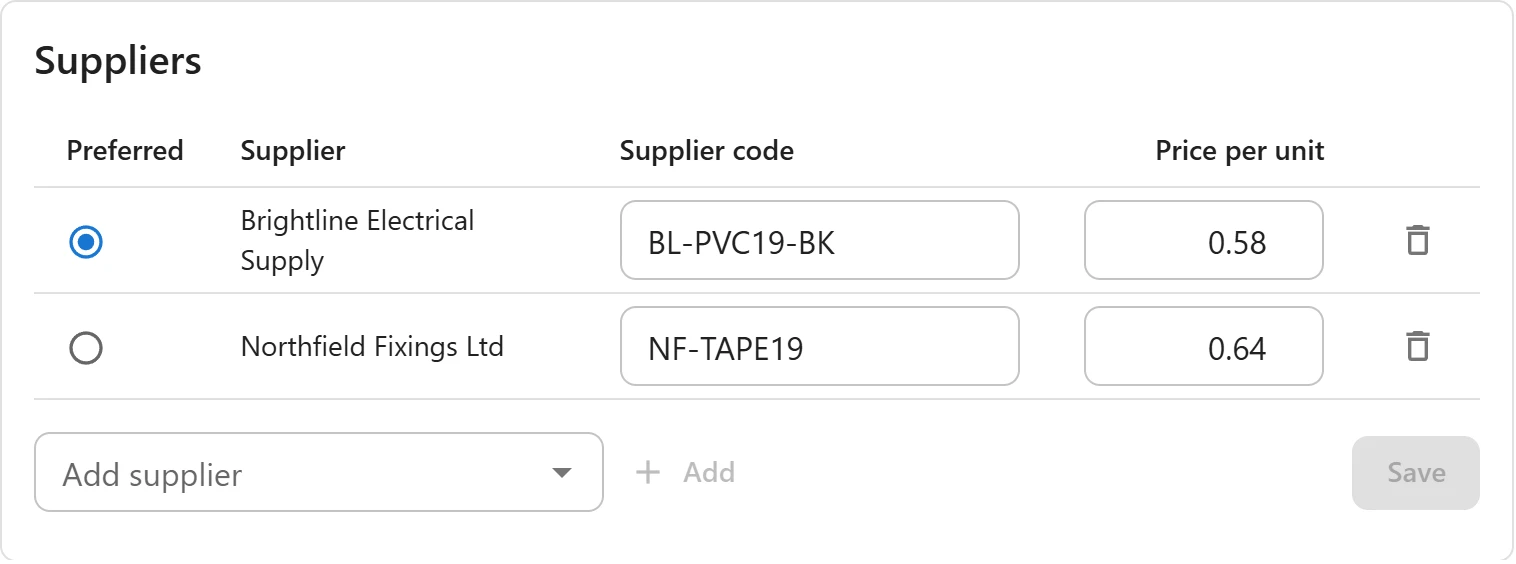
Keep the companies you buy from, with their contact details and lead times. On each item, add the suppliers that sell it, with their own code and price, and mark one as preferred.
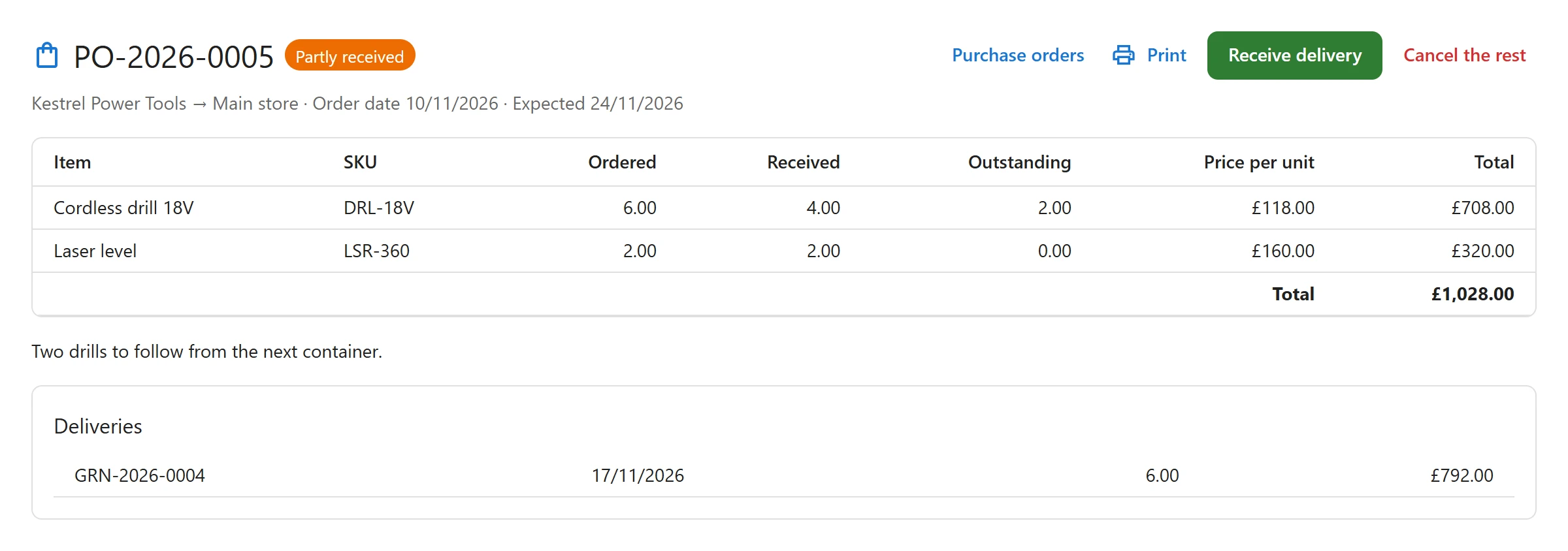
A purchase order goes from Draft to Ordered, gets its PO number, and then waits for the goods. When a delivery arrives, enter what actually came. The rest stays on order and can arrive in a second delivery, or be cancelled if it never comes. Stock is added at the price on the order, so your FIFO and LIFO layers and the valuation carry what you really paid.
Reorder in one click
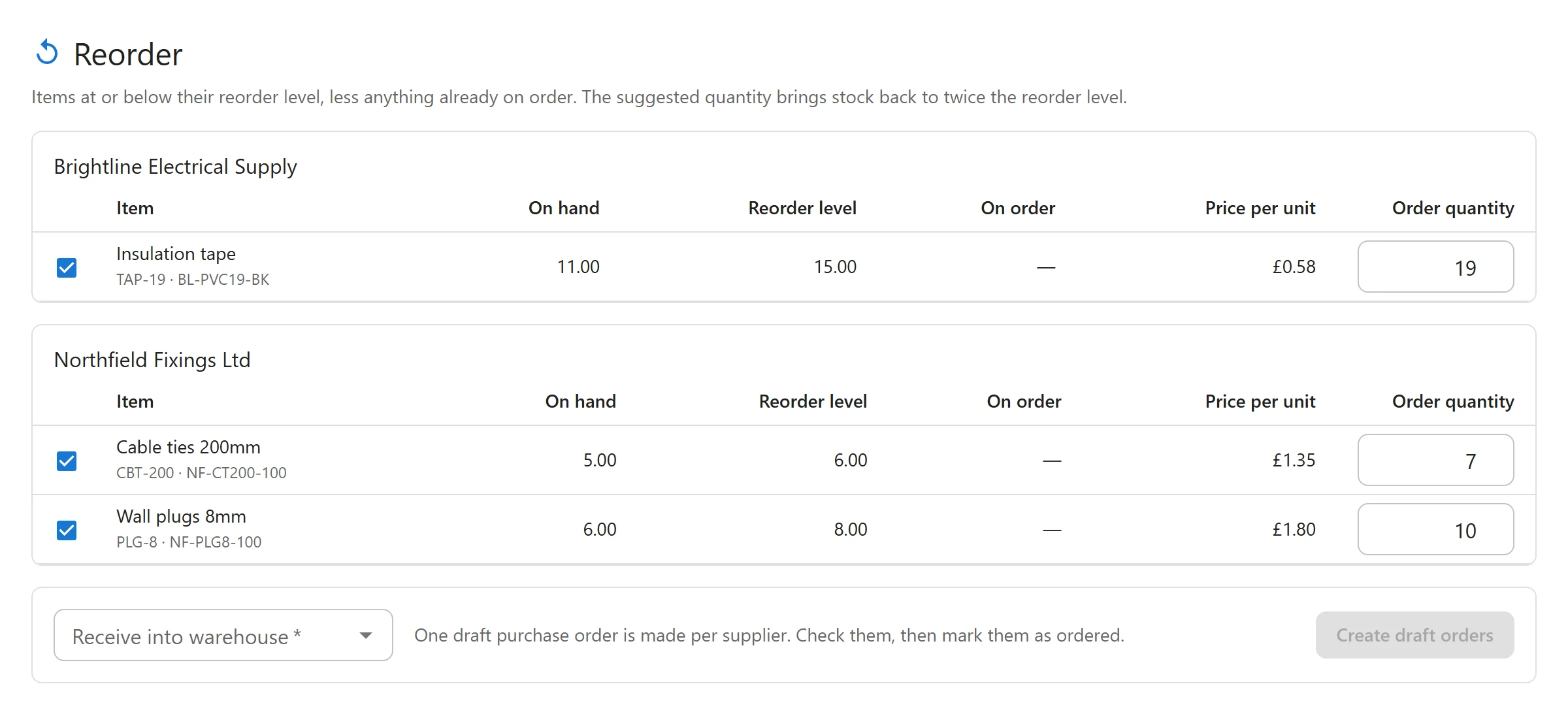
The new Reorder screen lists every item at or below its reorder level, less what is already on order, grouped by preferred supplier. It suggests a quantity that brings stock back to twice the reorder level. Change what you like, untick what you do not need, and Create draft orders makes one draft per supplier.
Lots and expiry dates
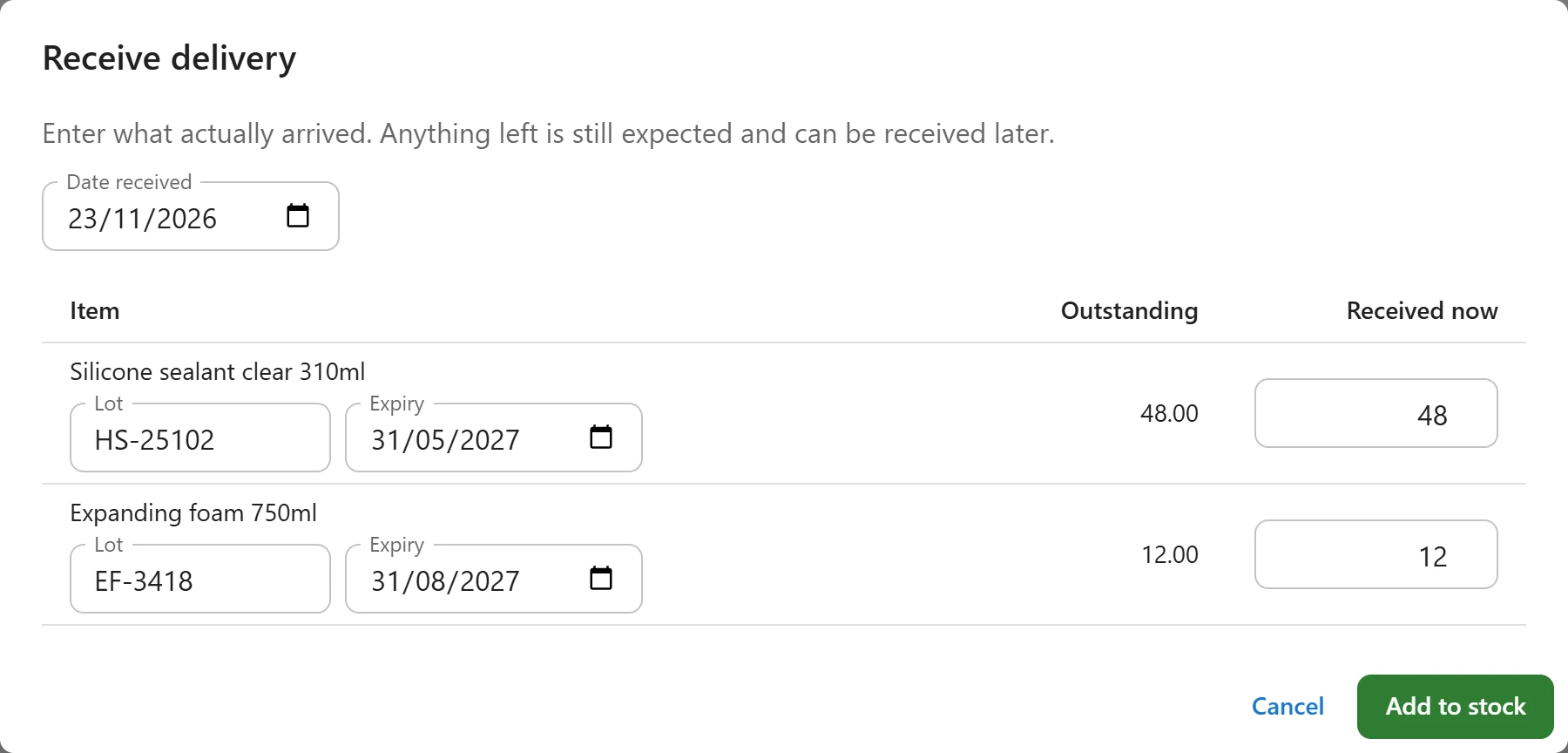
Sealants, adhesives, food and medicines have a batch and a date. Switch an item to lot tracking and the receive dialog asks for the lot number and expiry date of each delivery.
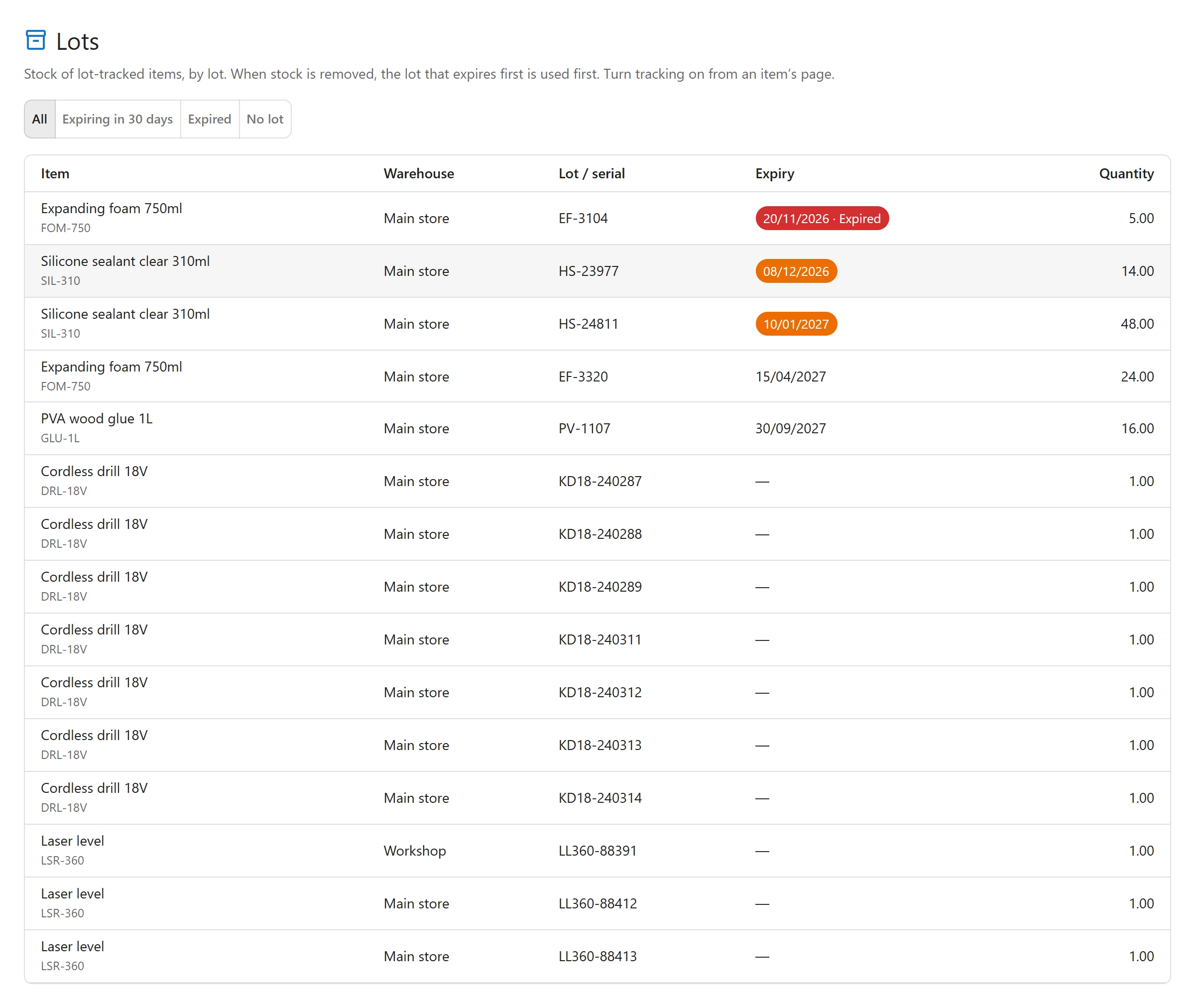
From then on, stock is taken first-expiring-first-out, wherever it leaves: a stock movement, a WooCommerce order, an adjustment. Transfers keep their lots. The Lots screen shows every lot with its expiry date, in amber when it is close and in red once it has passed, and a daily alert names the lots that are about to expire.
Serial numbers
Power tools, laptops and meters are better tracked unit by unit. Scan or paste the serials as the goods arrive, see which units are in stock on the item’s page, and find a unit by scanning its serial in the item lookup.
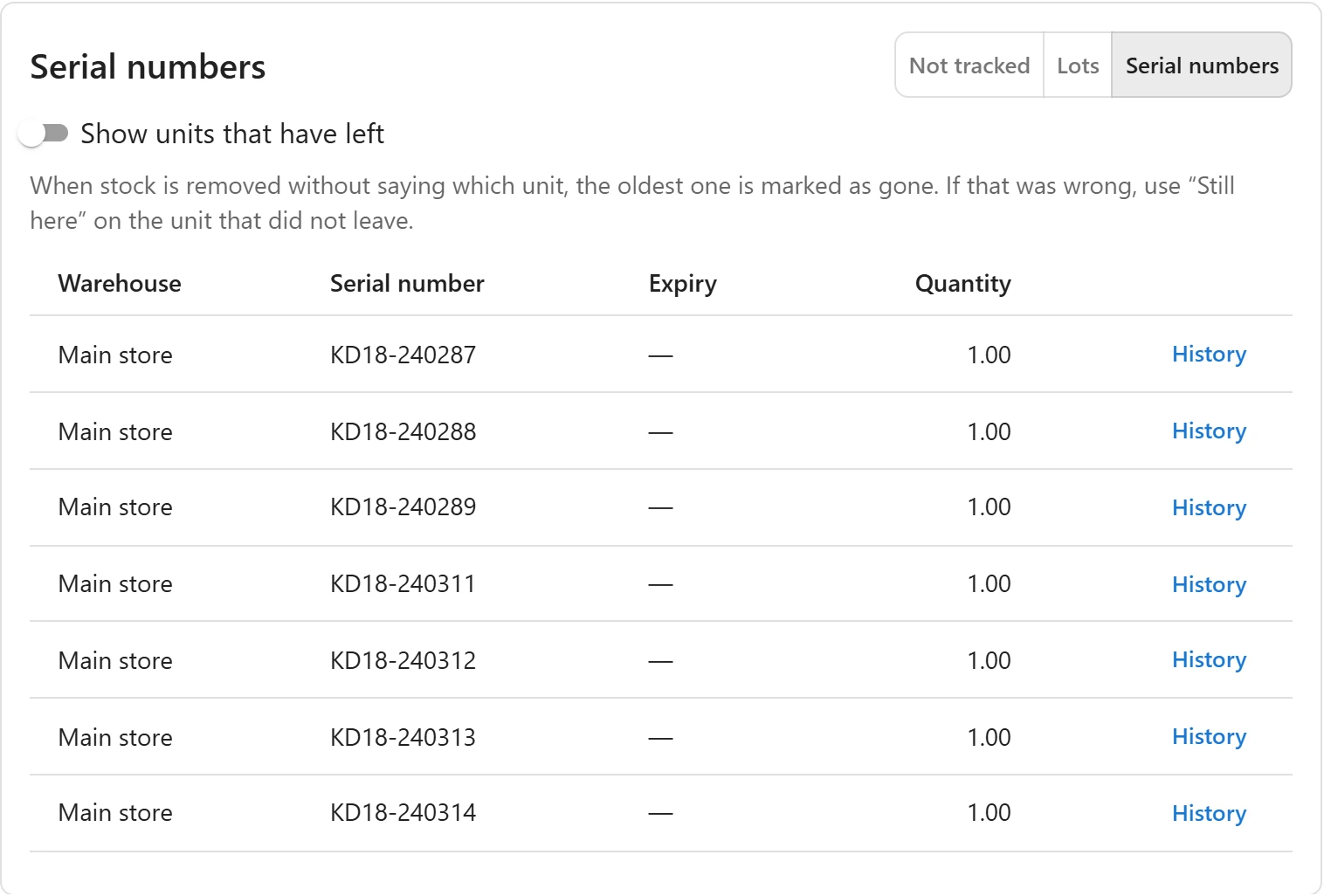
When stock leaves without saying which unit, the oldest one is marked as gone. If that was the wrong one, Still here swaps it for the unit that really left.
Also new since 1.1.0: barcode labels
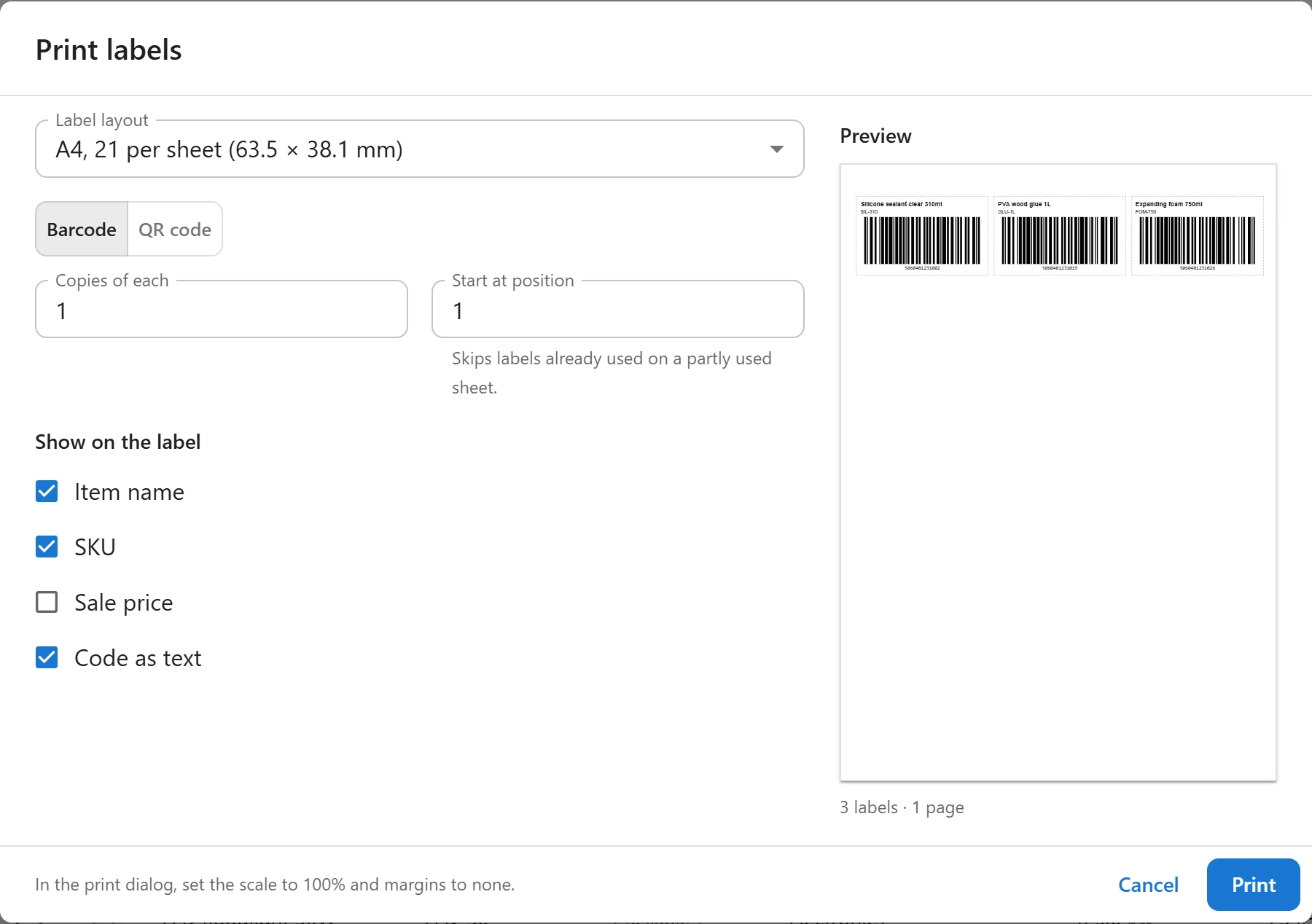
Version 1.1.1 added barcode and QR labels to Pro. Select items, click Print labels, choose an A4 or Letter label sheet or a thermal printer, and print. Items that have no barcode get one in a click, ready to scan.
Upgrading
Updating does not change any of your existing items, stock or history. The five new apps are on by default and can be switched off in the App manager, like every other app.
Pro costs 69 EUR a year for one site or 399 EUR a year for unlimited sites. See Free vs Pro for the full comparison, and the new guides to stock takes, purchase orders, lots and serial numbers and barcode labels for every detail.