

Contents
Barcode labels - Plugixa Inventory
Scanning is only as good as the labels on the shelf. The Barcode labels app prints them from the item list, so every item can be found with the scanner in one go.
Barcode labels are a Pro app, new in version 1.1.1.
Printing labels
Select items in Inventory > Items and click Print labels, or click Print labels on an item’s own page.
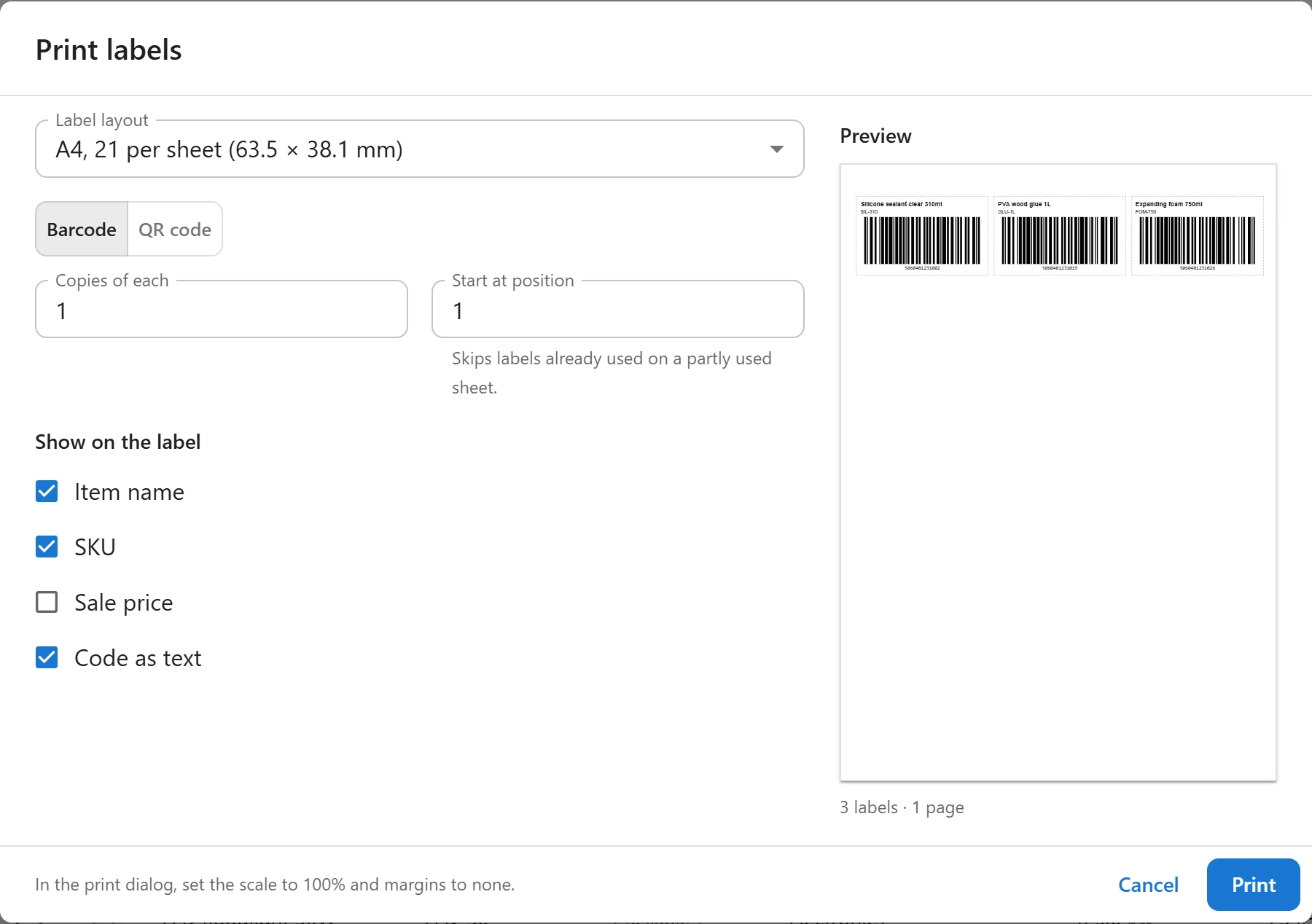
| Option | What it does |
|---|---|
| Label layout | The sheet or roll you print on (see below). |
| Code type | Barcode (Code 128) or QR code. |
| Copies of each | How many labels per item. |
| Start at position | Skips labels already used on a partly used sheet. |
| Show on the label | Item name, SKU, sale price and the code as text. |
The Preview shows the sheet exactly as it will print, with the number of labels and pages. Click Print, and in the browser’s print dialog set the scale to 100% and the margins to none, or the labels will not line up with the sheet.
The code printed is the item’s barcode, or its SKU if it has no barcode.
Label layouts
| Layout | Label size |
|---|---|
| A4, 21 per sheet | 63.5 × 38.1 mm |
| A4, 24 per sheet | 63.5 × 33.9 mm |
| A4, 40 per sheet | 45.7 × 25.4 mm |
| Letter, 30 per sheet | 2.625 × 1 in |
| Thermal | 50 × 25 mm |
| Thermal | 57 × 32 mm |
| Thermal | 4 × 6 in |
Items without a barcode
An item with neither a barcode nor a SKU cannot be printed, and the dialog says
how many will be left out. Click Assign codes to give them one: the prefix,
followed by the item’s number, for example PI-000123. The code is saved as the
item’s barcode, so it scans with the item lookup straight away.
Codes already on items are never changed.
Settings
Settings > Barcode labels sets what the Print labels dialog opens with. Every choice can still be changed for each print.
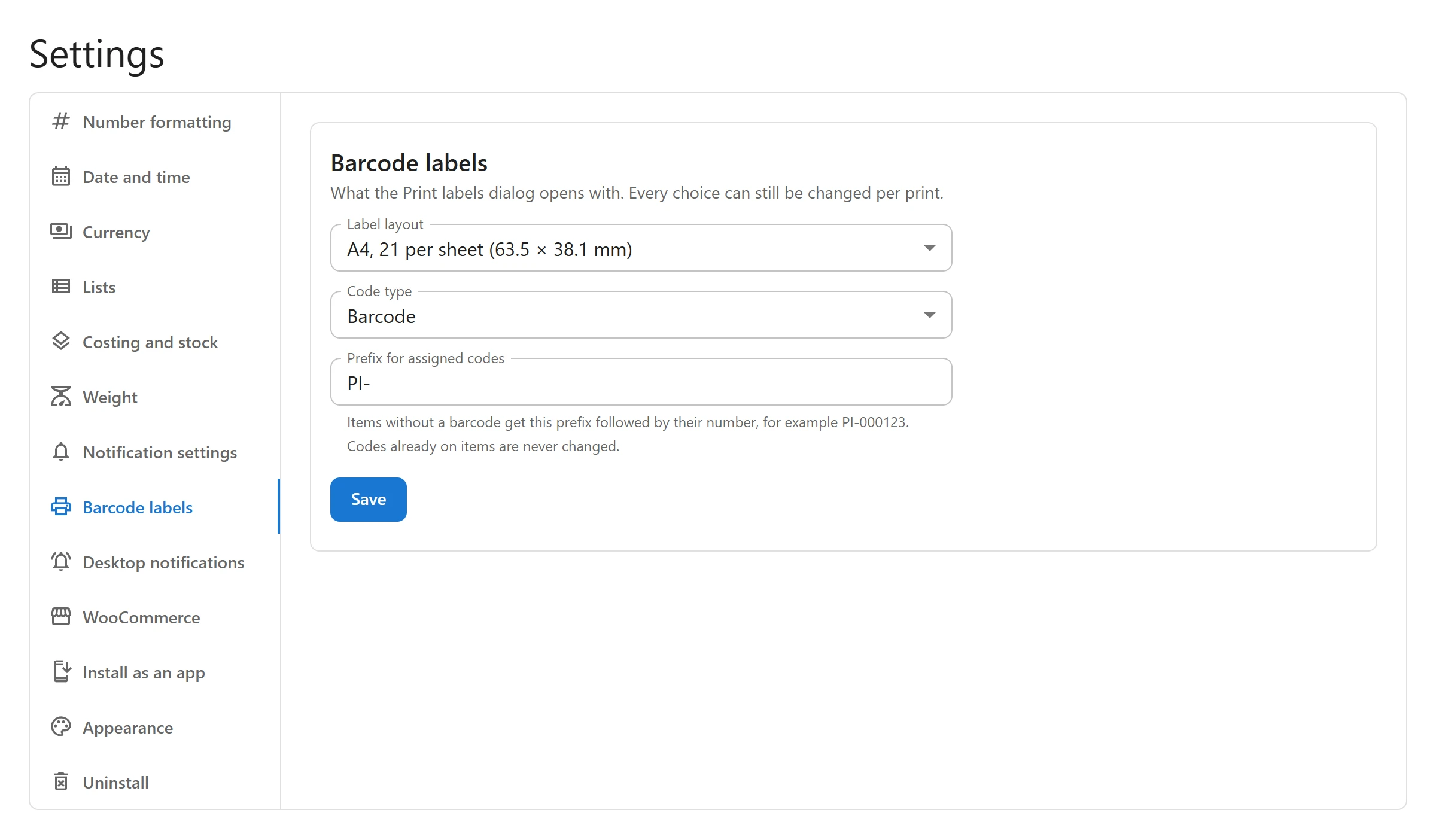
- Label layout and Code type: the defaults for the dialog.
- Prefix for assigned codes: what Assign codes puts in front of the item’s number.
What to do next
- Scan what you printed: Scanner and quick search.
- Count a warehouse with the scanner: Stock takes.
Quick Links
Share