

Contents
Transfers - Plugixa Inventory
A transfer moves stock from one warehouse to another. It is one document with one route, drafted and then finalised like every other movement.
Pro feature. Transfers are part of Plugixa Inventory Pro. See the Free vs Pro matrix.
Why a transfer needs its own document
Because “remove it here and add it there” is two documents that can half-happen. One of them can be finalised and the other forgotten, and the stock is then nowhere - out of the source, never into the destination, and invisible in every total.
A transfer is one document. It moves, or it does not.
The one movement with two rows per line
Every other document type maps one line to one ledger row. A transfer maps one
line to two: a transfer_out at the source and a transfer_in at the
destination, written in the same batch.
The ledger sees two rows that share a batch, which is why a transfer is traceable from both ends: the source warehouse’s activity shows the stock leaving, and the destination’s shows the same quantity arriving, rather than a removal and an unexplained addition.
This is the document that could not work in the system Plugixa Inventory was ported from. There, an item had one quantity and one home warehouse, so the two rows acted on the same number and cancelled out: the transfer wrote history and moved nothing. Here stock is keyed on the item and warehouse pair, so the two rows act on two different quantities.
Creating one
Transfers -> Create, then:
- Choose the source and destination warehouses. They must be different.
- Add lines: an item and a quantity each.
- Save. It is a draft, and nothing has moved.
- Finalise when the stock physically moves.
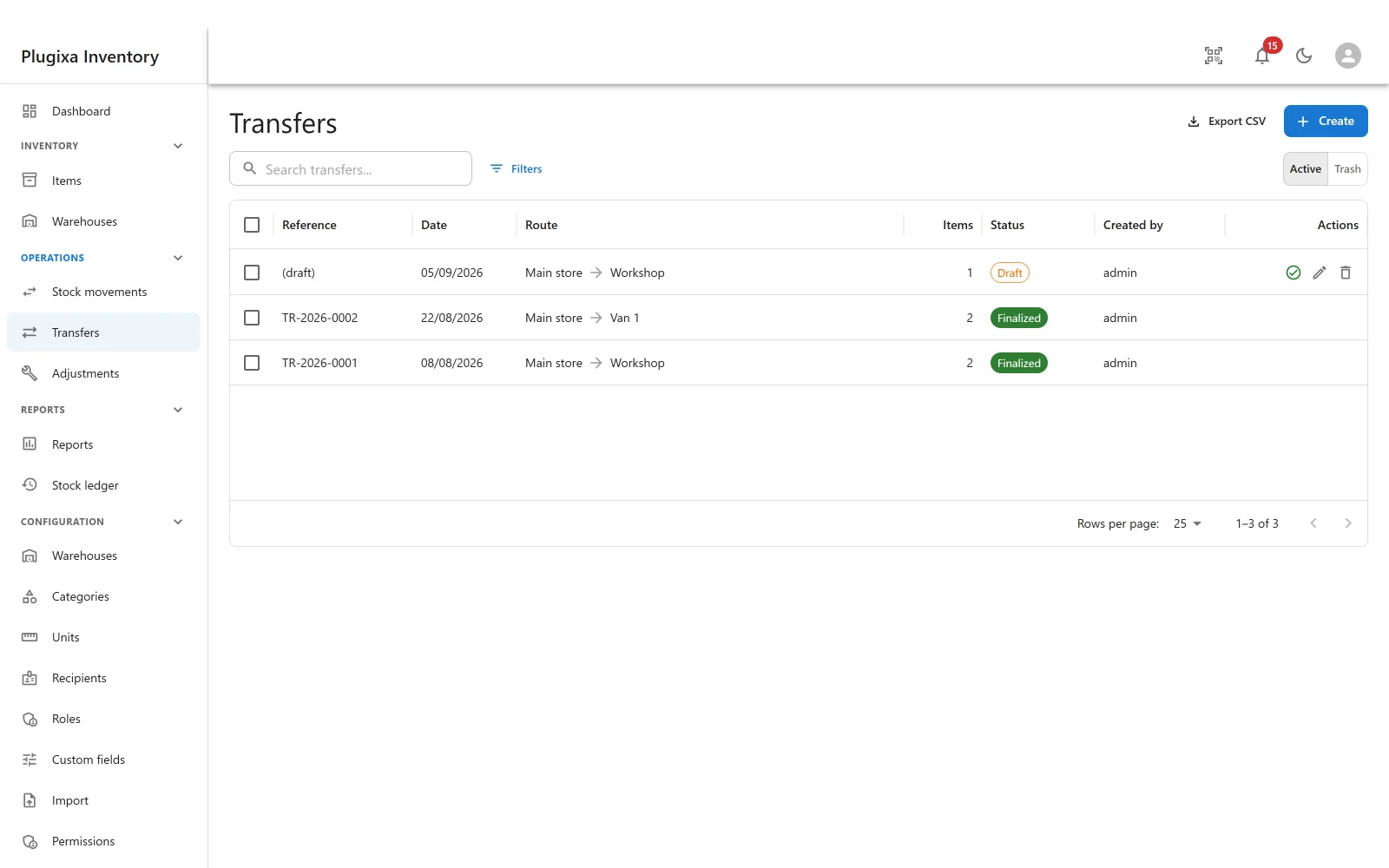
The reference is assigned on finalising, in the form TR-2026-0001. A draft shows
as (draft) in the list until then, because a reference that might never be used
is not a reference.
Draft and finalised
The same rule as every document:
- A draft moves nothing. Edit it, change the route, add lines, leave it for a week.
- Finalising is the event. It writes both ledger rows, moves both quantities, and closes the document. It cannot then be edited or deleted.
Got one wrong? Post the opposite transfer. The correction is visible and dated, which is what the ledger is for.
Drafts are what “pending” means
The warehouse screens show pending transfers in and out. That count is drafts: what is still coming, and what is still owed to somebody else. A finalised transfer has already moved and is history, so it drops off the tile.
A warehouse at either end of a draft transfer cannot be trashed, and the message says how many drafts are in the way. That covers the case stock alone cannot: an empty destination that a draft is about to fill.
What the stock check does
Finalising checks there is enough at the source, and that check is part of the same statement that removes it. Two people finalising against the same units at the same moment cannot both succeed: one wins, the other is told the stock changed and nothing is written for them.
Notifications
A completed transfer raises an event people can subscribe to, so a destination warehouse can be told that something is on its way without anybody sending an email by hand. See Notifications.
Troubleshooting
| Symptom | Usual cause |
|---|---|
| Transfers is not in the menu | Pro module, or switched off in the App Manager. |
The reference says (draft) |
It is a draft. References are assigned on finalising. |
| The route cannot be saved | Source and destination are the same warehouse. |
| Finalising was refused for insufficient stock | There is not enough at the source. Check the source, not the destination. |
| “The stock changed” | Somebody finalised against the same units first. Reload. |
| The warehouse will not trash | A draft transfer uses it. Finalise or delete the draft. |
| The destination shows nothing arrived | The transfer is still a draft. |
| A finalised transfer cannot be edited | Correct, by design. Post the opposite transfer. |
What to do next
- See both rows: The Stock Ledger.
- Correct a count instead: Adjustments PRO.
- Watch one location: Warehouse Overview.
- Be told when one completes: Notifications.