

Contents
App manager - Plugixa Inventory
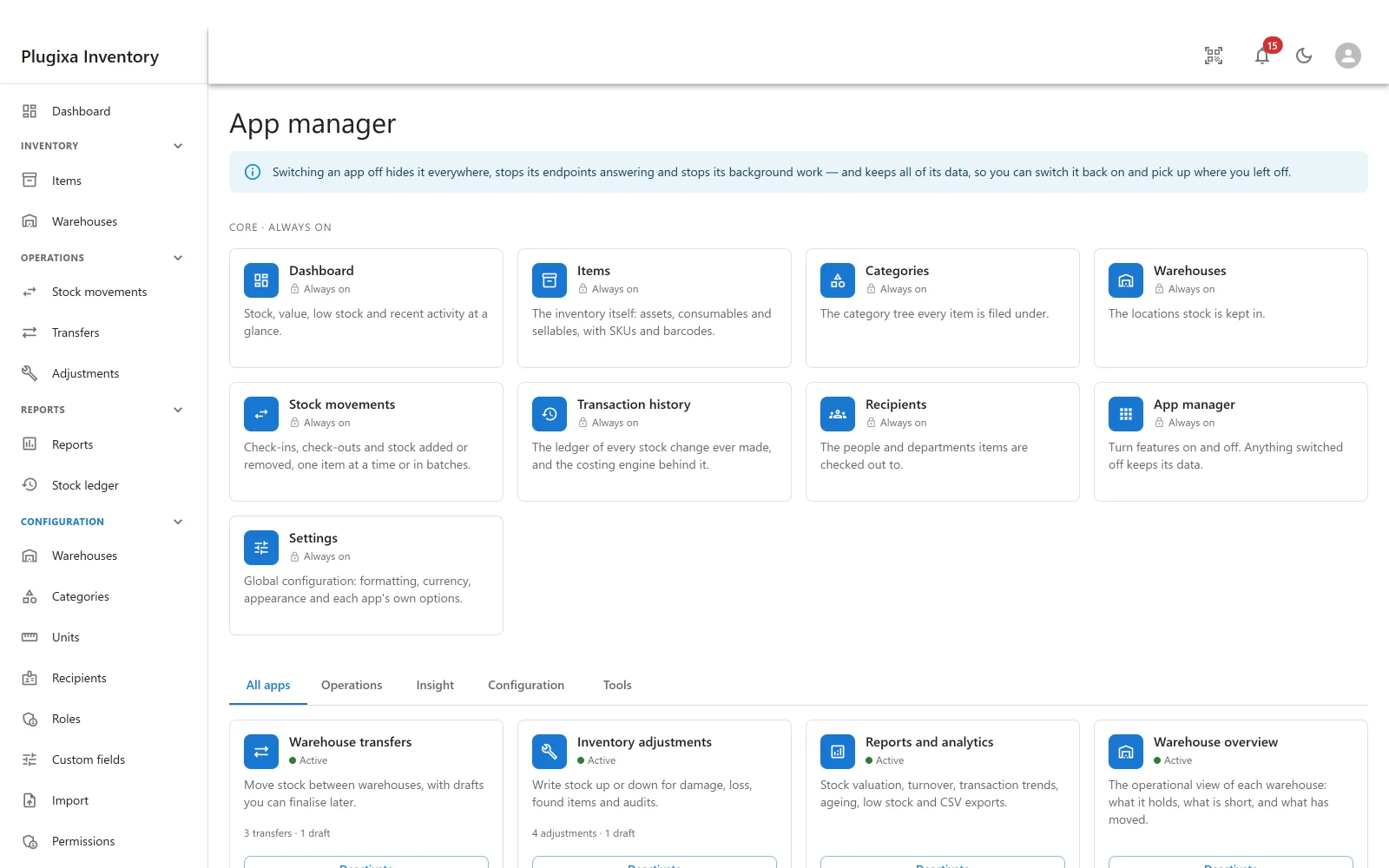
Plugixa Inventory is built as a set of apps, and this is where you turn them on and off.
What switching one off actually does
Switching an app off hides it everywhere, stops its endpoints answering and stops its background work - and keeps all of its data, so you can switch it back on and pick up where you left off.
All four halves of that matter:
- Hidden everywhere. The menu item goes, and so do the buttons other screens draw for it. Nothing is left on screen to fail.
- Endpoints stop answering. It is off, not merely hidden, so nothing reaches it through the API either.
- Background work stops. Its scheduled jobs stop being scheduled.
- Data is kept. Nothing is deleted. Switch it back on and everything is where it was.
This is why switching an app off is safe to try. It is not uninstalling.
Core apps are always on
Nine apps are marked core, always on, and have no switch:
Dashboard, Items, Categories, Warehouses, Stock movements, Transaction history, Recipients, App manager and Settings.
These are what an inventory is. Switching off Items would leave a stock system with nothing in it, and switching off the App manager would leave no way to switch anything back on.
The rest, grouped
The tabs below the core section group everything switchable:
| Tab | Holds |
|---|---|
| Operations | Warehouse transfers PRO, inventory adjustments PRO |
| Insight | Warehouse overview, reports and analytics PRO |
| Configuration | Notifications, FIFO and LIFO costing PRO, custom fields PRO, units PRO, roles PRO, permissions PRO, dark mode PRO, desktop notifications PRO |
| Tools | Import, scanner and quick search, export, install as an app PRO, WooCommerce PRO |
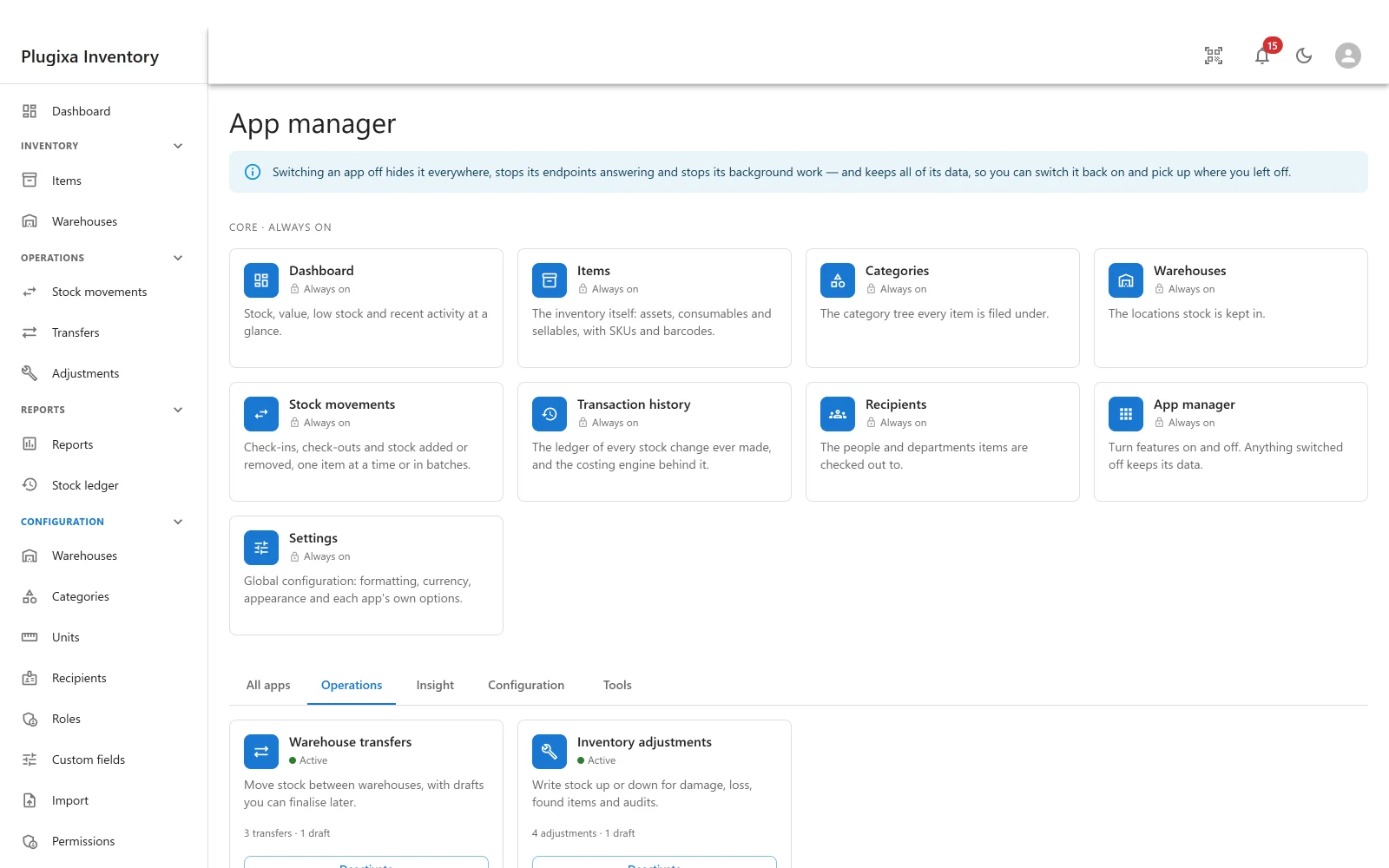
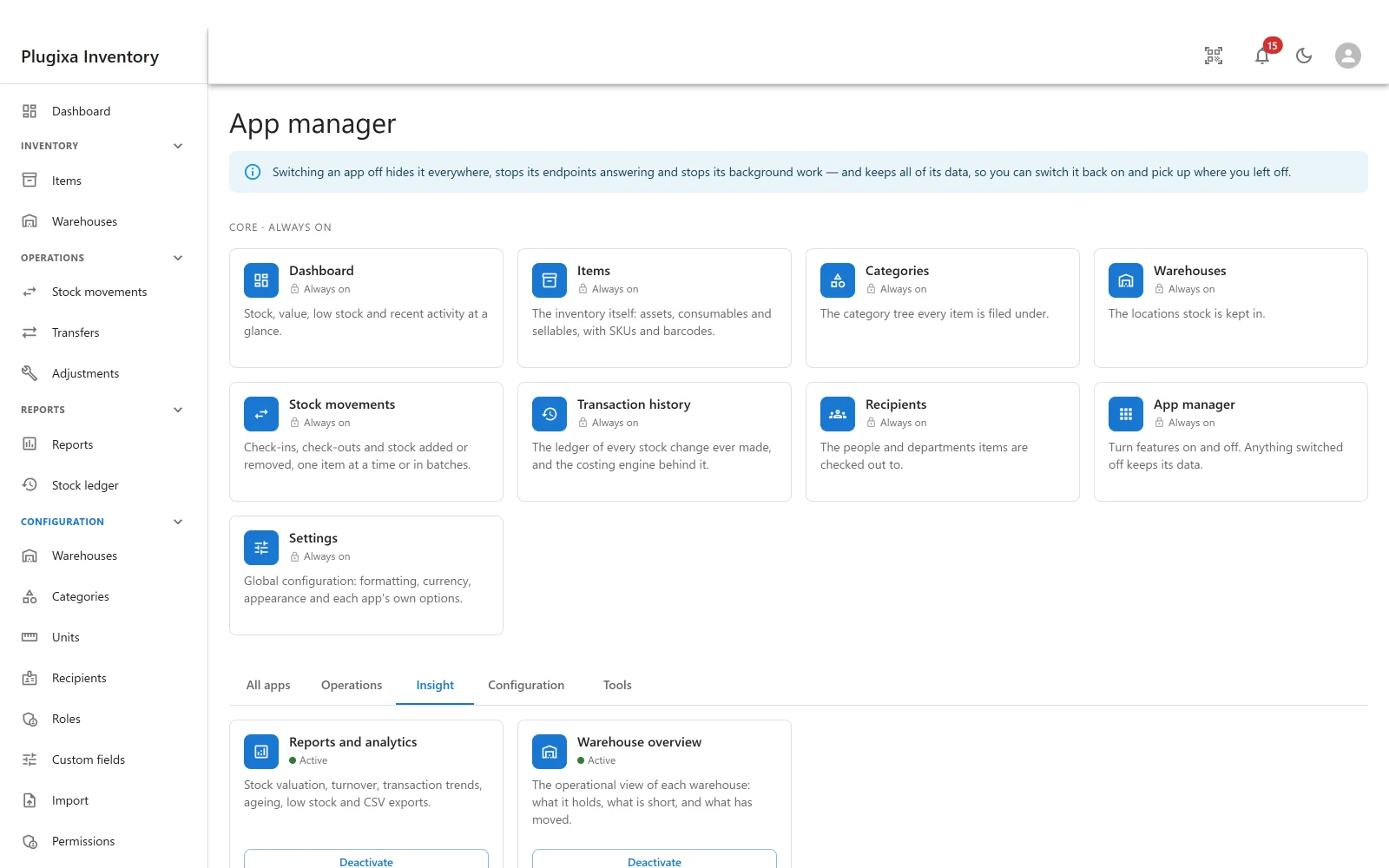
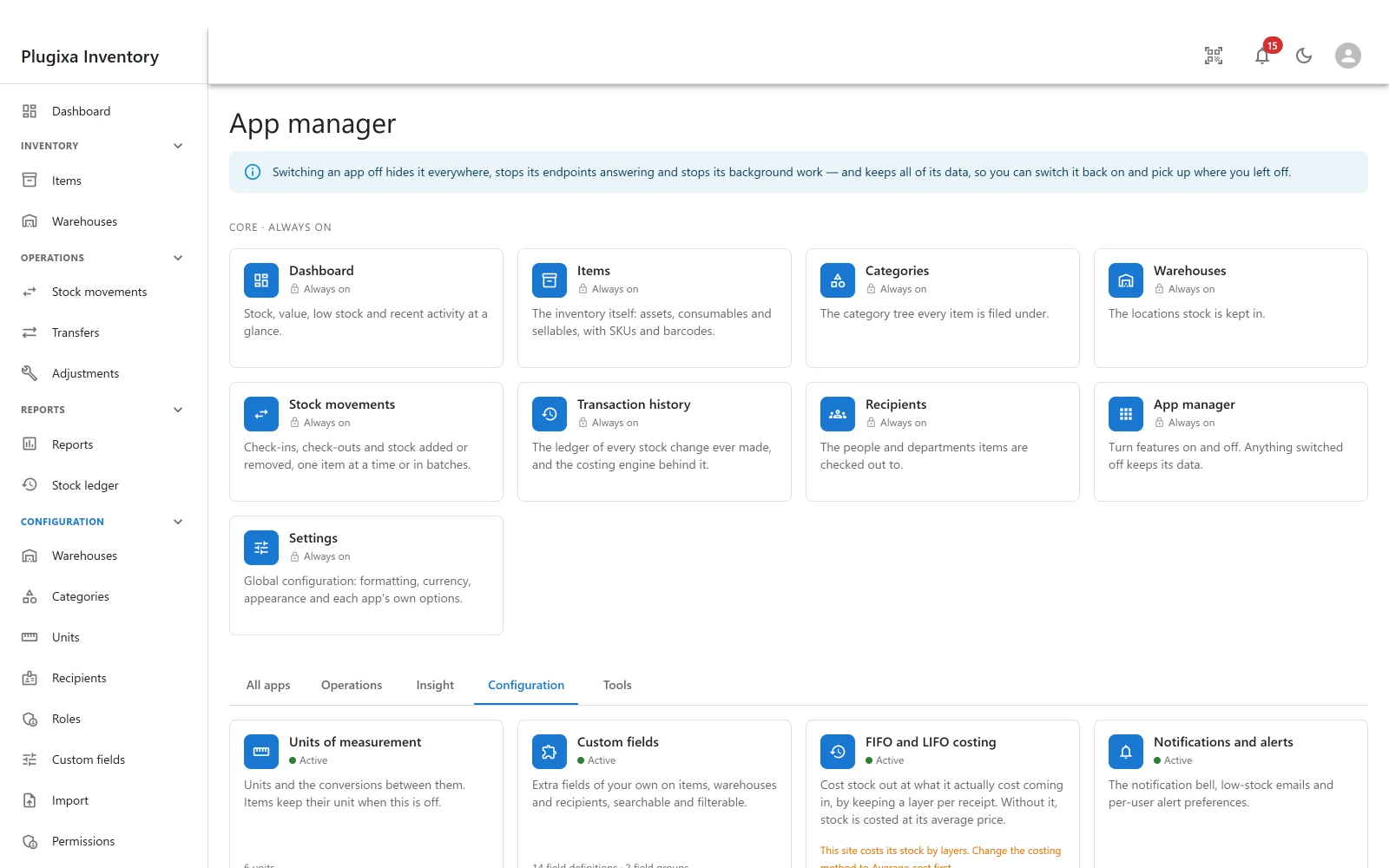
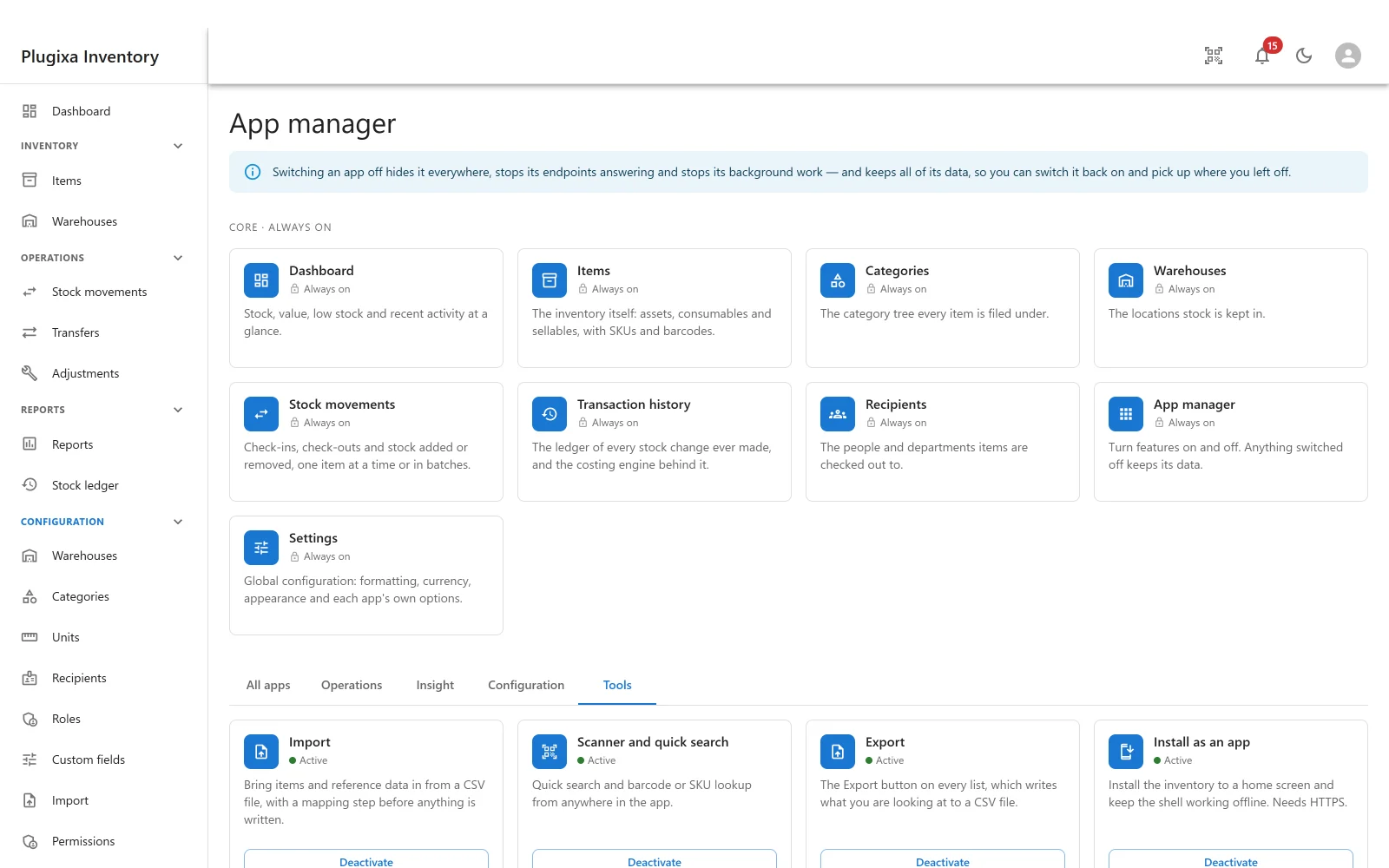
The list depends on the build. A free site sees its own apps and no empty slots where the Pro ones would be, because an absent module is absent rather than disabled - which is the same reason there is no licence check anywhere in the plugin.
Desktop notifications is the one app that starts switched off. Everything else is on by default.
Usage, before you switch something off
A card shows what the app is holding: 3 transfers, 1 draft; 4 adjustments, 1 draft. It is there so that turning something off is an informed decision rather than a surprise, and so an unfinished draft is not quietly hidden from the person who was working on it.
A tile belongs to its app
Switching an app off does not leave a permanent zero somewhere else. The transfers and adjustments figures on the warehouse screens are contributed by those modules, so the tile disappears with the app rather than reading zero for ever - which would be a different and much worse claim.
The same is true of settings sections, alert types and the Export button: each belongs to the app that provides it.
Dependencies
An app can require another. Where one does, its card says so, and the App Manager will not let you leave the site in a state where something switched on depends on something switched off.
Troubleshooting
| Symptom | Usual cause |
|---|---|
| An app has no switch | It is core. Those are always on. |
| A Pro app is not listed | It is not installed. Absent is not the same as off. |
| A menu item vanished | Its app was switched off. Switch it back on; the data is intact. |
| A settings section vanished | Same reason. Sections belong to apps. |
| An endpoint returns no route | The app that provides it is off. |
| Desktop notifications is off on a new install | That is its default. Everything else starts on. |
| Switching an app off did not delete anything | Correct, and deliberate. |
| A card shows drafts I had forgotten | That is what the usage line is for. |
What to do next
- Configure what is left on: Settings.
- See what each edition has: Free vs Pro.
- Decide who may switch things: Roles and Permissions PRO.