

Contents
WooCommerce - Plugixa Inventory
Plugixa Inventory can run the stock of a WooCommerce shop. You choose the one warehouse the shop sells from, and from then on:
- every order takes its stock out of that warehouse through the stock ledger,
- every cancellation, failed payment and refund with restock puts it back,
- and WooCommerce always shows what that warehouse holds.
The inventory is the record. WooCommerce sells what it says.
Pro feature. The WooCommerce integration is part of Plugixa Inventory Pro, from version 1.1.0. See the Free vs Pro matrix.
Before you start
- WooCommerce is installed and active. Without it the WooCommerce app in the App Manager says Install and activate WooCommerce to use this., and the screen says so too.
- WooCommerce stock management is on. That is Enable stock management under WooCommerce -> Settings -> Products -> Inventory. Without it WooCommerce never reduces stock for an order, so there is nothing to record, and the Overview tab warns you.
- High-Performance Order Storage is supported. The integration declares compatibility with HPOS and reads every order through WooCommerce’s own order functions, so it works with either order storage. The Overview tab shows which one is in use.
Set it up
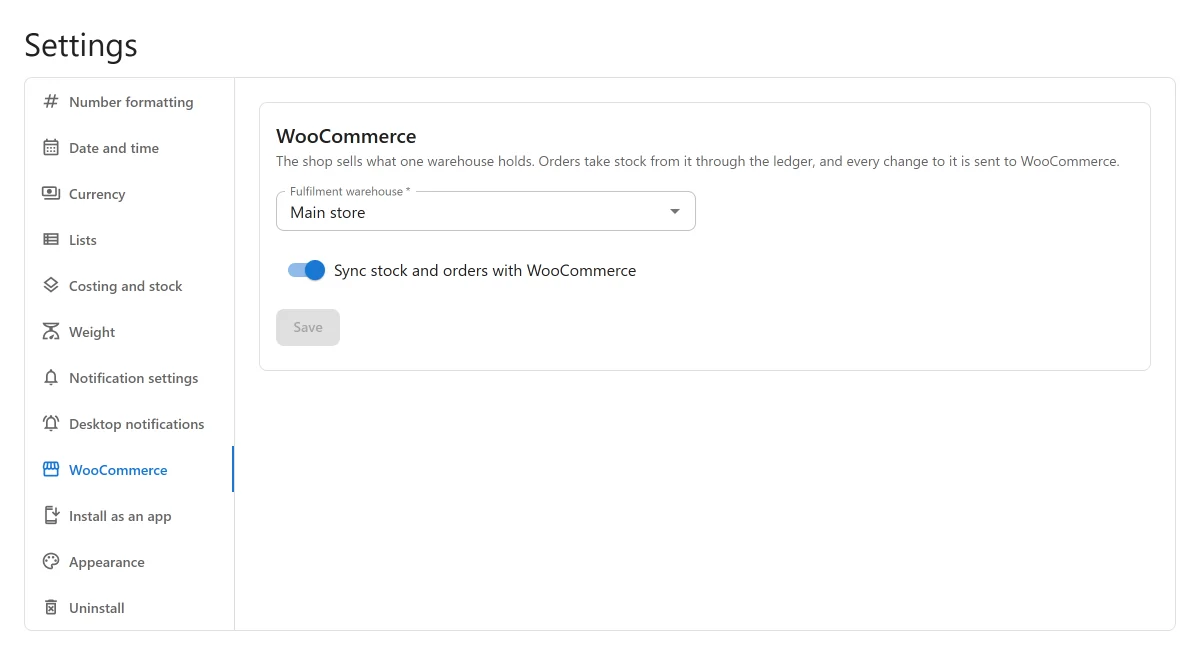
Open Settings -> WooCommerce:
- Choose the Fulfilment warehouse: the one warehouse the shop sells from.
- Turn on Sync stock and orders with WooCommerce. The switch stays disabled until a warehouse is chosen.
- Save. The section has its own Save button.
Nothing is synced until both are set. A switch that is on with no warehouse would accept orders and have nowhere to take the stock from, so the integration treats that as off.
Saving with syncing on sets the stock of every linked product in WooCommerce to what the warehouse holds. Products that are not linked are not touched. The screen tells you before you save.
Changing the warehouse later moves every linked product onto the new warehouse’s quantities in the same way. While a warehouse is the fulfilment warehouse it cannot be trashed: WooCommerce sells from this warehouse. Choose another one in the WooCommerce settings first.
Link products to items
A product only follows the inventory once it is linked to an item. The Products tab lists every product that holds stock, with its SKU, its stock in the shop and the item it is linked to.
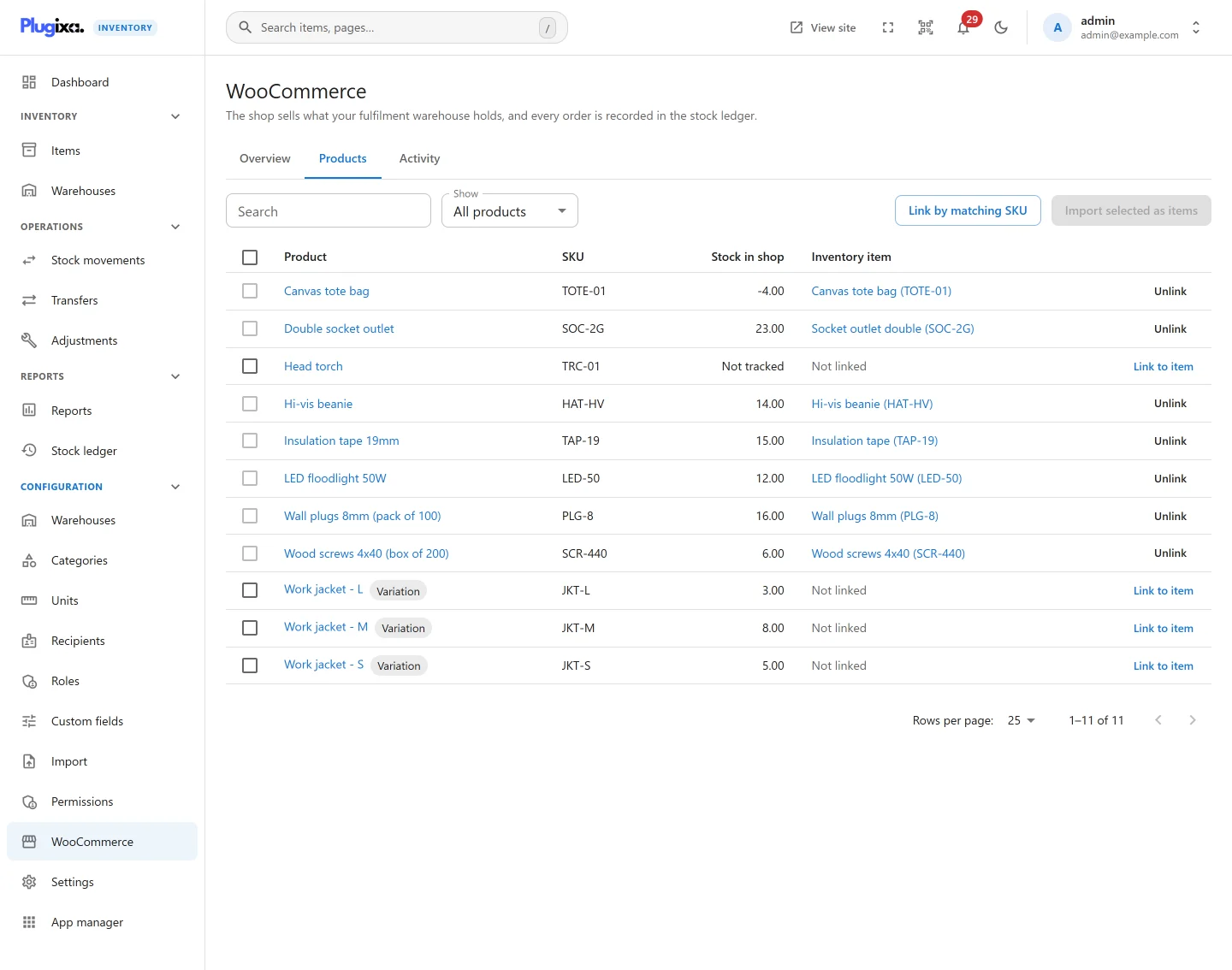
There are three ways to link.
By matching SKU
Link by matching SKU links every unlinked product whose SKU is exactly the SKU of an inventory item, and tells you how many it linked. It looks at simple products and variations, published, private or draft.
By hand
Link to item on a row opens a picker for the inventory item.
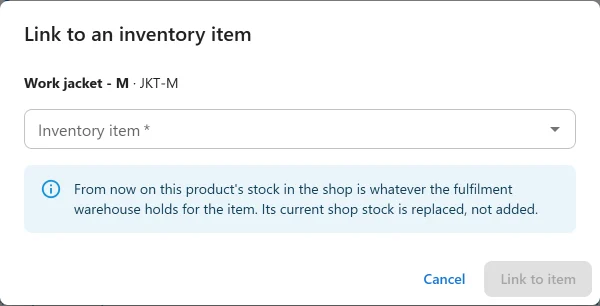
The product’s current shop stock is replaced, not added: from now on it is whatever the fulfilment warehouse holds for the item. Unlink on a linked row undoes it. The product keeps the stock it last had, and the inventory stops changing it.
By importing products as items
Tick products and press Import selected as items to create an inventory item for each one, already linked:
- The item is a sellable item with the product’s name, SKU, regular price and short description.
- Its cost price comes from WooCommerce’s Cost of Goods, when that feature is on. Otherwise it is 0, because the sale price is not a cost.
- A valid GTIN becomes the item’s barcode.
- The product’s WooCommerce stock becomes the opening balance, posted to the fulfilment warehouse as one finalised Add stock movement, Opening stock imported from WooCommerce. So the ledger and the valuation agree with it from the first day.
- A variable product brings in its variations, one item each.
- If an item already has the product’s SKU, the product is linked to it rather than duplicated, and no opening stock is posted for it.
A SKU with characters outside letters, digits and . _ / - cannot become an item
SKU, and that product is reported by name as not imported.
What can be linked
- Simple products and variations only. A variable product is linked through its variations, so it appears as its variations in the list. Grouped and external products hold no stock and cannot be linked.
- Sellable and consumable items only. An asset is a thing you own, not stock you sell.
- One to one. A product links to one item, and an item to one product.
Linking pushes the warehouse quantity to the product at once. You can link products before syncing is switched on: their stock is sent once it is.
What an order does to stock
The integration follows WooCommerce’s own stock events, never order statuses, so it does exactly what WooCommerce does to stock and nothing else:
| In WooCommerce | In the inventory |
|---|---|
| An order reduces stock (paid, processing, on hold) | A Remove stock movement from the fulfilment warehouse |
| A cancelled or failed order, or one set back to pending, restores stock | An Add stock movement back into the warehouse |
| A refund with Restock refunded items ticked | An Add stock movement for the restocked quantity |
Each movement is a normal finalised document with the details WooCommerce order #123, and each line notes the order item it came from. It appears in Stock movements and in the stock ledger like any other.
- Costs. Stock sold leaves at the item’s cost. Stock that comes back returns at the cost it left at, so a return does not revalue the warehouse.
- Order notes. The order gets a note for every change, for example Plugixa Inventory: removed 4 × LED floodlight 50W from Main store (SM-2026-0026)., and one if the stock could not be updated, with the reason.
- Lines that are not linked are left alone. Only linked products move stock.
- Orders from before the link. Cancelling or refunding an order placed before its product was linked returns nothing, because that sale never came out of the warehouse: it was already in the stock you linked the product with.
Orders are processed in the background, through WooCommerce’s Action Scheduler, a few seconds after the event. Two updates of the same order never run at once, and an update that finds the stock busy tries again a minute later.
Backorders
If a shop allows backorders, an order can ask for more than the warehouse holds. The line takes what the warehouse holds, and the rest waits. The order gets a note: 2 × Canvas tote bag could not be taken from Main store because it is out of stock. It will be taken automatically when stock arrives.
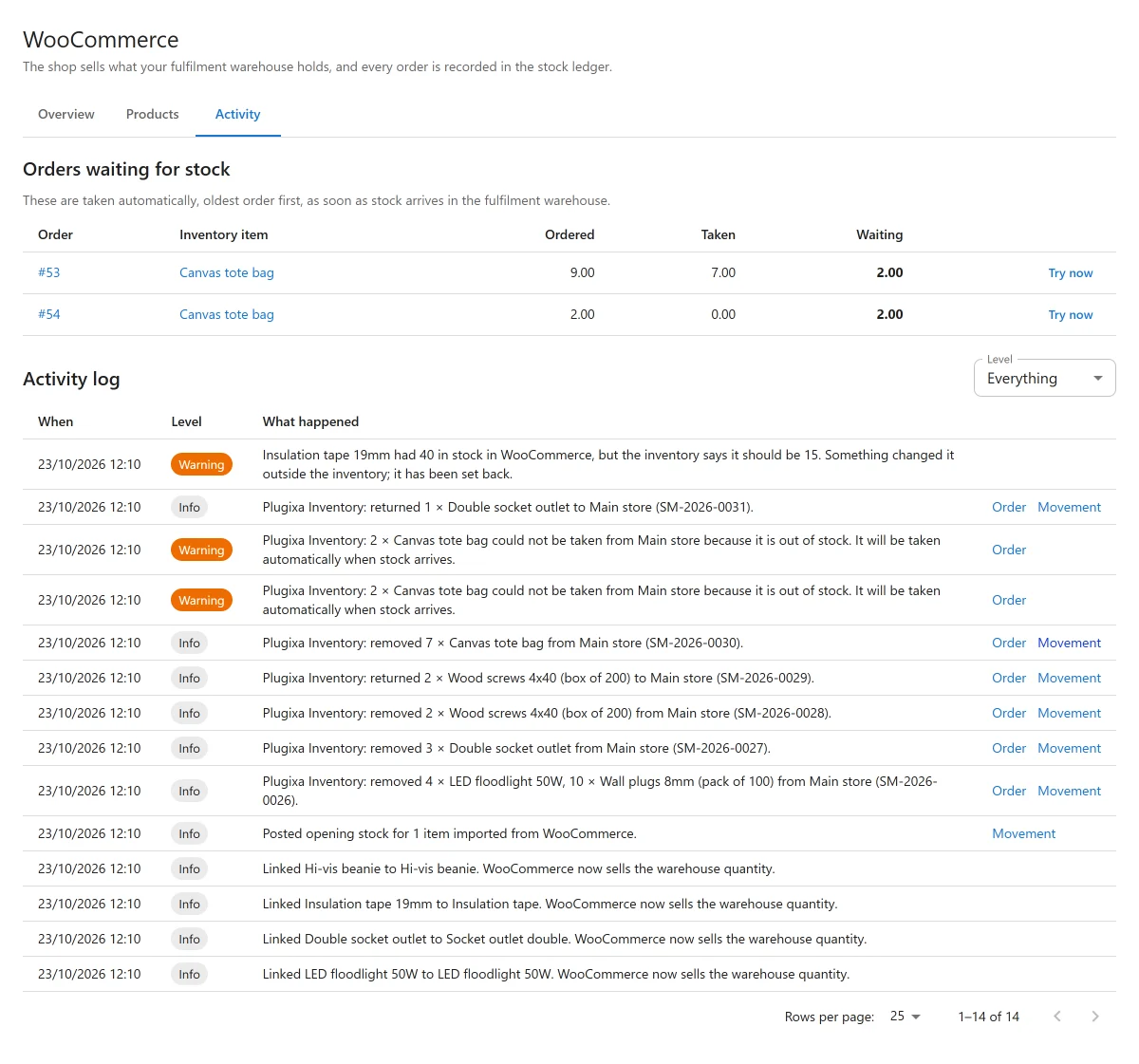
The waiting lines are listed under Orders waiting for stock on the Activity tab. As soon as stock arrives in the fulfilment warehouse for the item, they are filled automatically, oldest order first, as far as the stock goes. Try now fills one order straight away, if there is stock for it.
While units are owed to orders, the shop is sent the warehouse quantity minus what is owed. That can be below zero: a product with nothing on hand and four units owed shows -4 in WooCommerce, which is how WooCommerce itself counts a backorder.
Sales made while syncing was off
If syncing is switched off, Pro is deactivated or the WooCommerce app is switched off, the shop keeps selling and nothing here hears about it. The integration catches up when it comes back:
- It looks at every order changed since the last pass, with a two-day overlap, and brings each one into line with the ledger.
- It only charges lines from orders placed or paid after the product was linked. A product’s sales from before it was linked are already in the stock you linked it with.
- The shop’s stock is only updated after the catch-up has run, so the shop is never set back up to a quantity that has already been sold.
A catch-up also runs after the fulfilment warehouse or the switch is changed, and whenever the integration has not run for more than an hour.
Stock is read-only in WooCommerce
While syncing is on, the stock of a linked product is set by the inventory, not in WooCommerce. On the product screen the Quantity field is read-only, for products and for each variation, with a note:
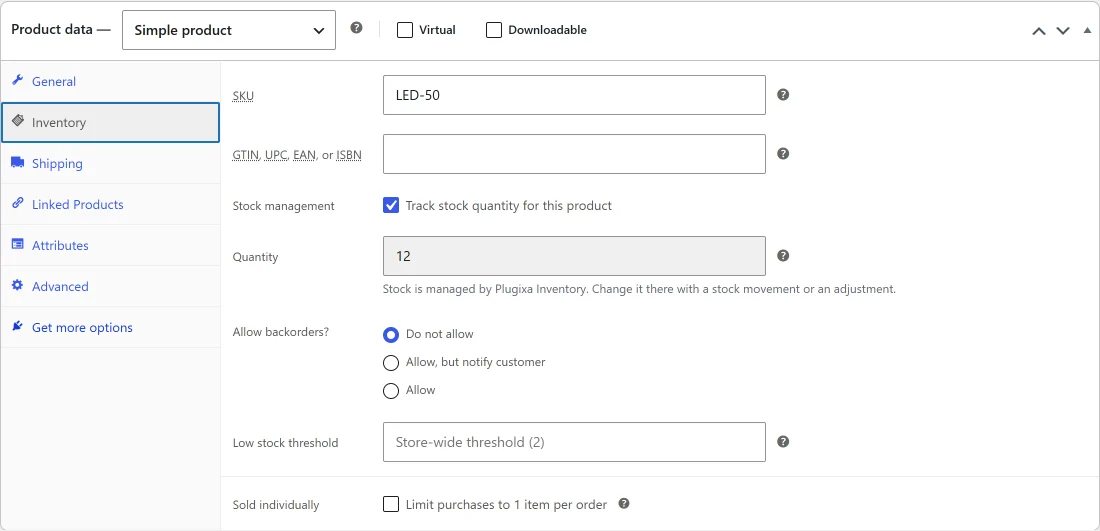
To change it, change the warehouse’s stock with a stock movement or an adjustment PRO. The shop follows within a minute or two.
A stock change saved to a linked product anyway, through the REST API, quick edit or bulk edit, is set back. Track stock quantity is kept on for linked products, because a product WooCommerce does not count cannot follow the warehouse.
The nightly check
Once a day the integration:
- settles any order whose stock update did not finish,
- fills waiting order lines from the stock now on hand,
- runs a catch-up,
- sends every linked product’s stock to WooCommerce, and corrects any product whose shop stock was changed outside the inventory,
- clears activity older than 90 days.
Every correction is logged as a warning: Insulation tape 19mm had 40 in stock in WooCommerce, but the inventory says it should be 15. Something changed it outside the inventory; it has been set back.
The Overview tab shows when it last ran. Send all stock to WooCommerce now does step 4 straight away. It needs the manage settings capability.
How it works: an example
The nightly check is a WP-Cron event, plugixa_inventory_woo_reconcile, scheduled
once a day. Here is one run, start to finish, on a shop that sells Insulation tape
19mm from Main store, where the inventory holds 15.
1. Something changes the stock outside the inventory. Another plugin, a CSV import or a direct database edit sets the product to 40 in WooCommerce. The shop now offers 25 rolls that do not exist.

2. WP-Cron runs the nightly check. At its time of day, on the next page
request, WordPress fires the event. The check settles orders and fills waiting
lines straight away, then queues two jobs in WooCommerce’s Action Scheduler: a
catch-up and a push of every linked product’s stock. You can see them under
WooCommerce -> Status -> Scheduled Actions, by searching for
plugixa_inventory_woo:
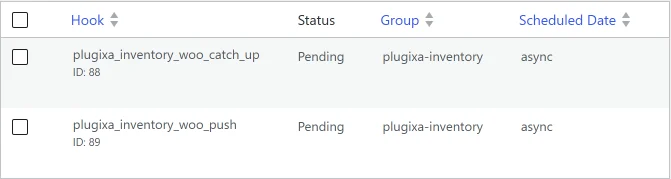
3. The jobs run and the shop is corrected. Action Scheduler runs them within a minute or so, on WP-Cron too. The push compares each product with the warehouse and sets Insulation tape back to 15.

4. The correction is logged. On the Activity tab, set Level to Warning to see what the check found and set back:
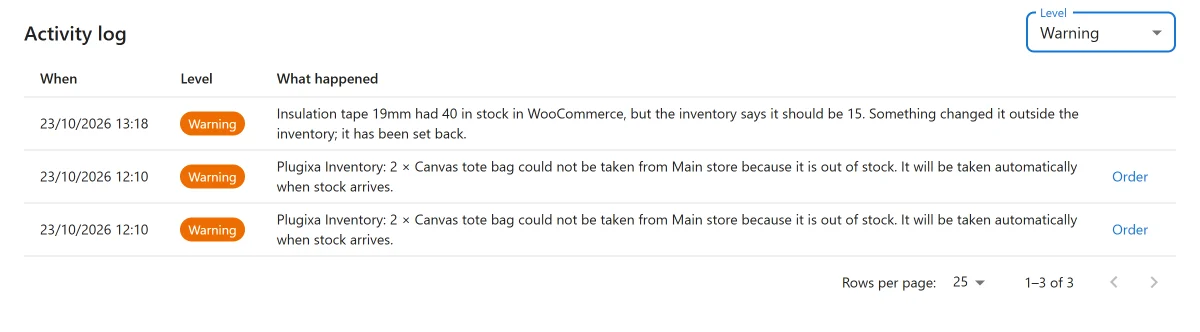
The Overview tab now shows the time of this run as the last nightly check.
WP-Cron needs visits
WP-Cron is not a real clock. WordPress only checks for due events when somebody loads a page, so on a quiet site the nightly check, and the jobs it queues, wait for the next visitor. The same is true of every order update, which also runs through Action Scheduler, and of the daily stock check.
If Last nightly check on the Overview tab is more than a day old, or jobs sit in Scheduled Actions as Pending long after their time, WP-Cron is not running often enough.
Run it now
You do not have to wait for the night:
- Send all stock to WooCommerce now, on the Overview tab, queues the push straight away. That is the step that finds and corrects outside changes.
- With WP-CLI, run the whole nightly check, then the jobs it queued:
wp cron event run plugixa_inventory_woo_reconcile
wp action-scheduler run --group=plugixa-inventory
Use a real cron job
For a shop, a real cron job is the reliable way. It runs WP-Cron on time whether anybody visits or not.
- Stop WordPress from running WP-Cron on page loads. In
wp-config.php, above the line That’s all, stop editing!:
define( 'DISABLE_WP_CRON', true );
- Ask the server to run WP-Cron every five minutes instead. In your hosting panel’s cron jobs or scheduled tasks, add, with your own address:
*/5 * * * * wget -q -O - "https://example.com/wp-cron.php?doing_wp_cron" >/dev/null 2>&1
Or, where WP-CLI is installed, with the path to your site:
*/5 * * * * cd /path/to/wordpress && wp cron event run --due-now >/dev/null 2>&1
Every five minutes is enough: orders reach the ledger within minutes, and the nightly check runs at its time instead of at the first visit after it.
The WooCommerce screen
WooCommerce in the Configuration group of the menu has three tabs.
| Tab | What it shows |
|---|---|
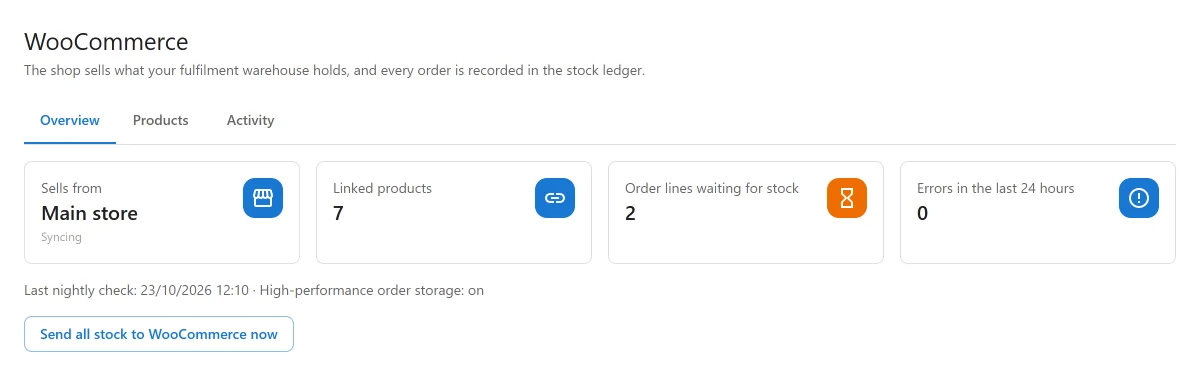
| Overview | The warehouse it sells from and whether it is syncing, linked products, order lines waiting for stock, errors in the last 24 hours, the last nightly check, and whether HPOS is on. Warnings when something is not set up. |
| Products | Every product that holds stock, filtered by All products, Linked or Not linked, with linking and import. |
| Activity | Orders waiting for stock, and the activity log: links, imports, orders, returns, shortfalls, corrections and errors, filtered by level, each with a link to its order and movement. |
The activity log keeps 90 days.
Switching it off
The integration is an app in the App Manager, under Tools, showing how many products are linked.
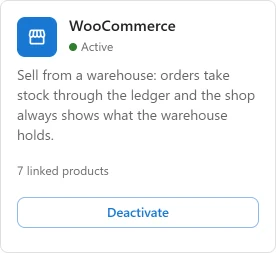
Switching it off, or switching syncing off, keeps every link and every movement already posted. Turn it back on and the catch-up brings in what the shop sold in the meantime.
Troubleshooting
| Symptom | Usual cause |
|---|---|
| Orders are not reaching the ledger | Syncing is off, no fulfilment warehouse is chosen, or WooCommerce stock management is off. The Overview tab says which. |
| An order moved no stock | The product is not linked, or the line was refunded without Restock refunded items. |
| A product’s stock in the shop is negative | Units are owed to orders waiting for stock. It goes back up as they are filled. |
| The shop stock was edited and changed back | Linked products follow the warehouse. Change the stock in the inventory instead. |
| Link to item refuses an item | It is an asset, or already linked to another product. |
| A variable product cannot be linked | Link its variations. |
| Order updates are slow | They run through Action Scheduler, which needs site traffic or a real cron job. |
| The fulfilment warehouse cannot be trashed | Choose another warehouse in Settings -> WooCommerce first. |
What to do next
- Check the movements orders create: Stock Movements.
- Correct a count without editing the shop: Inventory Adjustments PRO.
- The routes behind this screen: REST API.