

Contents
Dark mode - Plugixa Inventory
For the people who are in the inventory all day, on a warehouse screen, in a room with the lights off.
Pro feature. Dark mode is part of Plugixa Inventory Pro. See the Free vs Pro matrix.
Three values, two of which are modes
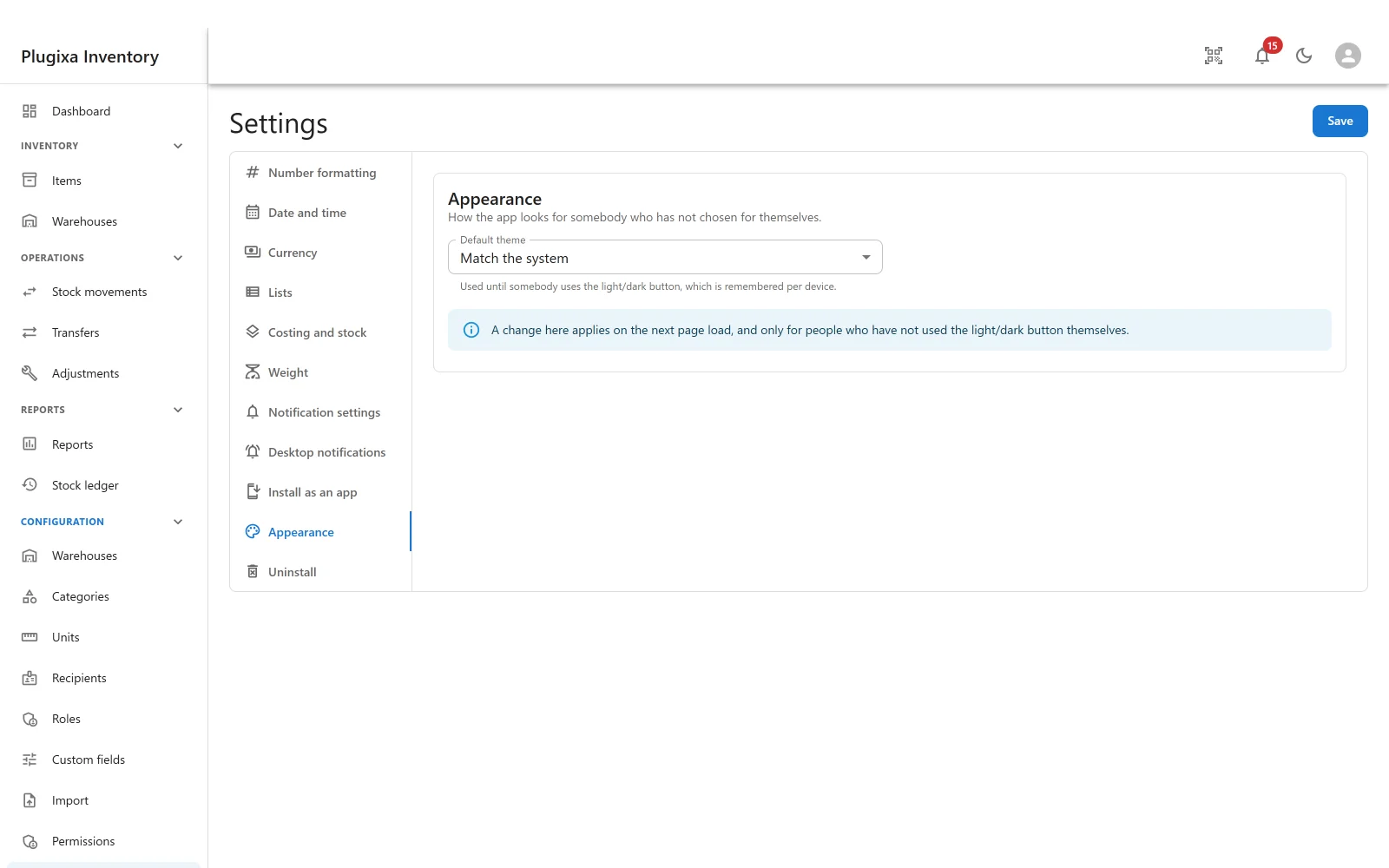
Settings -> Appearance sets the site’s default theme:
| Value | Means |
|---|---|
| Match the system | Ask the device. The default |
| Light | Always light |
| Dark | Always dark |
“Match the system” is not a third look. It means skip the site default and ask the operating system, which is why it is the default value: a site that has made no decision follows the person’s own.
The site default, and the person’s own choice
The setting is a default, not an override. It applies to people who have not chosen for themselves.
The light and dark button in the header is that choice, and it is remembered per device. Once somebody has used it, the site default no longer applies to them on that device.
A change to the setting therefore applies on the next page load, and only for people who have never touched the button. The screen says so, because the alternative - wondering why half the office did not change - is a support ticket.
It is a whole palette, not an inverted page
The dark theme is a registered palette rather than a filter over the light one, and that extends to the charts: the dashboard’s and the reports’ chart steps have their own dark values, chosen to stay distinguishable on a dark ground.
This is also why the free build has no dark mode rather than a broken one: the palette and the chart steps are registered by this module, so a build without it literally has no colours to draw the mode in, and cannot be asked to try.
If the module goes away
A site that has stored dark and then loses this module keeps the value. It
is carried forward on disk rather than discarded, and found again if the module
returns.
Meanwhile nothing reads it. The app checks that a mode is actually available before honouring a stored preference, precisely so a value left behind cannot put the inventory into a mode it has no colours for. The result is a light app, not a black page.
Troubleshooting
| Symptom | Usual cause |
|---|---|
| There is no Appearance section | Pro module, or switched off in the App Manager. |
| The default did not change for somebody | They have used the header toggle, which is remembered per device and wins. |
| It changed on one machine only | The toggle is per device, by design. |
| The change did not appear immediately | It applies on the next page load. |
| The site is light after uninstalling Pro | Expected. The stored preference is kept but not honoured without the palette. |
| Charts are hard to read in dark mode | Report it: the dark chart steps are chosen deliberately, so that is a bug rather than a setting. |
| “Match the system” looks like light | Then the device is set to light. It follows the operating system. |
What to do next
- Set the site default: Settings.
- Turn the module on or off: App Manager.
- Put the app on a home screen: Install as an App PRO.