

Contents
Install as an app - Plugixa Inventory
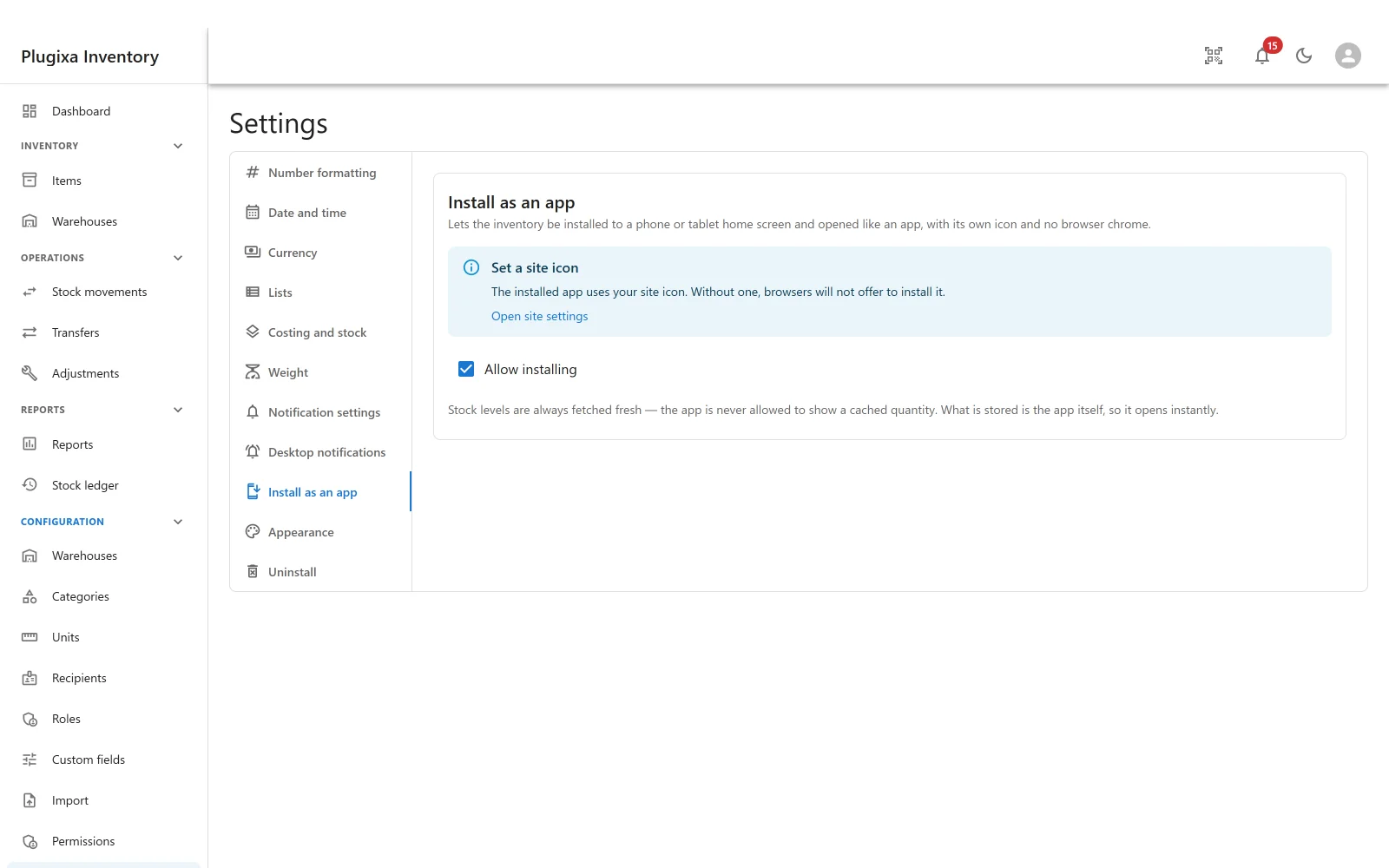
The inventory can be installed to a phone or tablet home screen and opened like an app, with its own icon and no browser chrome.
Pro feature. Installing as an app is part of Plugixa Inventory Pro. See the Free vs Pro matrix.
What you get
A launcher icon on the home screen, and a window with no address bar. For somebody doing a stock take on a tablet that is the difference between a website and a tool.
Two things it needs
A site icon. The installed app uses your WordPress site icon, and without one, browsers will not offer to install it at all. The panel says so and links straight to the site settings where you set it.
HTTPS. Browsers only offer installation on a secure origin. A site on plain HTTP will not be offered, and that is the browser’s rule rather than the plugin’s.
Then tick Allow installing and the browser starts offering it.
Stock levels are never cached
This is the design decision worth knowing about, because it is the opposite of what an installed app usually does.
Stock levels are always fetched fresh - the app is never allowed to show a cached quantity. What is stored is the app itself, so it opens instantly.
An installed app that showed yesterday’s quantity would be worse than a web page that showed nothing: somebody would act on it. So the shell is cached, which is what makes it open immediately, and every number comes from the server.
The practical consequence is honest: with no connection, the app opens and says so rather than showing figures it cannot vouch for.
Installing it
The prompt is the browser’s, not the plugin’s, and each does it differently:
- Android, Chrome: an install prompt, or Add to Home screen in the menu.
- iOS, Safari: Share, then Add to Home Screen.
- Desktop Chrome and Edge: an install icon in the address bar.
Installing it from the shortcode page rather than from wp-admin is usually what you want for staff, because it opens straight into your own site rather than into the WordPress admin.
Troubleshooting
| Symptom | Usual cause |
|---|---|
| The section is not in Settings | Pro module, or switched off in the App Manager. |
| The browser never offers to install | No site icon is set, or the site is not on HTTPS. |
| It installed but quantities look old | They should not be. Stock is never cached; if it looks stale, reload and check Stock health. |
| It shows nothing offline | Correct. The shell is cached; the numbers are not. |
| iOS did not offer a prompt | Safari has no prompt. Use Share, then Add to Home Screen. |
| The icon is the browser’s default | The site icon is missing or too small. Set a square one. |
| It opens wp-admin | It was installed from wp-admin. Install it from the shortcode page instead. |
What to do next
- Put the app on your own site: The Shortcode.
- Get alerts outside the tab: Desktop Notifications PRO.
- Scan a barcode on the tablet: Scanner and Search.