

Contents
Scanner and quick search - Plugixa Inventory
The scan button in the header opens one box, from any screen. It answers the question somebody standing in a warehouse actually has.
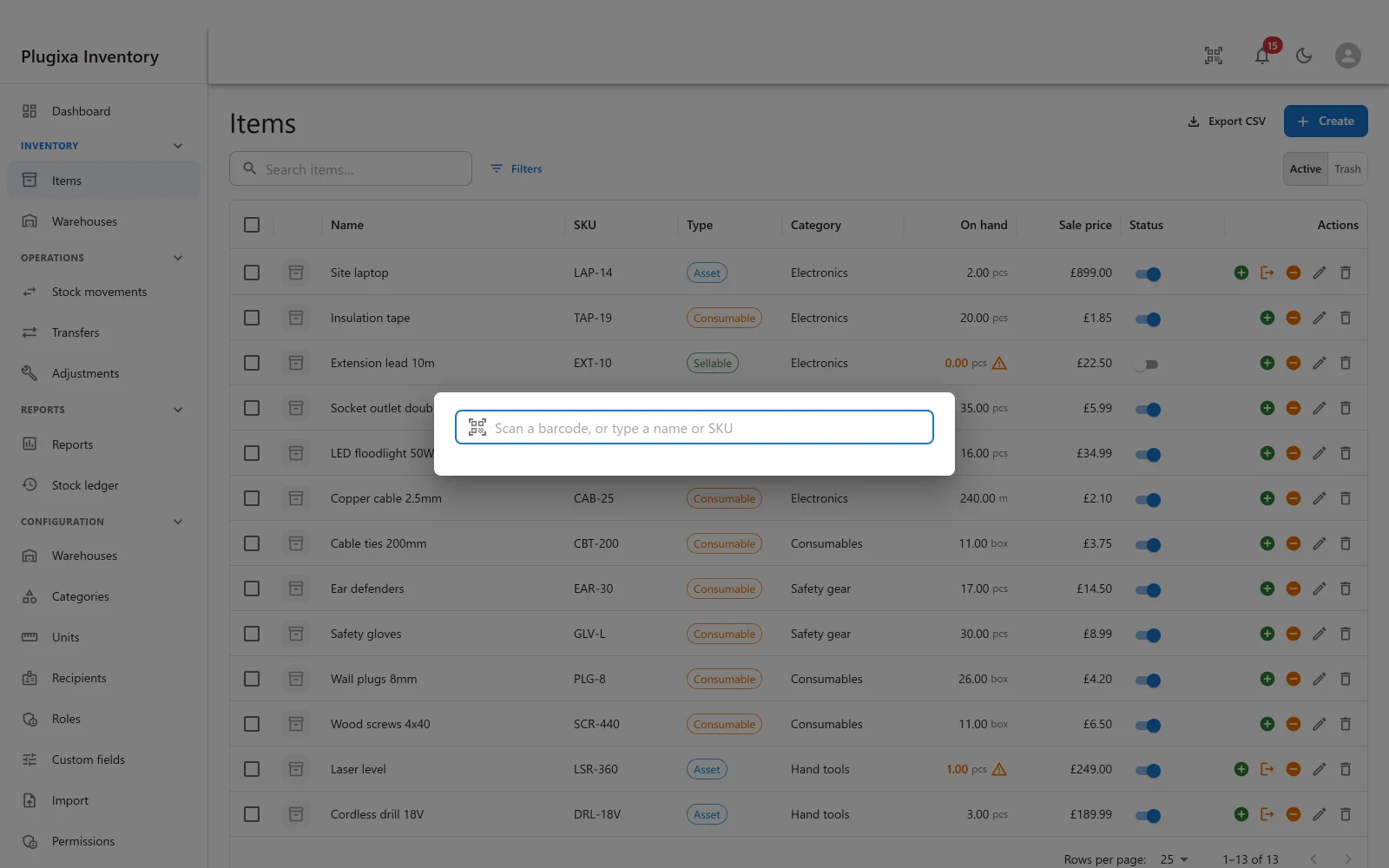
Two questions, one box
| You do | It does |
|---|---|
| Scan a barcode | Finds the one item, and goes straight to it |
| Type part of a name, SKU, barcode or serial | Lists the matches to choose from |
Both start in the same box. A barcode scanner is a keyboard as far as a browser is concerned, so scanning just types - and the plugin does not have to be told which mode it is in.
What a scan matches, and in what order
A scanned or typed code is tried against three columns, in this order:
- Barcode
- SKU
- Serial number
The order is not arbitrary. A scanner reads a barcode, so that is the likeliest hit. A SKU is what somebody types when the label is damaged. The serial number is last, and it is the only one of the three that identifies a single physical unit rather than a kind of thing - which is why a serial match is reported explicitly, so the screen can say this exact unit, not an item like this.
An unknown code is an answer, not an error
Scan something that is not yours and you get a plain no item has that code.
That is a deliberate design decision rather than a missing error page. A scanning loop that had to tell an HTTP error apart from a miss would treat a dropped connection as an unknown item, and somebody would write off stock that was there all along. A successful answer saying “not found” cannot be confused with a failure.
Quick search
Typing something that is not a code searches names, SKUs, barcodes and serials together and returns up to twenty matches - enough to choose from, few enough to read.
Each list screen also has its own search box, which is the one to use when you are already on the right screen and want to narrow it. The header box is for when you do not know where the thing is.
It owns the question, not the data
Scanner and quick search has no records of its own. Everything it shows belongs to Items and to the stock engine.
It exists so that “what is this thing in my hand” has one answer with one set of rules, rather than being re-implemented slightly differently by every screen that wants a scanner.
On a phone or tablet
The same box, and the same keyboard-as-scanner behaviour with a hardware scanner paired over Bluetooth. Combine it with Install as an app PRO and a stock take is a home-screen icon and a scanner.
Troubleshooting
| Symptom | Usual cause |
|---|---|
| The scan button is not in the header | The Scanner and quick search app is switched off in the App Manager. |
| “No item has that code” | Nothing has that barcode, SKU or serial. It is an answer, not a failure. |
| It found the wrong item | Two items share a code. Barcode wins over SKU, which wins over serial. |
| Scanning types into the page instead | The box is not focused. Open it first; the scanner is just a keyboard. |
| A search returns nothing | It matches names, SKUs, barcodes and serials only, not descriptions. |
| Only twenty results | By design. Narrow the term, or use the list screen’s own filters. |
| A trashed item is not found | Lookup searches live records. |
What to do next
- Set barcodes and serials: Items.
- Take it onto the floor: Install as an App PRO.
- Use it away from wp-admin: The Shortcode.