

Contents
On this page
Stock takes - Plugixa Inventory
A stock take compares what is on the shelf with what the system says, and posts the difference. You count a warehouse, or one part of it, and finalizing sets every counted item to the quantity you counted.
Stock takes are a Pro app, new in version 1.2.0. You find them under Operations > Stock takes.
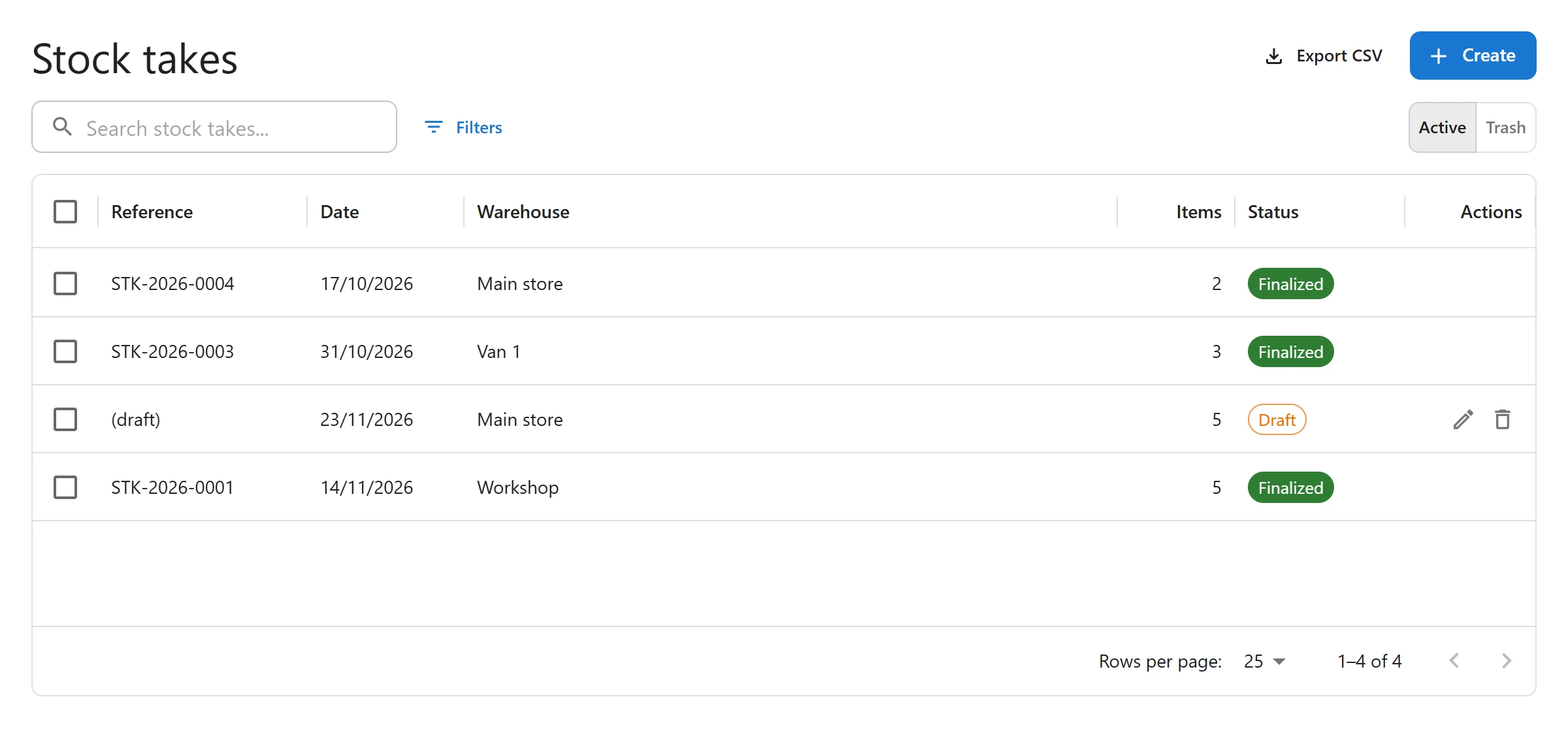
Starting a count
Click Create and choose:
| Field | What it does |
|---|---|
| Warehouse | The location you are counting. Required. |
| Category (optional) | Count one part of the warehouse, such as one aisle of consumables. Leave it empty to count the whole warehouse. |
| Date | The date the count is booked on. |
| Blind count | Hide the expected quantity from the person counting. |
| Notes | Anything worth keeping with the count. |
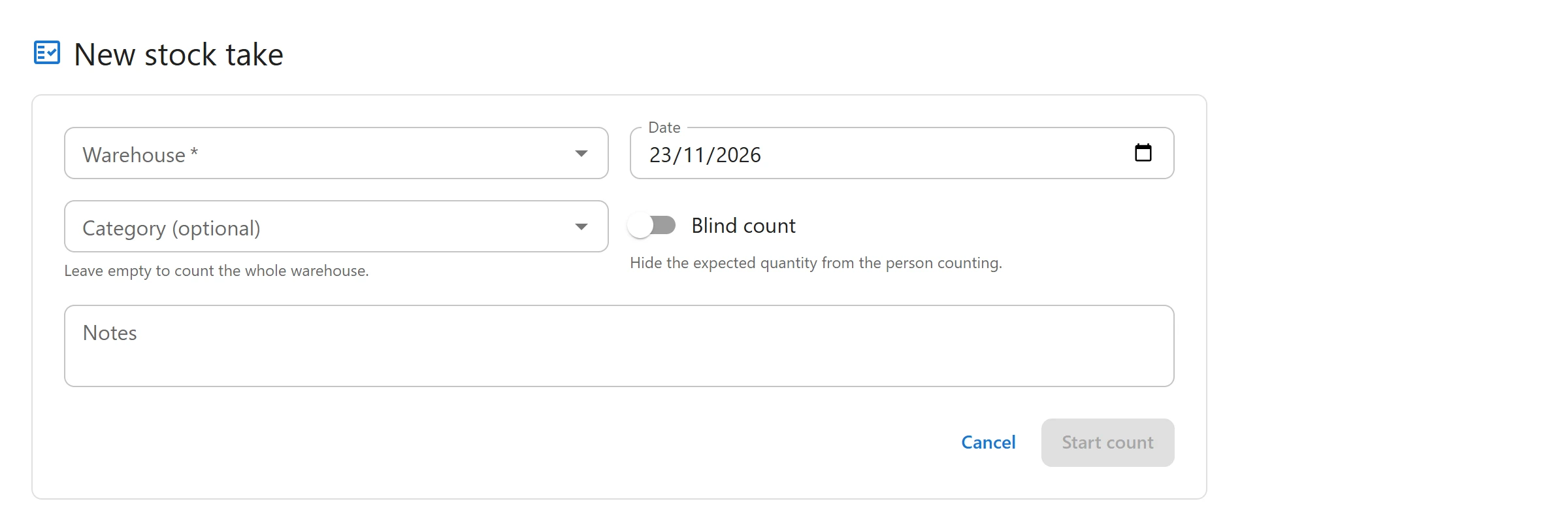
Start count fills the sheet with every item that warehouse holds stock of, in the chosen category. The warehouse and the category are fixed from then on, because the sheet was built from them.
Counting
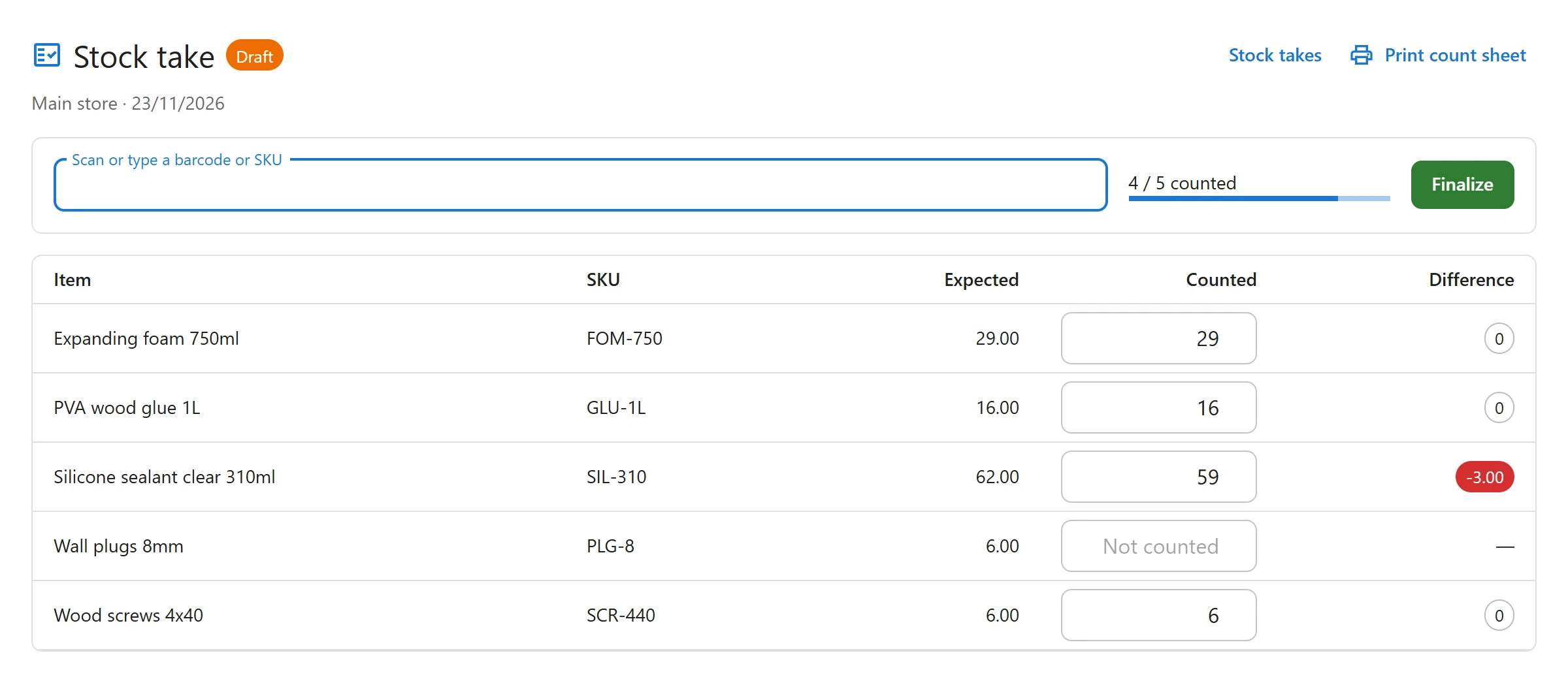
There are two ways to count, and you can mix them:
- Scan. Scan or type a barcode or SKU in the box at the top. Each scan adds one to that item’s count, so you scan every unit on the shelf. Scans are added by the database, so quick scans never overwrite each other. Scanning an item that is not on the sheet adds it.
- Type. Enter the counted quantity in the Counted column.
The progress bar shows how many lines are counted. Difference shows each counted line against the expected quantity: red for short, green for over.
Print count sheet prints the sheet on its own, without the WordPress menu, for counting with a clipboard and typing the numbers in afterwards.
Blind counts
A blind count hides the expected quantity and the difference from the person counting, so they count what is there rather than confirm a number. It is enforced by the server, not just hidden on screen: the expected quantities are left out of what the count screen receives until the count is finalized.
Finalizing
Finalize sets each counted item to the quantity you counted. Items not
counted are left as they are. The stock take is then locked and gets its
reference, for example STK-2026-0004.
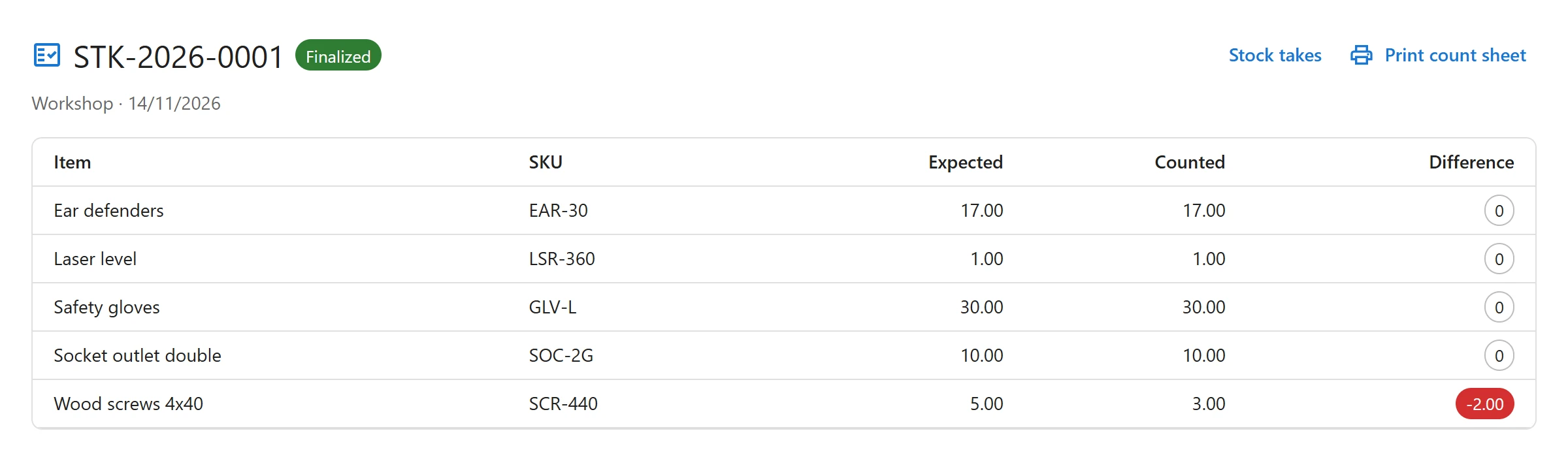
What finalizing writes:
- One ledger row per item that differs: an adjustment addition for stock found, an adjustment subtraction for stock missing. Every report, filter and chart already reads these two types. The row’s reason names the stock take, so nobody goes looking for an adjustment that does not exist.
- Stock found is valued at the item’s cost price. Stock missing is costed by your costing method, from the layers or the average it went in at.
- A count where everything was right still closes and is kept, dated and referenced. “We counted aisle 4 and it was all correct” is a result.
Stock sold during the count
Counting takes time, and the shop does not stop. The plugin works the correction out against the stock on hand at the moment you finalize, not against the expected quantity on the sheet, so a sale made while the count was open is never taken off twice.
When stock moved for a counted item during the count, finalizing stops and shows Stock changed during the count, with the items that moved (and, unless the count is blind, by how much). Finalize anyway sets each counted item to exactly the quantity you counted.
Notifications
A finalized stock take can send the Stock take finalized alert, in the app and by email. Choose who receives it in Notifications.
Troubleshooting
| Symptom | Usual cause |
|---|---|
| Finalize says nothing has been counted | Enter at least one count first. |
| An item is missing from the sheet | The sheet holds items with stock in that warehouse and category. Scan it to add it. |
| I cannot change the warehouse | It is fixed once the sheet exists. Delete the draft and start again. |
| “Stock changed during the count” | Something sold or moved while you counted. Finalize anyway, or recount those items. |
| The expected column is missing | The count is blind. |
What to do next
- Correct one item without a count: Adjustments.
- See what was posted: The Stock Ledger.
- Count lot-tracked stock: Lots and serial numbers.
Quick Links
Share