

Contents
WooCommerce product button - Plugixa Chat
On a WooCommerce shop, the plugin can add a contact button to every product page, just below Add to cart. The button opens one of your widget channels, usually WhatsApp, with a message that already names the product.
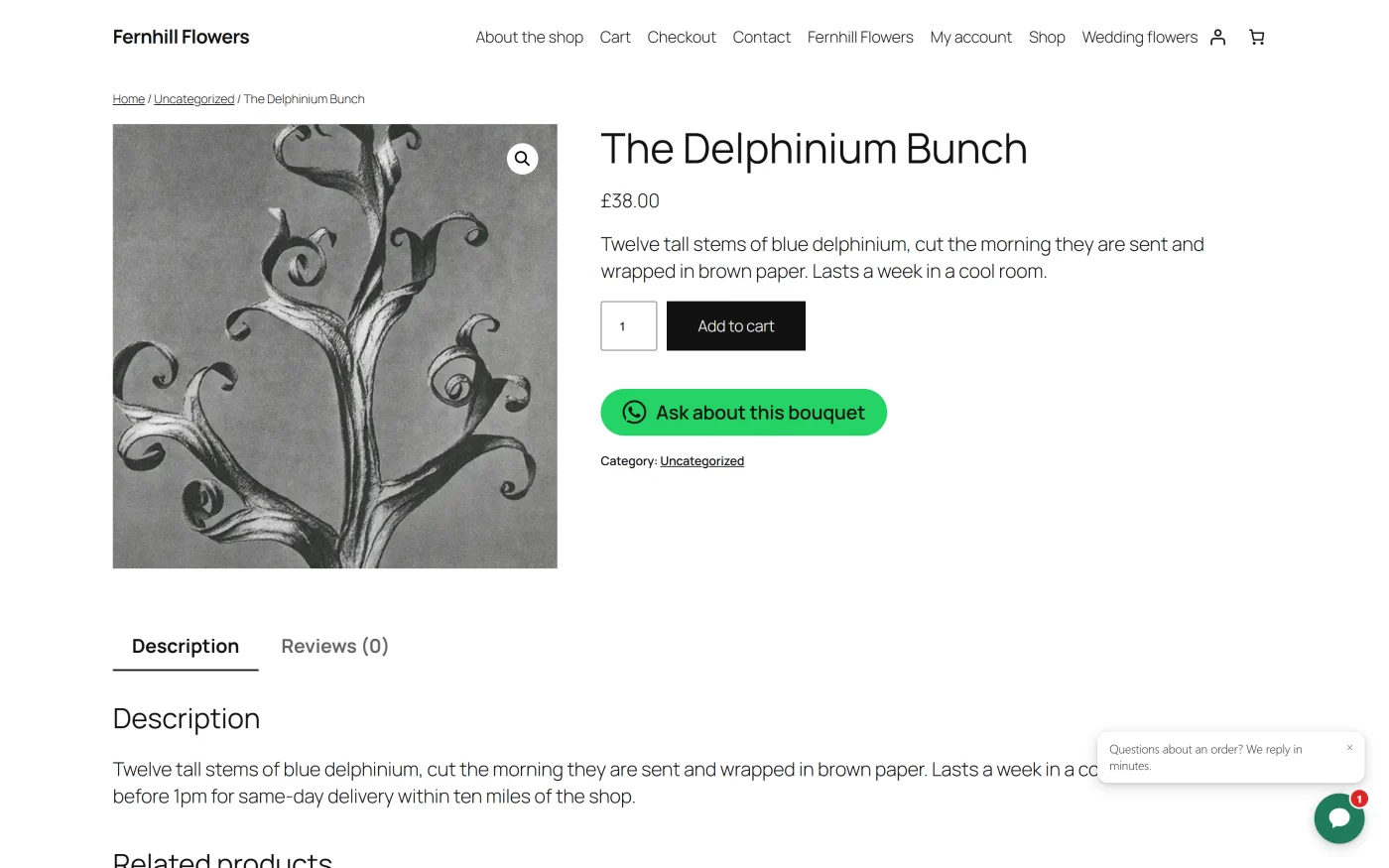
It works with classic themes and with block themes.
Setting it up
Go to Plugixa Chat -> Settings -> WooCommerce. The line under the title reads “A contact button on your product pages.”
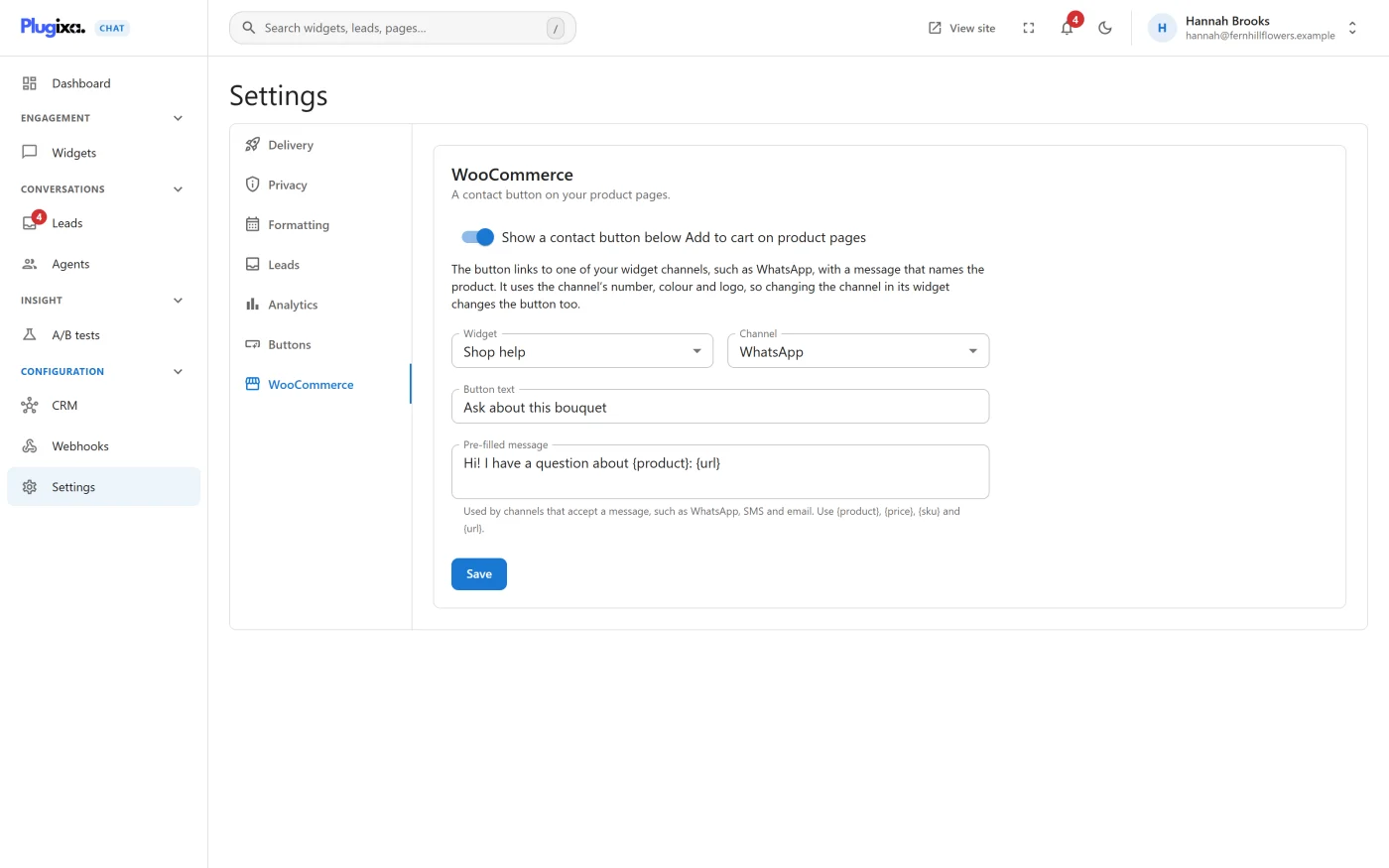
| Setting | What it does | Default |
|---|---|---|
| Show a contact button below Add to cart on product pages | Switches the button on | Off |
| Widget | The widget to borrow a channel from | None |
| Channel | One of that widget’s channels | None |
| Button text | The button’s label, up to 60 characters | “Ask about this product” |
| Pre-filled message | Up to 500 characters. “Used by channels that accept a message, such as WhatsApp, SMS and email. Use {product}, {price}, {sku} and {url}.” | “Hi! I have a question about {product}: {url}” |
Press Save. While the switch is on, a widget and a channel are both needed; until then the screen shows “Choose a widget and a channel to save.”
“The button links to one of your widget channels, such as WhatsApp, with a message that names the product. It uses the channel’s number, colour and logo, so changing the channel in its widget changes the button too.”
Which channels are offered
The same channels as for a chat button in your content: link channels that are switched on and have a destination. Contact form, WeChat and the Pro Order status are not offered. If the chosen widget has none, the screen shows “This widget has no channel the button can link to. Add a channel such as WhatsApp or Phone and fill in its number first.”
The widget does not have to be Active, so you can use a button on product pages without a floating widget.
If WooCommerce is not active
The tab stays available, with the note “WooCommerce is not active on this site. You can set the button up now; it appears on product pages once WooCommerce is activated.”
The message
The pre-filled message can contain merge tags. On a product page they are replaced with that product’s details.
| Tag | Replaced with |
|---|---|
{product} |
The product’s name |
{price} |
The price, as WooCommerce displays it |
{sku} |
The SKU |
{url} |
The product page’s address |
The other tags from the Channels catalogue work here too.
The message is used by WhatsApp, SMS and Email. For Email it becomes the subject line. Other channels, such as Phone call, ignore it.
Where the button appears
| Theme | Position |
|---|---|
| A classic theme | In the product summary, straight after the Add to cart button |
| A block theme | Straight after the product page’s Add to cart block |
A product page gets one button, even when its template shows Add to cart in more than one way.
The button appears only on single product pages. It is not added to shop archives, the cart or the checkout.
Styling
The button is the same element as a chat button in your content, wrapped in
a paragraph with the class plugixa-chat-product. See
Shortcodes
for the class names and CSS variables.
Counting
A press is counted on the Dashboard as a contact started for the widget and
channel the button borrows, and sent to your analytics tags with the
placement product. See
Tracking events.
Product details in the floating widget
The floating widget’s own channels can use the product tags too. A WhatsApp channel whose pre-filled message is “I am interested in {product}” names the product on every product page, and leaves that part empty elsewhere.
What to do next
- Let customers check an order in the widget with Order status PRO.
- Place buttons elsewhere with Blocks and Shortcodes.