

Contents
Blocks - Plugixa Chat
The plugin adds one block to the block editor: Chat button. It puts a button inside a page or post that opens WhatsApp, a phone call, or another channel taken from one of your widgets.
| Block | Name | Category | Edition |
|---|---|---|---|
| Chat button | plugixa-chat/button |
Widgets | Free |
Search the inserter for “chat”, “whatsapp”, “contact”, “telegram”, “messenger” or “call”.
How it works
The button borrows a channel from a widget. It has no number of its own. The destination, the colour and the logo come from the channel as it is set in the widget, so changing the number there changes every button on the site.
The block is drawn by the server each time the page is viewed. Nothing is frozen into the post when you save it.
Adding the block
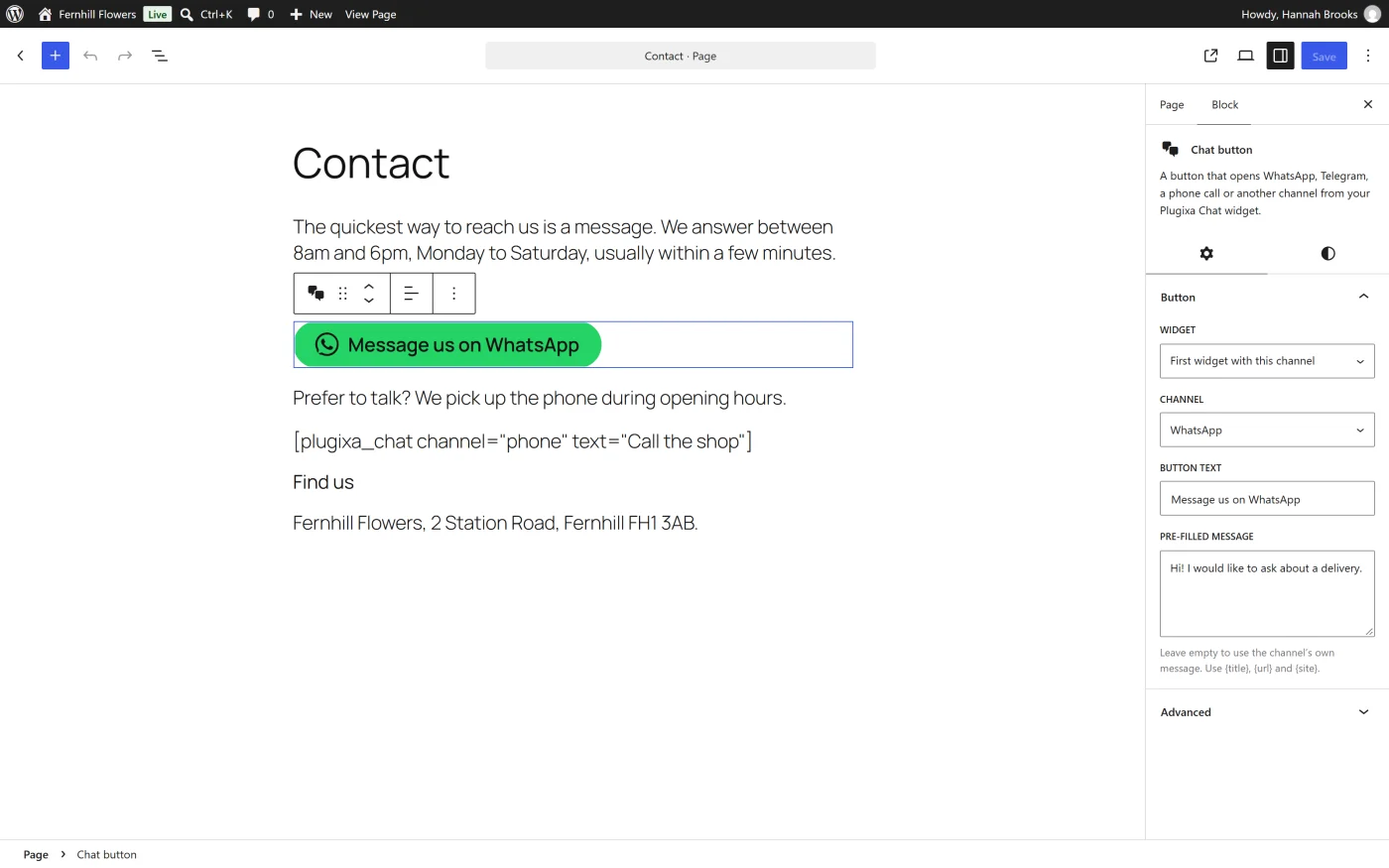
- Add the Chat button block.
- In the block’s sidebar, open the Button panel.
- Choose a widget and a channel, and type the button’s text.
The editor shows the real button as it will look on the site.
Settings
| Setting | Choices | Default |
|---|---|---|
| Widget | First widget with this channel, or one of your widgets by name | First widget with this channel |
| Channel | First channel, or one of the channels of the chosen widget | First channel |
| Button text | Up to 60 characters | “Chat with us” |
| Pre-filled message | Up to 500 characters. “Leave empty to use the channel’s own message. Use {title}, {url} and {site}.” | The channel’s own message |
With everything left on its default, the block opens the first channel of your first widget that a button can open.
Changing Widget resets Channel to First channel.
The block also supports text alignment and a margin, from the editor’s usual controls. It has no HTML editing mode.
Which channels are offered
Only channels a button can open are listed:
- channels that follow a link, such as WhatsApp, Phone call, Email, Telegram or a Custom link,
- that are switched on in the widget,
- and have a destination filled in.
Channels that open a panel inside the widget, such as Contact form, WeChat and the Pro Order status, cannot be opened by a button and are not listed.
The widget itself does not have to be Active. A button can borrow a channel from an inactive widget, which is a way to keep a set of numbers for buttons without showing a floating widget at all.
Attributes
For developers and for block templates.
| Attribute | Type | Default | Meaning |
|---|---|---|---|
widget |
integer | 0 |
A widget’s ID. 0 means the first widget that has the channel |
channel |
string | "" |
A channel slug, for example whatsapp. Empty means the first channel a button can open |
text |
string | "" |
The button’s text. Empty uses “Chat with us” |
message |
string | "" |
The pre-filled message. Empty uses the channel’s own |
When there is nothing to open
If no widget has a usable channel yet, the block shows a placeholder in the editor: “No widget has a channel a button can open yet. Add a channel such as WhatsApp or Phone to a widget and fill in its number first.”, with an Open Plugixa Chat widgets link for people allowed to open the plugin.
If a button on a published page loses its target later, for example because its widget was deleted or the channel lost its number:
- visitors see nothing in the button’s place,
- people who can edit posts see the note “Chat button: no widget has a channel this button can open. Only editors see this note.”
On the front of the site
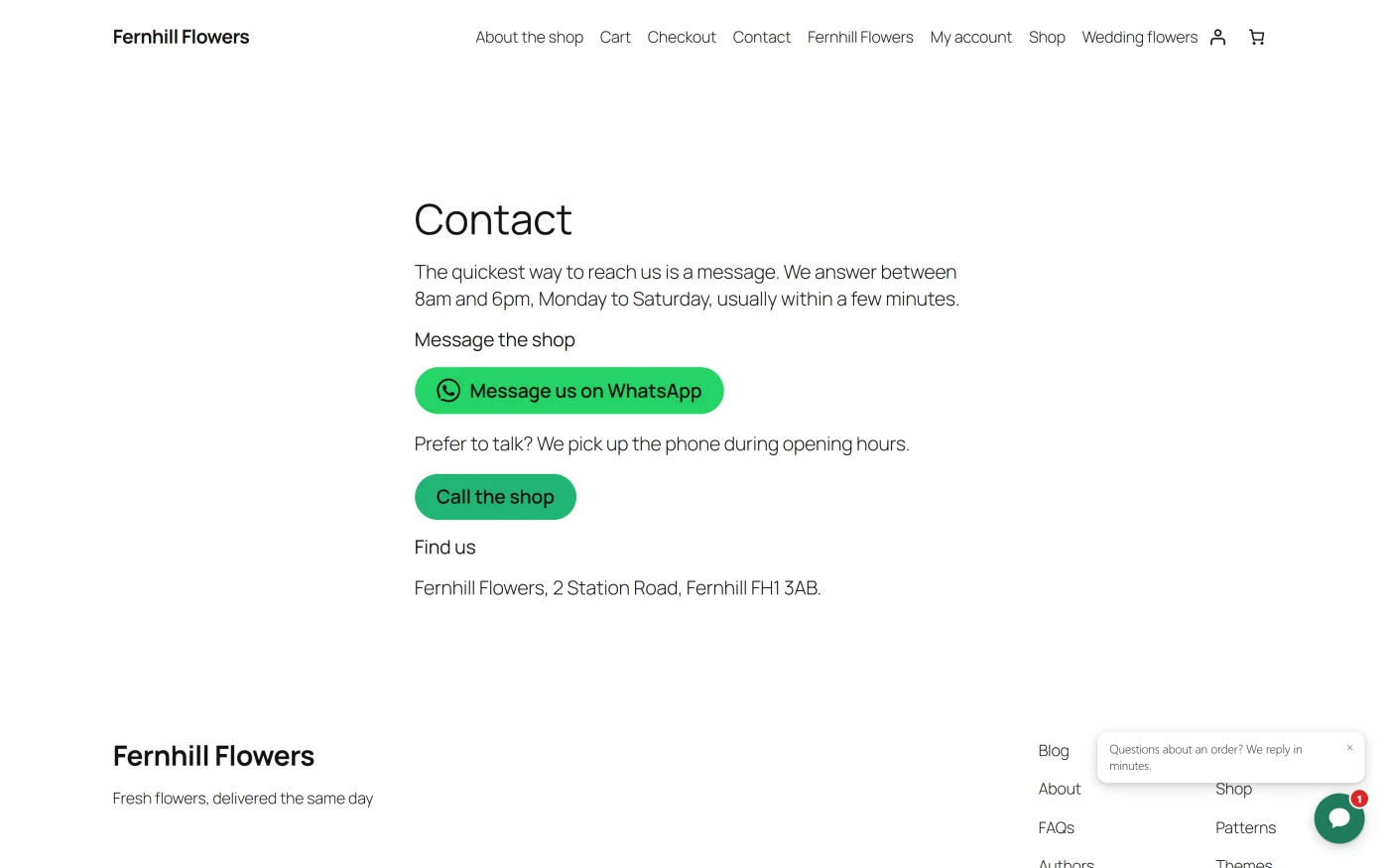
- The button is a plain link. It works with JavaScript switched off.
- It is drawn in the channel’s colour, with a text colour chosen automatically so the label stays readable.
- A link to a web address opens in a new tab. A link that opens an app, such as a phone call, does not.
- A press is counted on the Dashboard as a contact started for that widget
and channel, and sent to your analytics tags with the placement
inline. See Tracking events. - Merge tags in the message are filled in for the page the button is on.
Editors who can use the block editor see widget names and channel labels in the pickers, never the phone numbers themselves.
What to do next
- Use the same button outside the block editor with Shortcodes.
- Put a button on every product page with the WooCommerce product button.