

Contents
QR codes - Plugixa Chat
Two features use a QR code. They solve different problems.
| Feature | Channels | The code is |
|---|---|---|
| QR code on computers | WhatsApp, LINE | Drawn in the visitor’s browser from the channel’s own link |
| WeChat panel | An image you upload |
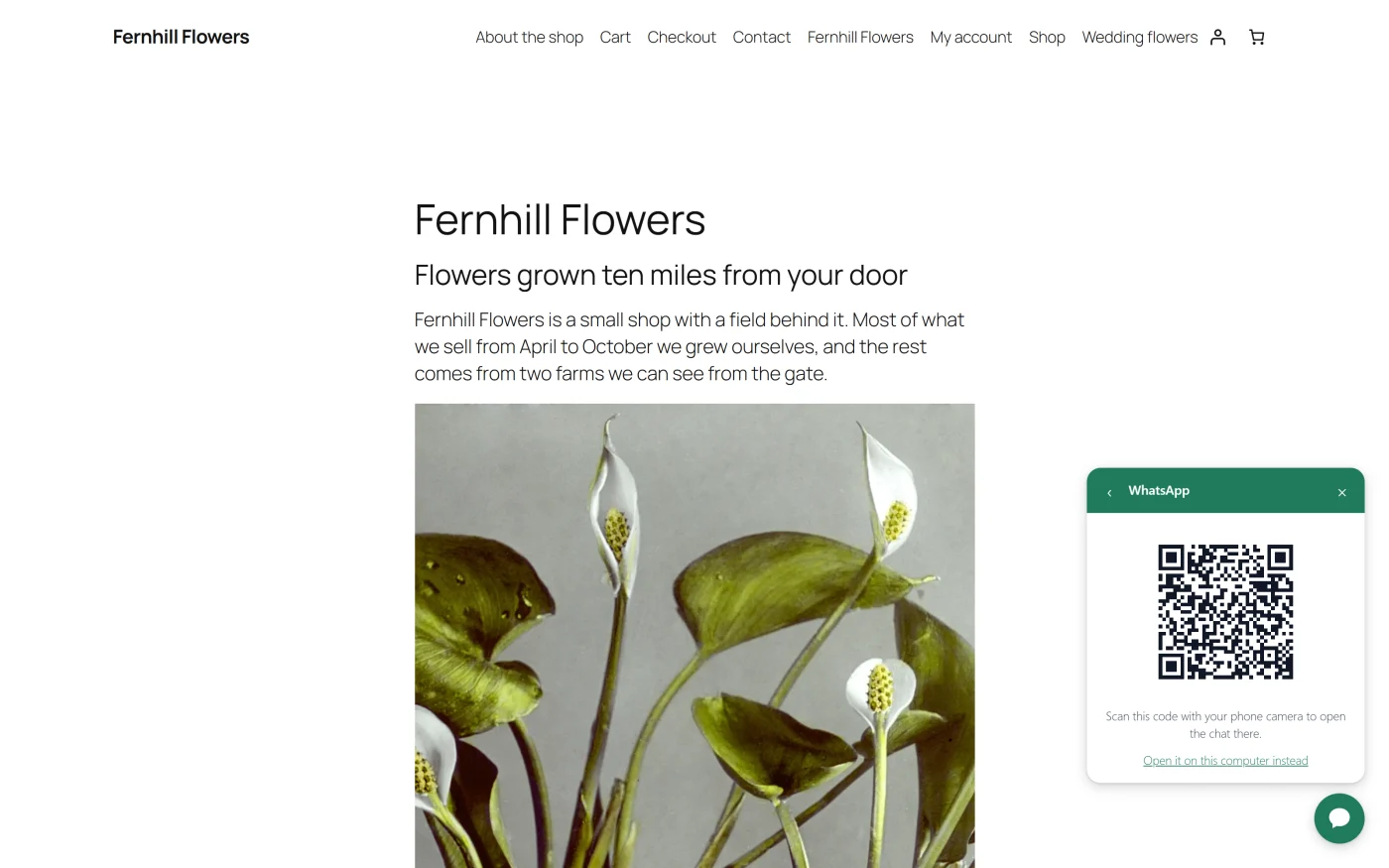
QR code on computers
On a phone, a WhatsApp button opens the app with your message already typed. On a computer the same link opens WhatsApp Web, which asks people to log in first. With the QR code switched on, a visitor on a computer gets a code to scan with their phone instead, and the chat opens in the app.
Switching it on
- Open the widget and go to the Channels step.
- Open the card of a WhatsApp or LINE channel.
- Switch on Show a QR code on computers.
“On a computer, this channel opens a code to scan with a phone, which starts the chat in the app. On a phone it opens the app directly, as it does now.”
The setting is per channel. It is off by default.
What the visitor sees
On a computer, pressing the channel replaces the list with a panel holding:
- the QR code,
- the line “Scan this code with your phone camera to open the chat there.”,
- a link, “Open it on this computer instead”, which follows the channel’s normal link.
A back arrow returns to the list of channels.
Scanning the code opens the same link the button would have opened, including the pre-filled message.
Things to know
- “A computer” means a device whose main pointer is a mouse or trackpad. Phones and tablets, whose main pointer is a finger, keep opening the app directly.
- The code is drawn in the browser from your own link. No outside QR service is used and nothing is sent anywhere.
- When a pre-filled message makes the link too long for a code, the code is drawn for the link without the message. If even that cannot be drawn, the channel opens its link in the usual way.
- The press is still counted as a contact started.
- In Pro, an agent PRO whose channel is WhatsApp or LINE always shows the code on computers.
WeChat has no web link that opens a chat. The WeChat channel therefore opens a panel with your QR code and your WeChat ID.
Setting it up
- In WeChat, open Me and tap the QR icon beside your name. Save that image.
- In the builder, add the WeChat channel and open its card.
- Type your WeChat ID in Destination.
- Under QR code image, press Upload QR code and choose the image. Replace image swaps it and Remove takes it away.
“Visitors scan it to add you. With an image, the WeChat ID above is optional.” The channel is shown once it has an ID, an image, or both.
What the visitor sees
Pressing the WeChat row opens a panel with:
- your QR code image and the line “Scan this code in WeChat to add us.”, when an image was uploaded,
- your WeChat ID with a Copy button, when an ID was entered. The button reads “Copied” for a moment after it is pressed.
The panel is the same on phones and computers.
What to do next
- See every channel in the Channels catalogue.
- Write the pre-filled message a scan opens with in Builder: Channels.