

Contents
Order status - Plugixa Chat
PRO On a WooCommerce shop, the Order status channel answers “Where is my order?” inside the widget. “Customers enter their order number and the email address they ordered with, and see the order’s status, date, items and total - and the tracking number, when a shipment-tracking plugin stored one.”
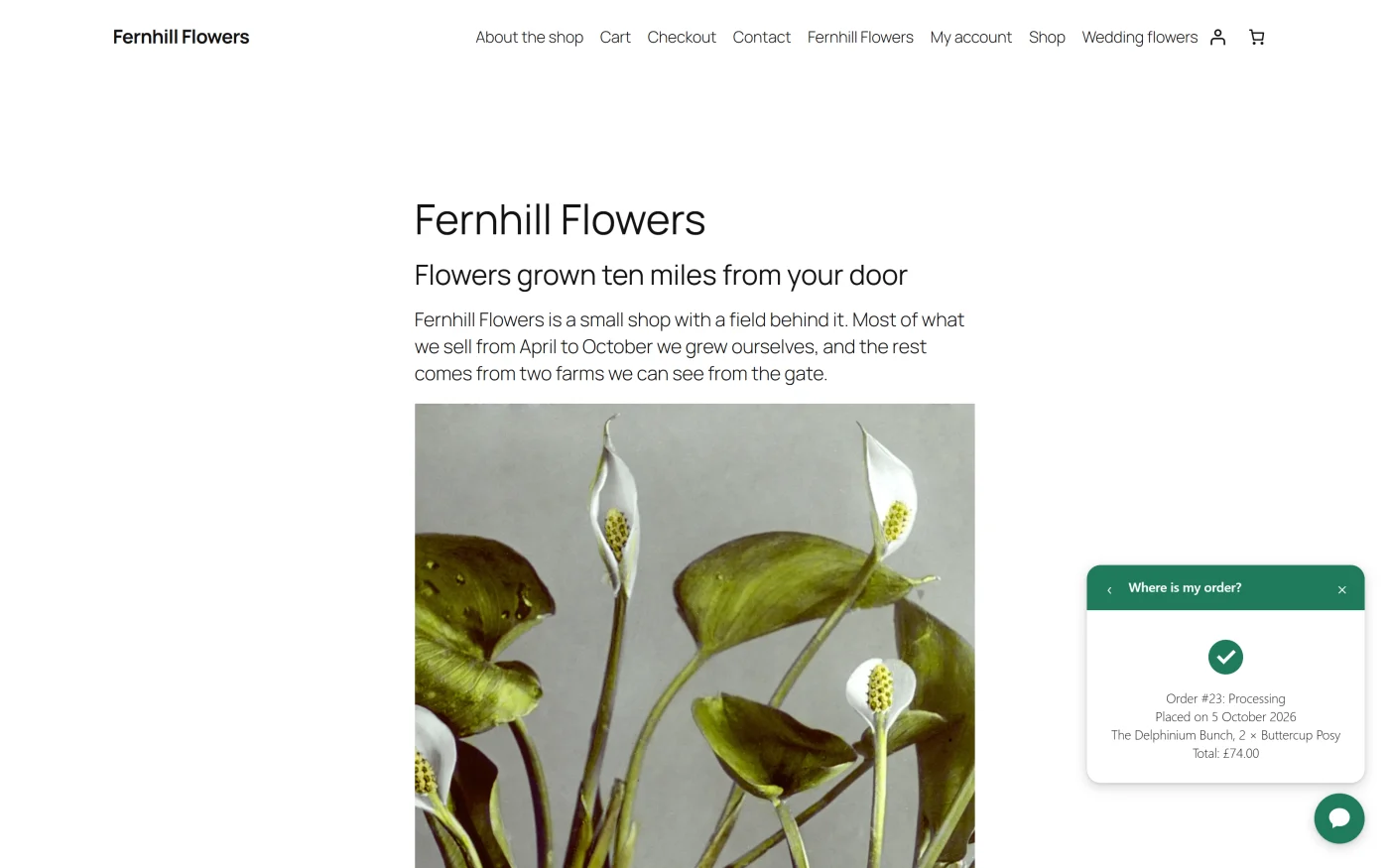
The channel exists only while WooCommerce is active.
Adding the channel
- Open a widget and go to the Channels step.
- Under Contact, click Order status.
- Open the channel’s card to change its wording.
The channel needs no destination.
| Setting | If left empty |
|---|---|
| Title | “Where is my order?” |
| Introduction | “Enter the email address you ordered with and your order number - it is in your order confirmation email.” |
| Button text | “Check my order” |
The title can be up to 100 characters, the introduction up to 1000 and the button text up to 40. The preview in the builder shows the form, and the line “Here the customer sees their order’s status, date, items and total.” where the answer will be.
What the customer does
- Opens the widget and presses Order status.
- Types the Email address they ordered with and the Order number.
- Presses the button.
The form is replaced by the answer.
| Line | Example |
|---|---|
| Order and status | “Order #1042: Processing” |
| Date | “Placed on” followed by the order date |
| Items | The first three items, with quantities, and “and 2 more items” when there are more |
| Total | “Total:” followed by the order total |
| Tracking | “Tracking:” followed by the carrier and the tracking number, once for each parcel |
Under the lines there can be one link:
| Link | Shown when |
|---|---|
| Track the parcel | The tracking entry carries its own tracking link |
| See the order in your account | There is no tracking link, and the order belongs to a customer account |
How an order is matched
- The order number and the email address must both match. The email is compared with the order’s billing email, without regard to capital letters.
- A leading
#in the order number is ignored. - The number is looked up the same way as WooCommerce’s own order tracking form, so plugins that give orders custom or sequential numbers through that form’s filter work here too.
- Checkout drafts are never returned.
When nothing matches, the form answers “We could not find an order with that number and email address. Please check both and try again.” The answer is the same whether the number or the email was wrong, so the form cannot be used to find out which order numbers exist.
Tracking numbers
Tracking lines appear when the order carries tracking entries in the
_wc_shipment_tracking_items order field, which is where shipment tracking
plugins that follow WooCommerce’s Shipment Tracking format store them. If
your tracking plugin stores its numbers elsewhere, the answer shows the
order without a tracking line.
Protection against misuse
| Check | Value |
|---|---|
| Lookups one visitor can make | 10 every five minutes. After that the form answers “Too many requests. Please wait a moment and try again.” |
| A hidden trap field | A program that fills it in gets the “not found” answer |
| Page token | The request must come from a page your site rendered recently |
What is stored
Nothing. A lookup does not create a lead, is not written to any table, and does not fire the lead event in your analytics tags. The press on the channel is counted as a contact started, like any other channel.
The channel shows order details to anyone who knows both the order number and the billing email, which is the same information WooCommerce’s own tracking form asks for.
Limits of the channel
- A chat button in your content, and the WooCommerce product button, cannot open this channel. It opens only from the floating widget.
- The contact form’s Turnstile check is not used on this form.
If Pro is removed
Visitors no longer see the channel. In the builder it is marked “Not shown on your site”, and it is removed from the widget the next time the widget is saved on the free edition. See Free vs Pro.
What to do next
- Add a contact button to product pages with the WooCommerce product button.
- See the other channels in the Channels catalogue.