

Contents
Business hours - Plugixa Chat
PRO Business hours show a widget only while somebody is there to answer it. The same timetable can also be set on a single channel, and on a single agent.
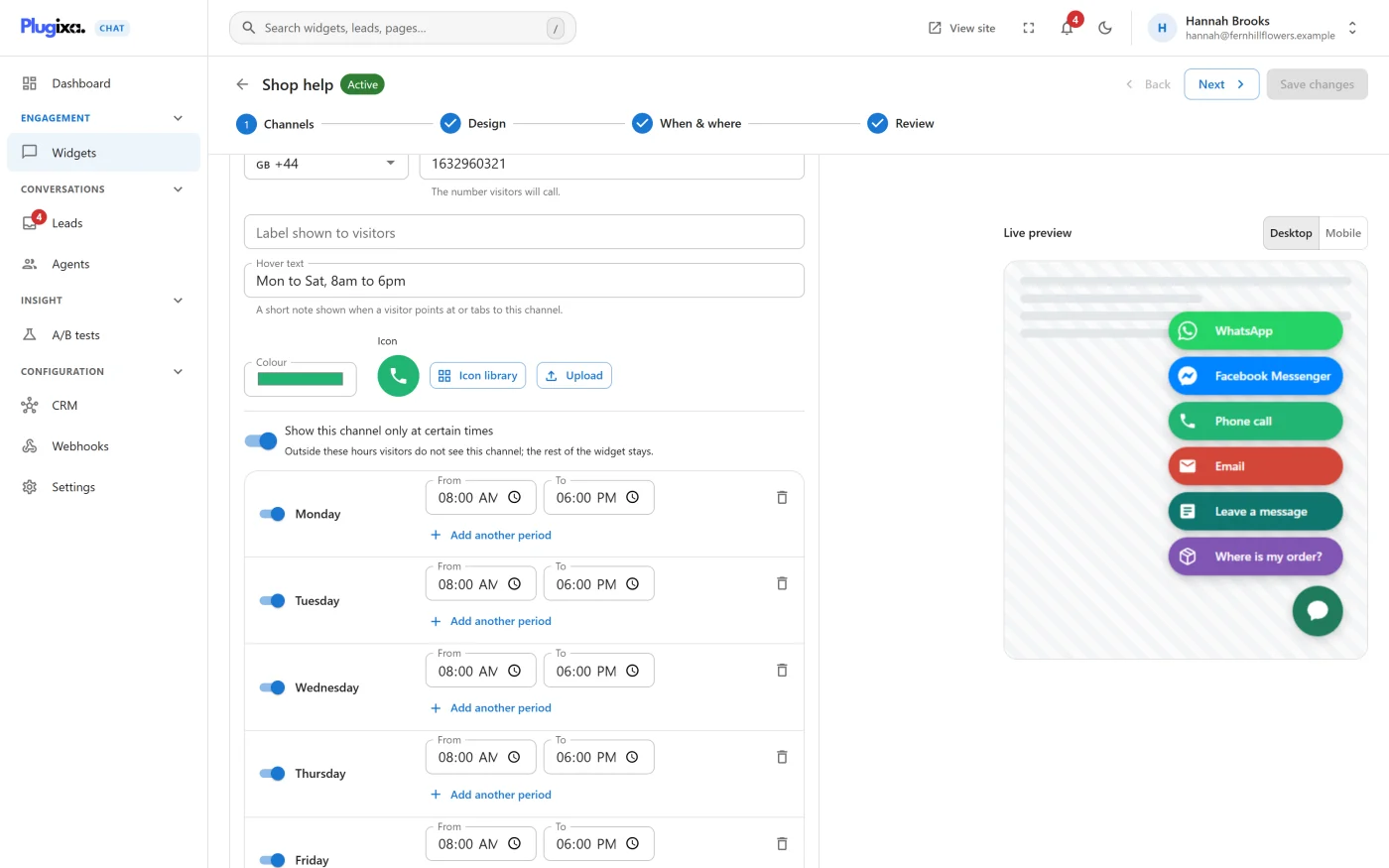
| Where | What is shown or hidden |
|---|---|
| A Business hours rule on a widget | The whole widget |
| Show this channel only at certain times on a channel | That one channel. The rest of the widget stays |
| Hours on an agent | That one person |
Hours for a whole widget
- Open the widget and go to the When & where step.
- Under Where it appears, add a rule and choose Business hours.
- Leave the rule on Show on and fill in the timetable.
Choosing Except on instead turns it round: the widget is hidden during the hours you set and shown outside them.
The timetable
The editor lists the seven days, starting on the day your site’s week starts on.
On an empty timetable two shortcuts fill it in:
| Shortcut | Sets |
|---|---|
| Weekdays 9 to 5 | Monday to Friday, 09:00 to 17:00 |
| Every day | All seven days, 09:00 to 17:00 |
For each day:
| Control | What it does |
|---|---|
| The switch | Open or Closed. Switching a day on gives it 09:00 to 17:00 |
| From and To | The start and end of a period |
| Add another period | A second period on the same day, for example to leave out a lunch break |
| Remove this period | Takes one period away |
Copy to every open day copies the first open day’s periods to every other day that is switched on.
A period whose To is earlier than its From is labelled “Ends the next morning”.
A timetable can hold up to 28 periods in all. A Business hours rule with no periods is discarded when you save: “No hours set yet, so this rule will be discarded when you save.”
One channel
To keep the widget up all day and only take the phone line away after closing:
- On the Channels step, open the channel’s card.
- Switch on Show this channel only at certain times.
- Fill in the timetable.
“Outside these hours visitors do not see this channel; the rest of the widget stays.”
The switch is offered on every channel. If every channel of a widget is outside its hours at the same moment, there is nothing left to show and the widget is not shown at all.
Which clock is used
“Times are read in the site’s timezone, and checked in the visitor’s browser, so they stay right on a cached page.”
- The timezone is the one set under WordPress Settings -> General. The editor shows its name beside the note. The plugin has no timezone setting of its own.
- The current time comes from your server, not from the visitor’s device. A visitor in another country, or one whose clock is wrong, sees the same open and closed times as everyone else.
- The check is made when a page loads. A visitor who keeps a page open past closing time keeps the widget until they load another page.
- A visitor’s browser may reuse the answer it was given for up to five minutes, so a widget can appear or disappear a few minutes after the timetable says.
If the time cannot be checked
Checking the hours needs one short request from the visitor’s browser to your site. If it is blocked or fails, the rule is treated as if the time were inside your hours. With the usual Show on rule the widget is therefore shown: a button that appears outside opening hours is a smaller problem than a shop with no way to contact it during them.
To treat a failed check as outside your hours instead, choose Keep the widget hidden under Settings -> Delivery -> If a visitor check fails. See Settings.
Combining with other rules
A Business hours rule belongs to the visitor group of rules, with Signed in, Came from, Country and Language. See how rules combine. Two Show on rules in that group are alternatives, so “Show on: Business hours” together with “Show on: Signed-in visitors” shows the widget during opening hours, and to signed-in visitors at any time.
If Pro is removed
A Business hours rule on a widget stays stored and keeps being applied on the site, because the check itself is part of the free plugin. The free builder lists the rule with its raw values and lets you delete it, but has no timetable editor. Hours on a single channel are no longer applied, so the channel is shown at all times, and they are discarded the next time that widget is saved on the free edition. See Free vs Pro.
What to do next
- Give each person their own hours in Agents.
- Review the other rules in Builder: When and where.