

Contents
Builder: Channels - Plugixa Chat
The first step of the builder asks “How can visitors reach you?”. You pick channels from a grid and fill in where each one goes. The preview beside the form shows the widget open, so you can watch the list take shape.
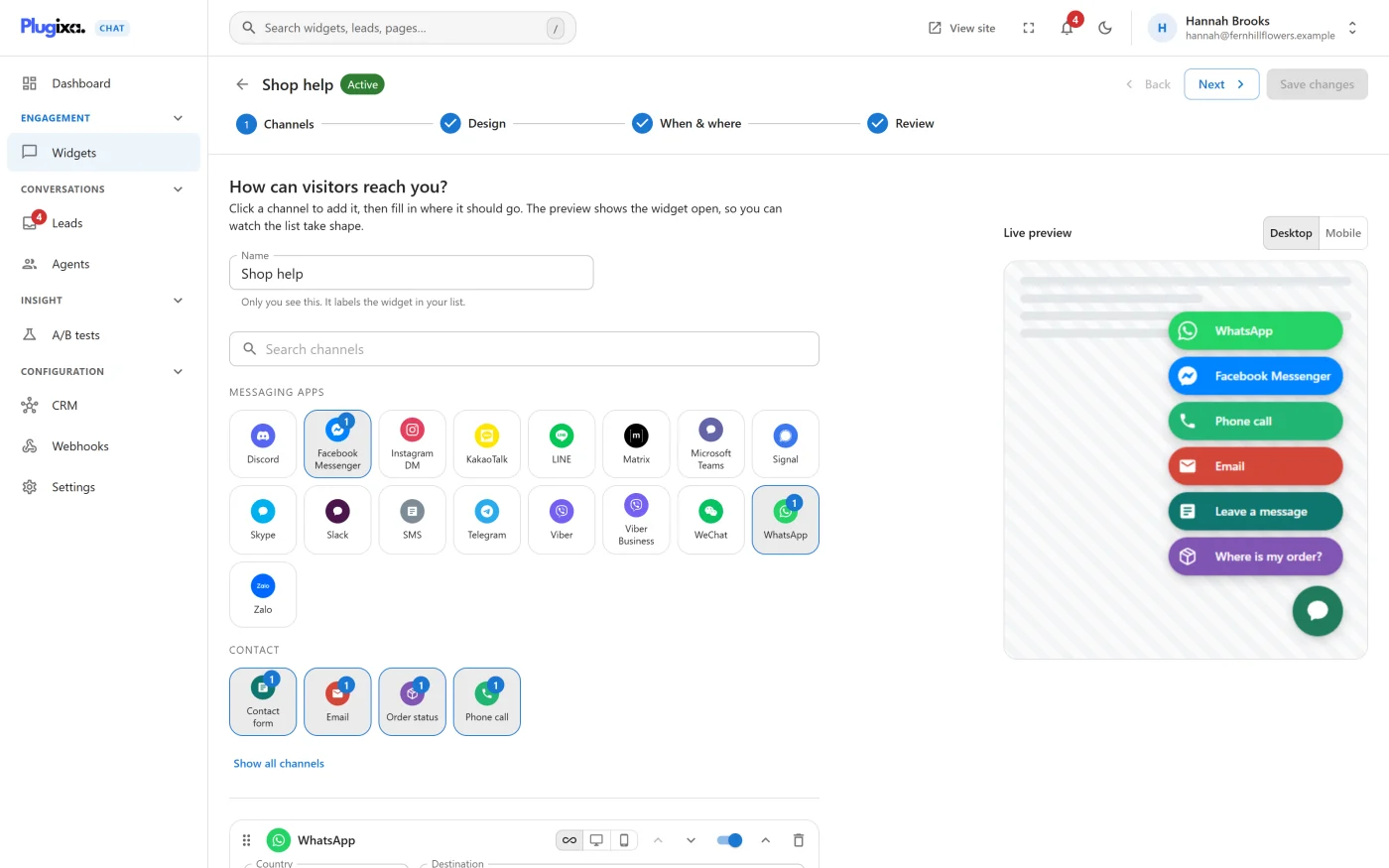
The builder’s toolbar
The bar at the top of the builder stays in place on every step.
| Part | What it does |
|---|---|
| Back arrow | Back to widgets. Returns to the list |
| Name and status | The widget’s name, with Active or Inactive beside it |
| Back and Next | Move one step |
| Save | Saves the widget. On a widget that already exists it reads Save changes, and is available once something has changed |
| The steps | Channels, Design, When & where, Review. Click any step to jump to it. A step with something missing is marked |
On a narrow screen the steps become a progress bar with a counter.
Name
The Name field labels the widget in your list. “Only you see this. It labels the widget in your list.”
Adding a channel
The grid shows channels grouped under headings. It opens with Messaging apps and Contact; Show all channels reveals the rest, and Show fewer channels folds them away again. The Search channels box filters by name.
| Group | Examples |
|---|---|
| Messaging apps | WhatsApp, Facebook Messenger, Telegram, Viber, Signal, LINE, WeChat, SMS |
| Contact | Phone call, Email, Contact form |
| Location | Google Maps, Waze, Google Business Profile |
| Booking | Calendly, Cal.com, TidyCal |
| Social profiles | Facebook page, Instagram, X, LinkedIn, YouTube, TikTok |
| Custom | Custom link |
Click a channel to add it. A card for it opens under the grid. Clicking a channel that is already in the widget opens its existing card instead of adding a second one.
To add the same channel twice, for example two Custom link buttons, use Add a channel under the cards. It opens the same picker and always adds a new card.
The full list is in the Channels catalogue.
The channel card
Each channel is a card. The row at the top of the card has these controls:
| Control | What it does |
|---|---|
| Handle | Drag to reorder |
| Three device buttons | All devices, Desktop only or Mobile only. See Devices |
| Move up and Move down | Reorder without dragging |
| Switch | Hide this channel or Show this channel. A hidden channel stays in the widget’s settings and is not drawn |
| Arrow | Channel settings. Opens and closes the card |
| Delete | Removes the channel from the widget |
The order of the cards is the order of the rows in the widget.
Fields
| Field | What it is for |
|---|---|
| Destination | Where the channel goes: a number, a username, an address or a link. For phone-based channels it is a Country picker and a number. Up to 500 characters. Channels that open a panel, such as Contact form, have no destination |
| Label shown to visitors | The text on the row. Leave it empty to use the channel’s own name |
| Hover text | A short note, up to 100 characters, shown when a visitor points at or tabs to the channel, for example “Usually replies within an hour” |
| Pre-filled message | Offered for WhatsApp, SMS and Email. The text the visitor’s app opens with. For Email it becomes the subject line. Merge tags are allowed |
| Show a QR code on computers | Offered for WhatsApp and LINE. See QR codes |
| Colour | The channel’s colour. It starts as the brand’s own colour |
| Icon | The channel’s icon. See Icons |
The help line under Pre-filled message lists the merge tags: “Use {title}, {url}, {site} and, on WooCommerce product pages, {product}, {sku} and {price}.” They are explained in the Channels catalogue.
Some channels add their own settings at the bottom of the card:
| Channel | Extra settings |
|---|---|
| Contact form | The form’s title, fields, consent and messages. See Contact form |
| The QR code image. See QR codes | |
| Every channel PRO | Show this channel only at certain times. See Business hours |
| Contact form PRO | Your own questions. See Custom form fields |
| Order status PRO | Title, introduction and button text. See Order status |
Warnings on a card
A card with a problem gets a coloured border and a label.
| Label | Cause |
|---|---|
| “That does not look right for this channel” | The destination does not match what the channel expects, for example letters in a phone number |
| “Links cannot run JavaScript. Use the plugixa_chat_channel_click event instead.” | The destination starts with javascript:, data: or vbscript:. Such a channel is discarded when you save |
| “Not shown on your site” | The channel is no longer available on this site, for example a Pro channel on a site that no longer has Pro |
The first warning does not stop you saving. Check the value and carry on if it is right.
Devices
The three device buttons on a card decide where that one channel is shown.
| Choice | The channel is shown |
|---|---|
| All devices | Everywhere. This is the default |
| Desktop only | When the browser window is 768 pixels wide or more |
| Mobile only | When the browser window is narrower than 768 pixels |
This is how one widget offers “Phone call” on phones and “Email” on computers. The choice follows the width of the window, not the kind of device, so it stays right when a tablet is rotated or a page is served from a cache.
To hide a whole widget on one kind of device, use the Device rule in Builder: When and where.
Icons
Every channel has a default icon: the brand’s logo where there is one. The Icon control offers three buttons.
| Button | What it does |
|---|---|
| Icon library | Opens a searchable library with two tabs, Icons and Brands. Search with words such as chat, phone or heart. When many icons match, the first 240 are shown and you are asked to narrow the search |
| Upload | Chooses an image from the media library |
| Use default | Goes back to the channel’s own icon |
The same control sets the launcher’s icon on the Design step.
What a channel needs before it is shown
A channel appears in the widget on your site when all of these are true:
- its switch is on,
- it has a destination, or it is a channel that needs none, such as Contact form,
- for WeChat, it has a WeChat ID or a QR code image.
With no channels at all the step reads “No channels yet. Add at least one, or the widget will not appear.” A widget with no channel ready cannot be made active: the Review step lists “Add at least one channel and fill in where it goes.”
What to do next
- See what every channel expects in the Channels catalogue.
- Set the look in Builder: Design.
- Set up the form in Contact form.