

Contents
CRM connectors - Plugixa Chat
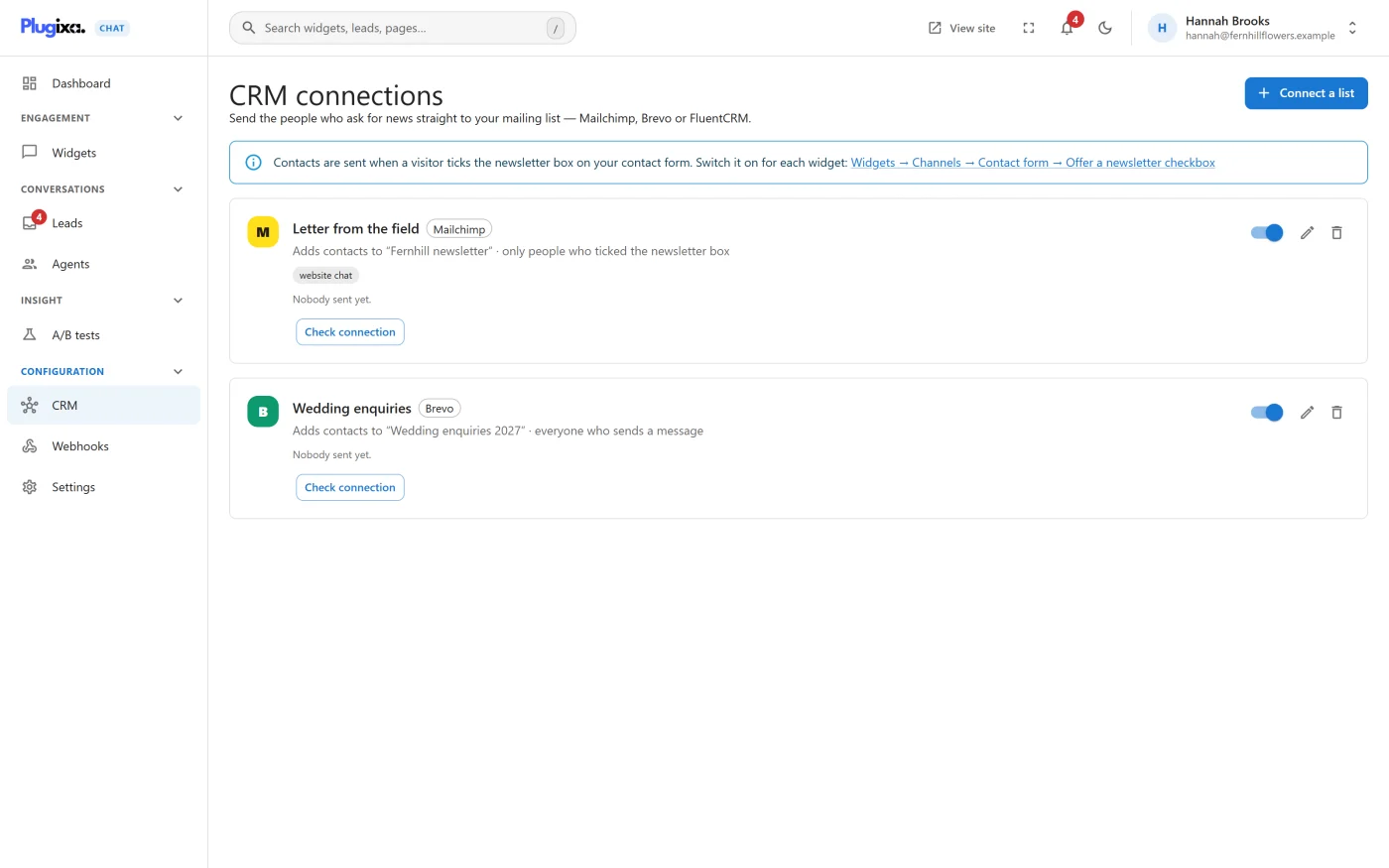
PRO Plugixa Chat -> Configuration -> CRM adds contacts from your contact form to a mailing list. “Send the people who ask for news straight to your mailing list - Mailchimp, Brevo or FluentCRM.”
| Service | Needs | Tags | Double opt-in |
|---|---|---|---|
| Mailchimp | An API key | yes | yes |
| Brevo | An API key | - | - |
| FluentCRM | The FluentCRM plugin active on this site. No key | yes | yes |
Before you start
By default a connection sends only visitors who tick the newsletter box on the contact form. The screen reminds you where that is: “Contacts are sent when a visitor ticks the newsletter box on your contact form. Switch it on for each widget: Widgets -> Channels -> Contact form -> Offer a newsletter checkbox”. See Contact form.
Connecting a list
Press Connect a list. A panel opens on the right.
| Step | Field | What to do |
|---|---|---|
| 1 | Service | Choose Mailchimp, Brevo or FluentCRM. FluentCRM is marked Not installed and cannot be chosen when that plugin is not active. The service cannot be changed after the connection is saved |
| 2 | API key | Paste the key. Mailchimp: “Mailchimp -> Profile -> Extras -> API keys.” Brevo: “Brevo -> SMTP & API -> API keys.” FluentCRM needs no key |
| 3 | Load lists | Fetches your lists from the service |
| 4 | Add contacts to | Choose the list |
| 5 | Tags | “Optional. Press Enter after each tag. Useful to see who came from the chat.” Up to 10 tags. Mailchimp and FluentCRM only |
| 6 | Ask new contacts to confirm by email (double opt-in) | “They join the list only after clicking the link in the confirmation email.” Mailchimp and FluentCRM only |
| 7 | Who is sent | See below |
| 8 | From which widget | Every widget, or one widget |
| 9 | Name | “Optional. Shown on this screen only.” Without one, the list’s name is used |
A Mailchimp key ends in a dash and a data centre, such as -us21. A key the
service refuses is reported with where to find the right one.
Who is sent
| Choice | Sends |
|---|---|
| Only visitors who tick the newsletter box (recommended) | Leads whose newsletter box was ticked |
| Everyone who sends a message | Every lead with an email address |
The second choice carries a warning: “Adding people to a mailing list usually needs their permission. Choose this only if you have another lawful basis for emailing them.”
A lead without a valid email address is never sent, whatever is chosen.
You can connect several lists, for example one per widget or one per service.
The connection cards
Each connection is a card showing the service, “Adds contacts to” the list, who is sent, and the state of the last delivery.
| Line | Meaning |
|---|---|
| “Nobody sent yet.” | No contact has been delivered |
| “Last contact sent …” | The last delivery was accepted |
| “Last delivery failed: …” | The service refused the last contact, with its reason |
| Paused | The connection is switched off |
| Control | What it does |
|---|---|
| The switch | Pause or Resume. A paused connection sends nothing |
| Edit connection | Reopens the panel. The key field reads “Saved - paste a new key only to replace it” |
| Delete connection | “New leads stop being sent to this list, and the saved API key is erased. Contacts already on the list stay there.” |
| Check connection | Tests the key and the list now. See below |
Check connection
| Answer | Meaning |
|---|---|
| “Connected. New contacts go to …” | The key works and the list exists |
| “The key works, but the chosen list no longer exists. Edit the connection and choose another.” | The list was deleted or renamed at the service |
| A message about the API key | The service no longer accepts the key |
What is sent
| Service | Sent for each contact |
|---|---|
| Mailchimp | Email address, first name, last name, and your tags |
| Brevo | Email address, first name, last name |
| FluentCRM | Email address, first name, last name, phone, and your tags |
- The name from the form is split at its first space into a first and a last name.
- The message itself is never sent to the list.
- Mailchimp: a new contact is added as subscribed, or as pending with double opt-in on. A contact already on the list keeps its current status and has its name updated.
- Brevo: the contact is added to the list, or updated if it exists. Double opt-in and tags are handled in Brevo itself, not by this connection.
- FluentCRM: the contact is created or updated inside your own site. A new contact is subscribed, or pending with double opt-in on, in which case FluentCRM sends its confirmation email.
Delivery
- A contact is queued as soon as the lead is stored and sent in the background by WordPress’s scheduler.
- A delivery that fails because the service could not be reached, was busy, or had a server error is tried again, up to three attempts in all, after one minute and after ten.
- A delivery the service refuses outright, for example an address it considers invalid, is not retried. The reason is shown on the card.
- Requests to Mailchimp and Brevo wait up to 12 seconds for an answer.
Keys and privacy
- An API key is stored separately from your other settings and is never sent back to the browser. The screen is told only whether a key is saved.
- Deleting a connection erases its key.
- “Each contact’s email address and name are sent to this service. Mention it in your privacy policy - WordPress offers suggested text under Settings -> Privacy.” The plugin adds a suggested paragraph there under “Plugixa Chat Pro”.
- With FluentCRM nothing leaves your site.
If Pro is removed
Connections stay stored, with their keys. On the free edition nothing is sent and the screen is gone. See Free vs Pro.
What to do next
- Switch on the newsletter box in Contact form.
- Send leads to any other system with Webhooks.