

Contents
Builder: Review - Plugixa Chat
The last step of the builder is “Review and launch”: “Everything in one place. Check it, then choose whether visitors can see it yet.”
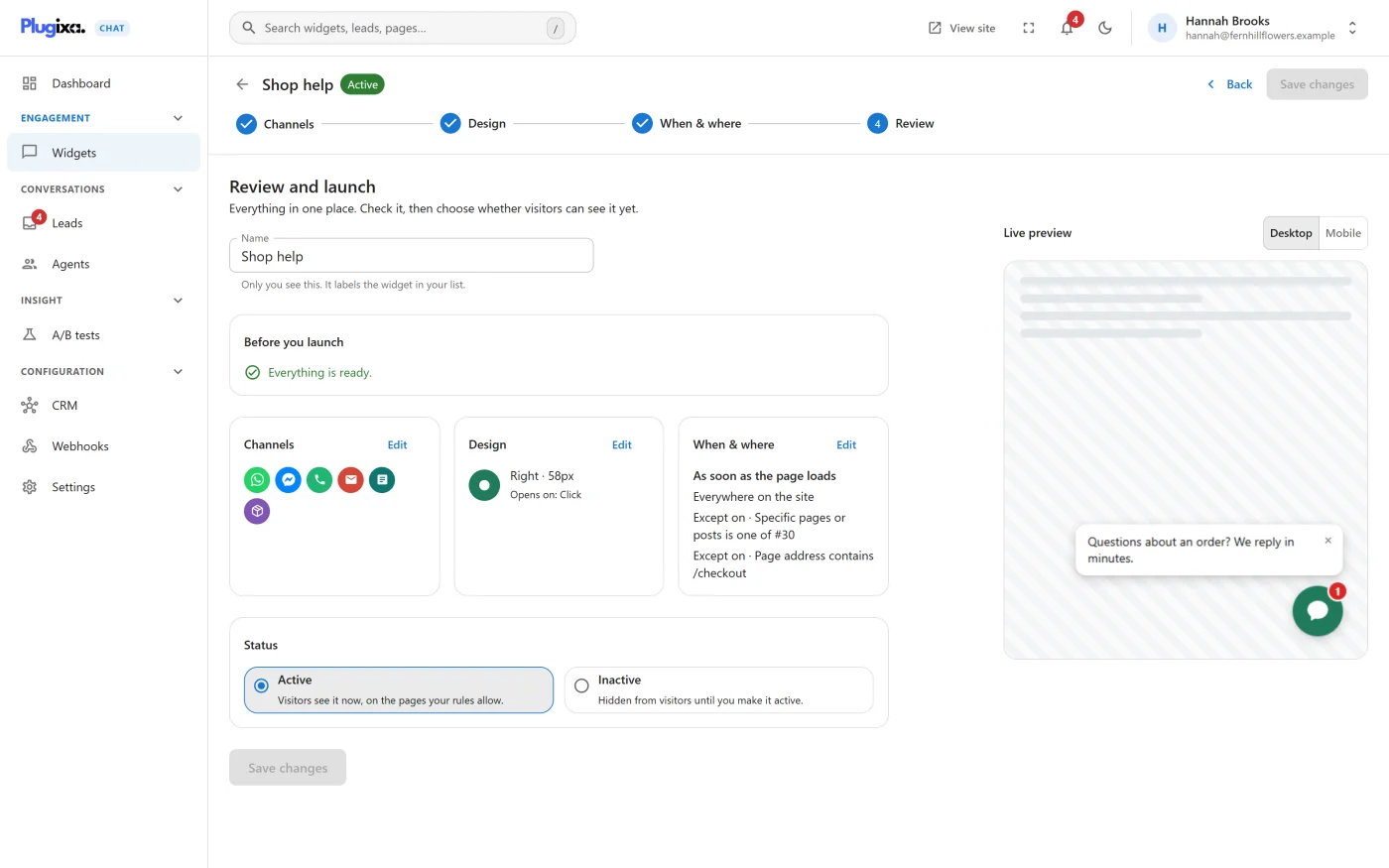
Name
The widget’s Name can be changed here too. It labels the widget in your list and is never shown to visitors.
Before you launch
The checklist gathers everything the other steps found. With nothing to report it reads “Everything is ready.”
Otherwise each line names a problem and has a button that opens the step where it is fixed.
| Line | Kind | Meaning |
|---|---|---|
| “Add at least one channel and fill in where it goes.” | Must be fixed before going live | No channel is switched on with a destination |
| “The icon is hard to see against the button colour.” | Warning | The contrast between the button colour and the icon colour is below 4.5:1 |
| “Add at least one value, or this rule will be discarded when you save.” | Warning | A targeting rule has no values |
A warning does not stop you publishing.
The summary cards
Three cards describe the widget in short. Each has an Edit button that opens its step.
| Card | Shows |
|---|---|
| Channels | The icon of each channel that is switched on, and how many are hidden. “No channels yet” when there are none |
| Design | The launcher’s colour, its side and size, and what opens it |
| When & where | The triggers in words, such as “After 5 seconds” or “As soon as the page loads”, then each rule as a sentence. “Everywhere on the site” when no Show on rule narrows it |
Status
| Choice | Meaning |
|---|---|
| Active | “Visitors see it now, on the pages your rules allow.” |
| Inactive | “Hidden from visitors until you make it active.” |
Saving
The large button under the status depends on what you are doing.
| Situation | Button |
|---|---|
| A new widget, status Active | Publish widget |
| A new widget, status Inactive | Save widget |
| A widget that already exists | Save changes |
The Save button in the toolbar does the same thing from any step.
When a widget goes from Inactive to Active, a green notice reads “Your widget is live on your site.” with a View site button. Any other save shows a short “Saved” message.
If the widget cannot go live
Choosing Active on a widget with no usable channel opens a dialog titled “Visitors will not see this widget yet”, with the reason.
| Button | What it does |
|---|---|
| Save as inactive | Saves the widget switched off, so your work is kept |
| Fix it | Opens the step that needs attention |
After going live
- The widget is drawn on every page its rules match, for every visitor its rules allow.
- If your site uses a full-page cache, clear it once so cached pages include the new widget.
- Counting starts with the first visitor who sees it. The figures are on the Dashboard.
To take a widget off the site without deleting it, open it, choose Inactive on this step and save.
What to do next
- Watch the figures on the Dashboard.
- If the widget does not appear, see Troubleshooting.