

Contents
Widgets - Plugixa Chat
Plugixa Chat -> Engagement -> Widgets lists every widget on the site. The line under the title reads “The chat buttons your visitors see, and where they appear.”
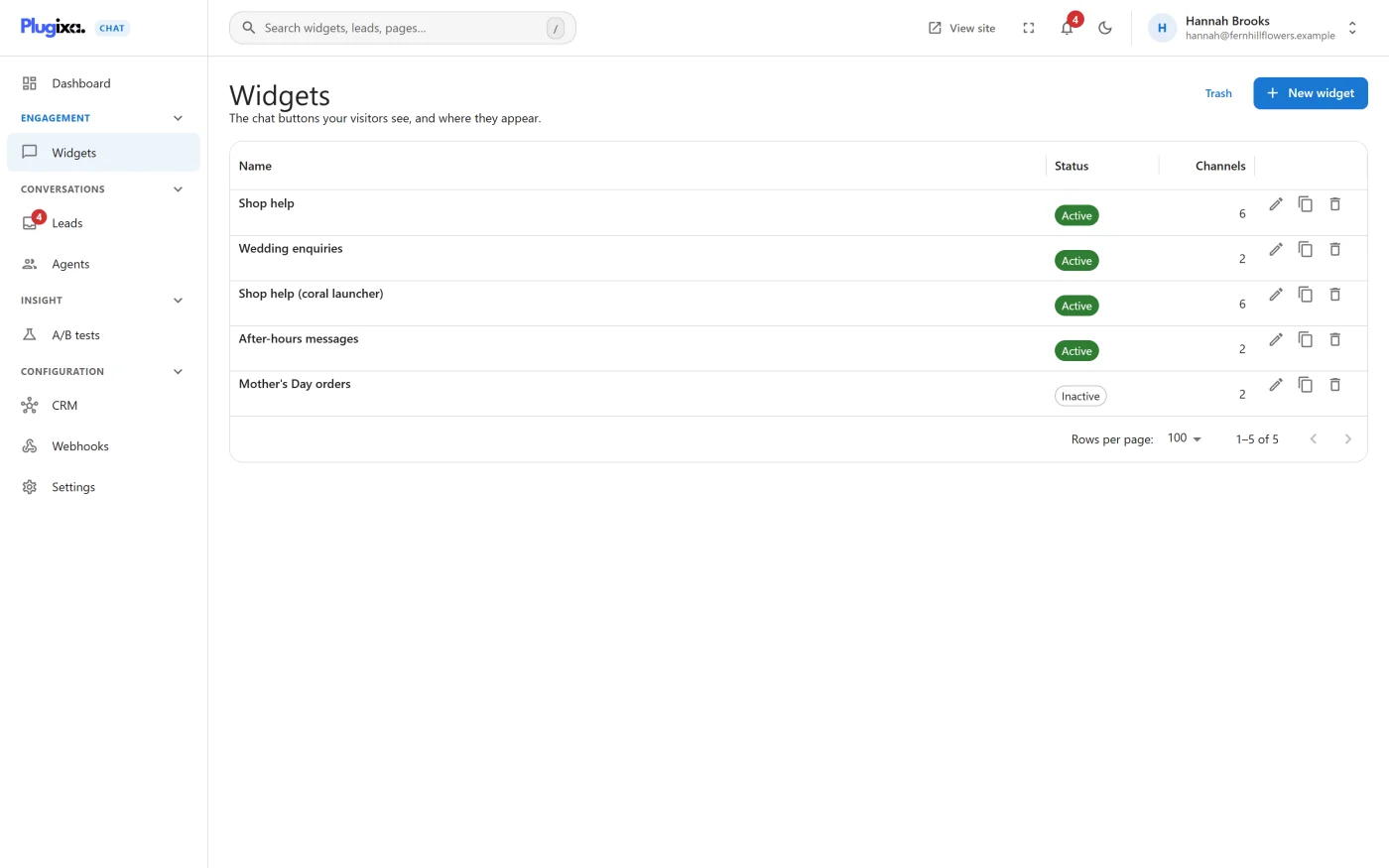
A site can have any number of widgets. Each has its own channels, its own look, and its own rules for where and when it appears, so you can show one widget on the shop and another on the blog.
The list
| Column | What it shows |
|---|---|
| Name | The name you gave the widget. Visitors never see it |
| Status | Active or Inactive |
| Channels | How many channels the widget has |
Each row ends with three actions:
| Action | What it does |
|---|---|
| Edit | Opens the widget in the builder |
| Duplicate | Makes a copy named “… (copy)”, with the same channels, look and rules. The copy is always Inactive |
| Delete | Moves the widget to the trash. It disappears from your site straight away |
Which actions you see depends on your permissions.
Active and Inactive
| Status | What it means |
|---|---|
| Active | Visitors see the widget, on the pages its rules allow |
| Inactive | The widget is stored and hidden from visitors |
The status is chosen on the builder’s Review step. A new widget starts Inactive.
An active widget is drawn only when it has at least one channel that is switched on and has a destination. A widget whose channels are all hidden or empty is not printed at all.
Creating a widget
Press New widget. The builder opens on its first step. The four steps are described on their own pages:
A widget must have a name. Saving without one is refused with “Give the widget a name so you can tell it apart later.”
Several widgets on one page
Every active widget whose rules match a page is drawn on that page. Two widgets in the same corner sit on top of each other, so give them different positions or rules that do not overlap. To show different visitors different widgets on the same pages on purpose, use A/B tests PRO.
The trash
Trash at the top of the screen switches the list to deleted widgets. Press it again to go back.
A widget in the trash is not shown to visitors, and chat buttons that pointed at it stop being drawn. Version 1.0.0 has no button on this screen to restore a widget or to delete it for good. Both are available through the REST API.
No limit
The plugin has no limit on the number of widgets, in either edition. A host
or network operator can set one from code with the plugixa_chat_max_widgets
filter. Only then can the New widget button be disabled, with the note
“This site has reached its widget limit.” See
Hooks reference.
Changes and caching
Saving, deleting or duplicating a widget rebuilds the data the front of your site reads. If you use a full-page cache, clear it after a change so cached pages pick up the new widget. See Accessibility and performance.
What to do next
- Add channels in Builder: Channels.
- See every channel in the Channels catalogue.
- Compare two versions of a widget with A/B tests PRO.