

Contents
A/B tests - Plugixa Chat
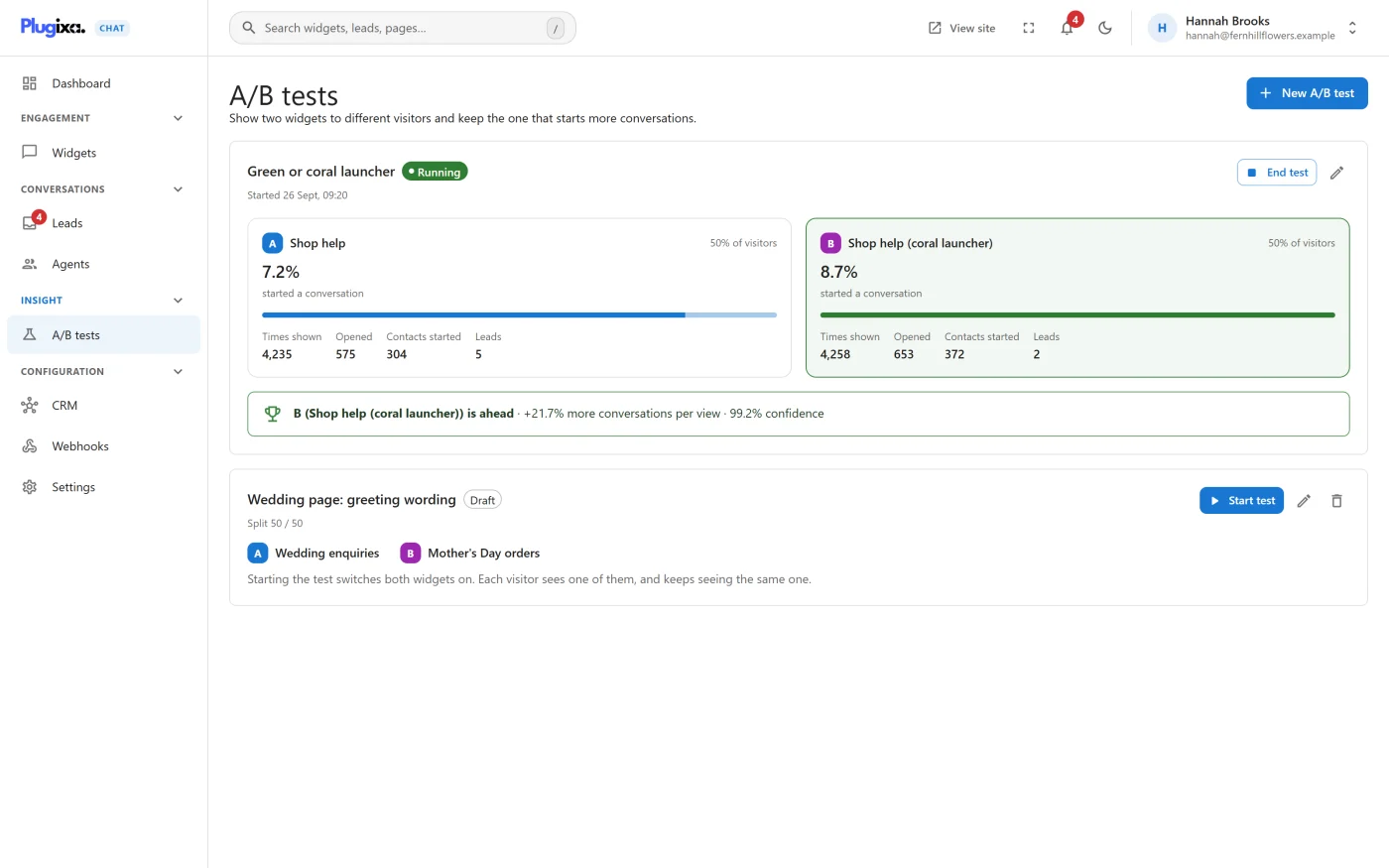
PRO Plugixa Chat -> Insight -> A/B tests compares two widgets. “Show two widgets to different visitors and keep the one that starts more conversations.”
The idea
- On the Widgets screen, Duplicate a widget.
- Change one thing in the copy: the colour, the greeting, the channels.
- Test the original against the copy here.
Changing one thing at a time is what makes the result mean something. If the two widgets differ in five ways, you learn which widget did better and not why.
Give both widgets the same targeting rules, so they compete for the same pages and visitors.
Creating a test
Press New A/B test. A panel opens on the right.
| Field | What it is |
|---|---|
| Name | A label for you, such as “Green button or blue button”. Required |
| Widget A and Widget B | The two widgets. They must be different |
| Who sees which | The share of visitors who get Widget A, from 10 to 90 percent in steps of 5. The rest get Widget B. It starts at 50 / 50 |
A new test is a Draft. Nothing changes on your site until you start it.
A widget can be in only one running test at a time. Choosing one that is busy is refused with “One of these widgets is already in the running test … End that test first.”
Starting a test
On a draft’s card, press Start test.
“Starting the test switches both widgets on. Each visitor sees one of them, and keeps seeing the same one.”
- Both widgets are made Active.
- Each visitor’s browser picks a number at random the first time it meets the test, and remembers it. That number decides which of the two widgets the visitor gets, on every page and every later visit from that browser.
- The split is made in the browser, so it works on cached pages.
- A visitor who clears their browser’s storage, or uses another device, is treated as new.
Once a test has started, only its name can be changed. “Changing the widgets or the split now would move visitors between the two mid-test.”
Reading a running test
The card shows the two widgets side by side.
| Figure | Meaning |
|---|---|
| “… of visitors” | The share this widget is given |
| The large percentage, “started a conversation” | Contacts started divided by times shown, for this widget |
| Times shown | How often the widget appeared |
| Opened | How often it was opened |
| Contacts started | How often a channel was chosen |
| Leads | Contact form messages received through it |
The figures refresh every minute while the test runs.
Counting begins at the first full hour after the test started: “Counting starts at …, the first full hour of the test, so the minutes before it began are not mixed in.” Until that hour arrives the card says so.
The verdict
Under the two widgets, one line says where the test stands.
| Line | Meaning |
|---|---|
| “Keep it running: each widget needs about … more views before the difference means anything.” | Fewer than 100 views on one of the widgets. Too early to say |
| “Too close to call so far. The gap could still be chance, so keep the test running.” | Both have enough views, and the difference is within what chance alone could produce |
| “A is ahead” or “B is ahead”, with “… more conversations per view” and “… confidence” | One widget is ahead beyond chance |
A widget is declared ahead when the difference in conversations per view reaches 95 percent confidence. A test with little traffic can take a long time to get there. That is the test being honest, not broken.
Ending a test
Press End test and choose which widget to keep: Keep A or Keep B. When one is ahead beyond chance, it is marked “Recommended - ahead beyond chance”.
“Keep one widget. The other is switched off, and every visitor sees the one you keep.”
- The widget you keep stays Active and is shown to everyone again.
- The other is made Inactive. It is not deleted.
- The test becomes Ended. Its card keeps the final figures, and marks the widget you chose as Kept.
You decide. The plugin never ends a test or switches a widget off by itself.
Deleting a test
Delete test removes a draft or an ended test. “The test and its results are removed. Both widgets stay as they are, with all their own statistics.”
A running test must be ended first: “End this test before deleting it, so your visitors stop being split between the two widgets.”
If one of a test’s widgets is deleted, its side of the card reads “Deleted widget”.
Things to know
- A test applies only while both widgets are active and have at least one ready channel. If you switch one of them off by hand during a test, everyone gets the other.
- Visitors who are sent to one widget are not shown the other, but each widget’s own rules still apply. A visitor assigned to A sees nothing on a page where A’s rules hide it.
- The widgets’ figures on the Dashboard keep counting as usual during a test.
If Pro is removed
Tests stay stored. On the free edition the split is no longer applied, so both widgets of a running test are shown to everyone until you switch one off. See Free vs Pro.