

Contents
Agents - Plugixa Chat
PRO Plugixa Chat -> Conversations -> Agents adds people to your widgets. “Each person is added to the widget as their own button, below the channels. Visitors see the name, the role and the photo.”
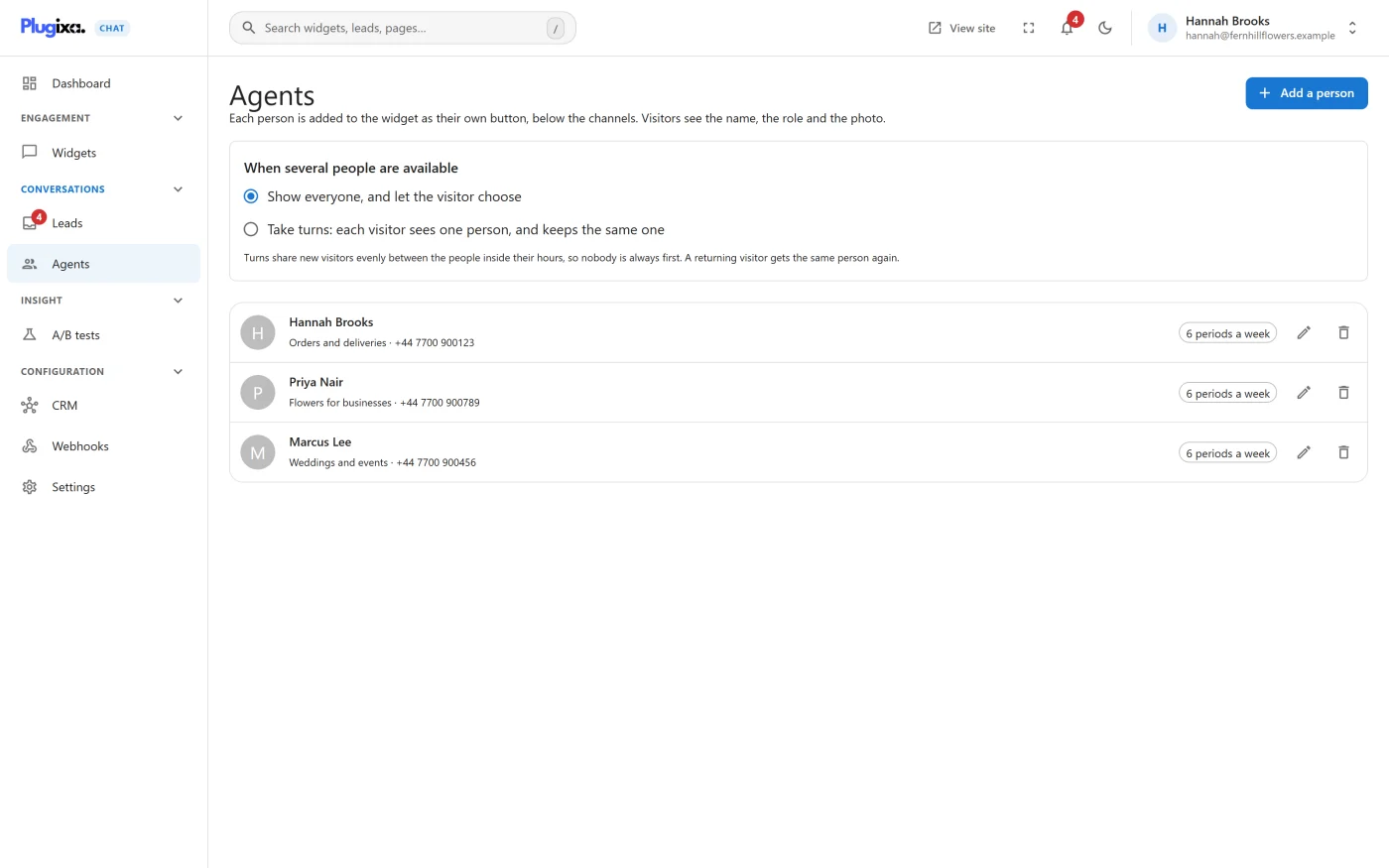
An agent is not a WordPress user and does not log in. It is a named button that opens a channel, such as a WhatsApp number or an email address, that belongs to one person.
Adding a person
Press Add a person. A panel opens on the right.
| Field | What it is |
|---|---|
| Photo | A picture from the media library. Remove photo takes it away. Without one, the channel’s own logo is used |
| Name | Shown to visitors as the button’s label. Required |
| Role | “Shown beside the name, such as Sales or Support.” |
| Channel | How this person is reached. Any channel that follows a link: WhatsApp, Phone call, Email, Telegram and so on. Channels that open a panel, such as Contact form, are not offered |
| Number or address | The destination for that channel. Required |
| Pre-filled message | Offered for channels that accept one, up to 500 characters |
| Appears on | Every widget, or one widget |
| Active | Switch a person off without deleting them |
| Hours | This person’s own timetable. See below |
Until a name and a destination are filled in, the panel shows “A name and a number or address are needed.” and Save stays disabled.
The list shows each person with their photo, role, and either “Always shown” or the number of periods in their week. A person who is switched off is marked Inactive. Each row has Edit and Delete.
How people appear in the widget
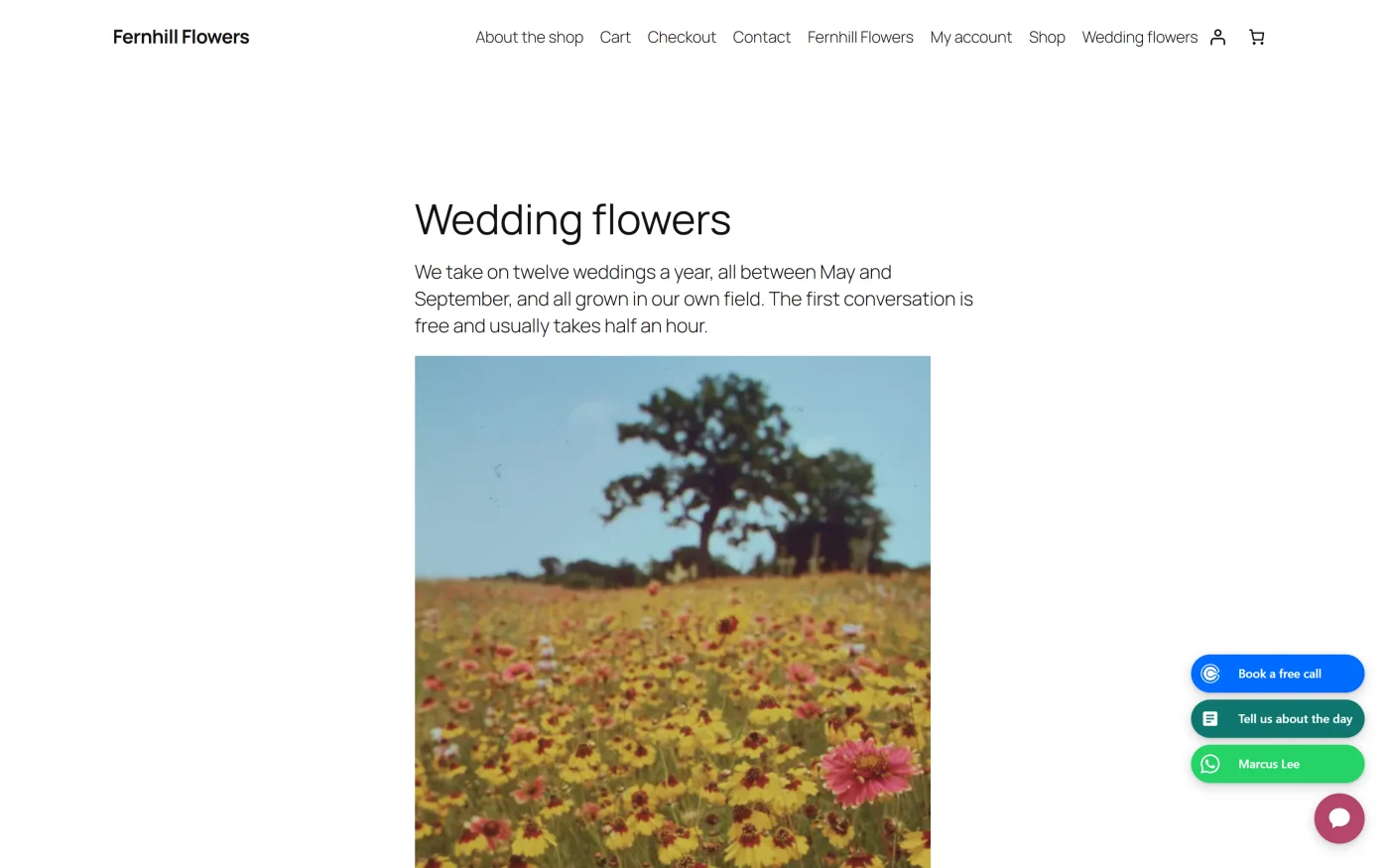
- Each active person is a row in the open widget, after the widget’s own channels.
- The row shows the photo, the name, and the role as the small note beside it.
- Pressing the row opens that person’s channel in a new tab or in the app.
- For WhatsApp and LINE, a visitor on a computer gets a QR code to scan. See QR codes.
- A press is counted as a contact started for that channel.
A widget still needs at least one channel of its own that is ready. People are added to widgets that are being shown; they do not make an otherwise empty widget appear.
Hours
Each person can have their own timetable, edited the same way as Business hours.
“Leave every day closed and this person is always shown. Otherwise they appear only during their own hours, checked in the visitor’s browser against the site’s timezone.”
Outside their hours, a person’s row is left out of the widget. The widget’s channels and the other people stay.
When several people are available
Once the list has at least one person, a card above it asks When several people are available. The choice applies to the whole site and is saved as soon as you make it.
| Choice | What visitors see |
|---|---|
| Show everyone, and let the visitor choose | Every person who is inside their hours. This is the default |
| Take turns: each visitor sees one person, and keeps the same one | One person per visitor |
“Turns share new visitors evenly between the people inside their hours, so nobody is always first. A returning visitor gets the same person again.”
How taking turns works:
- The choice is made in the visitor’s browser, at random, the first time they see a widget with more than one person. The browser remembers it, so the same visitor meets the same person on later visits from that browser.
- Only people inside their hours at that moment take part. If a visitor’s usual person is off, they are given another.
- It needs at least two active people. With one, the card reads “Add a second person to share visitors between them.”
- The widget’s own channels are not affected. Only the people are shared out.
Agents and other features
| Feature | With agents |
|---|---|
| Widget rules | A person follows the rules of every widget they appear on |
| Chat buttons and the product button | These borrow a widget’s channels, not its people |
| Analytics | Presses on a person count under their channel, for example WhatsApp, not under their name |
If Pro is removed
People stay stored. On the free edition they are no longer added to any widget and the Agents screen is gone. Installing Pro again brings them back as they were. See Free vs Pro.
What to do next
- Set a timetable in Business hours.
- See which channels a person can use in the Channels catalogue.