

Contents
PayPal - Plugixa Car Parking
PayPal PRO is a payment method that sends the customer to PayPal to approve the payment and brings them back to your site, where the money is captured. Customers see it as PayPal.
Set it up under Car Parking -> Settings -> PayPal. Everything on Payments about the ledger, refunds and booking statuses applies to PayPal payments too.
Setting it up
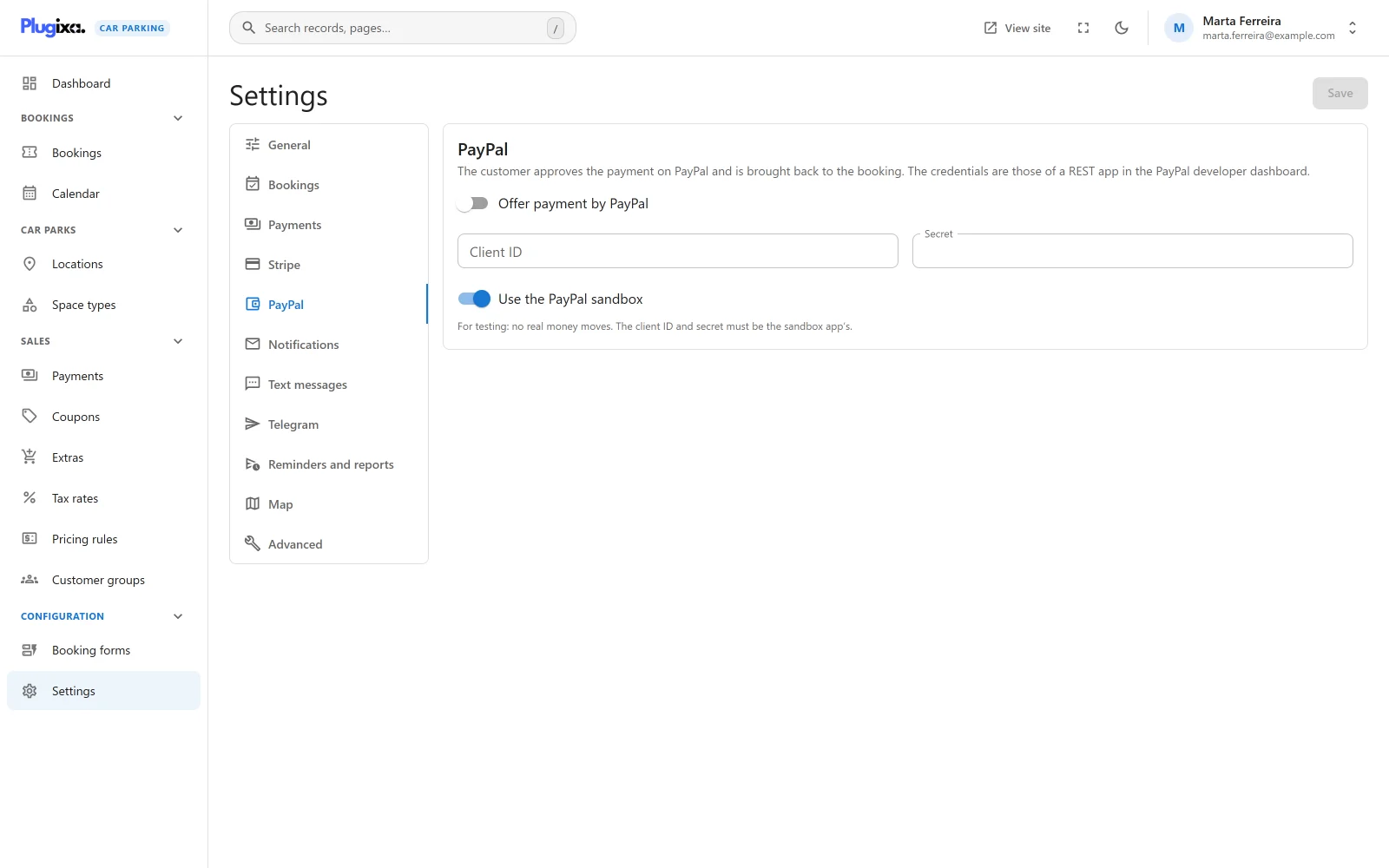
The PayPal card says: “The customer approves the payment on PayPal and is brought back to the booking. The credentials are those of a REST app in the PayPal developer dashboard.”
- In the PayPal developer dashboard, create a REST app. It gives you a client ID and a secret, one pair for the sandbox and one for live.
- Open Car Parking -> Settings -> PayPal and fill in the fields below.
- Press Save.
| Field | Key | Default | Notes |
|---|---|---|---|
| Offer payment by PayPal | paypal in enabled_gateways |
Off | The switch that offers PayPal to customers. |
| Client ID | paypal_client_id |
Empty | Stored as plain text. |
| Secret | paypal_secret |
Empty | Stored encrypted and never sent back to the browser. |
| Use the PayPal sandbox | paypal_sandbox |
On | “For testing: no real money moves. The client ID and secret must be the sandbox app’s.” |
PayPal is offered to customers only when the switch is on and both the client ID and the secret are stored. Otherwise the screen warns: “PayPal is switched on but needs both a client ID and a secret before a payment can start.”
There is no webhook to configure. PayPal payments are confirmed when the customer returns to your site.
Sandbox and live
Use the PayPal sandbox is on for a new install, so a fresh set-up takes no real money.
| Switch | The plugin talks to | Credentials to enter |
|---|---|---|
| On | https://api-m.sandbox.paypal.com |
The sandbox app’s client ID and secret |
| Off | https://api-m.paypal.com |
The live app’s client ID and secret |
To go live, switch the sandbox off and replace both credentials with the live app’s. Sandbox credentials against the live address, or the reverse, fail to sign in, and the customer sees “PayPal authentication failed.”
What the customer sees
- With PayPal and another method both on, the booking form shows a Payment step where the customer chooses. With PayPal as the only method, the step is left out.
- On confirming, the booking is saved first, then the customer is sent to PayPal.
- PayPal shows the payment as “Parking booking” followed by the booking reference, with a pay-now button.
- After approving, the customer returns to your site, the payment is captured, and they see Payment received. See Coming back from an online payment.
A customer can also pay later from the booking summary, which shows a Pay now box with a PayPal button while anything is still owed.
If the payment cannot be started, the booking still exists. The confirmation says “Your booking is saved, but the payment could not be started.” followed by the reason.
How a payment is confirmed
The plugin uses PayPal’s Orders API in two steps.
| Step | When | What happens |
|---|---|---|
| Create | The customer confirms the booking | The plugin signs in to PayPal with your credentials and creates an order for the amount due, to be captured |
| Capture | PayPal sends the customer’s browser back to your site | The plugin captures the order. If PayPal answers that the capture is completed, the payment is recorded |
The amount recorded is the amount PayPal reports it captured. The row appears in Car Parking -> Payments with the method PayPal, the status Completed and PayPal’s capture id as its transaction ID. A capture that is reported a second time is not recorded again.
The money is taken only when the customer comes back. Approval at PayPal does not move money by itself. If the customer approves and then closes the window before PayPal returns them to your site, nothing is captured, nothing is charged, and the booking stays unpaid. They can pay again from the booking summary.
Unpaid and abandoned payments
The booking exists before the customer pays, as Pending and Unpaid with default settings. If the customer does not finish at PayPal, the booking keeps its space until its hold runs out (Hold an unconfirmed booking for (minutes), 30 by default) and then expires. See Availability.
A customer who cancels on the PayPal page is returned to your booking page. Version 1.0.0 shows the page as it normally is in that case, without the Payment not completed screen. The booking stays saved and unpaid.
Amounts and currencies
- The currency is the booking’s own, which is the Currency code in Settings -> General. It must be a currency your PayPal account accepts.
- The amount is sent with two decimal places.
- With Deposits PRO, the amount sent is the part due now.
Refunds
The plugin does not refund through PayPal. Refund the payment in your PayPal account, then open the booking and click Refund on the PayPal payment in the Payments panel to record it. See Refunding a payment.
What is sent to PayPal
The plugin talks to PayPal from your server, and only when a customer starts a PayPal payment or returns from one. There is no PayPal script on your pages.
| Sent | |
|---|---|
| Client ID and secret | To sign in, on every payment start and every return |
| Amount and currency | The amount due now |
| Booking reference | As the order’s custom id and in its description |
| Return and cancel addresses | On your site |
No name, email address, phone number or licence plate is sent by the plugin. What the customer enters at PayPal goes to PayPal directly. See Privacy and uninstall.
If Pro is removed
The client ID and the encrypted secret stay in the settings and are live again
when Pro is reinstalled. PayPal is no longer offered to customers, and
existing PayPal rows stay in the ledger with paypal shown as their method.
See Free vs Pro.