

Contents
Stripe - Plugixa Car Parking
Stripe PRO is a payment method that sends the customer to Stripe Checkout, the payment page hosted by Stripe, and brings them back to your site once they have paid. Card details never touch your site. Customers see it as Credit / debit card (Stripe).
Set it up under Car Parking -> Settings -> Stripe. Everything on Payments about the ledger, refunds and booking statuses applies to Stripe payments too.
Setting it up
1 - Enter your keys
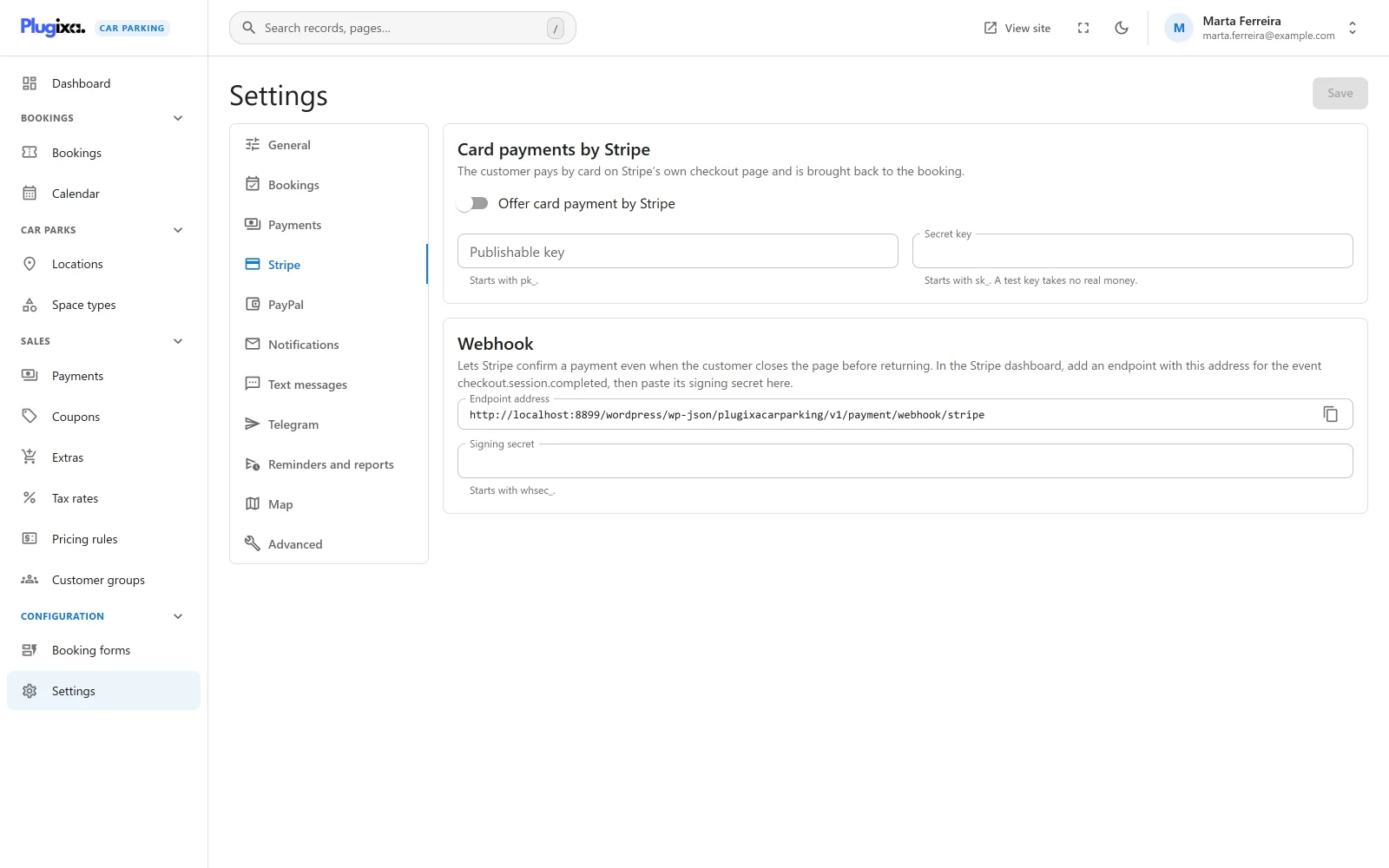
The first card is Card payments by Stripe: “The customer pays by card on Stripe’s own checkout page and is brought back to the booking.”
| Field | Notes |
|---|---|
| Offer card payment by Stripe | The switch that offers Stripe to customers. Off by default. |
| Publishable key | “Starts with pk_.” Stored, but version 1.0.0 does not use it: the payment page is Stripe’s own, so only the secret key is needed. |
| Secret key | “Starts with sk_. A test key takes no real money.” Required. |
Copy both keys from the developers section of your Stripe dashboard.
Stripe is offered to customers only when the switch is on and a secret key is stored. With the switch on and no key, the screen warns: “Stripe is switched on but has no secret key, so a card payment cannot start.”
2 - Add the webhook
The second card is Webhook: “Lets Stripe confirm a payment even when the customer closes the page before returning.”
-
Copy the Endpoint address shown on the card. It has this form:
https://example.com/wp-json/plugixacarparking/v1/payment/webhook/stripe -
In the Stripe dashboard, add a webhook endpoint with that address.
-
Select one event:
checkout.session.completed. -
Copy the endpoint’s signing secret from Stripe and paste it into Signing secret (“Starts with whsec_.”).
Always copy the address from the screen. It is built from your site’s own REST address, so it is right on a site with plain permalinks too.
3 - Save and test
Press Save. Use your Stripe test keys first, place a booking through the booking wizard, and pay with one of Stripe’s test cards. Then replace the test keys and the test endpoint’s signing secret with the live ones.
There is no separate test-mode switch. The mode follows the key: an sk_test_
key works against Stripe’s test data, an sk_live_ key takes real money. Test
and live endpoints have different signing secrets.
Settings
| Setting | Key | Default | Stored |
|---|---|---|---|
| Offer card payment by Stripe | stripe in enabled_gateways |
Off | In the list of enabled methods |
| Publishable key | stripe_publishable_key |
Empty | Plain text |
| Secret key | stripe_secret_key |
Empty | Encrypted |
| Signing secret | stripe_webhook_secret |
Empty | Encrypted |
The two secrets are encrypted in the database and are never sent back to the browser. Once one is saved, its field is shown empty with a Saved mark beside it. Leaving the field empty and saving keeps the stored value, and Remove saved value erases it on the next save.
What the customer sees
- With Stripe and pay on arrival both on, the booking form shows a Payment step where the customer chooses between them. With Stripe as the only method, there is no choice to make and the step is left out.
- On confirming, the booking is saved first, then the customer is sent to Stripe Checkout.
- The Checkout page shows one line, “Parking booking” followed by the booking reference, for the amount due. The customer’s email address is pre-filled.
- After paying, the customer returns to your site and sees Payment received. See Coming back from an online payment.
A customer can also pay later. The booking summary shows a Pay now box with a Credit / debit card (Stripe) button while anything is still owed.
If the payment cannot be started, the booking still exists. The confirmation says “Your booking is saved, but the payment could not be started.” followed by Stripe’s own message.
How a payment is confirmed
A Stripe payment is confirmed in two independent ways.
| Route | When | What the plugin does |
|---|---|---|
| The customer’s return | Stripe sends the browser back with the Checkout session’s id | Fetches the session from Stripe with your secret key and records the payment if Stripe says it is paid |
| The webhook | Stripe posts checkout.session.completed to your endpoint |
Checks the signature with your signing secret and records the payment if the session is paid |
Either one is enough. Both normally arrive, and the payment is still recorded once: the transaction is identified by Stripe’s payment intent id, and a transaction already in the ledger is not written again.
The amount recorded is the amount Stripe reports it collected, not a figure
from the browser. The row appears in Car Parking -> Payments with the
method Credit / debit card (Stripe), the status Completed and the
payment intent id (pi_...) as its transaction ID.
Without a signing secret
With Signing secret empty, every webhook is ignored. Nothing can be verified, so nothing is believed. Payments are then confirmed only when the customer returns to your site, and a customer who pays and closes the tab before being sent back leaves a booking that is paid at Stripe and unpaid on your site. Set the signing secret.
A webhook with a wrong signature, or for any other event, is also ignored. The endpoint still answers 200 so that Stripe does not keep retrying.
Unpaid and abandoned payments
The booking exists before the customer pays, as Pending and Unpaid with default settings. If the customer leaves Checkout without paying, the booking keeps its space until its hold runs out (Hold an unconfirmed booking for (minutes), 30 by default) and then expires. Once any payment is recorded, the hold no longer applies. See Availability.
A customer who uses Stripe’s back link on the Checkout page is returned to your booking page. Version 1.0.0 shows the page as it normally is in that case, without the Payment not completed screen. The booking stays saved and unpaid, and can be paid from its summary.
Amounts and currencies
- The currency is the booking’s own, which is the Currency code in Settings -> General. It must be a currency your Stripe account accepts.
- Amounts are sent to Stripe in the currency’s smallest unit: multiplied by 100, except for these zero-decimal currencies, which are sent as whole numbers: BIF, CLP, DJF, GNF, JPY, KMF, KRW, MGA, PYG, RWF, UGX, VND, VUV, XAF, XOF, XPF.
- With Deposits PRO, the amount sent is the part due now, and the payment is recorded with its type (deposit or balance).
Refunds
The plugin does not refund through Stripe. To refund a card payment:
- Refund it in your Stripe dashboard.
- Open the booking, and in the Payments panel click Refund on the Stripe payment to record it.
See Refunding a payment.
What is sent to Stripe
The plugin talks to https://api.stripe.com from your server, and only when a
customer starts a card payment or returns from one. There is no Stripe script
on your pages.
| Sent when a payment starts | |
|---|---|
| Amount and currency | The amount due now |
| Booking reference | As the line’s name, the client reference and metadata |
| Booking id and payment type | As metadata |
| Customer email | When the booking has one |
| Return and cancel addresses | On your site |
No name, phone number, licence plate or card data is sent by the plugin. What the customer types on the Checkout page goes to Stripe directly. See Privacy and uninstall.
If Pro is removed
The keys stay in the settings, still encrypted, and are live again when Pro is
reinstalled. Stripe is no longer offered to customers, the webhook address
answers 404, and existing Stripe rows stay in the ledger with stripe shown
as their method. See
Free vs Pro.