

Contents
Booking wizard - Plugixa Car Parking
The booking wizard is the form customers use to reserve a parking space. You
place it on a page with the [plugixa_car_parking]
shortcode or the
block. This page describes what
the customer sees, in the order they see it.
The wizard opens with the heading “Book your parking” and the line “Reserve a space in a few steps.” Under it is a progress bar with one numbered entry per step.
The steps
| Step | Label in the progress bar | Heading on the screen |
|---|---|---|
| 1 | Dates | “When do you need parking?” |
| 2 | Space | “Choose a space” |
| 3 | Details | “Your details” |
| 4 | Payment | “How would you like to pay?” |
| 5 | Confirm | “Review and confirm” |
Payment is a screen of its own only when the customer has more than one way to pay. With a single payment method, which is the case on a site that only offers pay on arrival, the step is left out and the wizard has four steps. A booking form can also change the order of the middle steps and switch the payment step off.
Every step except the first has a Back button. Pressing Enter in a field does what the step’s main button does.
Step 1: Dates
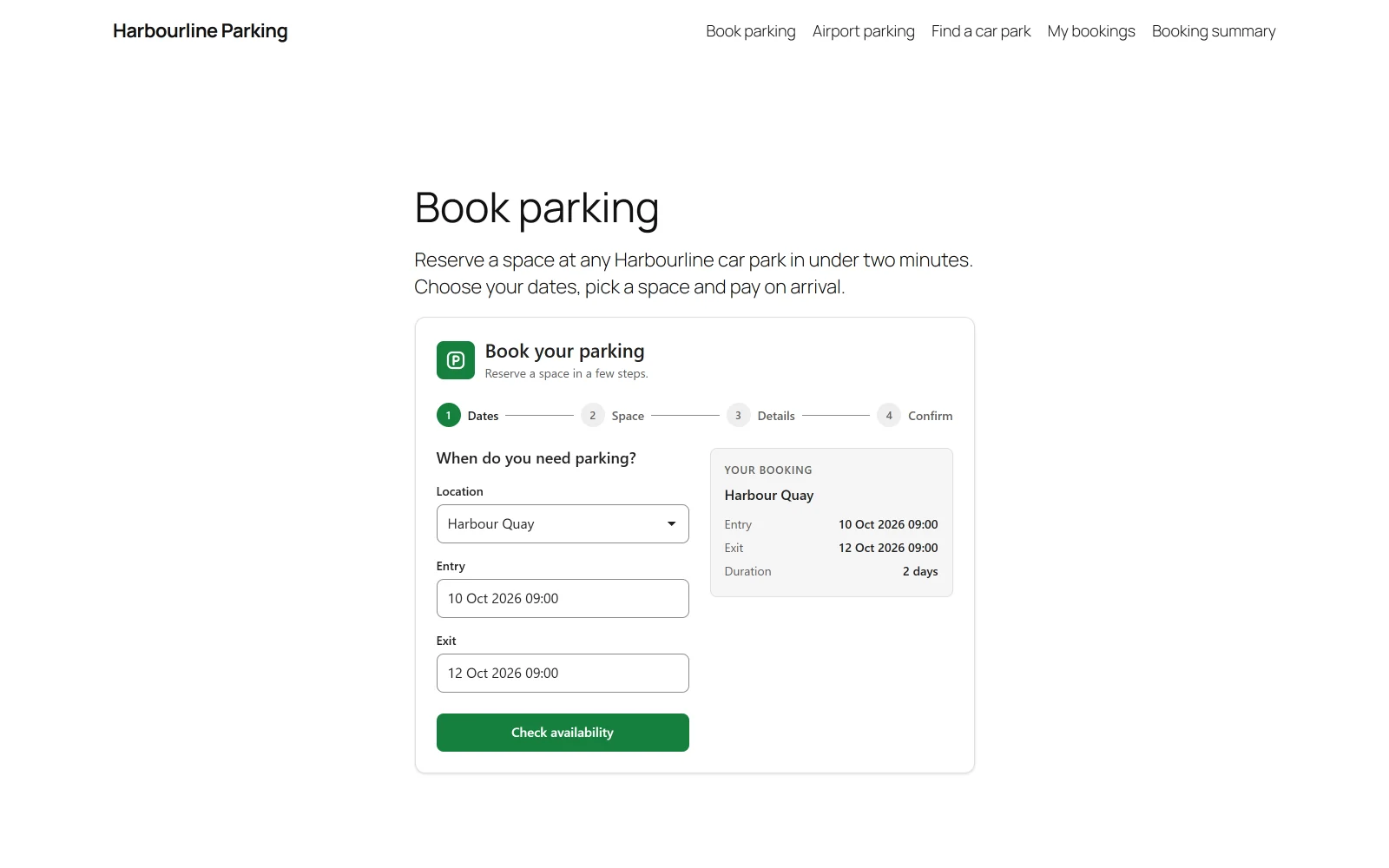
| Field | Notes |
|---|---|
| Location | A list of the locations the form offers. It is shown only when there is more than one. With a single location its name is printed instead. |
| Entry | Date and time the stay starts. Starts on tomorrow at 8:00. |
| Exit | Date and time the stay ends. Starts one day after the entry. |
The date fields open a calendar that comes with the plugin. It follows the site’s date format, time format and first day of the week from Settings, and is translated when the site’s language has a calendar translation. Picking an entry after the exit moves the exit to one day after the new entry.
The customer clicks Check availability. The button reads “Checking…” while the site answers.
| Message | When |
|---|---|
| “This field is required.” | Entry, exit or location is empty. |
| “Exit must be after entry.” | The exit is not later than the entry. |
| “The entry time is too soon or in the past.” | The entry is earlier than the shortest notice allows. |
| “The entry date is too far in the future.” | The entry is later than the furthest-ahead limit. |
| “The car park is closed on the entry date (…).” or “… on the exit date (…).” | The location is closed that day. |
| “The entry time is outside the car park business hours.” or “The exit time …” | The time falls outside the location’s opening hours. |
| “No spaces are available for those dates.” | Every space type is sold out for the stay. The customer stays on this step to try other dates. |
The rules behind these messages are described in Availability.
Step 2: Space
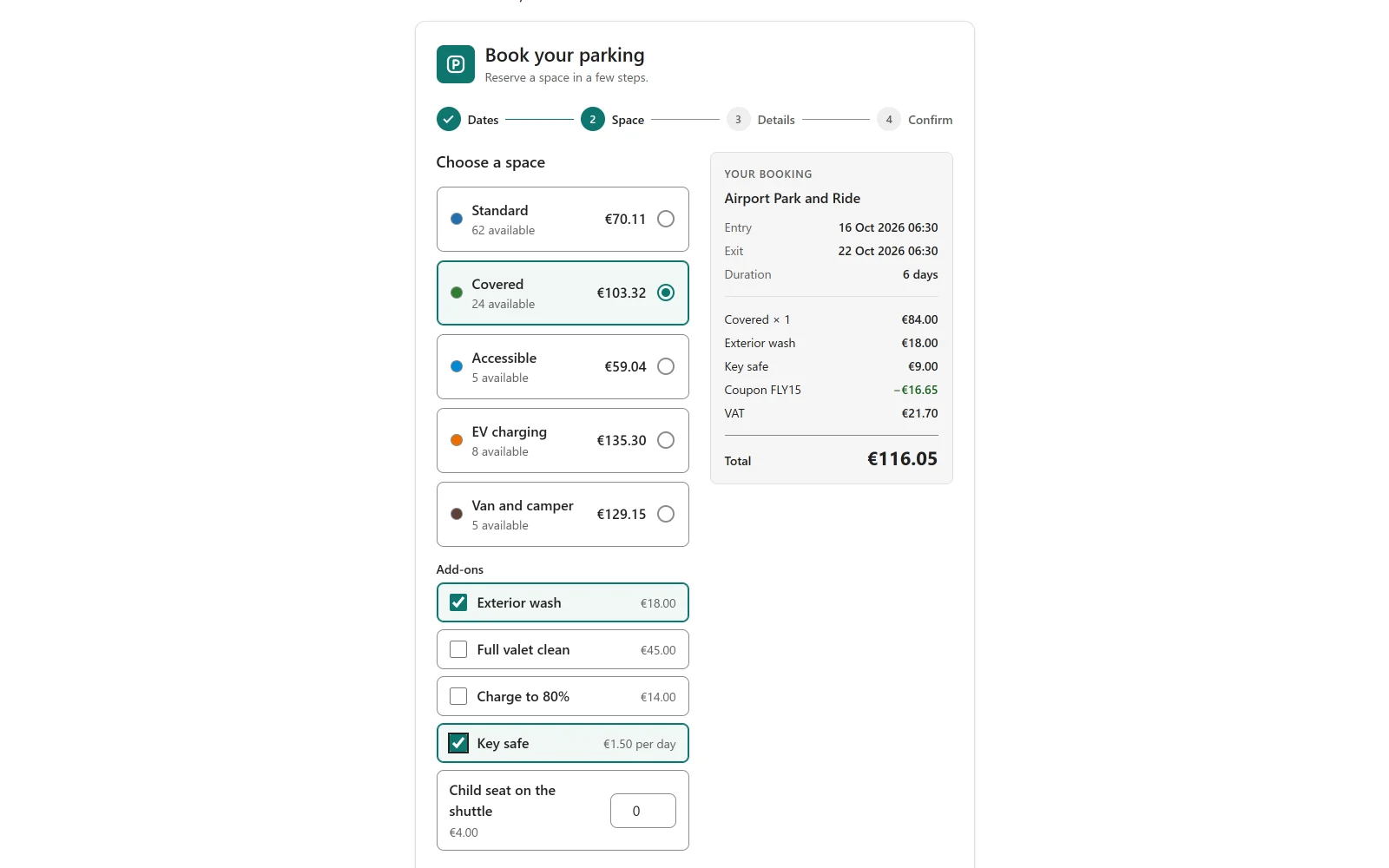
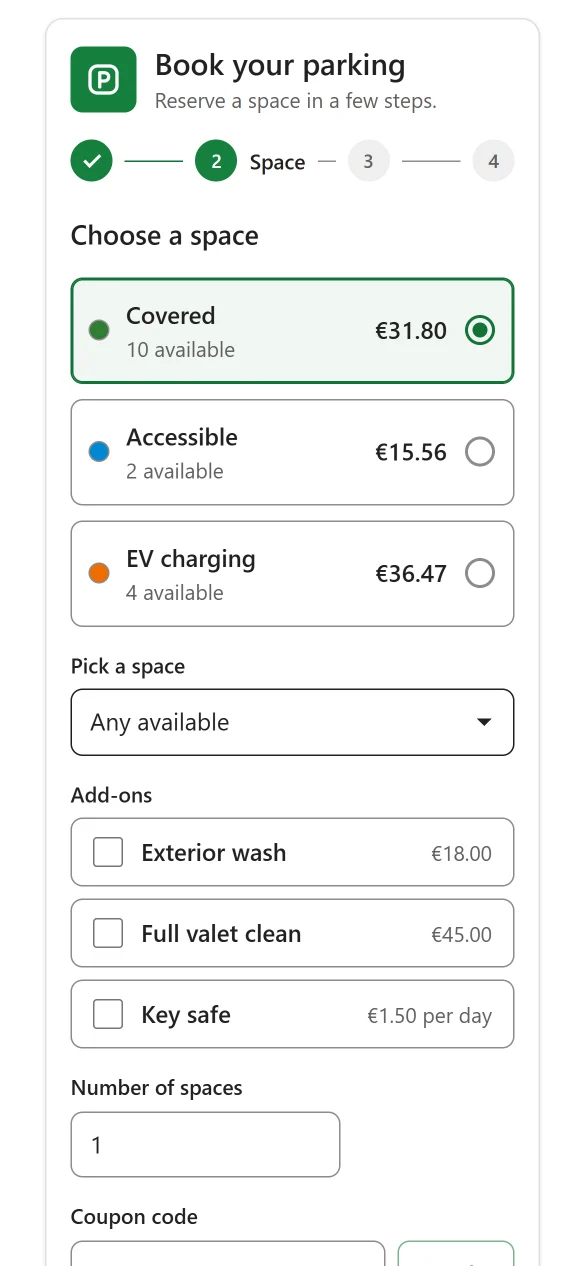
The step lists the location’s space types as cards. Each card shows:
- the space type’s colour and name
- how many are free, as “3 available”, or “Sold out”
- the price of one space for the whole stay
A sold-out card cannot be selected.
| Field | Notes |
|---|---|
| Pick a space | Shown only when the chosen type offers individual spaces to pick from, which needs assigned spaces PRO. The first choice is “Any available”. |
| Number of spaces | Starts at 1. |
| Coupon code | With an Apply button. Shown when Accept coupon codes is on in Settings and the form has not switched the coupon field off. |
After Apply, the field answers “Coupon applied” or “That code is not valid for this booking.” See Coupons.
With Pro, extras PRO that can be added to the booking are offered on this step too.
Clicking Continue without a selection shows “Please choose a space type.”
The order summary
From the first step on, a card titled “Your booking” shows what has been chosen so far: the location, Entry, Exit and Duration. Once a space type is selected it also shows the price lines and the Total. The card sits beside the steps when the form is wide enough and under them otherwise.
The price is asked from the server every time the customer changes the space type, the number of spaces, the picked space or the coupon. The browser never works a price out by itself. Duration is written in the units the location bills by, for example “2 days”, so it always matches the total under it. See Pricing.
Step 3: Details
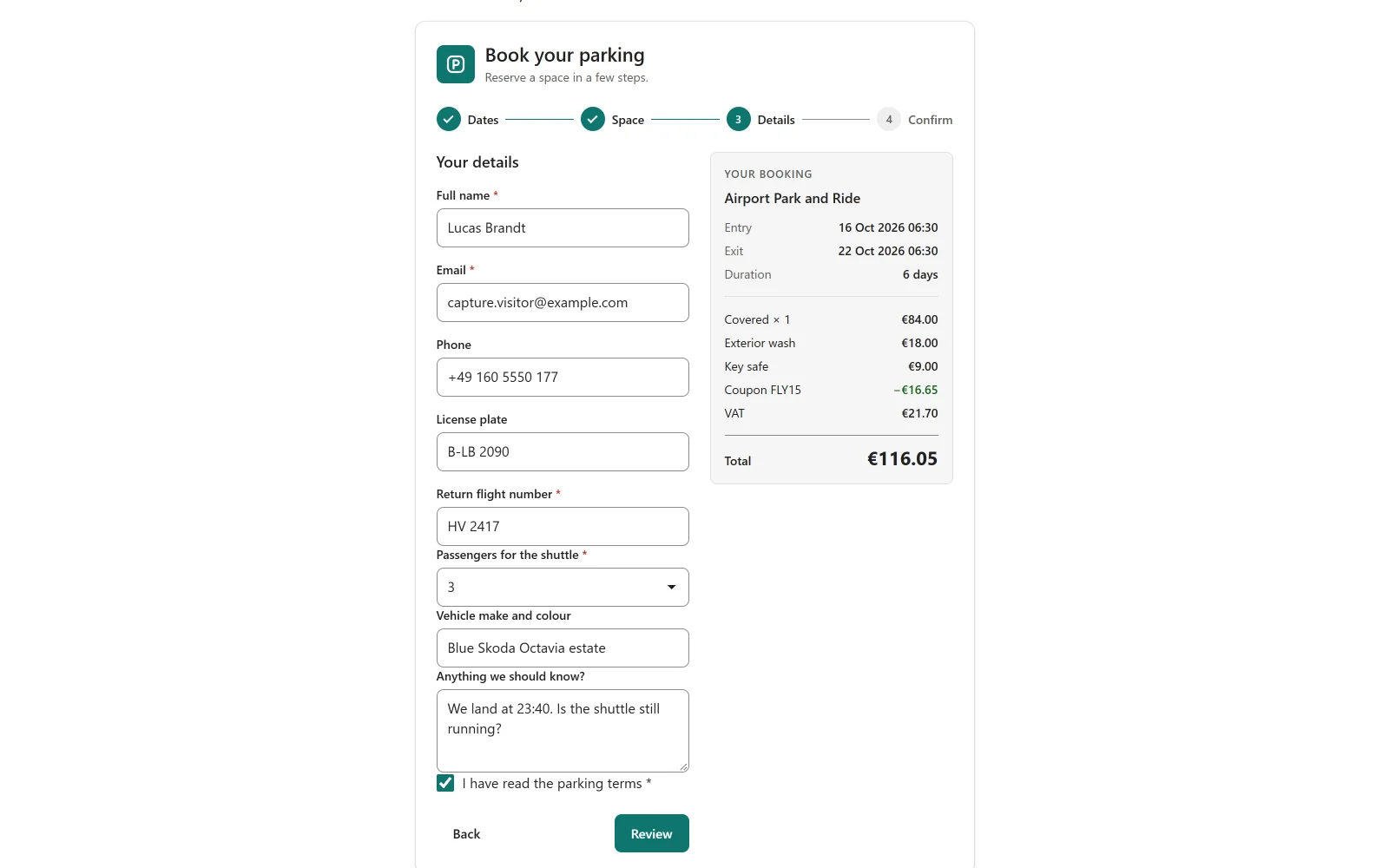
| Field | Required |
|---|---|
| Full name | Yes |
| Yes | |
| Phone | No |
| License plate | No |
The fields a booking form adds are shown under these four. A required field is marked with an asterisk, and a required checkbox has to be ticked. See Booking forms.
An empty required field answers “This field is required.” An email that is not written like an address answers “Enter a valid email address.”
A customer who is signed in to WordPress when they book has the booking linked to their account. See Customer account.
Step 4: Payment
Shown only when there are at least two ways to pay. The customer picks one under Payment method. When the selected method is settled in person, the Instructions for the customer from Settings are shown under the list.
The free edition has one method, pay on arrival, so this step does not appear. Stripe PRO and PayPal PRO add online methods. See Payments.
Step 5: Confirm
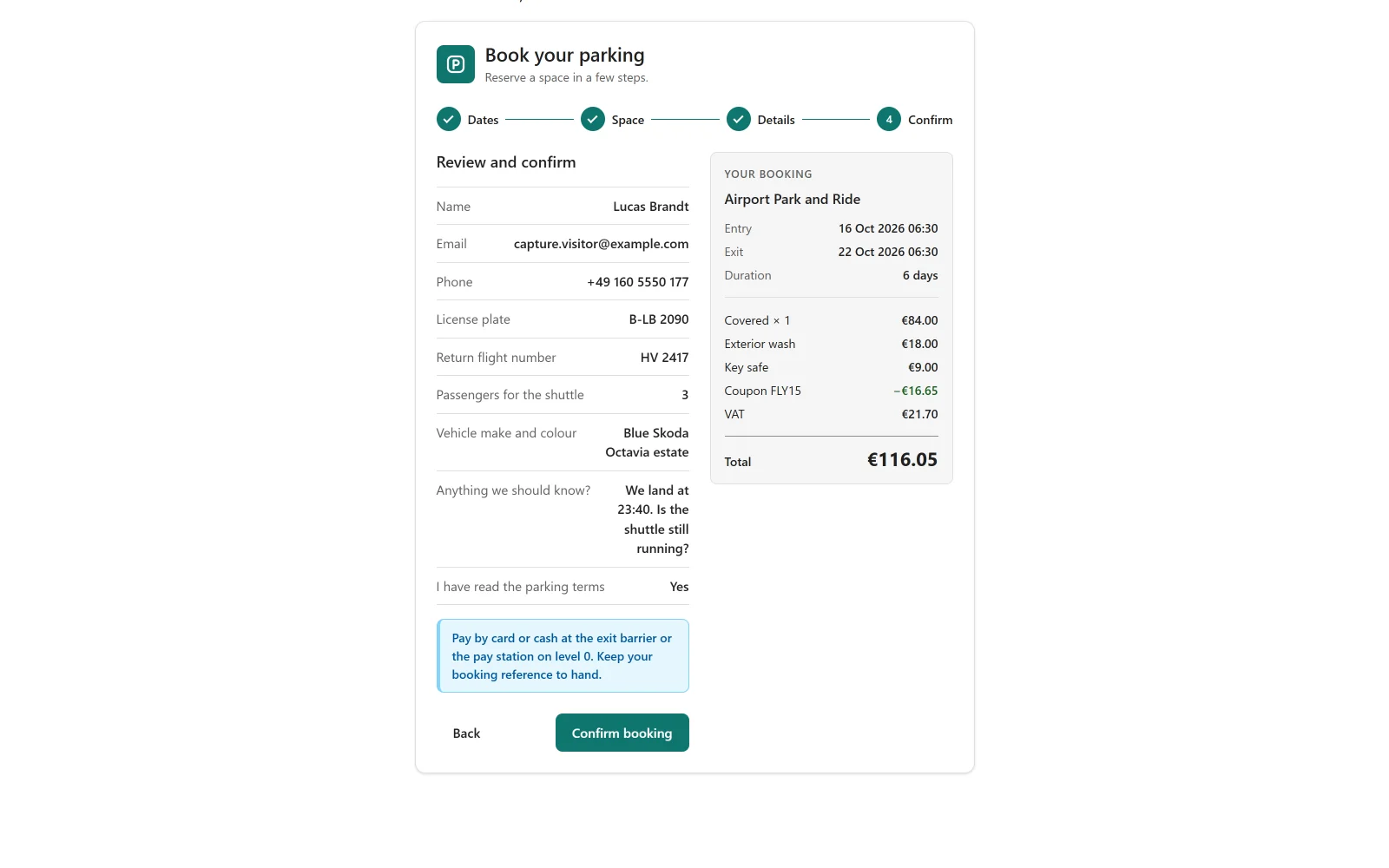
The review lists what the customer typed: Name, Email, Phone, License plate, the answers to the form’s own fields, and Payment method when there was a choice. Empty answers are left out. The pay-on-arrival instructions are repeated here when that is how the booking will be paid.
With Pro, the choice between paying a deposit PRO and paying in full appears on this step.
The customer clicks Confirm booking. The button reads “Processing…”. At this point the server checks availability once more and saves the booking.
| Message | When |
|---|---|
| “Sorry, those spaces are no longer available for the selected dates.” | Somebody else took the last space in the meantime. |
| “This car park is taking another booking right now. Please try again.” | Two bookings for the same location arrived at the same moment. |
| “Your session expired. Please refresh and try again.” | The page has been open, or cached, for too long. Reloading the page fixes it. |
| “Too many requests. Please wait a little while and try again.” | A rate limit was reached. See Limits. |
The confirmation
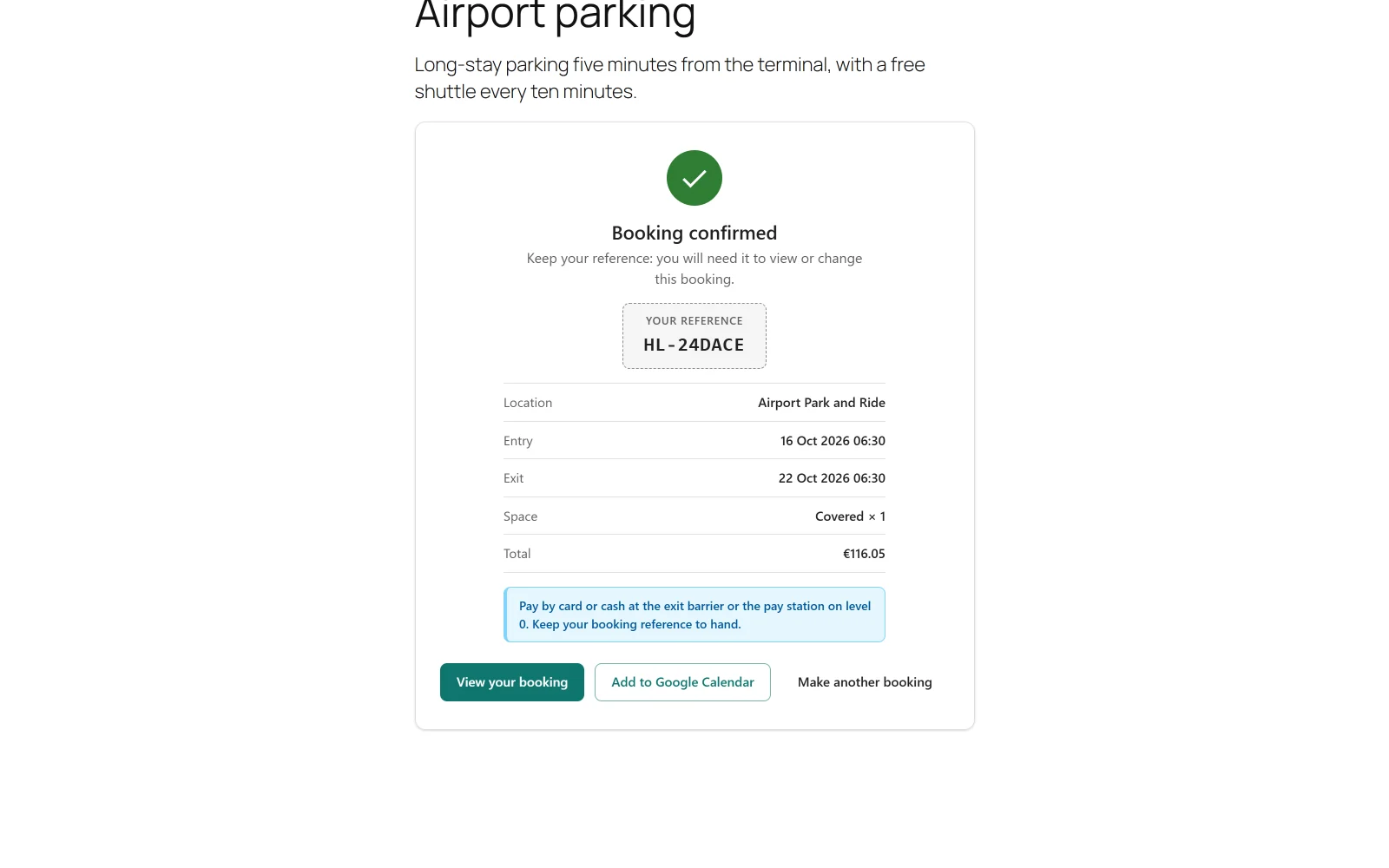
For a booking paid on arrival, the wizard is replaced by a confirmation screen.
| Part | What it shows |
|---|---|
| Title | “Booking received” when the new booking is pending, “Booking confirmed” otherwise. Which one applies follows Status of a new booking in Settings. |
| Lead | “Keep your reference: you will need it to view or change this booking.” |
| Your reference | The booking reference. It starts with the reference prefix from Settings, PKG- by default. |
| Details | Location, Entry, Exit, Space and Total. |
| Instructions | The pay-on-arrival instructions from Settings. |
Three buttons follow:
- View your booking opens the booking summary. It is shown only when a Booking summary page is chosen in Settings.
- Add to Google Calendar opens Google Calendar in a new tab with the stay filled in.
- Make another booking reloads the page with an empty form.
For an online payment method the customer is sent to the payment provider right after the booking is saved, and comes back to the payment return screen. If the payment cannot be started, the confirmation is shown with the warning “Your booking is saved, but the payment could not be started.” The booking exists at that point, so the wizard does not offer Confirm booking again.
Coming back from an online payment
A customer who paid on a provider’s site is sent back to a page of your site, where one of three screens replaces the booking form.
| Title | Text | Button |
|---|---|---|
| “Payment received” | “Thank you. Your payment has been received.” | Make another booking |
| “Confirming your payment” | “We have not had confirmation of your payment yet. This can take a few minutes; there is no need to pay again.” | Back to the booking form |
| “Payment not completed” | “The payment was cancelled or did not go through, and nothing has been charged.” | Start a new booking |
Each screen shows Your reference when the booking is known. What is shown is read from the booking, not from the address of the page: a booking that is not recorded as paid yet shows “Confirming your payment”, whatever the address says.
After a failed payment a note says where the booking stands: saved but unpaid (“You can pay for it from your booking summary.”), already paid in full, cancelled, or expired because it was not paid in time.
The page the customer is sent back to is the first of these that exists:
- The Booking page chosen in Settings.
- The Booking summary page chosen in Settings.
- The first published page that holds the booking form.
- The home page, which cannot show any of the screens above.
Choose at least one of the two pages in Car Parking -> Settings -> Bookings so the customer always learns how the payment went.
The booking summary page
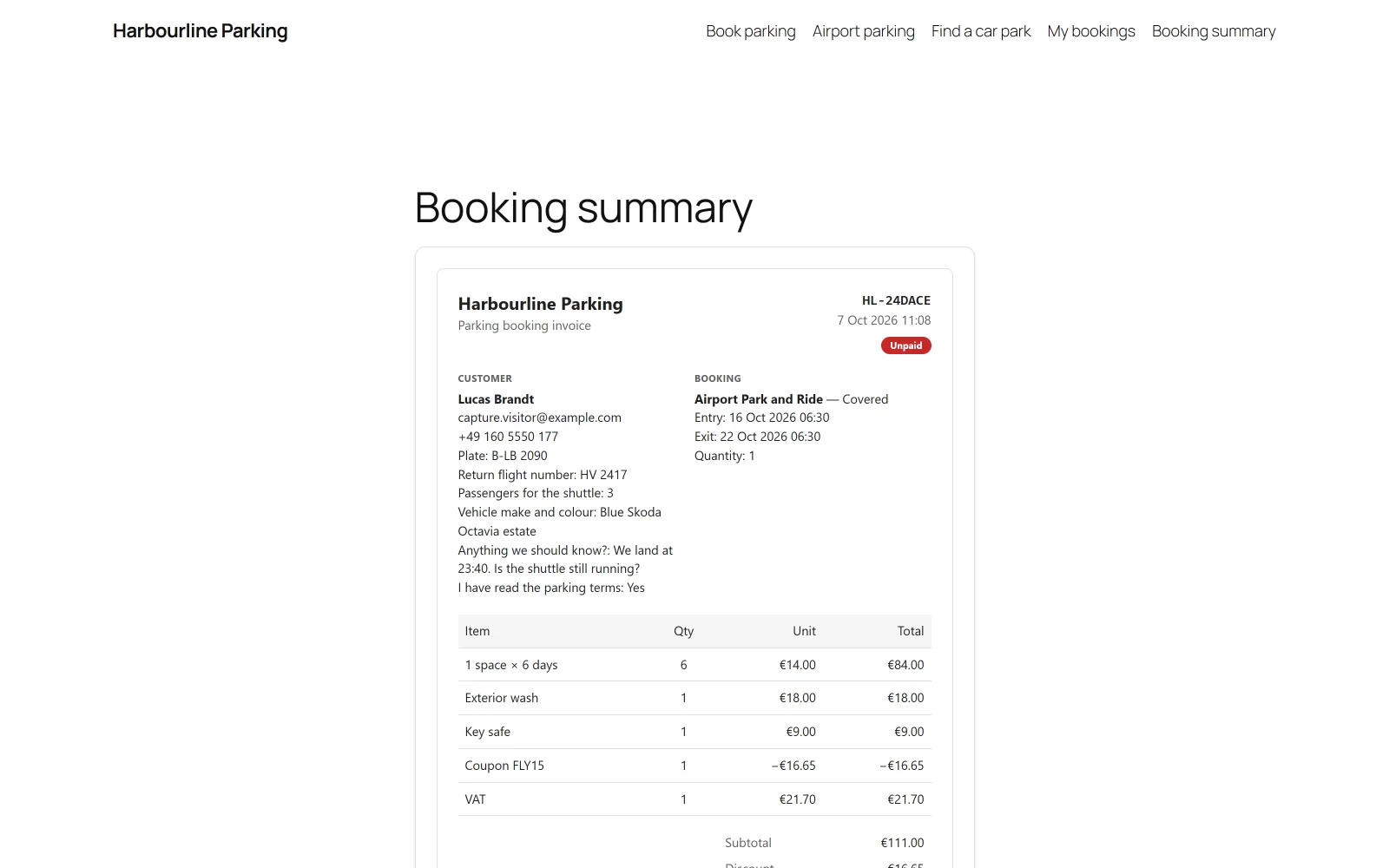
The summary is a page of its own, made with the
[plugixa_car_parking_summary]
shortcode. Customers reach it
from the View your booking button, from the link in their emails and from
the customer account.
The link carries the booking reference and a token that belongs to it. No login is needed, and a link with a wrong or missing token shows “This summary link is invalid or has expired.” and nothing else.
The page shows the booking as an invoice: the business name, the customer and the license plate, the entry, exit and quantity, the lines that make up the price, the subtotal, any discount, the total, and what has been paid and what is still due.
Under it:
- Print opens the browser’s print dialog. The buttons are left out of the printed page.
- Pay now is shown while something is still owed. It has one button per available payment method. An online method sends the customer to the provider. A method settled in person shows its instructions.
With Pro, a link to download the invoice PRO as a PDF is added beside Print.
Limits
The wizard’s requests are open to visitors who are not signed in, so each one is limited per visitor address.
| Action | Limit |
|---|---|
| Checking availability | 120 in 10 minutes |
| Asking for a price | 240 in 10 minutes |
| Asking for a price with a coupon code | 30 in 10 minutes |
| Placing a booking | 10 in an hour |
| Starting a payment | 20 in an hour |
A visitor over a limit sees “Too many requests. Please wait a little while and
try again.” The limits can be changed with the plugixa_carparking_rate_limits
filter. See Hooks reference.
The details step also contains a field that is hidden from people. A request that arrives with it filled in is refused with “This request could not be processed.”
Display
- The form takes the primary colour of its booking form. Text and button colours are adjusted so they stay readable on a pale colour.
- Colours follow the visitor’s light or dark setting.
- Dates, times and amounts are written with the formats from Settings.
- When no location is active, the form is replaced by “No parking locations are available yet.”
What to do next
- Place the form with a shortcode or the block.
- Change the steps and add fields in Booking forms.
- If something does not work, see Troubleshooting.