

Contents
Customer groups - Plugixa Car Parking
Customer groups PRO are named sets of WordPress user accounts, such as staff or season-ticket holders. A group has no price of its own. It exists so that a pricing rule can be limited to its members.
Open the screen from Car Parking -> Customer groups. In the app’s sidebar it sits in the Sales group.
The list
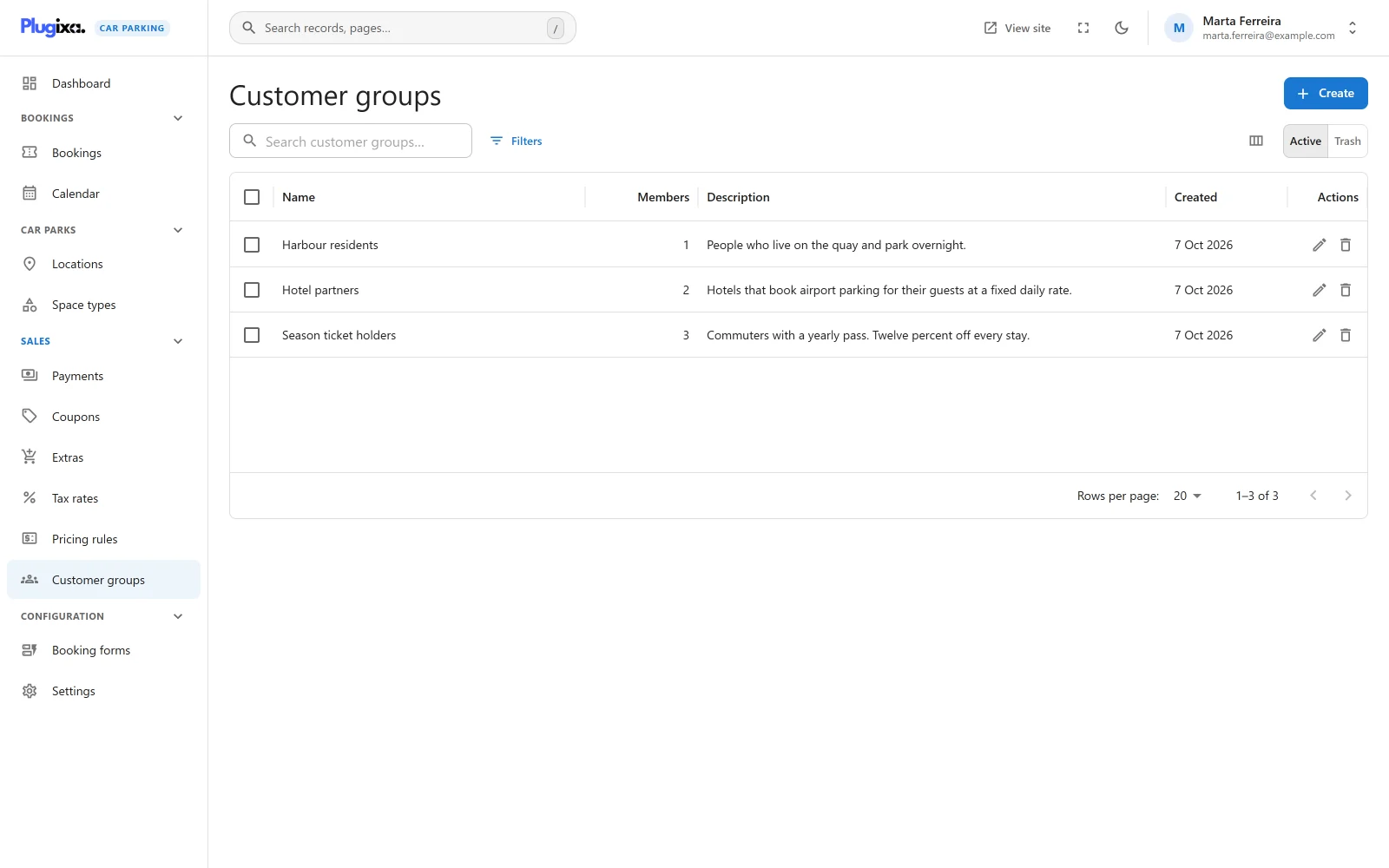
| Column | What it shows |
|---|---|
| Name | The group’s name |
| Members | How many accounts are in the group |
| Description | The staff note |
| Created | The date the group was created |
The search box matches the name, the slug and the description. Selecting rows offers one mass action: move to the trash. A trashed group can be restored from the Trash view.
An empty list shows “No customer groups yet” with the New customer group button.
Adding a group
Click New customer group.
| Field | Notes |
|---|---|
| Name | Required. A save without one is refused with “A customer group needs a name.” |
| Slug | “Left empty, it is made from the name.” If the slug is already taken, it is changed to one that is free. Renaming a group later does not change its slug. |
| Description | “A note for staff. Customers do not see it.” |
Until the group has been saved, the form shows “Save the group to add its members.” Once it exists, the note reads “A group has no price of its own. To charge its members differently, add a pricing rule with this group as a condition.”
Members
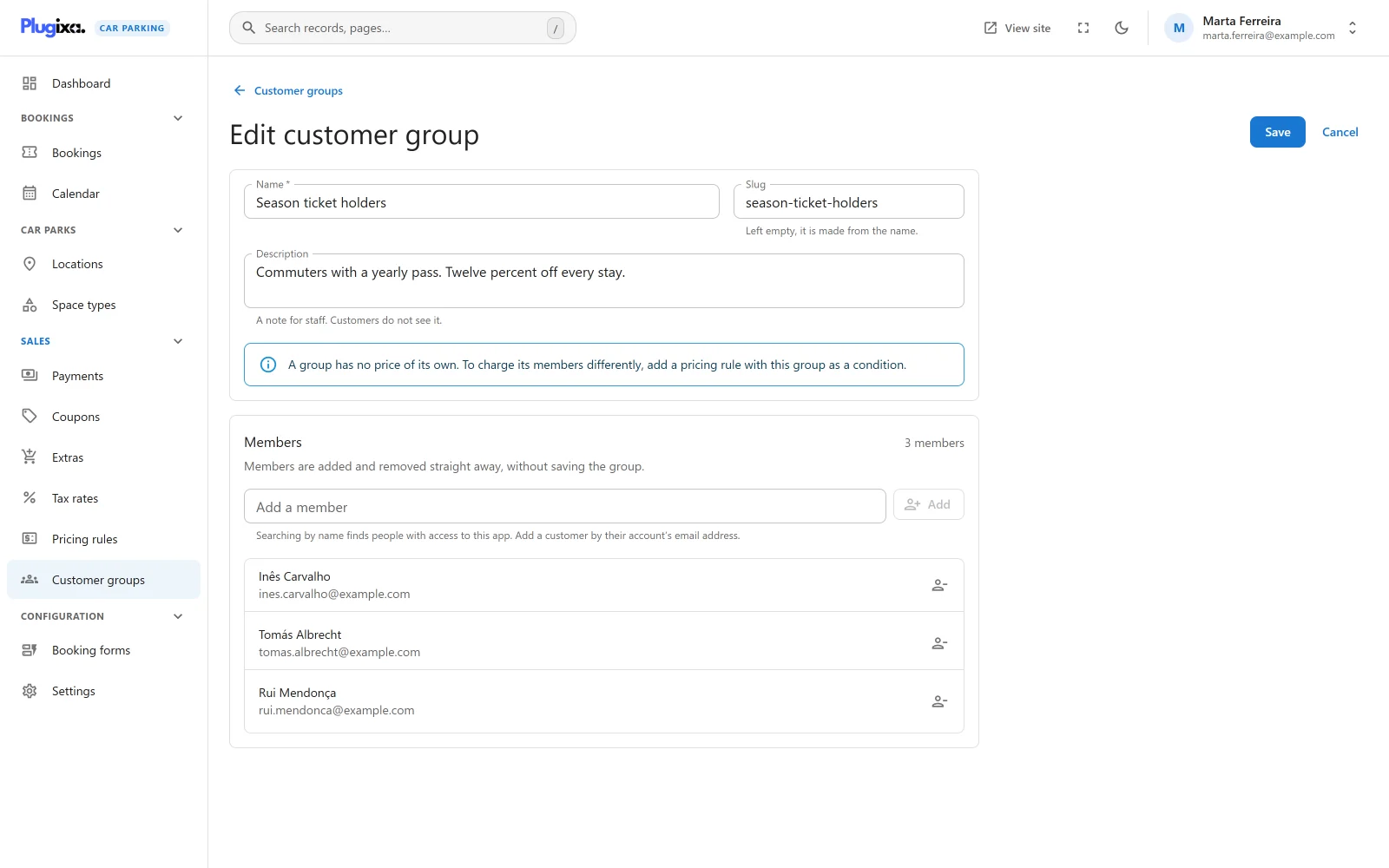
The Members panel appears under the form when you edit a saved group. Its heading shows the count, “1 member” or “12 members”. “Members are added and removed straight away, without saving the group.”
Adding a member
Type in Add a member (“A name, or an email address”) and click Add.
| What you type | What happens |
|---|---|
| Two or more letters of a name | A list of matching people opens. Pick one. The list holds only people with access to this app, that is your own staff, and leaves out anyone already in the group. |
| A full email address | The WordPress account with that address is added. This is how you add a customer. |
The panel says so itself: “Searching by name finds people with access to this app. Add a customer by their account’s email address.”
| Message | Why |
|---|---|
| “Pick somebody from the list, or type an email address in full.” | What was typed is neither a pick from the list nor a whole email address. |
| “No user was found for that id or email address.” | No WordPress account has that email address. |
A member has to be a WordPress user. A customer who booked as a guest has no account and cannot be added until they have one. Adding somebody who is already in the group changes nothing.
Removing a member
Each member is listed with a name and an email address, in the order they were added, with a Remove from the group button. Removal is immediate.
A member whose WordPress account has since been deleted stays in the list, shown by number with “This account no longer exists.”, so that the membership can be seen and removed.
Adding and removing members needs permission to edit records. Reading the list needs permission to view them. See REST API.
Giving a group its own price
- Open Car Parking -> Pricing rules and click New pricing rule.
- Choose what the rule changes, for example Lower it by a percentage with 20.
- Under When it applies, add the Customer groups condition and pick the group in Only for members of.
- Save.
A rule can name several groups. It applies to a member of any one of them. An account can belong to several groups, and every rule that matches is applied.
Who gets the group price
The group condition is tested against the WordPress account that is signed in at the moment the price is worked out.
| Situation | Group price |
|---|---|
| A member books while signed in | Yes |
| A member books without signing in | No. “It never applies to a guest.” The email typed into the form is not used to look up a group. |
| A visitor with no account | No |
| You create a booking in the admin for a member | Only if your own account is in the group. The rule looks at who is signed in, not at the customer on the booking. |
The price is shown in the booking wizard as soon as a signed-in member searches. There is nothing to choose and nothing that tells other visitors a group price exists.
Trashing and deleting a group
Moving a group to the trash keeps its members, so restoring the group restores who was in it. While it is in the trash its members stop getting the group’s prices: rules that name the group no longer match them.
Deleting a group permanently from the trash removes its memberships with it. The WordPress accounts themselves are never touched. A pricing rule that named only that group still carries the condition and now matches nobody, so edit or deactivate such a rule.
What is stored
| Table | Holds |
|---|---|
{prefix}plugixacarparking_customer_groups |
One row per group: name, slug, description |
{prefix}plugixacarparking_customer_group_members |
One row per membership: the group, the WordPress user ID and when it was added |
Both tables are created by Pro and are not part of the free plugin. No personal data is copied into them: names and email addresses are read from the WordPress account when the list is shown.
Without Pro both tables stay in the database, and no group price is applied, because the pricing rules that use the groups are part of Pro too. See Free vs Pro.