

Contents
Pricing rules - Plugixa Car Parking
Pricing rules PRO change the price of a booking that matches a set of conditions: a weekend surcharge, a discount for long stays, a seasonal rate, a price for one group of customers. A rule changes one of two prices, the rate per billing unit or the booking fee, and it does so before coupons, tax and deposits are worked out.
Open the screen from Car Parking -> Pricing rules. In the app’s sidebar it sits in the Sales group.
The list
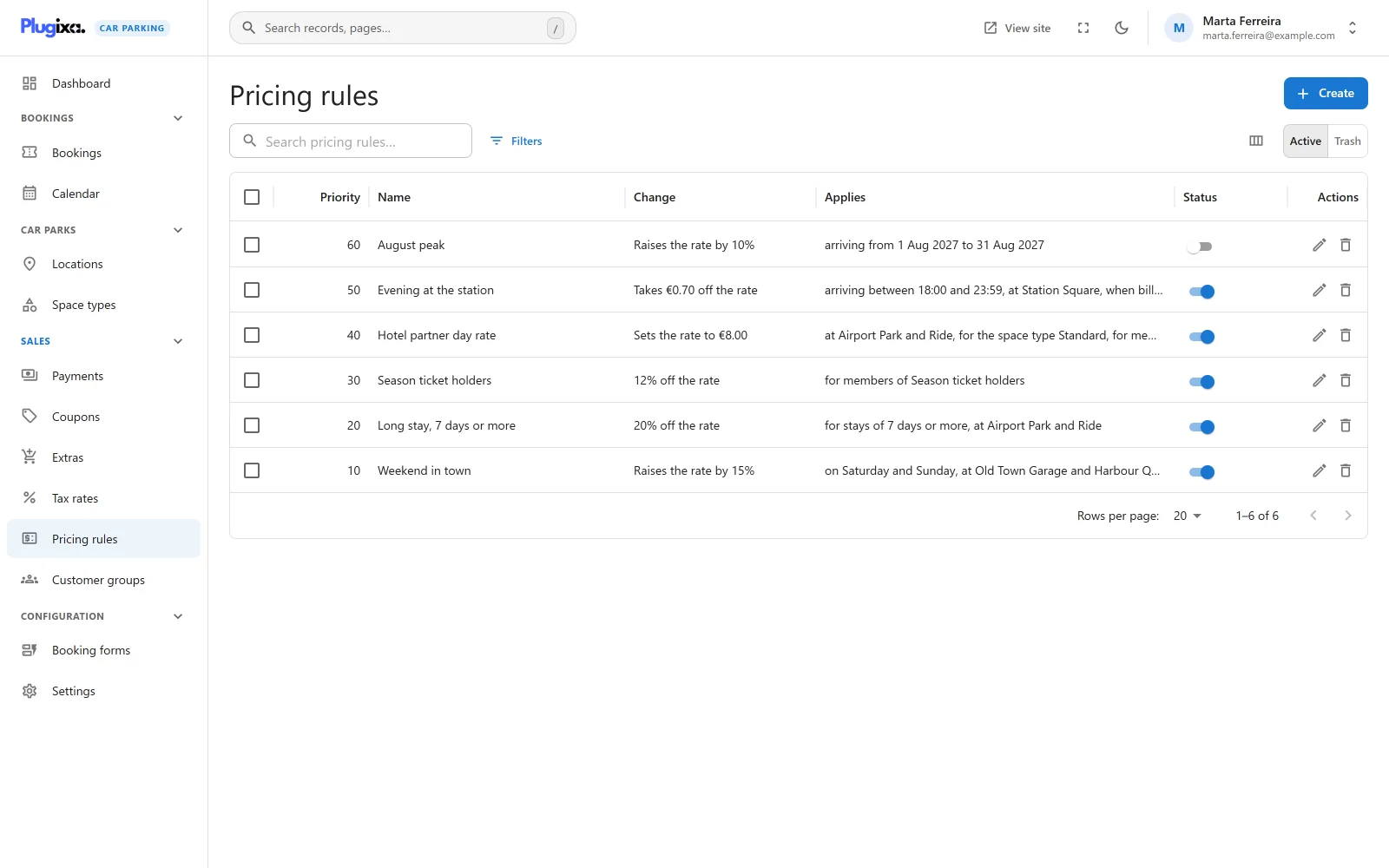
| Column | What it shows |
|---|---|
| Priority | The order the rule is applied in |
| Name | The rule’s name |
| Change | What the rule does, in words: “10% off the rate” |
| Applies | When it applies, in words, or “On every booking” |
| Status | Active or Inactive |
On a narrow screen the Priority column is left out first.
The search box matches the name. The list can be filtered by status, the price changed, the kind of change, billing unit, priority and amount. Selecting rows offers the mass actions: activate, deactivate and move to the trash. A trashed rule changes no prices. Restoring it puts it back to work if it was active when it was trashed.
An empty list shows “No pricing rules yet” with the New pricing rule button.
Adding a rule
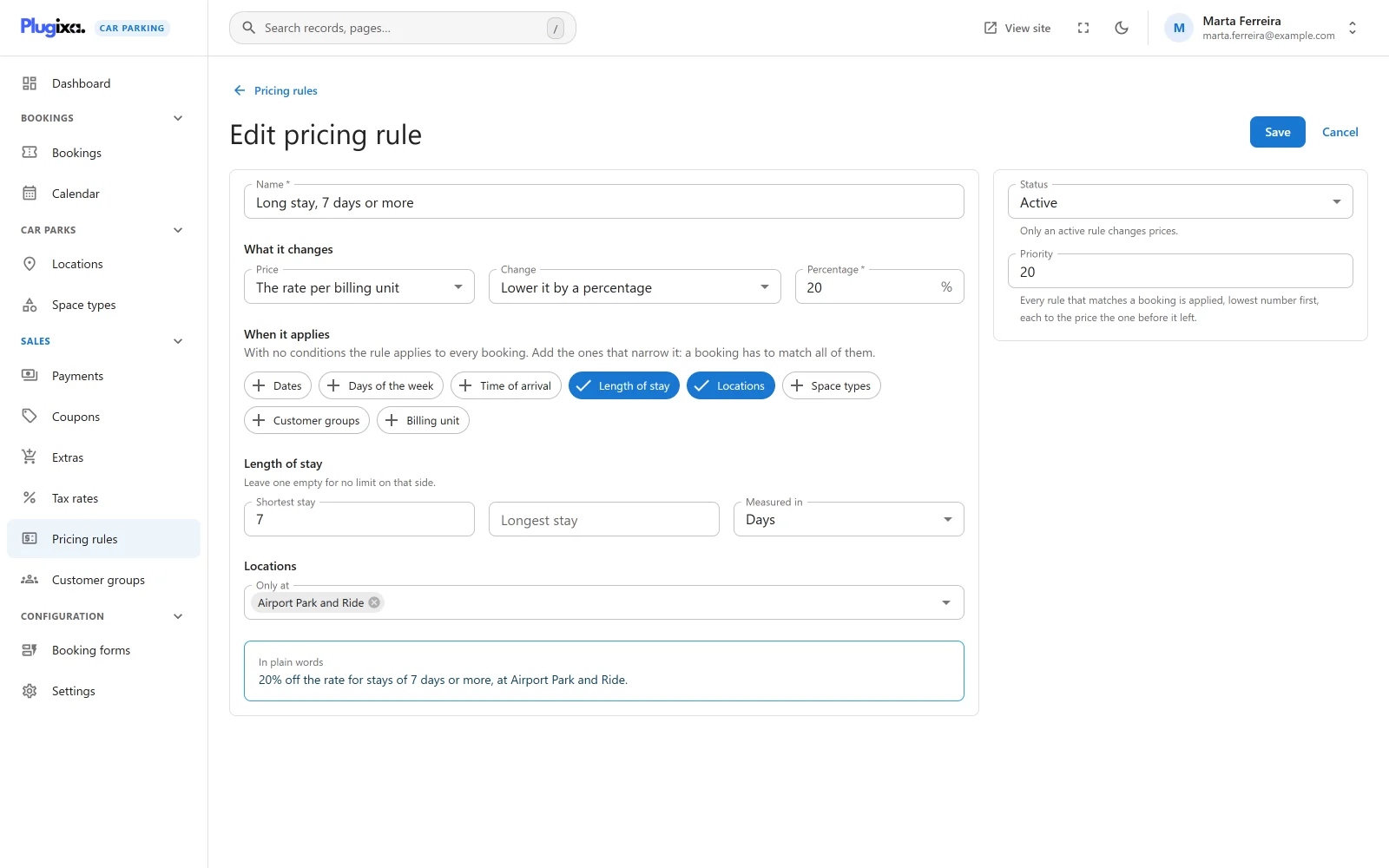
Click New pricing rule. The form has a name, a section on what the rule changes, a section on when it applies, and a sentence that reads the rule back to you.
| Field | Notes |
|---|---|
| Name | Required. A save without one is refused with “A pricing rule needs a name.” The name is shown to the customer beside the price it changed. |
| Status (side panel) | Active or Inactive. “Only an active rule changes prices.” New rules start active. |
| Priority (side panel) | A whole number, default 0. “Every rule that matches a booking is applied, lowest number first, each to the price the one before it left.” |
What it changes
| Field | Options |
|---|---|
| Price | The rate per billing unit (default) or The fee charged once per booking |
| Change | See the table below. Default: Lower it by a percentage. |
| Amount | Labelled New price, Percentage or Amount to match the change chosen. Required, zero or more. |
| Change | Effect on the price |
|---|---|
| Lower it by a percentage | Price x (1 - percentage / 100). More than 100 is refused with “A discount cannot be more than 100%.” |
| Raise it by a percentage | Price x (1 + percentage / 100) |
| Lower it by an amount | Price less the amount |
| Raise it by an amount | Price plus the amount |
| Set it to a fixed price | The amount replaces the price |
A price never goes below zero. A rule that would take it lower leaves it at zero.
“The rate per billing unit” is the price of one minute, hour, day, week or month of a space type. “The fee charged once per booking” is the space type’s booking fee, which is charged once for each space booked.
When it applies
“With no conditions the rule applies to every booking. Add the ones that narrow it: a booking has to match all of them.”
Conditions are added with a row of buttons, one per condition. Click one to open its fields, and click it again to remove the condition.
| Condition | Fields | A booking matches when |
|---|---|---|
| Dates | First day, Last day | Its entry falls on or between the two days. Leave one empty for an open end. |
| Days of the week | A button per day, Sun to Sat | Its entry falls on one of the chosen days. |
| Time of arrival | From, Until | Its entry time is inside the window, both ends included. An end earlier than the start runs past midnight, as a night rate does: 22:00 to 06:00. Leave one empty for an open end. |
| Length of stay | Shortest stay, Longest stay, Measured in (Days or Hours) | The time between entry and exit is no shorter than the first and no longer than the second. Leave one empty for no limit on that side. |
| Locations | Only at | It is at one of the chosen locations. |
| Space types | Only for | It is for one of the chosen space types. |
| Customer groups | Only for members of | The person booking is signed in and belongs to one of the chosen customer groups. It never applies to a guest. |
| Billing unit | Only when billed | The booking is priced in the chosen unit. In any unit applies no limit. |
Three details decide whether a rule matches.
- Dates, days and times test the moment of entry only. A stay that starts on Friday and ends on Monday is a Friday booking. A weekend rule does not apply to it, and a rule that does apply changes the rate for the whole stay, not for some of its days.
- Length of stay is the real time between entry and exit, not the number of billing units charged. It is stored in hours: a length entered in days is multiplied by 24. A stay of 3 days and 1 hour is longer than a Longest stay of 3 days.
- The billing unit is the one the booking is priced in, normally the billing unit of its location. It keeps “a discount written for a daily rate” from touching an hourly one.
In plain words
Under the conditions, In plain words reads the rule back as one sentence, for example “10% off the rate on Saturday and Sunday for stays of 3 days or more.” A rule with no conditions reads “10% off the rate on every booking.” A rule that raises or lowers by zero reads “This rule changes nothing yet: enter an amount.”
The same wording fills the Change and Applies columns of the list. Locations, space types and groups are named when there are few enough to read out, and counted otherwise (“at 4 locations”).
How rules are applied
Every time a price is worked out, in the wizard, for a booking made in the admin, and when a booking is priced again, the plugin does this:
- It looks up the space type’s rate for the billing unit, and its booking fee.
- It reads every rule that is active and not in the trash, lowest Priority first. Rules with the same priority are taken in the order they were created.
- Each rule that matches is applied to the price the rule before it left. There is no “first match wins”: every matching rule is applied.
- The stay is then priced with the resulting rate and fee.
The rate and the fee are not rounded between rules. Totals are rounded to two decimals at the end of the quote.
Because rules stack, the order matters whenever percentages and amounts mix, and a Set it to a fixed price rule discards whatever earlier rules did to that price. Give it the lowest priority number if later rules should build on it, or the highest if it should have the last word.
Worked example
A space type costs 20.00 per day. A customer books one space for 3 days, entering on a Saturday. Two active rules match:
| Priority | Name | Change |
|---|---|---|
| 10 | Long stay | Lower the rate by a percentage: 10 |
| 20 | Weekend arrival | Raise the rate by an amount: 5.00 |
- Long stay: 20.00 x (1 - 10 / 100) = 18.00.
- Weekend arrival: 18.00 + 5.00 = 23.00.
- Parking: 3 days x 23.00 x 1 space = 69.00.
With the priorities swapped the rate would be (20.00 + 5.00) x 0.9 = 22.50 and the parking 67.50.
What the customer sees
A line whose price a rule changed shows the price before the change and each rule that changed it, by name, with the amount it added to the line or took off. In the example above the parking line was 60.00 before the rules, and the breakdown lists “Long stay” at -6.00 and “Weekend arrival” at +15.00. This is why the rule’s name is worth writing for customers.
A rule on the booking fee is shown the same way on the Booking fee line. A fee that a rule brought down to zero keeps its line, so the reduction can be seen.
What rules do not change
- The price of an extra.
- Tax and deposits directly. Both are worked out afterwards, on the changed price.
- Bookings already made. A rule is applied when a booking is priced. Editing a rule later leaves stored bookings as they are, until one is priced again, for example by a reschedule.
A coupon is applied after the rules, to the subtotal they produced. See Pricing for the full order.
Customer group rules and who is signed in
The customer group condition looks at the WordPress account that is signed in when the price is worked out.
- A visitor who is not signed in never gets a group rule, even if the email they type belongs to a member.
- A member has to be signed in before starting the booking to see the group’s price.
- A booking you create in the admin is priced while you are signed in, so a group rule applies only if your own account is in the group.
What is stored
Rules live in the {prefix}plugixacarparking_pricing_rules table, with the
conditions in one column. The table is created by Pro and is not part of the
free plugin.
A booking does not keep a link to the rules that priced it. It keeps the resulting prices in its own lines.
Without Pro the table stays in the database and nothing applies the rules: new bookings are priced at the space type’s own rate and fee. Existing bookings keep their totals. See Free vs Pro.