

Contents
Settings - Plugixa Car Parking
Open Car Parking -> Settings. In the app’s sidebar it is the last item of the Configuration group.
The screen is split into sections, listed down the side. The free plugin has five: General, Bookings, Payments, Notifications and Advanced. Pro PRO adds six more.
Who can open it
The Settings screen needs the plugixa_carparking_manage_settings capability.
Administrators have it. Somebody without it does not see Settings in the
menu, and the address shows the no-access screen.
The Advanced section is shown only to users who can administer the site
(the WordPress manage_options capability).
Saving
All sections share one draft and one Save button. A change on one section is still pending when you move to another, and an Unsaved changes label stays visible until you save. Discard throws the pending changes away. Leaving the page with changes pending asks first.
After a save the screen confirms with “Settings saved.”
Each section has its own address, so you can link to it:
admin.php?page=plugixa-car-parking#/settings?tab=bookings. The section names
in the address are general, bookings, payments, notifications and
advanced.
General
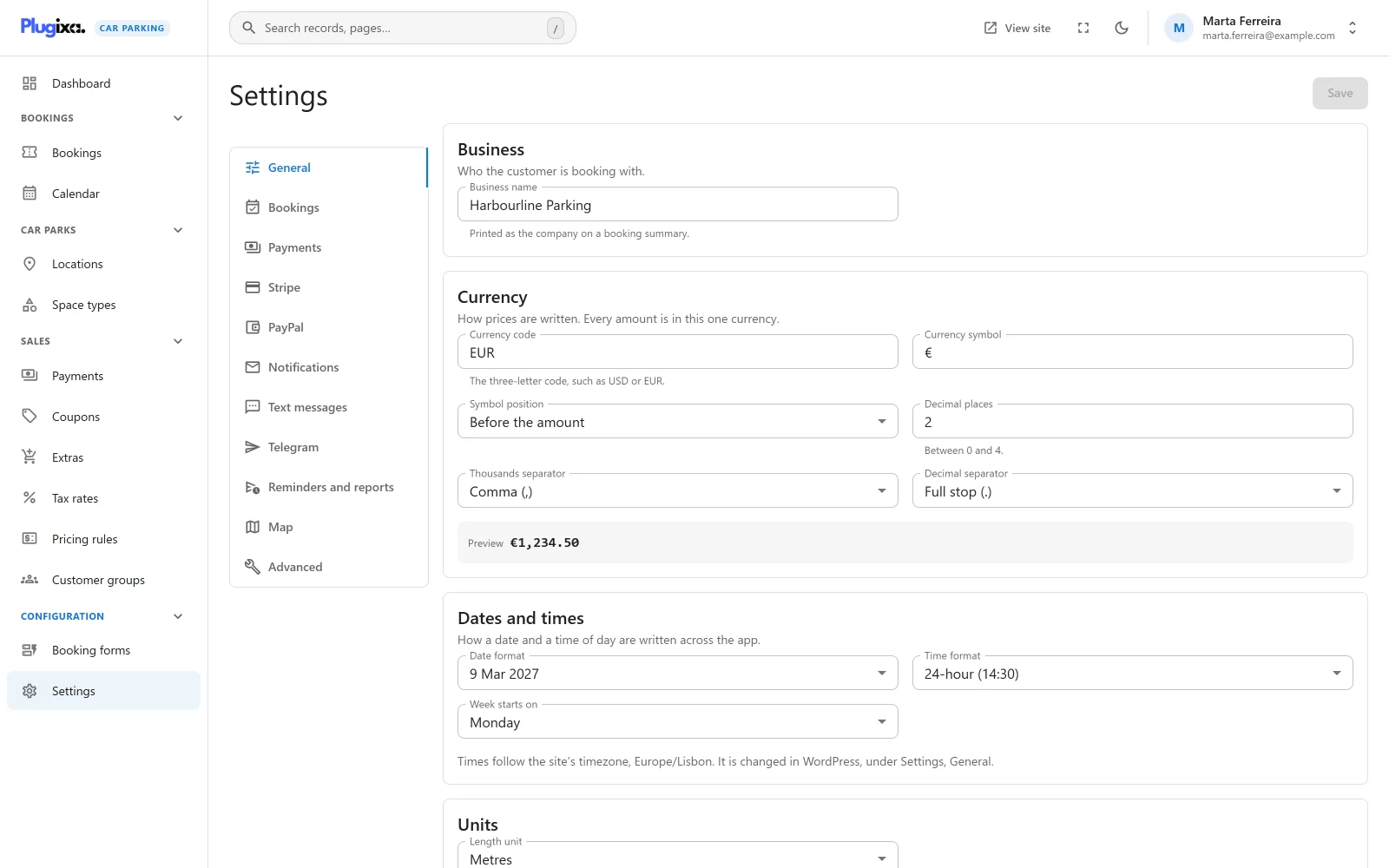
Business
| Option | Default | Notes |
|---|---|---|
| Business name | Plugixa Car Parking |
“Printed as the company on a booking summary.” |
Currency
“How prices are written. Every amount is in this one currency.”
| Option | Default | Choices and limits |
|---|---|---|
| Currency code | USD |
“The three-letter code, such as USD or EUR.” |
| Currency symbol | $ |
Free text |
| Symbol position | Before the amount | Before the amount, After the amount |
| Decimal places | 2 |
0 to 4 |
| Thousands separator | Comma (,) | Comma, Full stop, Space, Apostrophe, None |
| Decimal separator | Full stop (.) | Full stop, Comma |
A Preview line under the fields writes 1234.5 with the current choices. If the two separators are the same, a warning says: “The thousands and decimal separators are the same, so an amount cannot be read. Choose two different ones.”
The currency is a label. Changing it does not convert any stored amount.
Dates and times
“How a date and a time of day are written across the app.”
| Option | Default | Choices |
|---|---|---|
| Date format | Y-m-d |
Y-m-d, d/m/Y, m/d/Y, d.m.Y, j M Y, M j, Y. Each is offered as an example date. |
| Time format | 24-hour (14:30) | 24-hour (14:30), 12-hour (2:30 pm) |
| Week starts on | Monday | Any day of the week |
A note under the fields names the site’s timezone: “Times follow the site’s timezone. It is changed in WordPress, under Settings, General.” A booking’s entry and exit are the car park’s own clock time, in that timezone.
Units
| Option | Default | Notes |
|---|---|---|
| Length unit | Metres | Metres or Feet. “The unit a new space type’s dimensions start in.” See Space types. |
Bookings
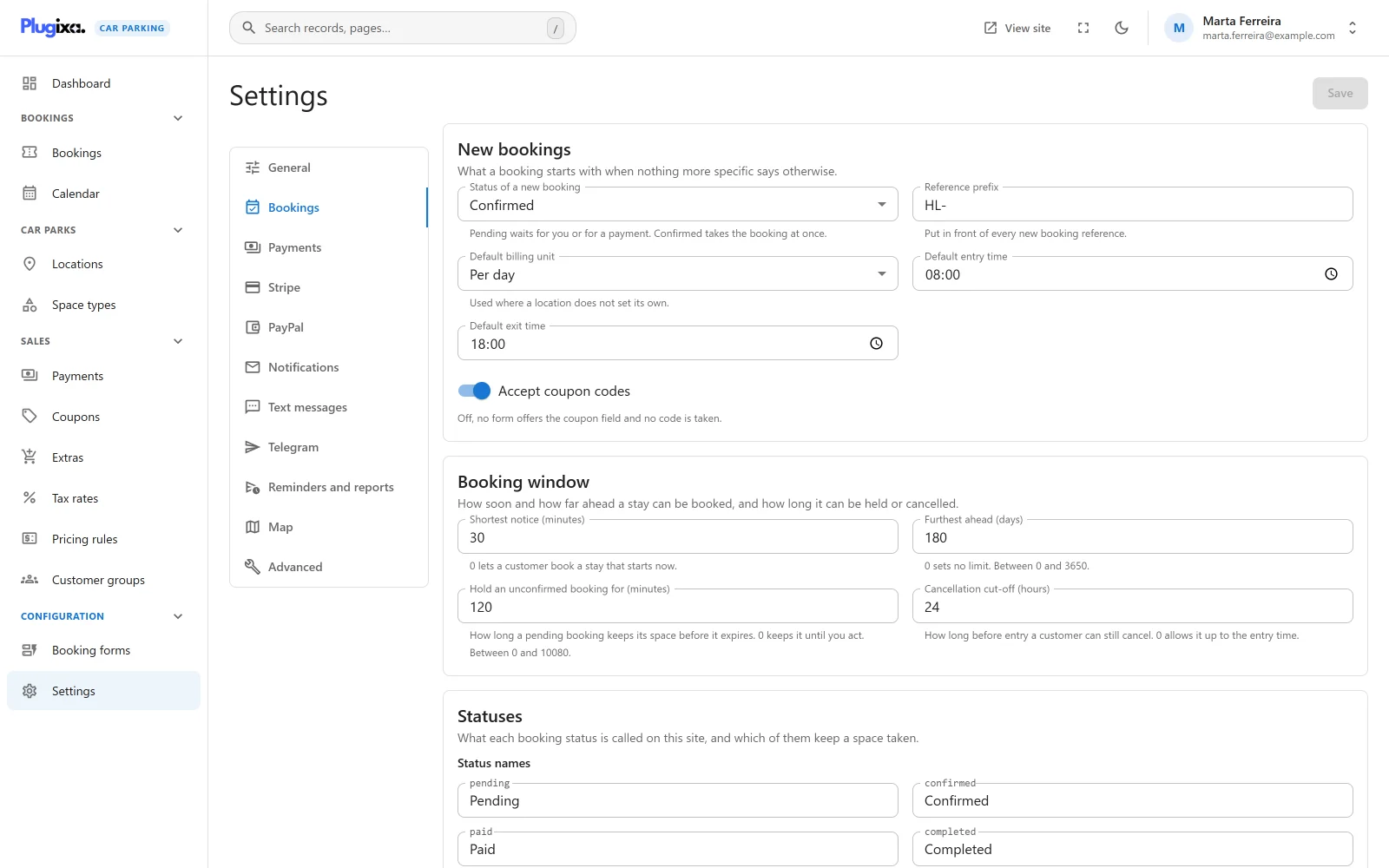
New bookings
“What a booking starts with when nothing more specific says otherwise.”
| Option | Default | Notes |
|---|---|---|
| Status of a new booking | Pending | Pending or Confirmed. “Pending waits for you or for a payment. Confirmed takes the booking at once.” |
| Reference prefix | PKG- |
“Put in front of every new booking reference.” |
| Default billing unit | Per day | Minute, hour, day, week or month. Stored, but version 1.0.0 does not read it: every location has its own Billing unit, and that is what a booking is priced in. See Pricing. |
| Default entry time | 08:00 |
The time the admin booking form and the calendar start a new booking at. |
| Default exit time | 18:00 |
The same, for the exit. |
| Accept coupon codes | On | “Off, no form offers the coupon field and no code is taken.” See Coupons. |
The two default times apply to bookings you create in the admin. The public booking form picks its own starting dates.
Booking window
“How soon and how far ahead a stay can be booked, and how long it can be held or cancelled.”
| Option | Default | Limits | Notes |
|---|---|---|---|
| Shortest notice (minutes) | 0 |
0 or more | “0 lets a customer book a stay that starts now.” |
| Furthest ahead (days) | 365 |
0 to 3650 | “0 sets no limit.” |
| Hold an unconfirmed booking for (minutes) | 30 |
0 to 10080 | “How long a pending booking keeps its space before it expires. 0 keeps it until you act.” |
| Cancellation cut-off (hours) | 0 |
0 or more | “How long before entry a customer can still cancel. 0 allows it up to the entry time.” |
The first three are explained in Availability. The cut-off applies to the customer account page.
Statuses
“What each booking status is called on this site, and which of them keep a space taken.”
| Option | Default |
|---|---|
| Status names | Pending, Confirmed, Paid, Completed, Cancelled, Refunded, No-show, Expired |
| Statuses that hold a space | Pending, Confirmed, Paid, Completed |
Status names changes what a status is called. Statuses that hold a space decides which bookings count as taking a space: “A booking in one of these statuses counts as taking a space when availability is worked out.” See Bookings for what each status means.
Pages
“The pages of your site that customers are sent to.”
| Option | Default | Notes |
|---|---|---|
| Booking page | None | “Where a customer lands after paying online. Left empty, the booking summary page is used, or a page that holds the booking form.” |
| Booking summary page | None | “The page that shows a customer their booking. Emails link to it. Left empty, no link is sent.” |
The summary page is a page that holds the [plugixa_car_parking_summary]
shortcode. See Shortcodes.
While neither page is chosen, the section shows a warning: “Neither page is chosen. A customer who pays online is sent back to a page that holds the booking form, and to the home page if there is none, where nothing tells them how the payment went. Choose at least one.”
Payments
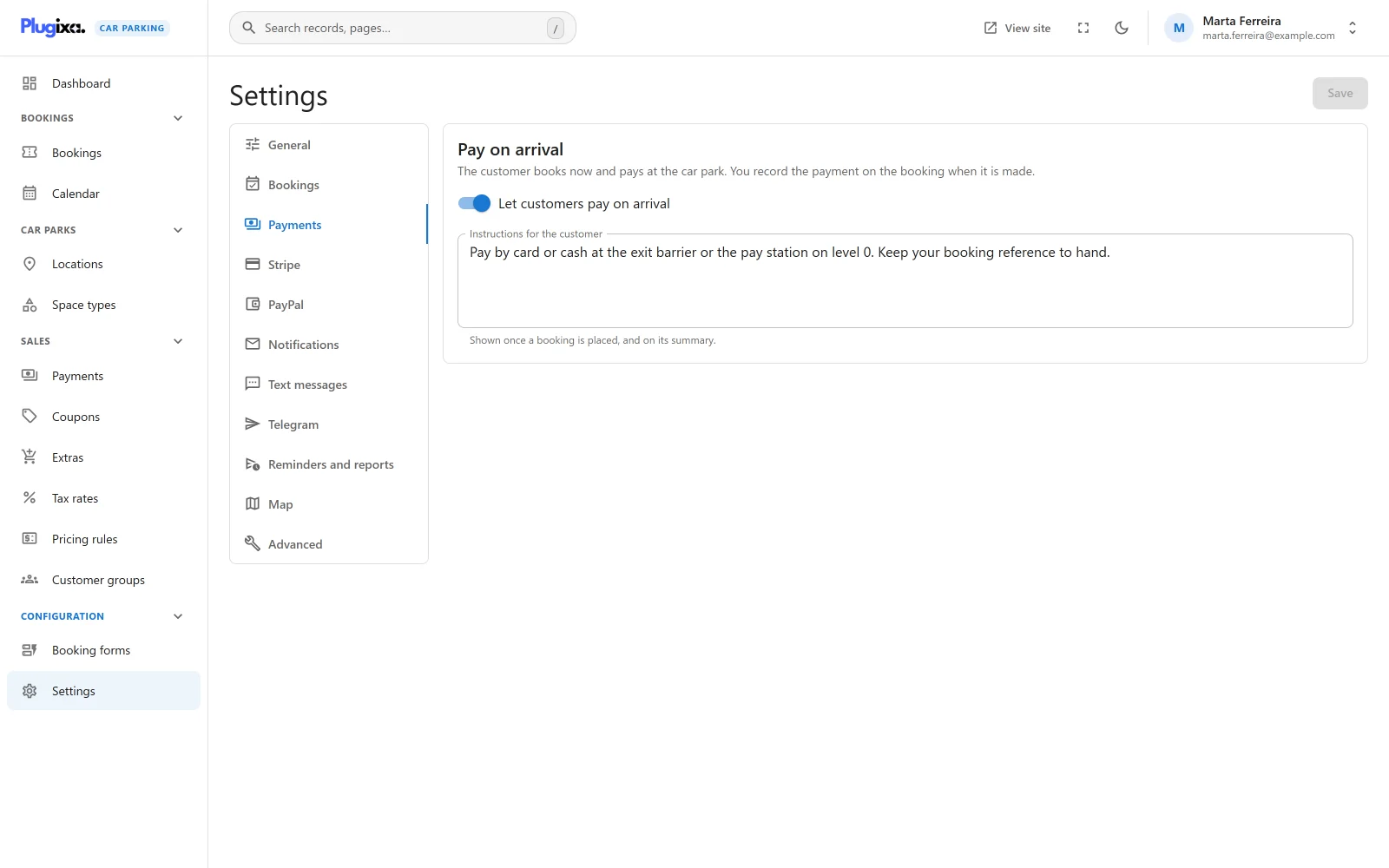
Pay on arrival
“The customer books now and pays at the car park. You record the payment on the booking when it is made.”
| Option | Default | Notes |
|---|---|---|
| Let customers pay on arrival | On | Switches the pay-on-arrival method on or off. |
| Instructions for the customer | Please pay on arrival at the parking entrance. |
“Shown once a booking is placed, and on its summary.” |
See Payments.
Notifications
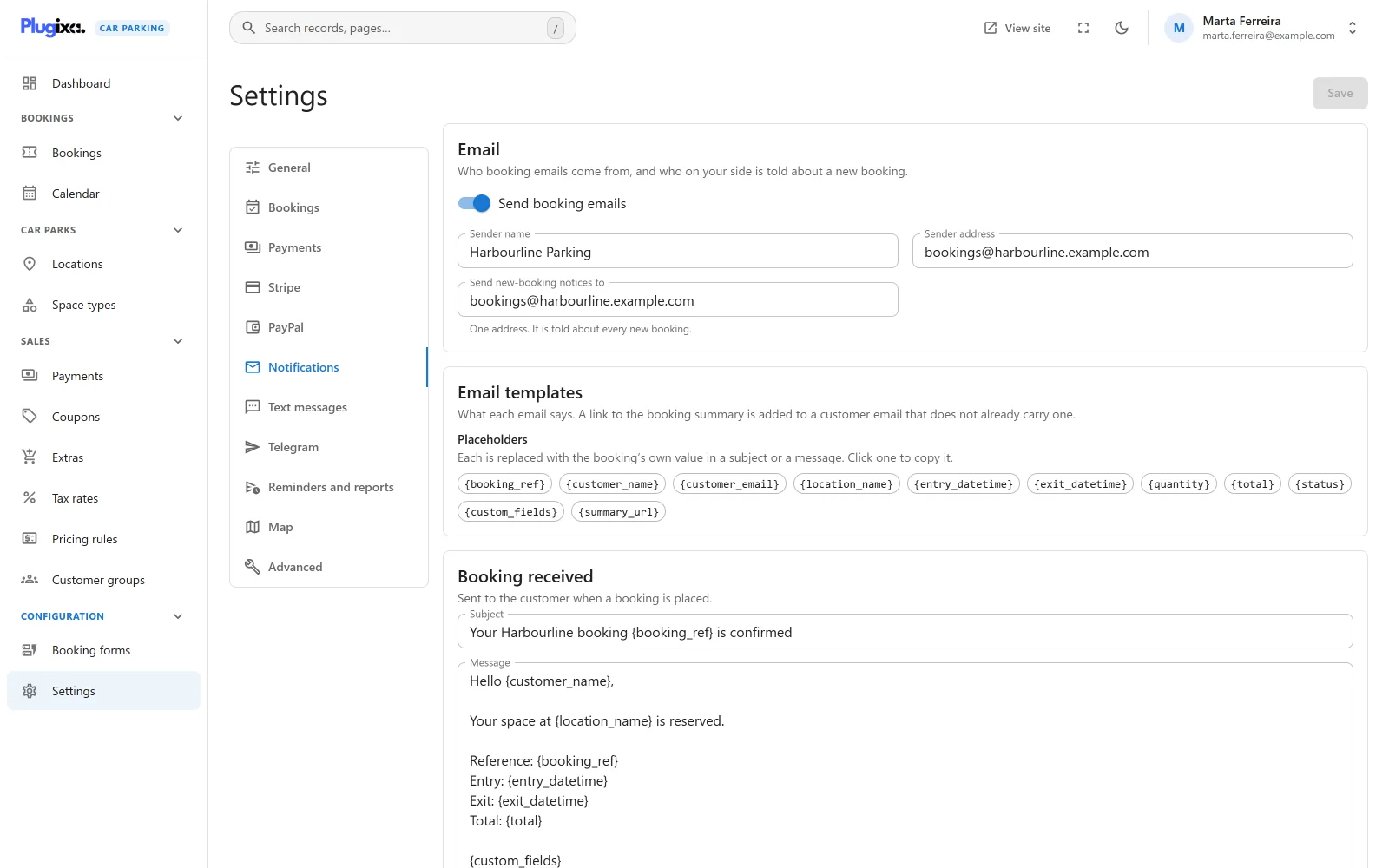
“Who booking emails come from, and who on your side is told about a new booking.”
| Option | Default | Notes |
|---|---|---|
| Send booking emails | On | The master switch. “Switched off, no email below is sent, to customers or to you.” |
| Sender name | The site title | |
| Sender address | The site’s admin email | |
| Send new-booking notices to | The site’s admin email | “One address. It is told about every new booking.” |
Email templates
A row of placeholders. Click one to copy it. “Each is replaced with the booking’s own value in a subject or a message.”
| Placeholder | Replaced with |
|---|---|
{booking_ref} |
The booking reference |
{customer_name} |
The customer’s name |
{customer_email} |
The customer’s email address |
{location_name} |
The location booked |
{entry_datetime} |
When the stay starts |
{exit_datetime} |
When the stay ends |
{quantity} |
How many spaces were booked |
{total} |
The total, with the currency symbol |
{status} |
The booking’s status |
{custom_fields} |
What the customer answered in the fields your booking form adds, one to a line |
{summary_url} |
A link to the booking summary |
The three emails
Each has a Subject and a Message.
| Sent | Default subject | |
|---|---|---|
| Booking received | “Sent to the customer when a booking is placed.” | Your parking booking {booking_ref} is confirmed |
| New booking notice | “Sent to your own address when a booking is placed.” | New parking booking {booking_ref} |
| Payment received | “Sent to the customer once a booking is paid in full.” | Payment received for {booking_ref} |
The default messages:
Hello {customer_name},

Your booking {booking_ref} at {location_name} is confirmed.
Entry: {entry_datetime}
Exit: {exit_datetime}
Total: {total}

Thank you!
A new booking {booking_ref} was placed by {customer_name} at {location_name}.
Hello {customer_name},

We've received your payment for booking {booking_ref}. Total: {total}.

Thank you!
See Emails for when each is sent and what is added to it.
Advanced
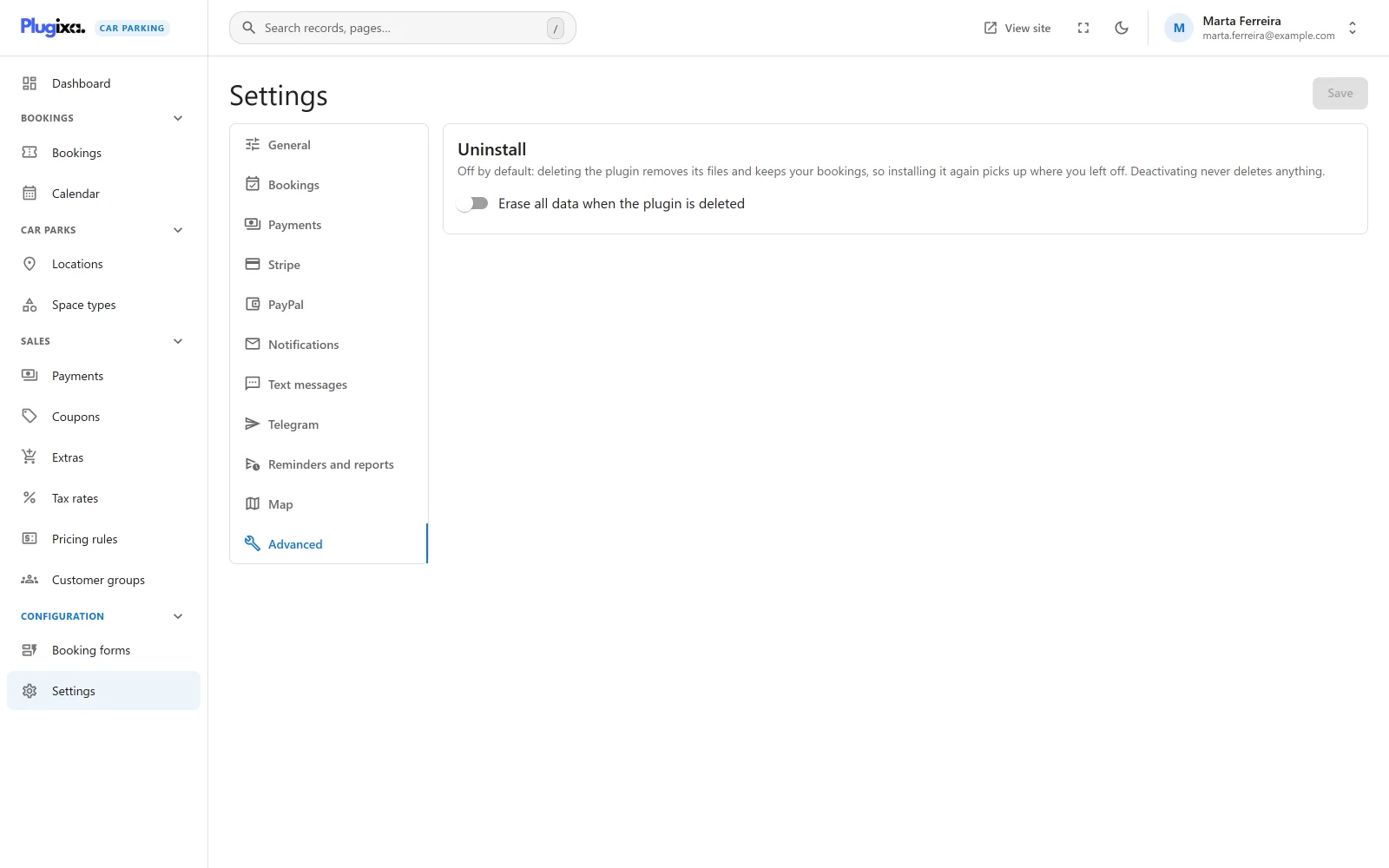
Uninstall
| Option | Default | Notes |
|---|---|---|
| Erase all data when the plugin is deleted | Off | “Off by default: deleting the plugin removes its files and keeps your bookings, so installing it again picks up where you left off. Deactivating never deletes anything.” |
Switching it on shows a warning: “Deleting the plugin will now permanently erase every booking, payment, location, form and setting. There is no undo. Nothing is erased while another copy of the plugin is still installed, because that copy uses the same data.”
Only a site administrator can change this option. See Privacy and uninstall.
Pro sections
With Pro installed, six more sections appear. Each is documented on its own page.
| Section | Address | Documented in |
|---|---|---|
| Stripe PRO | #/settings?tab=stripe |
Stripe |
| PayPal PRO | #/settings?tab=paypal |
PayPal |
| Text messages PRO | #/settings?tab=sms |
SMS and Telegram |
| Telegram PRO | #/settings?tab=telegram |
SMS and Telegram |
| Reminders and reports PRO | #/settings?tab=scheduled |
Reminders and reports |
| Map PRO | #/settings?tab=map |
Map |
API keys and other credentials entered in these sections are stored encrypted and are never sent back to the browser. A saved one shows as set, not as its value. Saving the form again without retyping it leaves it unchanged.
Settings without a control
Two stored settings have no field on the screen in version 1.0.0.
| Setting | Default | What it does |
|---|---|---|
items_per_page |
20 |
How many rows a list shows per page to start with. Limited to 10 to 200. |
custom_css |
Empty | Extra CSS printed on the plugin’s public pages. Any HTML tag in it is removed. Only a site administrator can change it. |
Both can be set through the settings route of the REST API.
Where settings are stored
Every setting lives in one WordPress option, plugixacarparking_settings. A
partial save changes only the fields it carries. Settings that belong to a Pro
feature stay stored when Pro is removed, so installing Pro again finds its
configuration, API keys included.