

Contents
Booking forms - Plugixa Car Parking
A booking form is a saved set of choices that produces one booking wizard: which steps it has and in what order, which extra questions it asks, which locations it offers and what colour it uses. Each form has its own shortcode.
You do not need a form to take bookings. [plugixa_car_parking] without a form
shows the standard wizard. Create a form when you want to change something
about it.
Open the screen from Car Parking, then Booking forms in the Configuration group of the sidebar.
The form you start with
Activating the plugin creates one form when the site has none.
| Name | Default Booking Form |
| Slug | default |
| Status | Active |
| Primary colour | #1976d2 |
| Steps | The standard ones |
| Locations | Every location |
It is created on activation only. If you delete it, an update does not bring it back.
The list
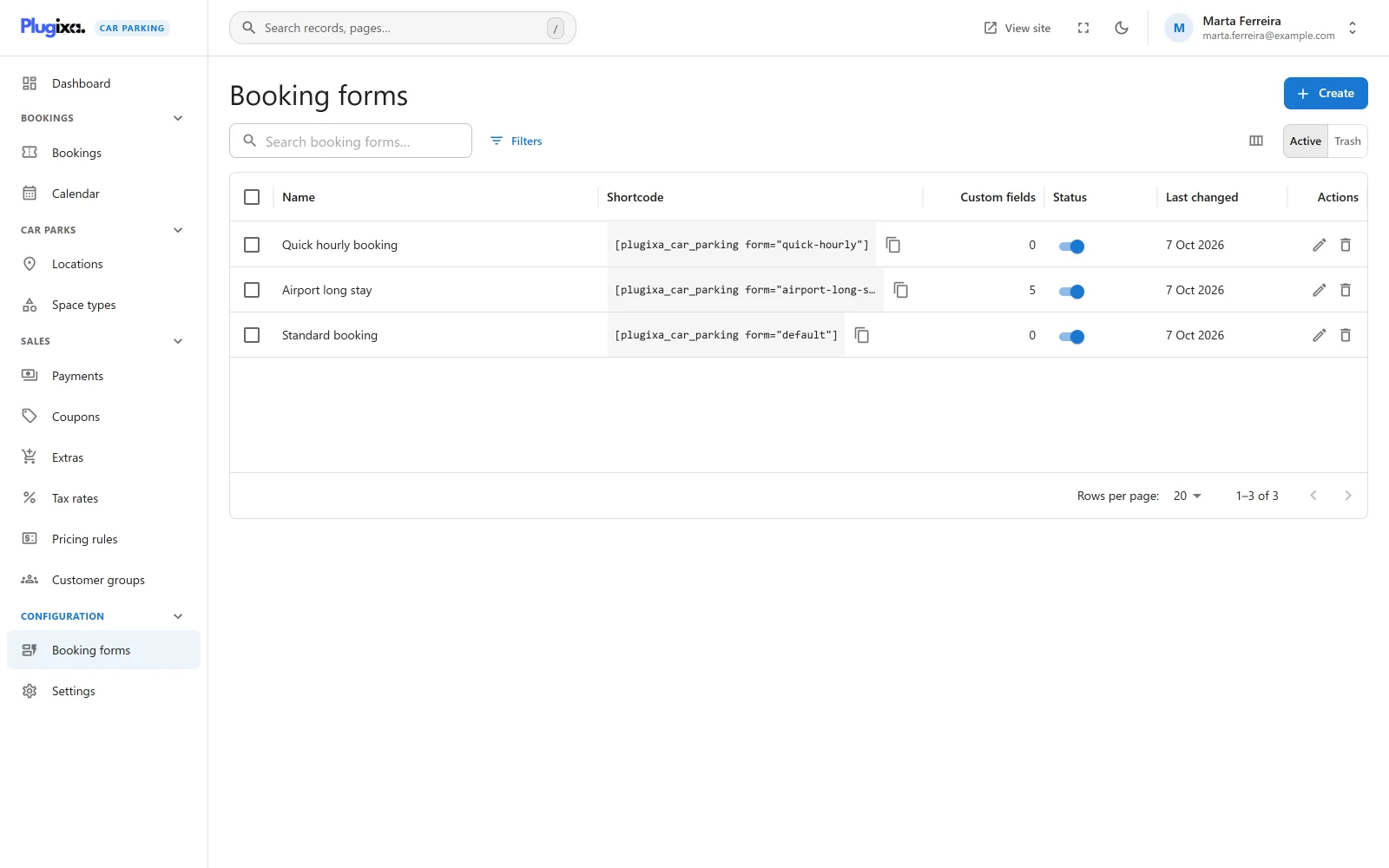
| Column | What it shows |
|---|---|
| Name | The form’s name |
| Shortcode | The shortcode that shows this form, with a Copy shortcode button |
| Custom fields | How many fields of your own the form has |
| Status | Active or Inactive |
| Last changed | When the form was last saved |
The search box (“Search booking forms…”) matches the name and the slug. Filters narrows the list by status, and the Columns button chooses which columns are shown.
Select rows to act on several forms at once: Activate, Deactivate or Move to trash.
A list with no forms shows “No booking forms yet” and a New booking form button.
Creating a form
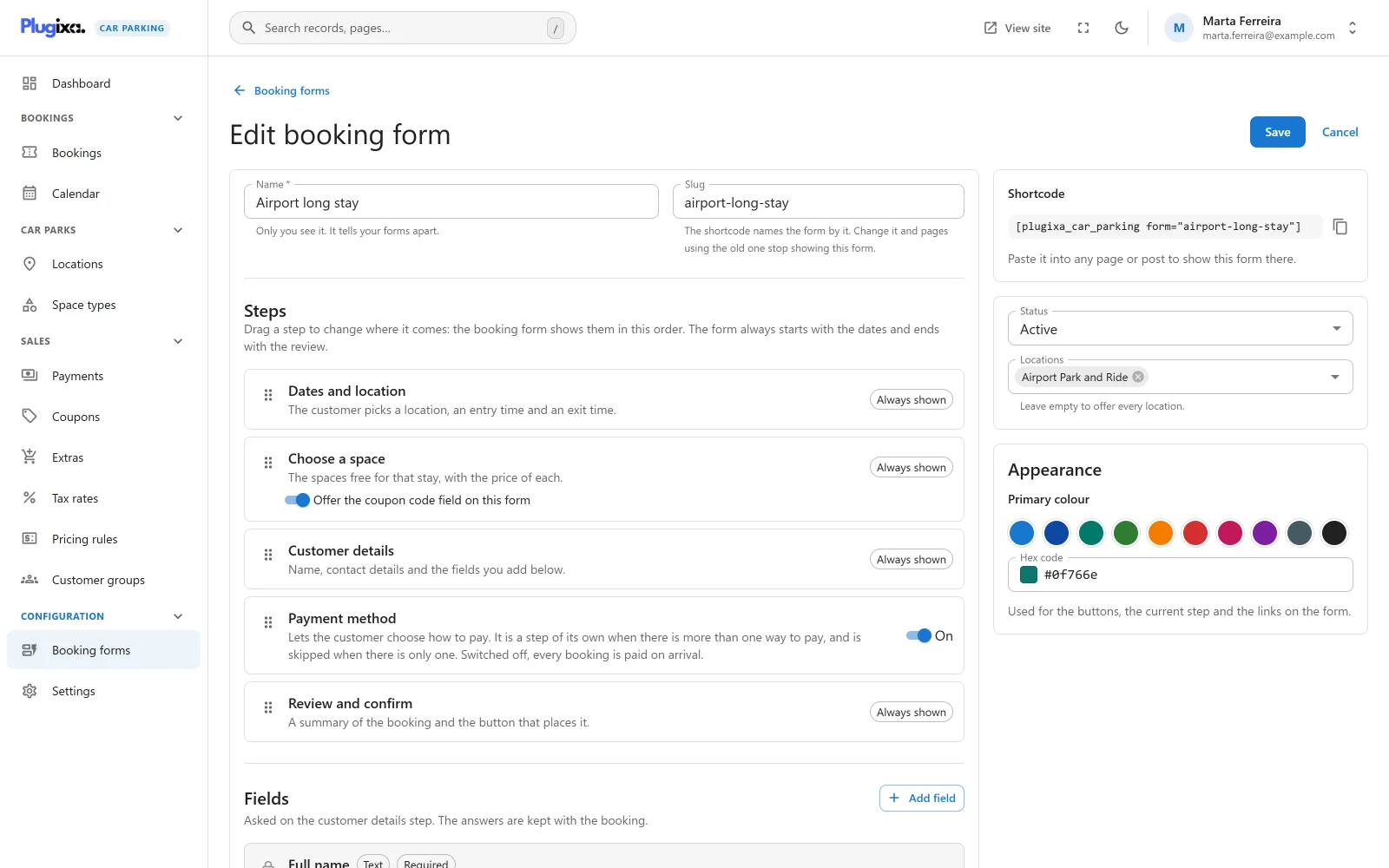
Click New booking form. A new form works as it is: its steps are the standard ones, and you can change them now or later.
Name and slug
| Field | Notes |
|---|---|
| Name | Required, up to 255 characters. “Only you see it. It tells your forms apart.” |
| Slug | Up to 191 characters. “Left empty, it is made from the name.” If the slug is taken, a number is added to make it unique. |
The shortcode names the form by its slug. On an existing form the field warns: “Change it and pages using the old one stop showing this form.” Such a page does not show an error. It falls back to the standard form, so check your pages after changing a slug.
Status
| Status | Effect |
|---|---|
| Active | The form is shown wherever its shortcode or block is placed. New forms start active. |
| Inactive | Visitors see nothing where the form was. Somebody who may edit booking forms sees “This booking form is inactive, so visitors do not see it.” |
Appearance
Primary colour is “Used for the buttons, the current step and the links on
the form.” Pick one of the ten swatches or type a Hex code such as
#1976d2, which is the default. A value that is not a hex colour is refused
with “A colour is written like #1976d2.”
The plugin works out the matching text colours itself. A pale colour, such as yellow, gets dark text on its buttons, and is darkened where it is used as text, so the form stays readable in light and dark mode.
Locations
Choose the locations this form offers. “Leave empty to offer every location.” A form limited to one location shows that location’s name in place of the location list.
Only active locations are offered to customers, whatever is selected here.
Steps
The Steps card lists the steps of the wizard. “Drag a step to change where it comes: the booking form shows them in this order. The form always starts with the dates and ends with the review.”
| Step | What it is | Can be switched off |
|---|---|---|
| Dates and location | “The customer picks a location, an entry time and an exit time.” | No. Always first. |
| Choose a space | “The spaces free for that stay, with the price of each.” | No |
| Customer details | “Name, contact details and the fields you add below.” | No |
| Payment method | Lets the customer choose how to pay. | Yes |
| Review and confirm | “A summary of the booking and the button that places it.” | No. Always last. |
The steps that cannot be switched off carry an Always shown label. The middle steps can be put in any order. Trying to move the first or the last step is refused with an explanation.
Payment method behaves in three ways:
- On, with more than one way to pay: it is a step of its own.
- On, with one way to pay: the step is skipped and that way is used.
- Off: the customer is not asked, and every booking made on the form is paid on arrival.
The Choose a space step has one option, Offer the coupon code field on this form. Switch it off to hide the coupon field on this form only. The field also needs Accept coupon codes to be on in Settings. See Coupons.
Fields
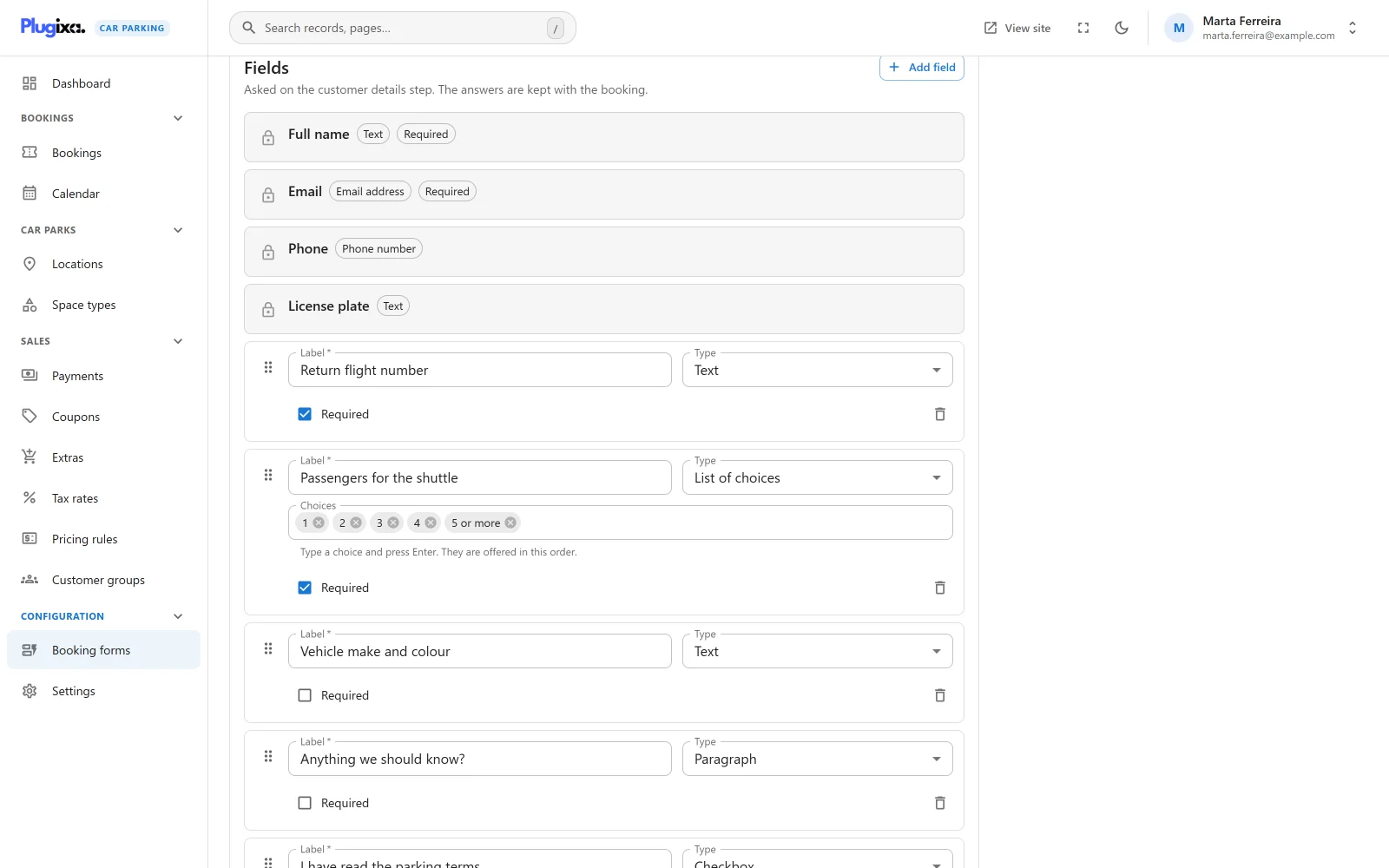
The Fields card lists what the Customer details step asks. “Asked on the customer details step. The answers are kept with the booking.”
Four fields are always there and are shown locked: “Every booking needs this field, so it cannot be changed or removed.”
| Built-in field | Required |
|---|---|
| Full name | Yes |
| Yes | |
| Phone | No |
| License plate | No |
Click Add field to ask for something more, such as a flight number or the car’s make. Each field has:
| Setting | Notes |
|---|---|
| Label | Required. What the customer reads. A field without a label cannot be saved: “A field needs a label.” |
| Type | One of the six types below. |
| Choices | For List of choices only. “Type a choice and press Enter. They are offered in this order.” At least one is needed: “Add at least one choice.” |
| Required | The customer must answer. For a checkbox the switch reads Must be ticked to book, which suits a terms-and-conditions box. |
| Type | What the customer gets |
|---|---|
| Text | A one-line text box |
| Email address | A text box for an email address |
| Phone number | A text box for a phone number |
| Paragraph | A text box of several lines |
| List of choices | A list to pick one choice from |
| Checkbox | A box to tick. Stored as Yes or No. |
Drag a field to reorder it. Remove field deletes it from the form.
If a field is not finished when you save, the form is not saved and says “Not saved yet: a field below is not finished.”
Where the answers go
Answers are stored with the booking, together with the label each field had when
it was answered. Renaming or removing a field later does not change what earlier
bookings show. You see the answers on the booking in
Bookings, and the
{custom_fields} placeholder puts them in an email. See
Emails.
Shortcode
Once the form is saved, the Shortcode card shows it:
[plugixa_car_parking form="airport"]
“Paste it into any page or post to show this form there.” Before the first save the card reads “Save the form to get the shortcode that puts it on a page.”
In the block editor, choose the form in the Car Parking Booking Form block instead.
Trash and restore
Trash on a row moves the form to the trash at once. Delete on the edit screen does the same after a confirmation. Switch the list from Active to Trash to see trashed forms, where each has Restore and Delete permanently.
A trashed form behaves like an inactive one: pages that use its shortcode show nothing to visitors. A trashed form keeps its slug, so restoring it brings every page that names it back to life.
Bookings made on a form are not affected by trashing it. They keep their answers and the labels those answers were given under.
Permissions
The screen follows the plugin’s capabilities: viewing needs
plugixa_carparking_view, creating plugixa_carparking_create, editing
plugixa_carparking_edit and trashing plugixa_carparking_delete.
Administrators have all of them. See
REST API.
What is stored
Forms live in the {prefix}plugixacarparking_booking_forms table. See
Privacy and uninstall.
What to do next
- Put the form on a page: Shortcodes or Blocks.
- See the result in Booking wizard.