

Contents
Customer account - Plugixa Car Parking
The customer account is a page where a customer sees their own bookings and can cancel one. It works for customers with a WordPress account and for guests.
Setting it up
-
Create a page, for example “My bookings”.
-
Add the shortcode to it:
[plugixa_car_parking_account] -
Publish the page and link to it from your menu or your emails.
The shortcode has no attributes. See Shortcodes.
Who sees what
A booking belongs to the WordPress user who was signed in when it was made, or to whoever knows both its reference and the email address it was made with.
| Visitor | What the page shows |
|---|---|
| Signed in | My bookings: every booking made while signed in to that account, latest entry first. |
| Not signed in | Find your booking: a form asking for the reference and the email address. |
A signed-in customer is not shown the lookup form. A booking they made earlier as a guest is not in their list, and they reach it by signing out and looking it up, or through the summary link in their email.
Finding a booking as a guest
The form reads “Enter the reference from your confirmation and the email address you booked with.”
| Field | Notes |
|---|---|
| Booking reference | The reference from the confirmation screen or email, for example one starting with PKG-. |
| Email address | The address typed in the booking form. Upper and lower case do not matter. |
The customer clicks Find booking.
| Message | When |
|---|---|
| “This field is required.” | A field is empty. |
| “Enter a valid email address.” | The email is not written like an address. |
| “No booking matches that reference and email.” | The reference does not exist, or the email is not the one on the booking. The answer is the same in both cases, so the form cannot be used to learn which references exist. |
When the booking is found it is shown in the same list a signed-in customer gets, with a Look up another booking button under it.
The list
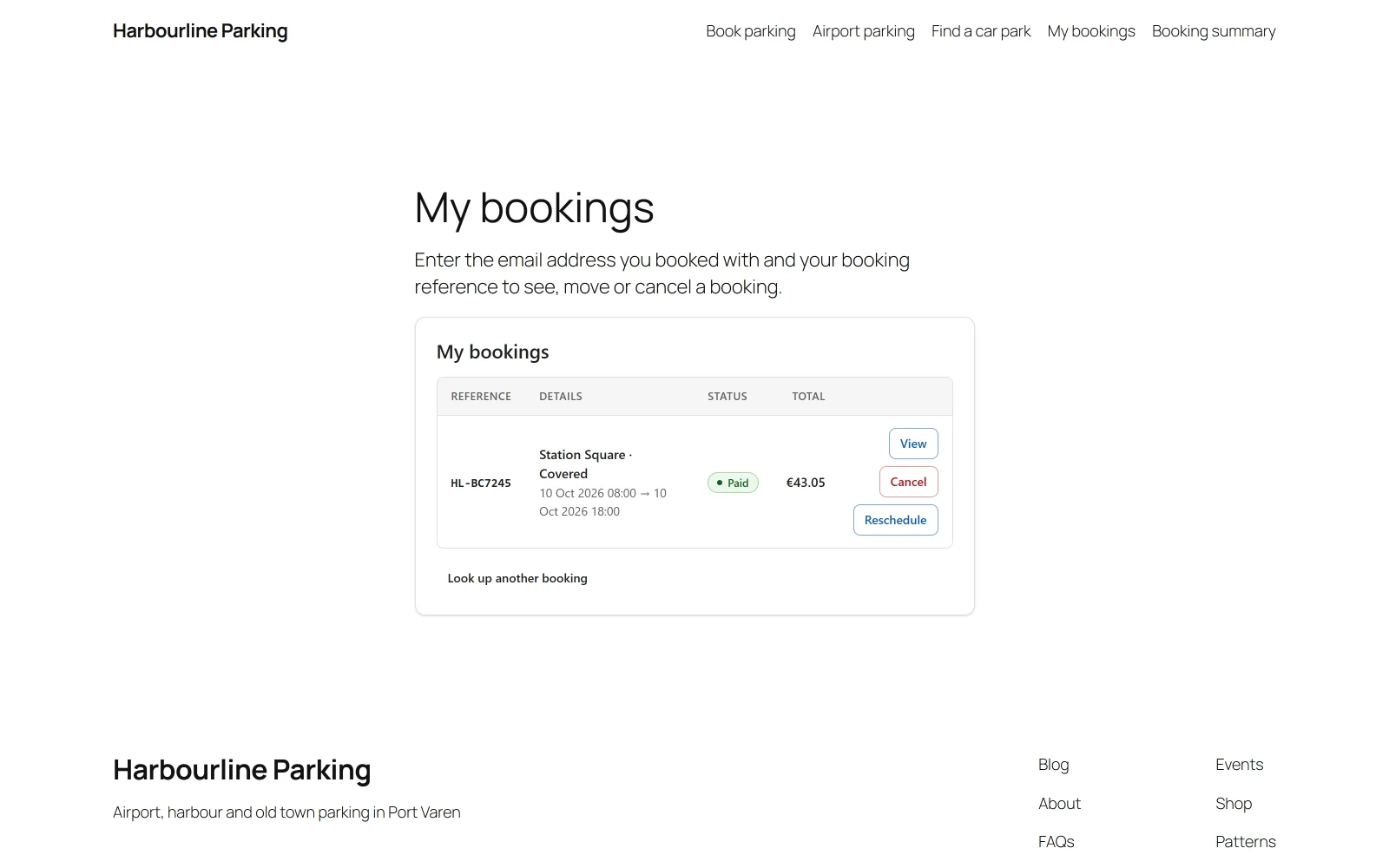
| Column | What it shows |
|---|---|
| Reference | The booking reference |
| Details | The location and space type, then the entry and exit |
| Status | The booking status, in the wording set in Settings |
| Total | The booking total |
Each booking has up to two actions.
| Action | Shown when |
|---|---|
| View | A Booking summary page is chosen in Settings. It opens the booking summary, where the customer can print the booking and pay what is owed. |
| Cancel | The booking can still be cancelled. See below. |
With Pro, a reschedule PRO action is added here.
Contact details and the license plate are not sent to this page.
An account with no bookings shows “No bookings found.”
Cancelling a booking
Cancel opens a confirmation under the booking: “Cancel this booking?” with Yes, cancel it and Keep booking. After a cancellation the list is loaded again and shows “Your booking has been cancelled.”
A booking can be cancelled by its customer when both of these are true.
| Rule | Detail |
|---|---|
| Its status allows it | Pending, Confirmed or Paid. A booking that is Completed, Cancelled, Refunded, No-show or Expired cannot be cancelled. |
| The cut-off has not passed | The Cancellation cut-off (hours) setting says how long before the entry a customer can still cancel. The default is 0, which allows it up to the entry time. With 24, the Cancel button disappears 24 hours before the entry. |
The setting is in Car Parking -> Settings -> Bookings, in the Booking window card. The cut-off is measured in the site’s timezone.
If the rules stop being met between the list loading and the click, the customer sees “This booking can no longer be cancelled.” or “The cancellation cut-off for this booking has passed.”
Cancelling sets the booking’s status to Cancelled. With the default settings a cancelled booking no longer holds a space. It changes nothing else by itself: to give money back, record a refund as described in Payments.
You can cancel any booking yourself at any time from Bookings. The rules above apply to customers only.
Limits
The account page is open to visitors who are not signed in, so its requests are limited per visitor address.
| Action | Limit |
|---|---|
| Looking up a booking as a guest | 10 in 15 minutes |
| Loading the list while signed in | 60 in 10 minutes |
| Cancelling, or changing a booking | 10 in an hour |
Over a limit the page shows “Too many requests. Please wait a little while and try again.” The guest lookup has the strictest limit because every miss could be a guess at somebody else’s booking.
A page left open for a long time, or served from a page cache for too long, answers a cancellation with “Your session expired. Please refresh and try again.” Reloading the page fixes it. See Troubleshooting.
For developers
Fires when a customer cancels their own booking:
add_action( 'plugixa_carparking_booking_cancelled', function ( $booking ) {
	// $booking is the cancelled booking row.
} );
See Hooks reference and REST API.
What to do next
- Set the summary page so View appears: see Shortcodes.
- Let customers move a booking themselves with Reschedule PRO.