

Contents
Bookings - Plugixa Car Parking
A booking holds one or more spaces of one space type at one location, for a stay with an entry and an exit. Customers make bookings through the booking wizard on your site. You can also take one yourself, over the phone or at the gate.
Open the list from Car Parking -> Bookings. In the app’s sidebar it is the first entry of the Bookings group.
The list
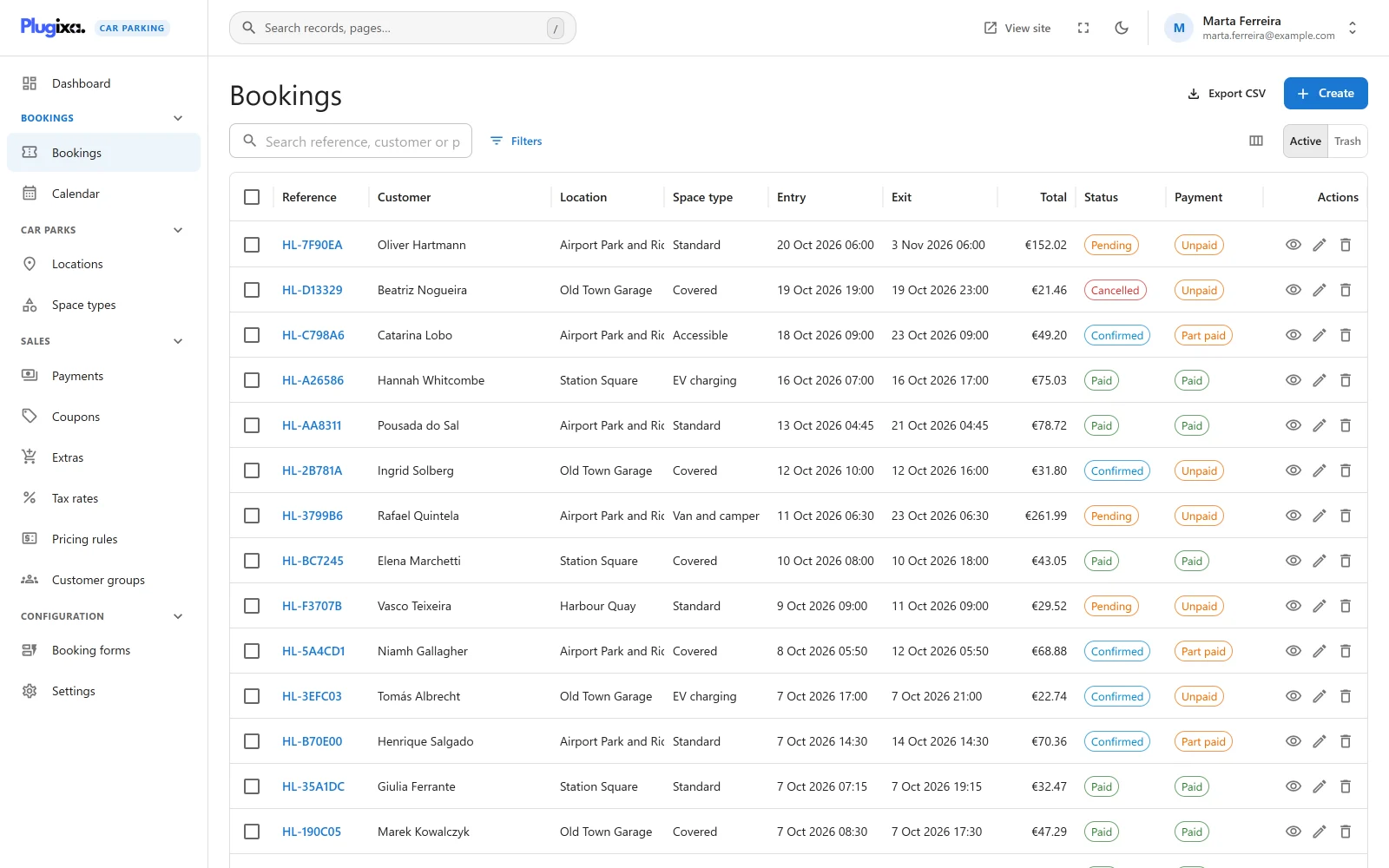
The list shows the newest booking first, 20 to a page unless you choose another page size.
| Column | What it shows |
|---|---|
| Reference | The booking reference. Click it to open the booking. |
| Customer | The customer’s name. |
| Location | The location booked. |
| Space type | The space type booked. |
| Entry | When the stay starts, on the car park’s clock. |
| Exit | When the stay ends. |
| Total | What the booking costs. |
| Status | The booking status, as a coloured chip. |
| Payment | The payment status: Unpaid, Part paid or Paid. |
| Created | When the booking was made. |
On a narrow screen the list drops Created, Space type, Location and Payment, in that order, to make room. The Columns button at the right of the toolbar brings a column back or hides one.
Click a column heading to sort by it. Location and Space type cannot be sorted.
Each row ends with three actions: View booking, Edit and Trash.
Search
The search box matches the reference, the customer name, the customer email and the licence plate. Its hint reads “Search reference, customer or plate”.
Filters
Filters opens a panel at the side. Click Add a field, choose what to filter by, set the comparison, and click Apply. Reset empties the panel. A badge on the button counts the filters in force, and each one is shown as a chip above the list with a Clear all link.
| Field | Kind | How it compares |
|---|---|---|
| Status | A list of your booking statuses | is one of, is not, is empty, is not empty |
| Payment status | Unpaid, Part paid, Paid | the same |
| Location | One of your locations | the same |
| Space type | One of your space types | the same |
| Entry | A date | is between (From and To), is at least, is more than, is at most, is less than, is (a single day), is empty, is not empty |
| Exit | A date | as Entry |
| Total | A number | is between, is at least, is more than, is at most, is less than, is, is not, is empty, is not empty |
| Created | A date | as Entry |
| Modified | A date | as Entry |
Each field opens on its usual comparison: “is one of” for a list and “is between” for a date or a number. Change comparison on the row offers the others.
Entry and Exit are compared with the car park’s own dates, so a booking that enters on the 31st is found on the 31st whatever timezone you are in. Created and Modified are converted from UTC to the site’s timezone first.
Filters are kept in the address of the page. The tiles on the Dashboard and the figures on the Calendar use this to open the list already filtered.
When nothing matches, the list says which of the two is responsible: “No records match your search.”, “No records match these filters.” or “No records match your search and these filters.”
Acting on several bookings
Tick the box at the start of one or more rows. A bar appears with the number selected and two actions:
| Action | What it does | Needs |
|---|---|---|
| Set status | Moves every selected booking to the status you pick from the menu. | Edit |
| Move to trash | Asks “Move N record(s) to the trash? You can restore them from the Trash view.” and then trashes them. | Delete |
Each booking is changed one by one, by the same rules as a change made on the booking itself. If some could not be changed, the bar says how many: “3 done, 1 skipped, 1 failed.” A booking is skipped when you are not allowed to touch it, and fails when the change is refused, for example when reinstating it would need a space that is no longer free. At most 200 bookings are changed in one request.
Export CSV
Export CSV, at the top right, downloads the list as a file named
bookings- followed by today’s date.
The file follows what is on screen: the same search, the same filters and the same view (active or trash). It holds every matching booking, not only the page you are looking at, up to 10,000 rows.
| Column | Notes |
|---|---|
| Reference | |
| Status | Written as your site names it, not as the stored key. |
| Payment status | |
| Location | |
| Space type | |
| Entry, Exit | On the car park’s clock. |
| Quantity | The number of spaces. |
| Customer, Email, Phone | |
| Licence plate | |
| Currency | |
| Subtotal, Discount, Total, Paid | |
| Notes | Your internal notes. |
| Additional details | The answers to the custom fields of the booking form, in one cell, as “Label: answer; Label: answer”. |
| Created (UTC) |
A cell that starts with =, +, - or @ is written with a leading
apostrophe, so that a spreadsheet shows what a visitor typed and does not run
it as a formula. Numbers are left as numbers.
The button is shown only to users who hold the export capability.
Trash
The Active and Trash switch at the right of the toolbar changes between live bookings and trashed ones.
Trashing a booking does not delete it. It frees the booking’s space from that moment and hides the booking from the list, the calendar and the dashboard.
In the Trash view each row has two actions:
- Restore brings the booking back. Because its space was given up, a booking in a status that holds a space is checked for a free space and for opening hours first. If there is none, the list says “This was not restored” with the reason, and offers Restore anyway, with this warning: “Restoring it anyway puts the booking back without a free space to hold. The space may then be double-booked, or the booking may fall at a time the location is closed.”
- Delete permanently removes the booking and its price lines for good. A booking with a completed payment cannot be removed: “This booking has payments recorded against it, so it cannot be deleted permanently.”
There are no mass actions in the trash. Trashed bookings are restored or deleted one at a time.
Taking a booking
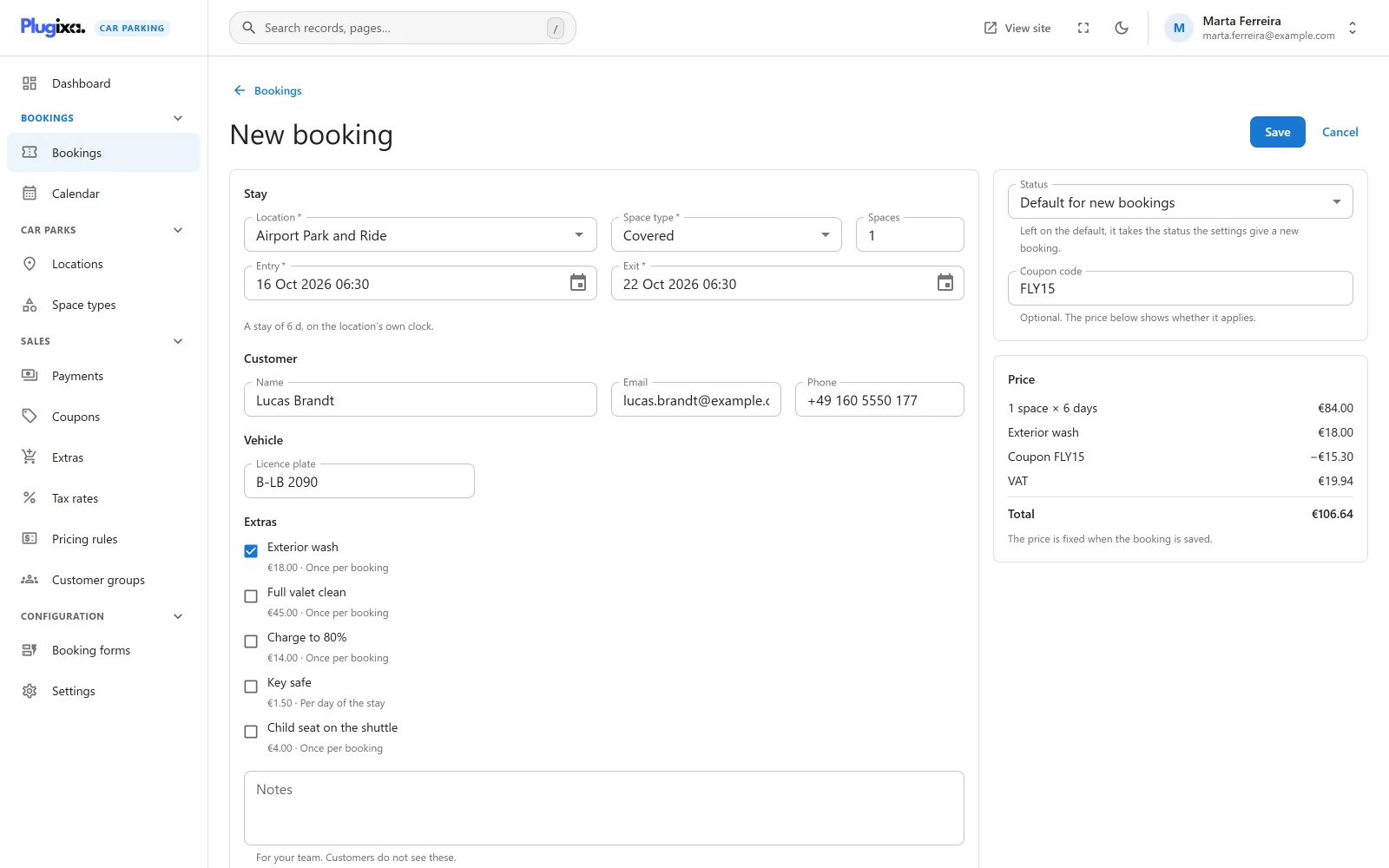
Click New booking on the list, on the dashboard or on the calendar. The
form opens at #/bookings/new.
Stay
| Field | Notes |
|---|---|
| Location | Required. With no location yet, the field says “There are no locations yet. Add one under Locations first.” |
| Space type | Required. Lists the space types the chosen location has spaces of. Before a location is chosen it reads “Choose a location first.” A location without spaces says “This location has no spaces yet. Add them on the location’s page.” |
| Spaces | How many spaces the booking is for. A whole number from 1 to 9999. Starts at 1. |
| Entry | Required. Date and time. The time starts at the Default entry time from the settings. |
| Exit | Required. Must be after the entry. The time starts at the Default exit time. |
Under the dates the form states the length of the stay, for example “A stay of 2 d 4 h, on the location’s own clock.” Entry and exit are always the car park’s time, whatever timezone you are in.
Customer and vehicle
| Field | Notes |
|---|---|
| Name | Optional. |
| Optional. If filled in, it must be an email address. | |
| Phone | Optional. |
| Licence plate | Optional. |
| Notes | “For your team. Customers do not see these.” |
With Pro, an extras picker PRO is added to this form. See Extras.
Side panel
| Field | Notes |
|---|---|
| Status | Starts on Default for new bookings: “Left on the default, it takes the status the settings give a new booking.” Choose a status to override it for this booking. |
| Coupon code | Optional, and shown only when Accept coupon codes is on in the settings. “The price below shows whether it applies.” |
| Price | A live preview, described next. |
The price preview
Once a location, a space type, the dates and the number of spaces are filled in, the Price panel shows each price line and the Total. Until then it reads “Choose a location, a space type and the dates to see what the stay costs.”
The preview is worked out on the server by the same calculation that prices a customer’s booking, so the figure shown is the figure saved. See Pricing. A line that was adjusted, for example by a pricing rule PRO, lists each adjustment under it with its amount.
A coupon code that is not accepted is priced as if no code had been typed, and the panel warns: “That coupon does not apply to this booking, so the price does not include it.”
“The price is fixed when the booking is saved.” The preview does not check whether a space is free. That happens on save.
What happens on save
A booking made in the admin goes through the same path as one made on your site:
- The booking window, the opening hours and the free spaces are checked. See Availability.
- The stay is priced and its price lines are stored.
- The booking gets its reference and its status.
- The emails for a new booking are sent. See Emails.
If a check fails, the reason is shown under the dates and nothing is saved:
| Message | Meaning |
|---|---|
| “There is no free space of that type for those dates.” | The location is full for that stay. |
| “The entry is in the past, or sooner than the notice the booking settings ask for. That limit applies to bookings made here too.” | Shortest notice (minutes) refuses it. |
| “The entry is further ahead than the booking settings allow. That limit applies to bookings made here too.” | Furthest ahead (days) refuses it. |
| “The car park is closed on the entry date” or a business-hours message | The location’s hours or exceptions refuse it. |
A new booking cannot be forced into a full or closed car park. Only a change to an existing booking can. See below.
A new booking starts as Unpaid, with pay on arrival as its payment method. To record money against it, use the Payments panel on the booking. See Payments.
The booking screen
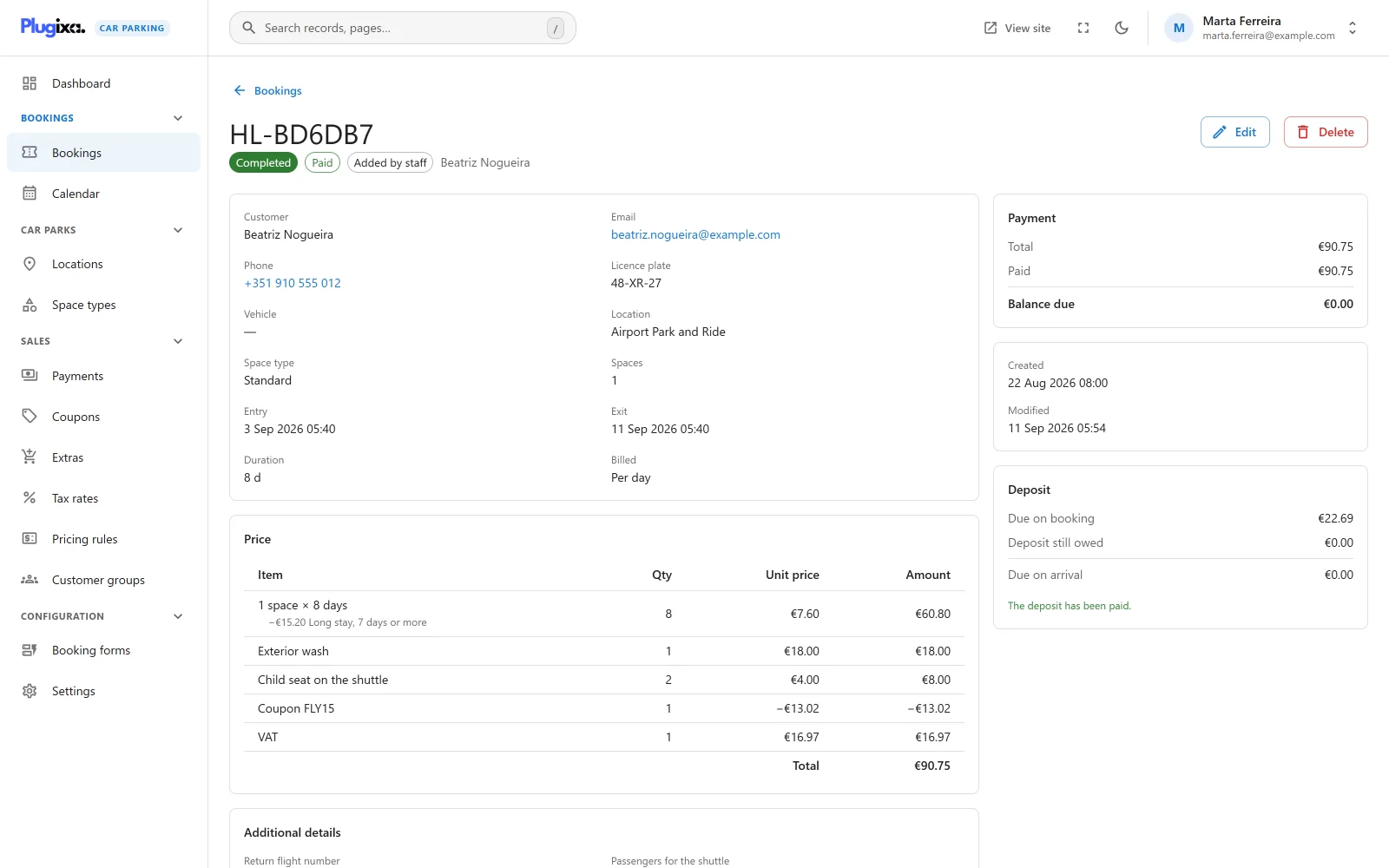
Click a reference to open the booking at #/bookings/<id>. The reference is
the title.
Under the title are three chips: the status, the payment status, and where the booking came from.
| Origin | Meaning |
|---|---|
| Guest | “Made without an account. The customer reaches it with the reference and their email address.” |
| Customer account | “The customer made this booking while signed in to their account.” |
| Added by staff | “A member of your team recorded this booking for the customer.” |
See Customer account for how customers find their bookings.
Details
| Field | Notes |
|---|---|
| Customer, Email, Phone | The email opens your mail program and the phone number starts a call. |
| Licence plate | |
| Vehicle | Other vehicle details stored with the booking, if any. |
| Location, Space type, Spaces | |
| Entry, Exit, Duration | |
| Billed | The billing unit the stay was priced in: per minute, hour, day, week or month. |
| Space held until | Shown only while the booking is Pending and has a hold. See Availability. |
Panels
| Panel | What it holds |
|---|---|
| Price | The price lines the booking was made with: Item, Qty, Unit price and Amount, any adjustment under its line, and the Total. |
| Additional details | What the customer answered in the custom fields of the booking form. Shown only when there are answers. See Booking forms. |
| Notes | Your internal notes, or “No notes on this booking.” |
| Payments | The payments and refunds recorded against the booking, with the actions to add one. See Payments. |
| Message log | The last ten messages sent about the booking, with View all. See Message log. |
| Payment (at the side) | Total, Paid and Balance due. |
| Deposit PRO (at the side) | See Deposits. |
Moving a booking through its statuses
The buttons at the top right offer the usual next steps for the status the booking is in.
| Current status | Buttons |
|---|---|
| Pending | Confirm, Cancel booking |
| Confirmed | Mark completed, Mark no-show, Cancel booking |
| Paid | Mark completed, Mark no-show, Cancel booking |
| Cancelled | Reinstate |
| Expired | Reinstate |
| No-show | Reinstate |
| Completed, Refunded | None |
Cancel booking asks first: “Cancel this booking? Its space becomes free for somebody else to book. Payments already recorded stay as they are.” Cancelling does not refund anything. Record a refund separately.
Reinstate moves the booking to Confirmed. Its space was given up when it was cancelled, expired or marked no-show, so a free space and the opening hours are checked first.
The buttons are shortcuts, not limits. The Status field on the edit form and Set status on the list can move a booking to any status. A button is only offered if its target status still exists in your status list.
Leaving Pending removes the booking’s hold, so a booking you have confirmed keeps its space.
Statuses
Every site starts with eight booking statuses. You can rename them, and add your own, under Settings -> Bookings -> Status names.
| Status | Key | What it means | How a booking gets there |
|---|---|---|---|
| Pending | pending |
Waiting for you or for a payment. Holds a space for a limited time. | The default for a new booking. |
| Confirmed | confirmed |
Accepted. | Confirm or Reinstate; a part payment; or at once, when Status of a new booking is set to Confirmed. |
| Paid | paid |
Paid in full. | Set when the payments recorded reach the total. |
| Completed | completed |
The stay is over. | Mark completed. |
| Cancelled | cancelled |
Called off. | Cancel booking, or the customer cancelling from their account. |
| Refunded | refunded |
The money was returned. | Set when refunds bring the amount paid back to zero on a Paid or Confirmed booking. |
| No-show | no_show |
The customer did not arrive. | Mark no-show. |
| Expired | expired |
A pending booking whose hold ran out. | Set by an hourly task. |
Which statuses keep a space taken is a separate setting, Statuses that hold a space. By default Pending, Confirmed, Paid and Completed do. See Availability.
A status you add yourself can be set by hand and is shown in grey on the calendar. Nothing moves a booking into it automatically.
Payment status
The payment status is separate from the booking status and is never set by hand. It is worked out from the payments recorded against the booking.
| Payment status | Meaning |
|---|---|
| Unpaid | Nothing has been received. |
| Part paid | Something has been received, but less than the total. |
| Paid | The amount received covers the total. |
Recording a payment or a refund also moves the booking status, as the table above shows. See Payments.
The booking reference
Each booking gets a reference when it is created: the Reference prefix
from Settings -> Bookings, followed by six characters drawn from the
digits 0 to 9 and the letters A to F. With the default prefix PKG- a
reference looks like PKG-7F3A91.
- A reference is unique. It is checked against trashed bookings too, because a customer may still hold an email that quotes one.
- Changing the prefix affects new bookings only. Existing references stay as they are.
- A reference is not a running number. Nothing about it says how many bookings you have.
Paste a reference into the app’s search to jump to the booking.
Editing a booking
Click Edit on the booking, or the edit action on its row. The form is the one used for a new booking, with these differences:
- Location cannot be changed.
- Status lists every status, with no default option.
- There is no Coupon code field. A coupon is applied when a booking is priced, which happens once.
- Additional details shows the customer’s answers to the form’s custom fields, and they can be corrected. Each keeps the label it was asked under, even if the form has changed since.
The price does not change
The Price panel shows the stored total with this note: “A booking keeps the price it was made at. Changing the dates, the space type or the number of spaces does not change what the customer owes.”
If the new dates should cost more or less, settle the difference with a payment or a refund, or cancel the booking and take a new one.
Customers who move their own booking from the account page are priced again. That is a Pro feature. See Reschedule.
When the car park is full or closed
Changing the entry, the exit, the space type or the number of spaces is checked against the opening hours and the free spaces, with the booking itself left out of the count. The booking window (shortest notice and furthest ahead) is not applied to an edit.
If the check fails, a warning under the dates gives the reason and adds a checkbox: Save it anyway, even though the location is full or closed at that time. Tick it and save again to override the check.
The same override exists in two other places:
- On the booking screen, when Reinstate is refused, the warning carries a Do it anyway button.
- In the trash, as Restore anyway.
The override skips the opening-hours and free-space checks and nothing else. A booking forced into a full car park is counted like any other, so the Calendar shows the peak in red for that day.
Two people editing the same booking
If somebody else changed the booking after you opened it, saving is refused and the warning offers Reload. Reload, check what changed, and make your change again.
Who can do what
Access is by WordPress capability. Activation gives all of them to the Administrator role and to no other role. To let other staff in, grant the capabilities with a role editor plugin.
| Capability | What it allows on bookings |
|---|---|
plugixa_carparking_view |
See the list, the booking screen, the calendar and the dashboard, and get a price preview. |
plugixa_carparking_create |
New booking, and double-click to create on the calendar. |
plugixa_carparking_edit |
Edit, the status buttons, and Set status on the list. |
plugixa_carparking_delete |
Trash, Move to trash, Restore and Delete permanently. |
plugixa_carparking_export |
Export CSV. |
plugixa_carparking_manage_settings |
The Settings screen. |
A user who holds any one of these can open the app. Buttons a user may not use are hidden, and the server refuses the action regardless.
A WordPress administrator always holds every one of them.
What is stored
Bookings are stored in {prefix}plugixacarparking_bookings, and their price
lines in {prefix}plugixacarparking_booking_items. The customer’s name, email,
phone and licence plate are columns of the booking itself, so a booking stays
readable as it was made whatever later happens to the customer’s account. See
Privacy and uninstall.