

Contents
Map - Plugixa Car Parking
Map PRO is a shortcode that draws your locations on a Google map. Each location with coordinates gets a marker, and clicking a marker shows the location’s name and where it is.
The map is a locator. It shows where your car parks are. It does not start a booking: place the booking form on the same page if you want visitors to book from there.
Setting it up
- Get a Google Maps API key from the Google Cloud console, with the Maps JavaScript API enabled.
- Open Car Parking -> Settings -> Map, paste the key into Google Maps API key and click Save.
- Give each location a latitude and a longitude. See Locations.
- Put
[plugixa_car_parking_map]on a page.
The Map settings
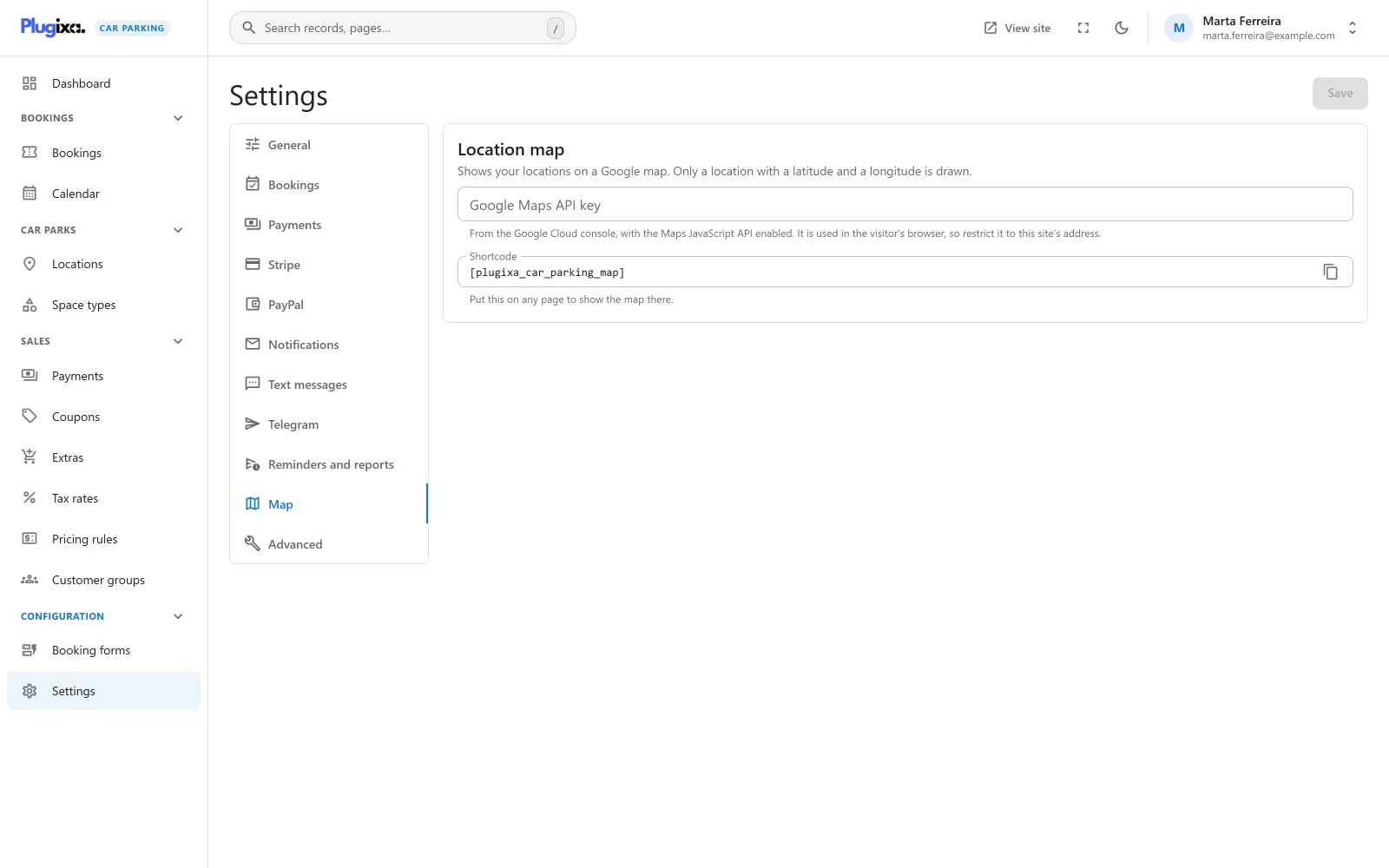
The Location map card has one setting and one thing to copy.
| Field | Default | Notes |
|---|---|---|
| Google Maps API key | Empty | “From the Google Cloud console, with the Maps JavaScript API enabled. It is used in the visitor’s browser, so restrict it to this site’s address.” |
| Shortcode | [plugixa_car_parking_map] |
Read-only, with a copy button. “Put this on any page to show the map there.” |
The key is not treated as a secret. It is shown in the field after saving, and it is visible to anyone who views the source of a page that holds the map, because the visitor’s browser has to send it to Google. That is how Google Maps keys work. Protect it in the Google Cloud console by restricting it to your site’s address.
The shortcode
[plugixa_car_parking_map]
| Attribute | Default | What it does |
|---|---|---|
height |
420 |
The height of the map in pixels. A number only, without px. |
zoom |
5 |
The Google Maps zoom level used when the map has a single marker. |
[plugixa_car_parking_map height="600" zoom="12"]
The map is always the full width of the place it is put in, with rounded corners.
Two things to know about the attributes:
zoomonly matters with one marker. With two or more, the map fits itself around all the markers and the zoom is set by that.- The height is applied to every map on the page. With two map shortcodes of different heights on one page, both take the height of the later one.
The shortcode has no attribute for choosing locations. Every map shows the same set.
What the map shows
A location gets a marker when both of these are true:
| Condition | Detail |
|---|---|
| It is active | Inactive and trashed locations are left out. |
| It has coordinates | Both Latitude and Longitude are filled in. “Only a location with a latitude and a longitude is drawn.” |
The plugin does not look up coordinates from an address. Type them on the location.
Hovering a marker shows the location’s name. Clicking it opens a small window with:
- the location’s name, in bold
- its city and country, when either is filled in
The window has no link, no price and no availability. The street address, the description and the opening hours are not shown.
With one marker, the map is centred on it at the zoom level. With several, it
is fitted around all of them.
When nothing appears
The shortcode prints nothing visible in two cases. Each leaves a comment in the page source that says why.
| Case | Comment in the page source |
|---|---|
| No API key is saved | plugixa-car-parking map: set a Google Maps API key in Settings |
| No active location has coordinates | plugixa-car-parking map: no geocoded locations |
A visitor sees no message and no empty box in either case. The rest of the page is unaffected.
If the key is saved but Google rejects it, for example because the Maps JavaScript API is not enabled or the key’s restrictions do not include your site, the box is drawn and Google shows its own error inside it.
What is loaded, and when
Google’s script is loaded only on a page where the shortcode actually draws a map. Pages without the shortcode, and pages where it prints nothing, load nothing from Google.
| Loaded | From | When |
|---|---|---|
| The Google Maps JavaScript API | https://maps.googleapis.com |
In the visitor’s browser, on a page with a map |
| The plugin’s map script and public stylesheet | Your own site | On the same page |
The visitor’s browser contacts Google directly, sending your API key and whatever a browser normally sends, such as the IP address. Your server sends nothing to Google. The marker data, which is each location’s name, coordinates, city and country, is written into the page.
Because the map contacts a third party from the visitor’s browser, mention it in your privacy policy, and check whether your consent tool has to hold it back until the visitor agrees. See Privacy and uninstall.
Without Pro
In the free edition [plugixa_car_parking_map] is not a registered shortcode,
so WordPress prints the tag as plain text. Remove it from your pages if you go
back to free. The saved API key is kept and is used again when Pro is
reinstalled. See
Free vs Pro.