

Contents
Dashboard - Plugixa Car Parking
The dashboard is the screen the plugin opens on. It answers three questions: how much money came in, how many bookings were made, and how full the car parks are right now.
Open it from Car Parking -> Dashboard in the WordPress menu, or from Dashboard at the top of the app’s own sidebar.
The heading greets you by name (“Good morning”, “Good afternoon” or “Good evening”) and says which day the figures are for: “Here is how your car parks are doing on” followed by today’s date. That date is the site’s day, taken from the timezone set in WordPress, not the day on your own device. A New booking button sits beside the heading if you are allowed to create bookings.
To see the dashboard a user needs the plugixa_carparking_view capability.
Administrators have it. See
Bookings.
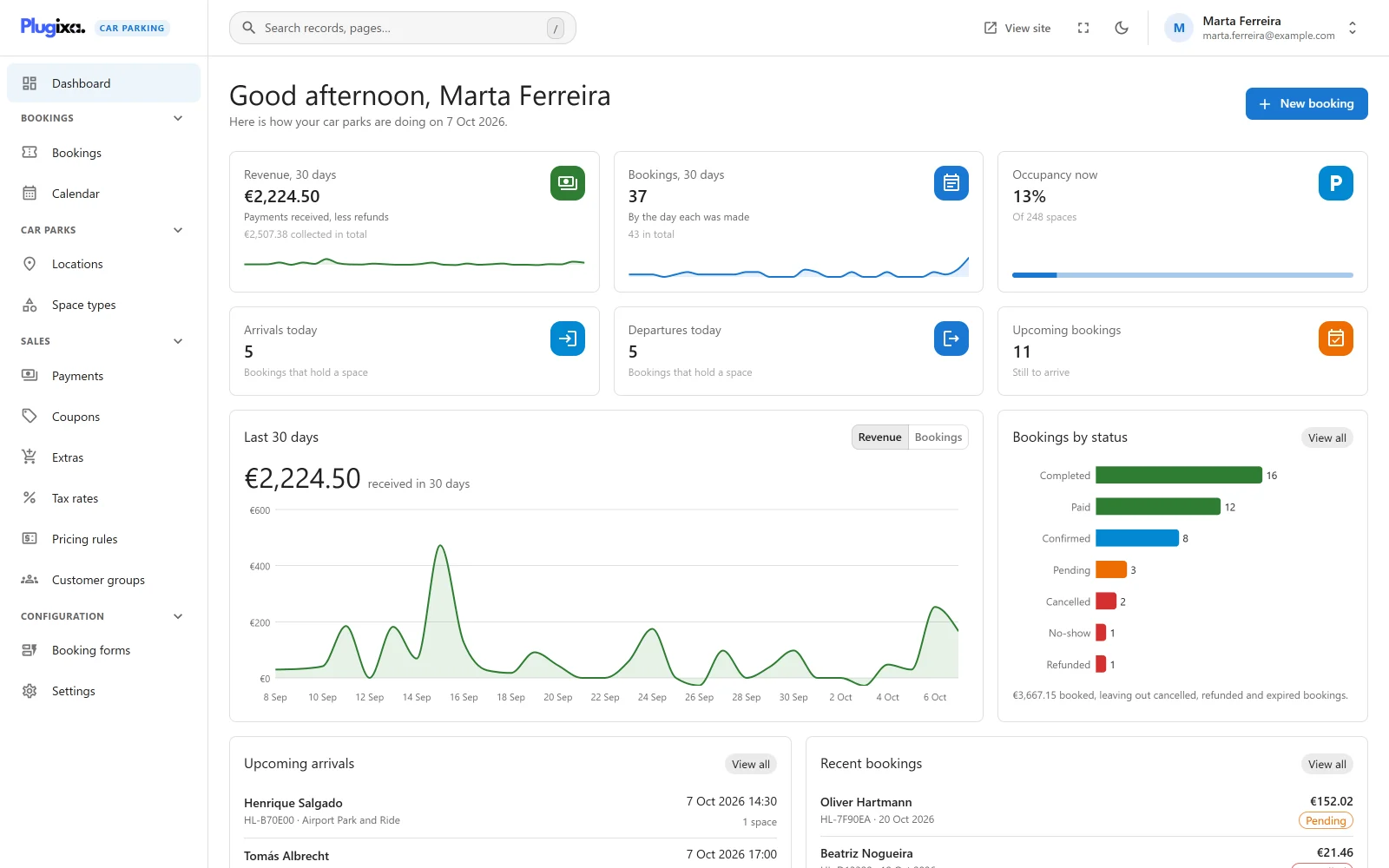
The app around it
Every screen of the plugin, the dashboard included, sits inside one app with its own navigation.
| Part | What it does |
|---|---|
| Sidebar | Dashboard on its own, then four groups: Bookings (Bookings, Calendar), Car parks (Locations, Space types), Sales (Payments, Coupons, and with Pro PRO Extras, Tax rates, Pricing rules, Customer groups) and Configuration (Booking forms, Settings). A group can be collapsed, and the app remembers which ones you collapsed in your browser. An entry you are not allowed to use is left out. |
| Search | The search box in the top bar opens a palette. Press / anywhere outside a text field to open it from the keyboard. With nothing typed it lists the screens under Go to. Type two letters or more and it also searches bookings by reference, customer name, email and licence plate, showing up to eight matches with their status. Paste a complete booking reference and press Enter to go straight to that booking. Arrow keys move, Enter opens. |
| View site | Opens the front of your website. |
| Full screen | Shows the app without the WordPress menu and toolbar. Exit full screen brings them back. The button only appears in browsers that support full screen. |
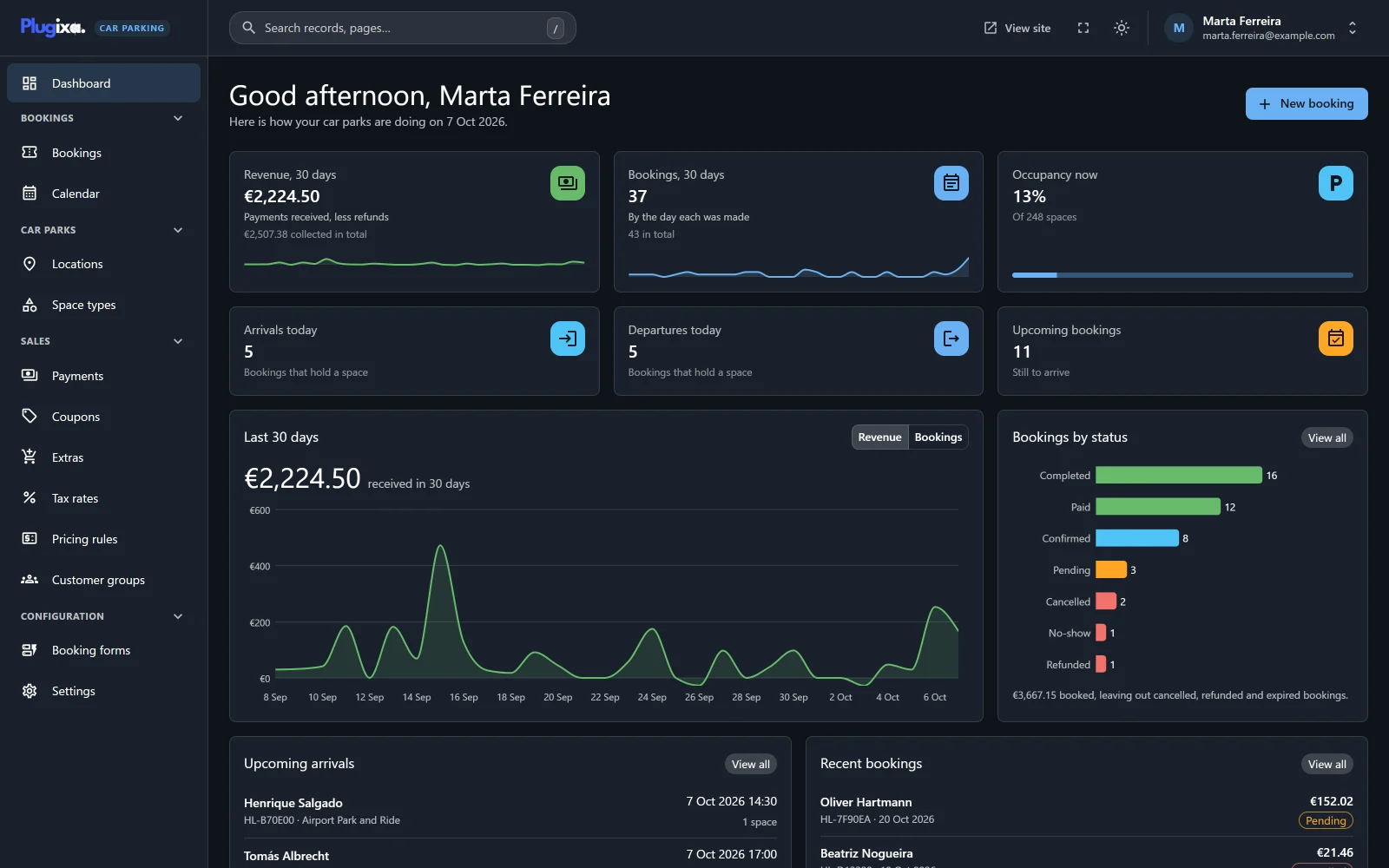
| Dark mode PRO | A switch in the top bar: Switch to dark mode and Switch to light mode. |
| Account menu | Your name and email, then Profile (your WordPress profile), Exit to WordPress (the WordPress dashboard) and Log out. |
On a site that WordPress reports as local, development or staging, the top bar carries a badge that says so, with the note “This is not the live site”.
The Message log screen has no sidebar entry. It is reached from a booking: open the booking, find its Message log panel and click View all. See Message log.
The six tiles
Each tile is a link. Clicking it opens the list behind the number.
| Tile | What it counts | Opens |
|---|---|---|
| Revenue, 30 days | “Payments received, less refunds”: completed payments minus completed refunds, by the day each was recorded, for today and the 29 days before it. A small line shows the trend. Underneath, “collected in total” is the amount paid across every booking, with no date limit. | Payments |
| Bookings, 30 days | Bookings made in the same 30 days, “by the day each was made”, whatever their status. Underneath, “in total” is every booking on the site. | Bookings, filtered to those created in the period |
| Occupancy now | The spaces held at this moment as a percentage of all active spaces, “Of N spaces”. The bar turns amber from 85% and red at 100%. The figure never goes above 100%, even when a booking was forced into a full car park. | Calendar |
| Arrivals today | Bookings whose entry is today. Only “Bookings that hold a space” count. | Bookings, filtered to entries today in the statuses that hold a space |
| Departures today | Bookings whose exit is today, counted the same way. | Bookings, filtered to exits today |
| Upcoming bookings | Bookings “Still to arrive”: the entry is later than now and the status is not Cancelled, Refunded or Expired. | Bookings, filtered to entries from today on |
What “holds a space” means
A booking holds a space when its status is one of the Statuses that hold a space in Settings -> Bookings, and it is not a pending booking whose hold has run out. By default the holding statuses are Pending, Confirmed, Paid and Completed. The dashboard uses the same rule as the booking form, so the two agree on what is full. See Availability.
Bookings in the trash are left out of every figure.
Last 30 days
A chart of the 30 days ending today. A switch at its top right changes what it shows:
- Revenue - money received each day, less refunds, with the total “received in 30 days” above the chart. A payment shows on the day it was recorded, not on the day of the stay.
- Bookings - bookings made each day, with the total “bookings made in 30 days”.
An empty period says so: “No payments in the last 30 days. Money shows here on the day it is received.” or “No bookings were made in the last 30 days. Each one shows here on the day it is made.”
Payments and bookings are stamped in UTC when they are saved. The dashboard moves them onto the site’s clock before it cuts them into days, so a day on the chart is a day at the car park.
Bookings by status
One bar for each status that has at least one booking, in the colour that status has everywhere else in the app. Click a bar to open the bookings list filtered to that status. View all opens the whole list.
The line under the bars gives the value of what is booked: the sum of the totals of all bookings, “leaving out cancelled, refunded and expired bookings”. It is what customers have agreed to pay, not what they have paid.
Upcoming arrivals
The next six bookings due to arrive, soonest first. Each row shows the customer name (or “No name given”), the reference and location, the entry date and time, and how many spaces the booking is for. Click a row to open the booking. View all opens the bookings list from today on.
The list follows the same rule as the Upcoming bookings tile, so it is the head of that count.
Recent bookings
The five bookings made most recently, newest first, with the customer name, reference, entry date, total and status. Click a row to open the booking.
Occupancy by location
One bar for each location that has spaces, in the display order of the
locations, up to 50 locations. Each shows the “Spaces held right now” against
the location’s capacity and the percentage, for example 12 / 40 · 30%. The
location name opens the Calendar
for that location.
A location with no spaces is not listed. If none has any, the card says “No location has spaces yet. Give a location its space types and it is measured here.” See Locations.
When a figure looks wrong
| What you see | Why |
|---|---|
| Revenue is lower than the bookings’ totals | Revenue counts money recorded in the payments ledger. A booking that has not been paid adds nothing until a payment is recorded. See Payments. |
| A booking made late in the evening shows on the next day, or the one before | The site’s timezone decides which day it falls on. Check it in WordPress under Settings -> General. |
| Occupancy stays at 0% | No location has active spaces, or no booking in a holding status covers the present moment. |
| Arrivals today is lower than the bookings you see for today | Cancelled, refunded, expired and no-show bookings do not hold a space, so they are not counted. |