

Contents
Locations - Plugixa Car Parking
A location is a car park customers can book a space in. Each location has its own address, billing unit, opening hours, closures and stock of spaces. There is no limit on the number of locations.
Open the list from Car Parking -> Locations. In the app’s sidebar it sits in the Car parks group, above Space types.
A location can take bookings once three things are true: its status is Active, it has at least one active row of spaces, and the space type of those spaces has a price for the location’s billing unit.
The starter location
Activating the plugin on a site that has no location at all, trashed ones included, creates one working car park so a first booking can be taken straight away.
| What | Value |
|---|---|
| Name | Main Car Park |
| Slug | main-car-park |
| Description | Demo parking location created on activation. |
| Status | Active |
| Billing unit | Per day |
| Opening hours | Every day, 00:00 to 23:59:59 |
It is stocked with the four starter space types, and gives each of them a price per day and per hour:
| Space type | Spaces | Per day | Per hour |
|---|---|---|---|
| Standard | 50 | 10.00 | 2.00 |
| Covered | 20 | 15.00 | 3.00 |
| Disabled | 5 | 8.00 | 1.50 |
| Electric | 10 | 18.00 | 4.00 |
The starter location is created on activation only, never by an update. If you delete it, it is not put back, because a trashed location still counts as “the site has a location”.
The list
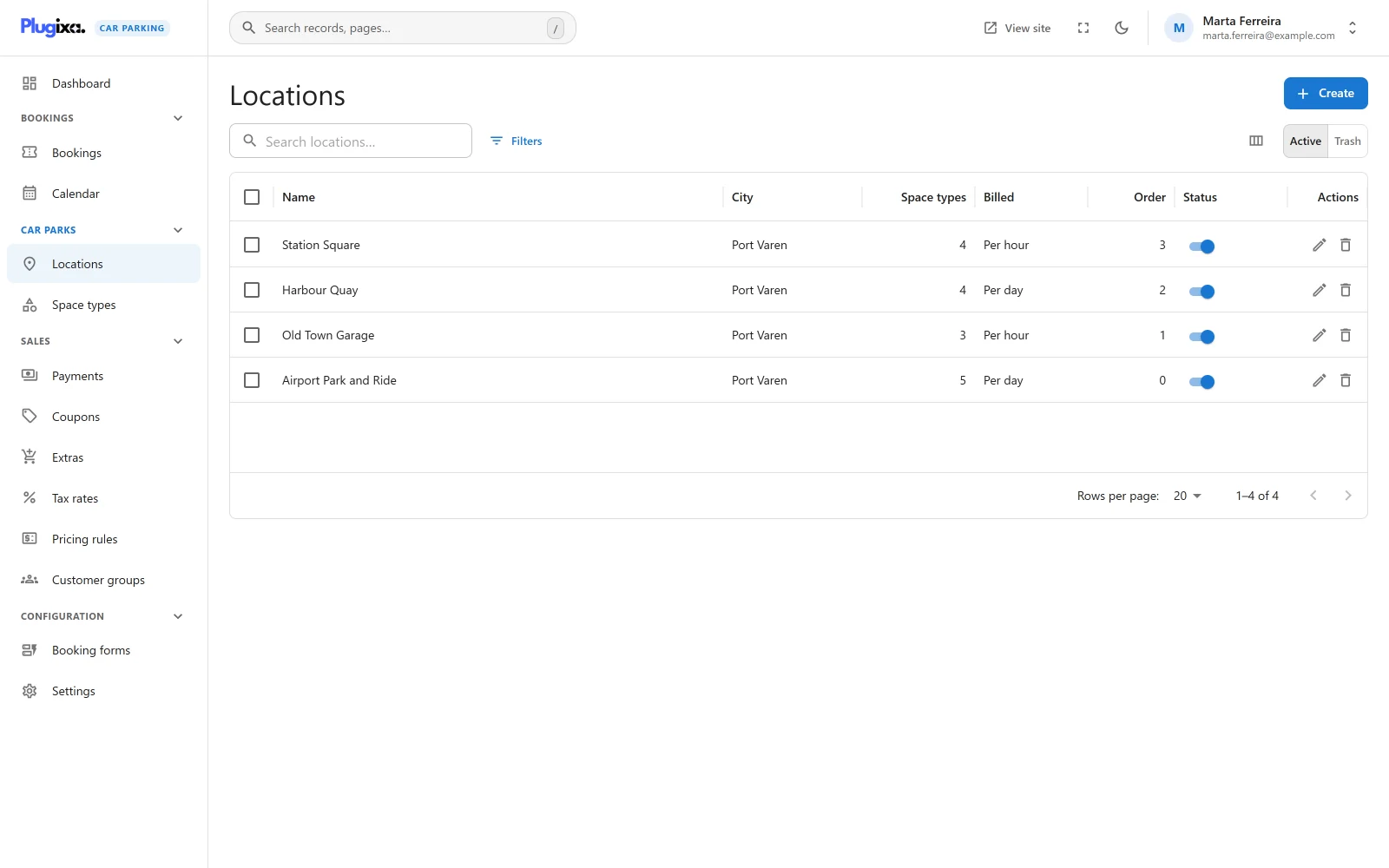
| Column | What it shows |
|---|---|
| Name | The location’s name. |
| City | The city from its address. |
| Space types | How many space types the location stocks. |
| Billed | The billing unit: Per minute, Per hour, Per day, Per week or Per month. |
| Order | The display order. |
| Status | Active or Inactive, with a switch to change it from the list. |
On a narrow screen Order and City are the first columns to be hidden.
The search box is labelled “Search locations…”. Filters narrows the list by Status, Billing unit, City and Country. Tick rows to change the status of several locations at once or to move them to the trash.
An empty list reads “No locations yet” with the hint “A location is a car park customers can book a space in. Add one, then say which space types it has.”
Adding a location
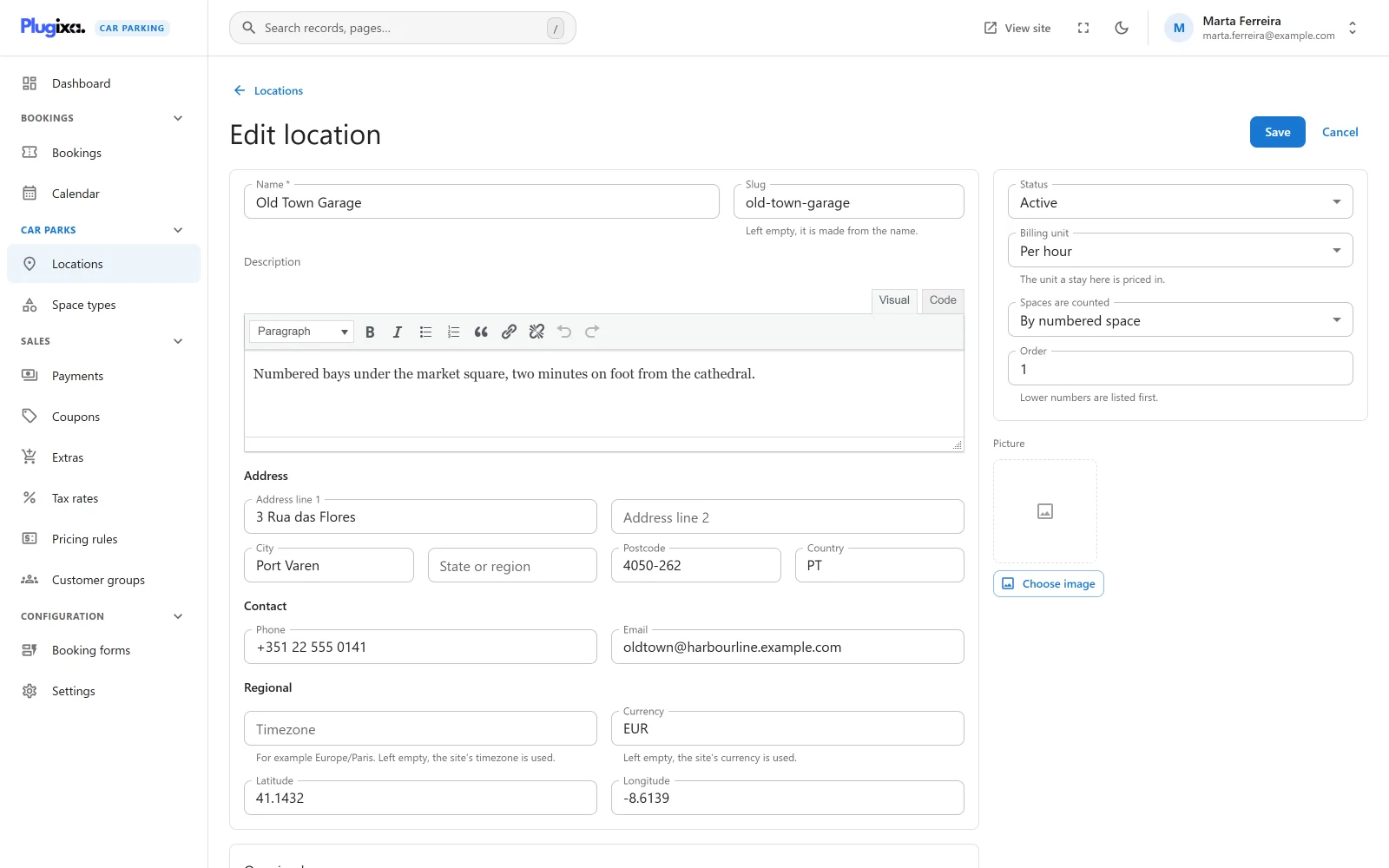
Click New location. The form is saved in two steps: the location itself first, then its hours, closures and spaces. A new form shows “Save the location to set its opening hours and its spaces.” After the first save you stay on the edit screen, where the three panels appear below the form.
Main fields
| Field | Notes |
|---|---|
| Name | Required, up to 255 characters. A save without one is refused with “A location needs a name.” |
| Slug | “Left empty, it is made from the name.” A slug that is already taken gets a number added to make it unique. |
| Description | Formatted text. |
Address
| Field | Notes |
|---|---|
| Address line 1, Address line 2 | Up to 255 characters each. |
| City, State or region | Optional. |
| Postcode | Optional. |
| Country | Optional. The database column holds two characters, so enter the two-letter country code. |
Contact
| Field | Notes |
|---|---|
| Phone | Optional. |
| Optional. An invalid address is refused with “That is not an email address.” |
Regional
| Field | Notes |
|---|---|
| Timezone | “For example Europe/Paris. Left empty, the site’s timezone is used.” See the note below. |
| Currency | “Left empty, the site’s currency is used.” A currency code of up to 10 characters. It is recorded on bookings made at this location. |
| Latitude | A number between -90 and 90, or empty. |
| Longitude | A number between -180 and 180, or empty. |
The timezone is stored with the location. In version 1.0.0 no calculation reads it: entry and exit times, opening hours and booking limits all follow the site’s timezone, which is set in WordPress under Settings -> General.
Amounts are always written with the currency symbol and separators from Settings, whatever currency code a location carries.
The coordinates place the location on the map PRO.
Side panel
| Field | Notes |
|---|---|
| Status | Active or Inactive. New locations start active. |
| Billing unit | “The unit a stay here is priced in.” Per minute, Per hour, Per day, Per week or Per month. New locations start on Per day. |
| Spaces are counted PRO | Shown only when the site has more than one way to count spaces. See Assigned spaces. |
| Order | “Lower numbers are listed first.” A whole number. |
| Picture | Chosen from the WordPress media library. |
The billing unit decides which price of a space type is charged and how a stay is rounded. See Pricing.
With Pro, the edit screen also has a deposit panel. See Deposits PRO.
Opening hours
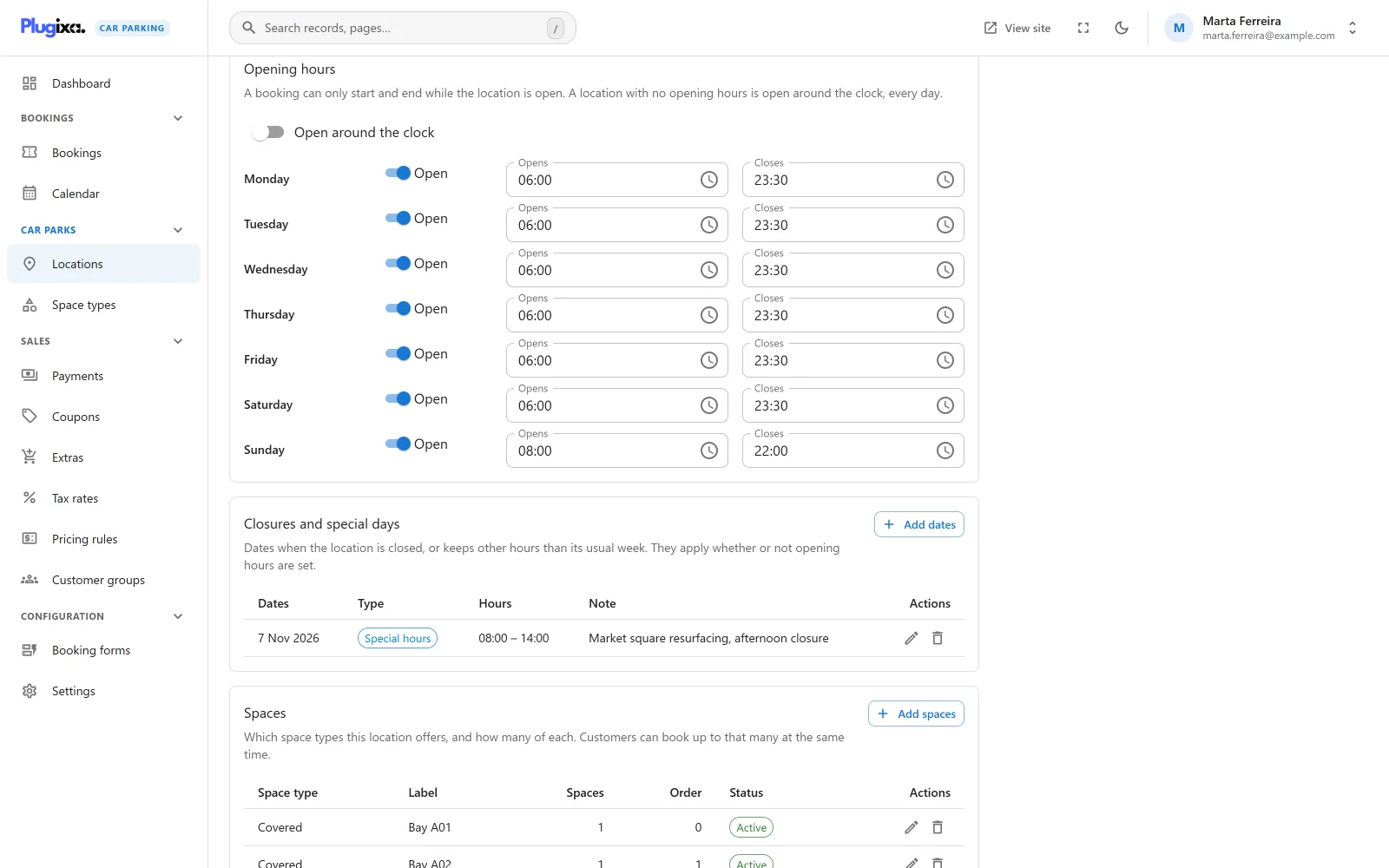
The Opening hours panel reads: “A booking can only start and end while the location is open. A location with no opening hours is open around the clock, every day.”
Open around the clock
The switch Open around the clock is on for a location that has no hours stored. Its hint: “No opening hours are stored, so bookings are accepted at any time of any day. Switch this off to set a week. Closures below still apply.”
Setting a week
Switch Open around the clock off to see seven rows, one per weekday. The week starts on the day chosen in Week starts on in Settings.
| Control | Notes |
|---|---|
| Open / Closed switch | A closed day accepts no booking that starts or ends on it. |
| Opens | The earliest time a booking may start or end that day. |
| Closes | The latest time a booking may start or end that day. |
A day that has not been saved before starts at 09:00 to 18:00. An open day needs both times (“Enter a time.”) and the closing time has to be later than the opening time (“Must be after opening.”). A week with a problem is not saved: “Some opening hours need correcting before they can be saved.”
The panel reminds you that “These hours are saved with the location, when you press Save.” Changing a row does nothing until the form’s Save is pressed.
What the hours check
Only the two ends of a stay are checked: the entry moment and the exit moment. A stay may run through a night or a closed day as long as it starts and ends while the location is open. For the full set of rules a booking has to pass, see Availability.
Closures and special days
The Closures and special days panel holds “Dates when the location is closed, or keeps other hours than its usual week. They apply whether or not opening hours are set.”
Click Add dates. Unlike the hours, a closure is saved the moment you press Save in its dialog.
| Field | Notes |
|---|---|
| Type | Closed or Special hours. |
| First day | Required. “Choose a date.” |
| Last day | Required, and “Must be on or after the first day.” Use the same date twice for a single day. |
| Opens | Special hours only. “Left empty, there is no earliest time.” |
| Closes | Special hours only. “Left empty, there is no latest time.” It has to be later than Opens when both are filled in. |
| Note | “For your own reference, such as the name of the holiday.” |
The two types behave differently:
| Type | Effect |
|---|---|
| Closed | “No booking can start or end on these dates.” |
| Special hours | “On these dates the hours below replace the usual week.” With both times left empty the location is open all day on those dates. |
Where a closure and special hours cover the same date, the closure wins.
The table lists each entry with its Dates, Type, Hours and Note. The Hours column reads “Closed all day”, “Open all day”, “From 10:00”, “Until 16:00” or a from-to range. Deleting an entry asks “Delete these dates?” and explains that the dates “will follow the usual opening hours again. This cannot be undone.”
An empty panel reads “No closures yet. Add the public holidays and maintenance days on which customers must not be able to book.”
Spaces
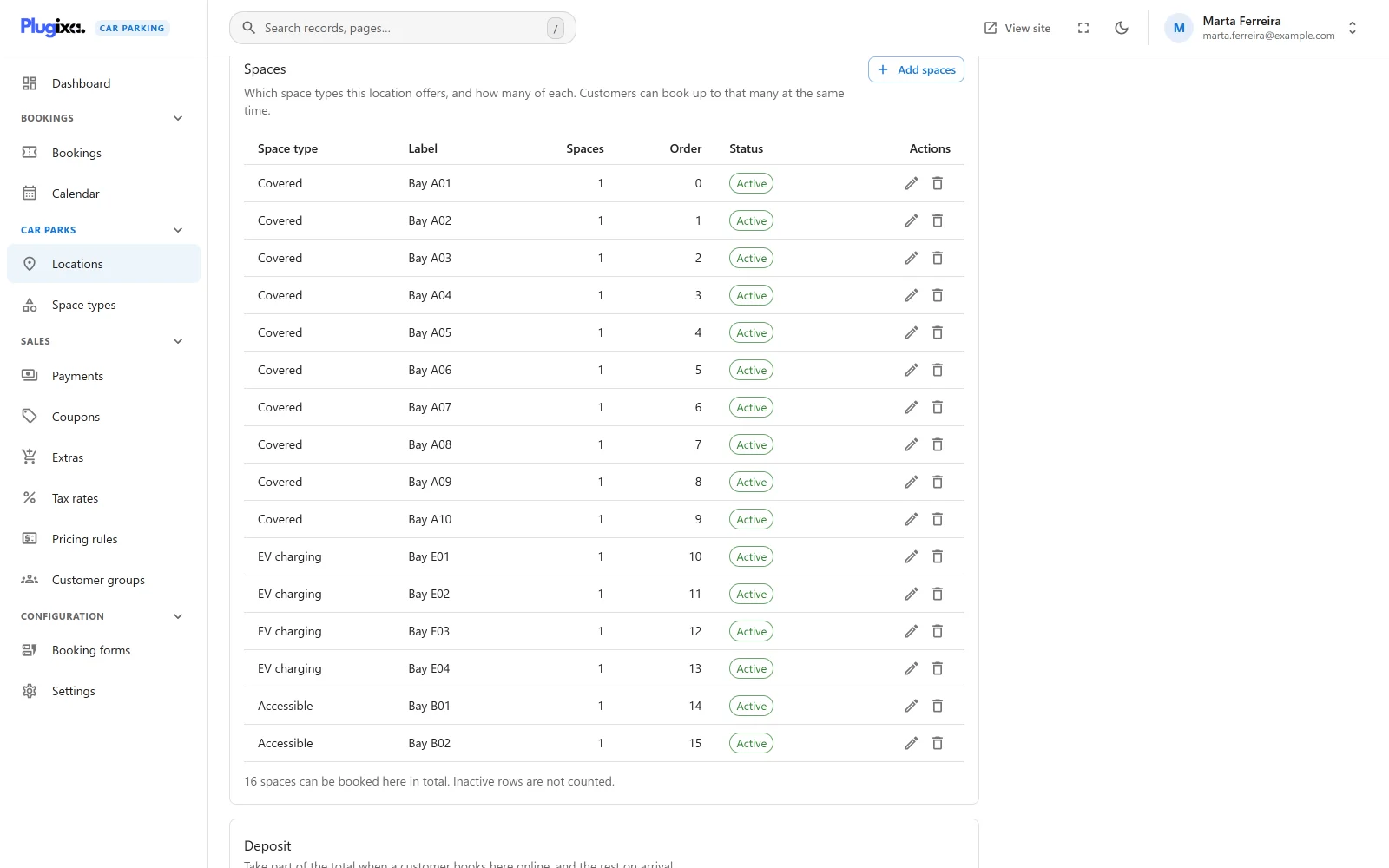
The Spaces panel says “Which space types this location offers, and how many of each. Customers can book up to that many at the same time.”
Click Add spaces. Each row is a pool of interchangeable spaces of one type.
| Field | Notes |
|---|---|
| Space type | Required. “Choose a space type.” If none exists yet the dialog says “No space types yet. Add one under Space types first.” |
| Spaces | “How many the location has.” A whole number, zero or more. |
| Label | “Optional. A name for this group of spaces, such as a level or a zone.” Up to 100 characters. |
| Order | “Lower numbers are listed first.” |
| Status | Active or Inactive. “Inactive spaces cannot be booked.” |
Rows are saved as soon as the dialog is confirmed. Several rows may use the same space type, for example one per level. The capacity of a space type at a location is the sum of its active rows. Under the table the panel shows the total: “75 spaces can be booked here in total. Inactive rows are not counted.”
Remove moves a row to the trash after the confirmation “Remove these spaces?”. The spaces “can no longer be booked at this location.”
A location with no rows shows “This location has no spaces yet, so nothing can be booked here. Add the space types it offers and how many of each it has.”
Status, trash and restore
An Inactive location keeps its data and its past bookings and is left out of the lists that offer locations for new bookings.
Deleting a location moves it to the trash. Switch the list to Trash to see trashed locations and Restore one. A trashed location keeps its slug, its hours, its spaces and the prices set for it, so restoring brings everything back.
What is stored
| Table | Holds |
|---|---|
{prefix}plugixacarparking_locations |
One row per location. |
{prefix}plugixacarparking_location_hours |
Up to seven rows per location, one per weekday. No rows means open around the clock. |
{prefix}plugixacarparking_location_exceptions |
Closures and special days. |
{prefix}plugixacarparking_location_spaces |
The rows of the Spaces panel. |
See Privacy and uninstall for what happens to these tables when the plugin is deleted.