

Contents
Extras - Plugixa Car Parking
Extras PRO are optional add-ons a customer can put on a booking for their own price: a car wash, a child seat, a shuttle to the terminal. Each extra the customer picks becomes a line of the booking, priced on the server.
Open the screen from Car Parking -> Extras. In the app’s sidebar it sits in the Sales group.
The list
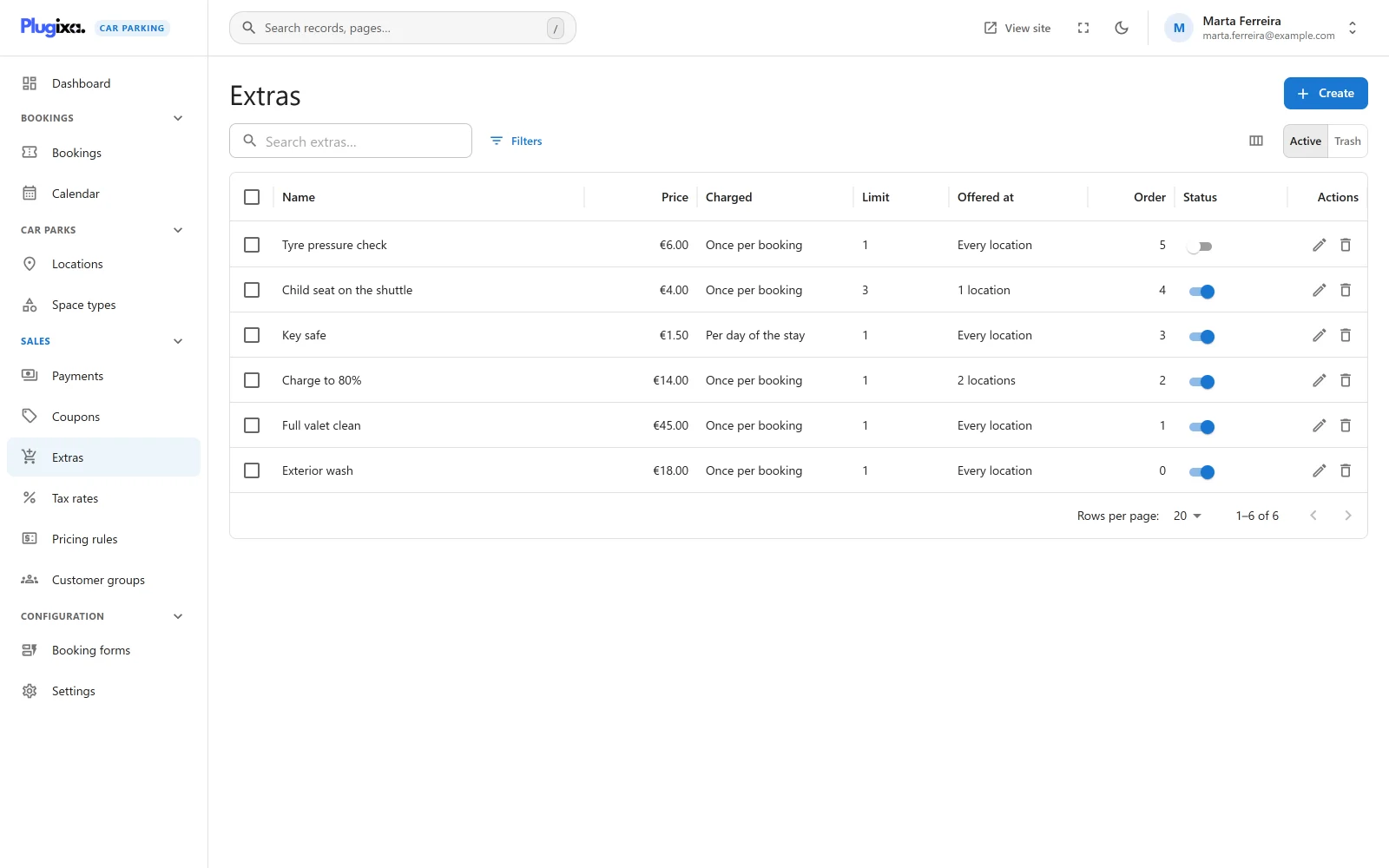
| Column | What it shows |
|---|---|
| Name | The extra’s name |
| Price | The price, in the site’s currency format |
| Charged | What the price is multiplied by |
| Limit | The most one booking can add, or “No limit” |
| Offered at | “Every location”, “1 location” or a count of locations |
| Order | The display order |
| Status | Active or Inactive |
On a narrow screen the Order, Limit and Offered at columns are left out first.
The search box matches the name and the description. The list can be filtered by status, price type and price, and sorted by name, price, status and order. Selecting rows offers the mass actions: activate, deactivate and move to the trash. A trashed extra can be restored from the Trash view.
An empty list shows “No extras yet” with the New extra button.
Adding an extra
Click New extra.
Main fields
| Field | Notes |
|---|---|
| Name | Required. A save without one is refused with “An extra needs a name.” |
| Description | Free text, several lines. |
| Price | Required. Zero or more. Stored with up to four decimals. |
| Charged | “What the price is multiplied by.” See the table below. Default: Once per booking. |
| Most per booking | “How many one booking can add. 0 means no limit.” Default: 1. |
| Offered at | The locations that offer the extra. “Leave empty to offer the extra at every location.” |
Side panel
| Field | Notes |
|---|---|
| Status | Active or Inactive. “Only an active extra is offered on the booking form.” New extras start active. |
| Order | “Lower numbers are listed first.” Default: 0. Extras with the same number are listed in the order they were created. |
What “Charged” means
| Option | The price of one unit of the extra |
|---|---|
| Once per booking | The price, as entered |
| Per day of the stay | The price multiplied by the days of the stay |
| Per hour of the stay | The price multiplied by the hours of the stay |
| Per space booked | The price multiplied by the number of spaces booked |
Days and hours are counted from the entry and exit times, whatever billing unit the parking itself is charged in. A part day counts as a whole day and a part hour as a whole hour, and the least is one. A stay of 25 hours counts as 2 days for an extra charged by the day and as 25 hours for one charged by the hour.
The line total is that unit price multiplied by the quantity the customer chose, rounded to two decimals.
Example. A child seat at 4.00, charged Per day of the stay, on a stay of 3 days with a quantity of 2: 4.00 x 3 = 12.00 for one seat, 12.00 x 2 = 24.00 for the line.
Extras in the booking wizard
Extras appear on the Choose a space step of the booking wizard, under the list of spaces, in a group headed Add-ons. The list is loaded with the availability of the location the customer searched, so it only holds extras that are active and offered at that location.
| The extra’s limit | What the customer sees |
|---|---|
| 1 | A tick box |
| More than 1 | A quantity box from 0 to the limit |
| 0 (no limit) | A quantity box from 0 to 99 |
Each row shows the name and the price. A price that is multiplied by something says so: “4.00 per day”, “4.00 per hour” or “4.00 per space”, written in your currency format. Version 1.0.0 does not show the description in the wizard.
Picking or changing an extra asks the server for a new price straight away, so the price summary always includes it. A new search clears the selection, because what is offered may have changed.
The form builder gains an extras entry in the list of steps of a booking form, placed after the choice of space. It is not a screen of its own: it is a switch. Switched off on a form, that form shows no add-ons and sends none.
Extras on a booking made in the admin
The New booking form gains an Extras section. Until a location is chosen it reads “Choose a location to see the extras offered there.” After that it lists the active extras offered at the location, each with a tick box and its price and charging method. Ticking an extra whose limit is above 1 shows a Quantity box, with “Up to” and the limit when there is one. Where nothing is offered it reads “No extras are offered at this location.”
Changing the location takes off any chosen extra the new location does not offer.
Extras are taken when the booking is created and at no other time. The section is part of creating a booking, not of editing one. See Bookings.
How extras are priced
The browser sends only which extras and how many. The price is always worked out on the server.
- Only an extra that is active, not in the trash and offered at the booking’s location is priced. Anything else in the request is ignored without an error.
- A quantity above the extra’s limit is brought down to the limit. A quantity below 1 is treated as 1.
- Extras are added to the subtotal before any discount. A coupon therefore discounts the parking and the extras together, and tax is charged on the result.
- Pricing rules change the parking rate and the booking fee. They do not change the price of an extra.
When a booking is priced again, for example when a customer reschedules, the extras it was made with are priced again at their current price for the new stay. An extra charged by the day is charged for the new number of days.
The order of every step is on the Pricing page.
What is stored
Extras live in the {prefix}plugixacarparking_booking_extras table. The table
is created by Pro and is not part of the free plugin.
The extras on a booking are stored as lines of that booking in
{prefix}plugixacarparking_booking_items, with the type extra, the name, the
quantity, the unit price and the line total as they were when the booking was
priced. That table belongs to the free plugin. Editing or trashing an extra
later does not change bookings already made.
Without Pro the extras table stays in the database, the Extras screen and the add-ons in the wizard are gone, and existing bookings keep their extra lines and totals. See Free vs Pro.