

Contents
Calendar - Plugixa Car Parking
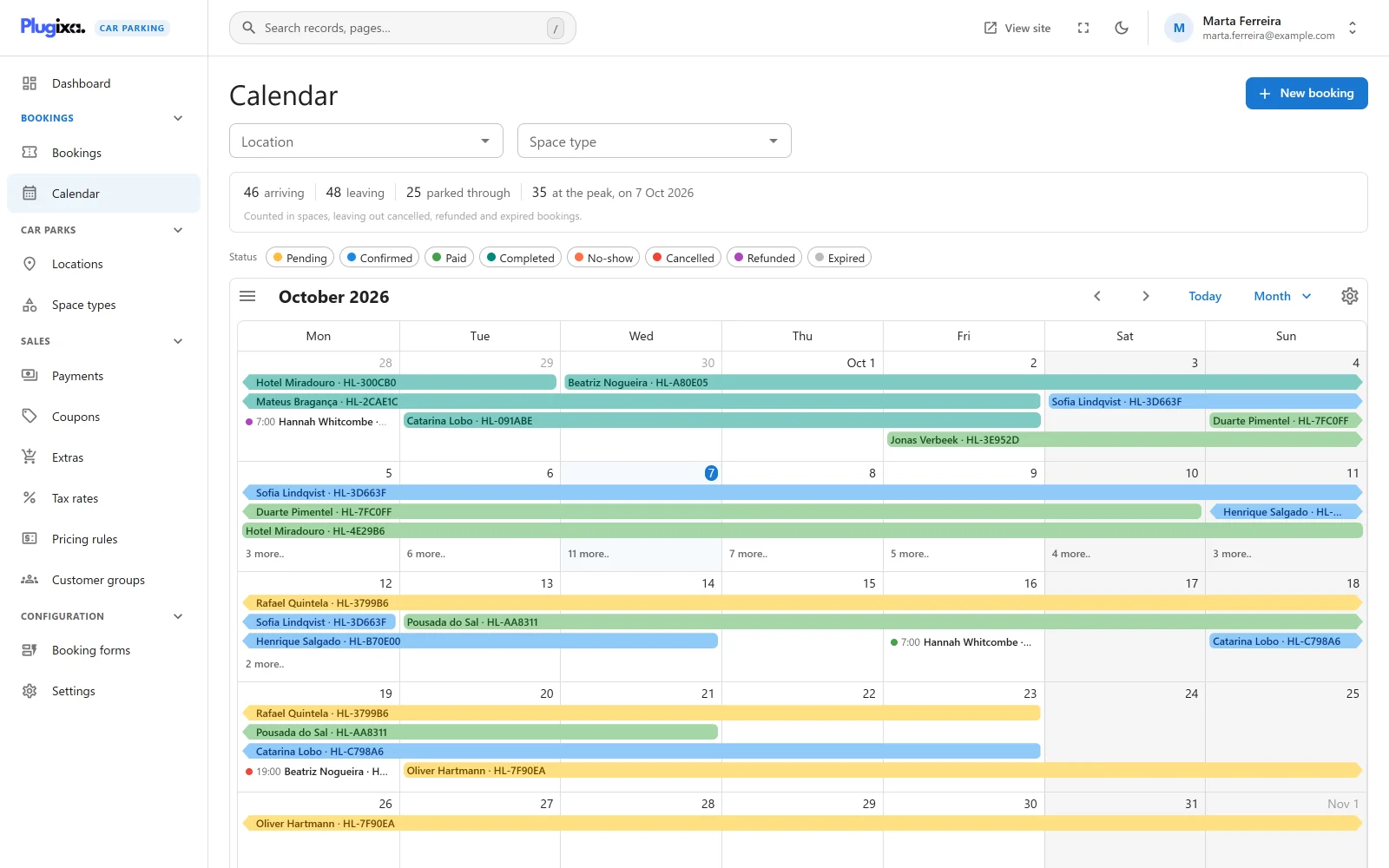
Car Parking -> Calendar draws every booking as a bar from its entry to its exit. It sits in the Bookings group of the app’s sidebar. Use it to see how busy a car park is over a span of days and to open a booking quickly.
Bookings cannot be dragged or resized on the calendar. To move one, open it and edit its dates. See Bookings.
Reading the calendar
Each booking is one bar.
- Where it starts and ends - the entry and exit date and time, on the car park’s own clock.
- Its label - the customer name and the booking reference, or the reference alone when the booking has no name.
- Its colour - the booking status.
| Status | Colour |
|---|---|
| Pending | Amber |
| Confirmed | Blue |
| Paid | Green |
| Completed | Teal |
| No-show | Orange |
| Cancelled | Red |
| Refunded | Purple |
| Expired, and any status you added yourself | Grey |
Bookings in the trash are not drawn. A trashed booking holds no space.
Views
The calendar has three views: Month, Week and Day. It opens on the month, or on the day on a narrow screen. Today jumps back to the current date, and the calendar’s own arrows move backwards and forwards.
Two settings from Settings -> General shape it:
- Week starts on decides the first column of the month and week views.
- Time format decides whether hours are written on a 12-hour or a 24-hour clock.
See Settings.
The month view covers six weeks, so it also shows the last days of the month before and the first days of the month after. One view loads at most 5,000 bookings.
Filters
Two filters sit above the calendar.
| Filter | What it does |
|---|---|
| Location | Shows the bookings of one location. |
| Space type | Shows the bookings of one space type. |
Both can be used together. The choice is kept in the address of the page, so a filtered calendar can be bookmarked or shared with a colleague.
Status
Under the filters, the Status row is both the key to the colours and a filter. Click a status chip to show only bookings in that status. Click several to show several. Show all clears the choice.
The row lists the eight built-in statuses, plus any status you added under Settings -> Bookings -> Status names.
The occupancy figures
A strip above the calendar sums up the days on screen. The figures are “Counted in spaces, leaving out cancelled, refunded and expired bookings”, so a booking for three spaces counts as three.
| Figure | What it is |
|---|---|
| arriving | Spaces whose stay starts in the days shown. Click it to open the bookings list filtered to those entries. |
| leaving | Spaces whose stay ends in the days shown. Click it to open the list filtered to those exits. |
| parked through | The most spaces parked for a whole day, neither arriving nor leaving, on any one day shown. |
| at the peak | The most spaces taken on one day, with the date of that day. |
Choose a Location and the peak is measured against that location’s
capacity, for example 38 / 40. Add a Space type and the capacity is that
of the space type at the location. The figure turns red when the busiest day
takes more spaces than the location has, which can only happen when a booking
was saved with the override described in
Bookings.
With no location chosen the peak is shown without a capacity: a total across several car parks would not say whether any one of them is full.
The figures follow the status filter. With only Confirmed selected, they count confirmed bookings only.
Opening and creating bookings
- Click a booking to open its detail screen.
- Double-click an empty slot to start a new booking for that time. The booking form opens with the entry filled in. In the month view the entry is the day you clicked at the Default entry time from the settings. The exit is set to the Default exit time on the same day, or to one day later when that time has already passed. A location or space type chosen in the filters is carried into the form.
- New booking, at the top right, opens the same form with no date.
Double-click and New booking need the plugixa_carparking_create
capability. Without it the calendar is read-only and the hint under it reads
“Choose a booking to open it.”