

Contents
Coupons - Plugixa Car Parking
A coupon is a code a customer types when booking to get money off. A coupon takes off either a percentage of the price or a fixed amount, and can be limited to a period, a number of uses, a minimum spend, some locations and some space types.
Open the list from Car Parking, then Coupons in the Sales group of the app’s sidebar.
Switching coupons on and off
Coupons depend on one option, Accept coupon codes, under Settings -> Bookings -> New bookings. It is on by default. Its hint reads “Off, no form offers the coupon field and no code is taken.”
With the option off, the Coupons screen still works and shows this notice: “Coupons are switched off in the settings, so customers are not asked for a code. You can still prepare codes here.”
Each booking form can also hide the coupon field on its own, while the option stays on for the other forms.
The list
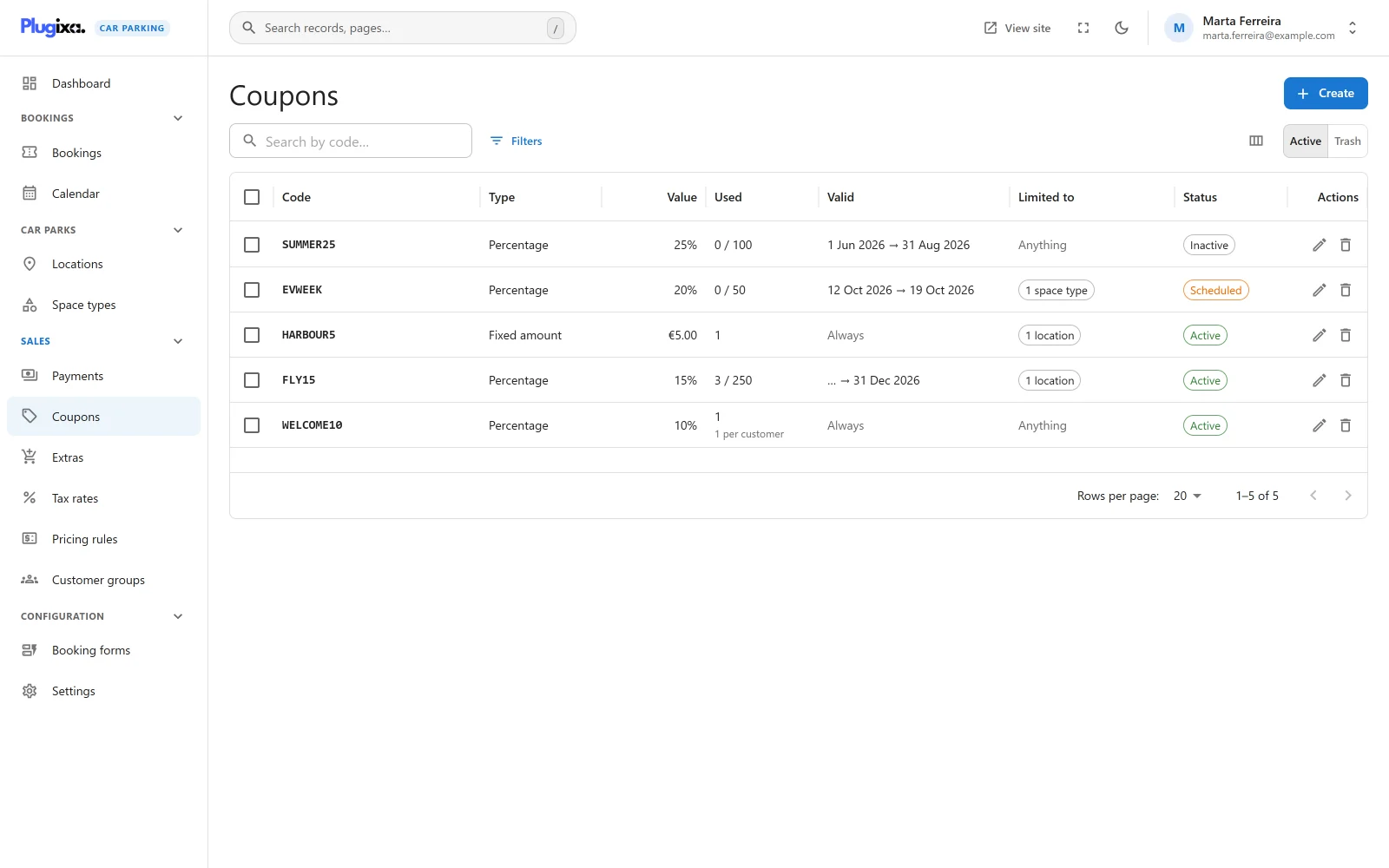
| Column | What it shows |
|---|---|
| Code | The code. |
| Type | Percentage or Fixed amount. |
| Value | The discount: a percentage such as 10%, or an amount written as money. |
| Used | How many bookings have redeemed it, as “3 / 100” when there is a usage limit. A per-customer limit is shown underneath as “1 per customer”. |
| Valid | The validity dates, or “Always” when none are set. |
| Limited to | “1 location”, “2 space types” and so on, or “Anything”. |
| Status | Where the coupon stands right now. See below. |
The search box is labelled “Search by code…”. Tick rows to change the status of several coupons at once or to move them to the trash.
The status chip
The chip in the Status column is worked out from the coupon’s settings and the site’s clock. Hover over it to read why.
| Chip | Meaning | Reason shown |
|---|---|---|
| Active | The code works. | “Can be redeemed now.” |
| Inactive | Its status is set to Inactive. | “Switched off.” |
| Scheduled | Valid from is in the future. | “Starts” and the date. |
| Expired | Valid until has passed. | “Ended” and the date. |
| Used up | The usage limit has been reached. | “Redeemed 100 of 100 times.” |
Adding a coupon
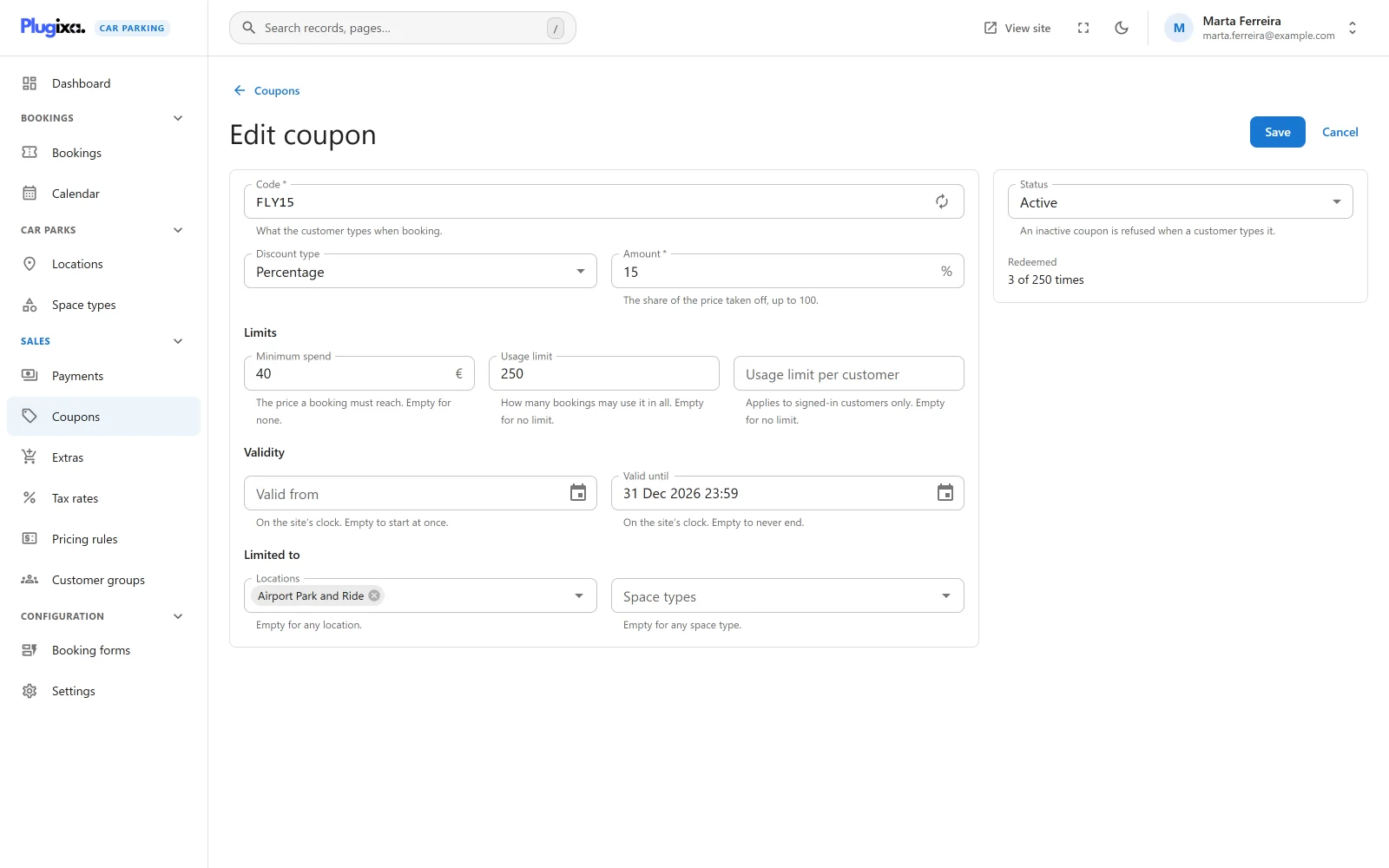
Click New coupon.
Code and discount
| Field | Notes |
|---|---|
| Code | Required, up to 60 characters. “What the customer types when booking.” The field turns what you type into capitals. The button beside it, Generate a code, fills in a random code of eight characters. |
| Discount type | Percentage or Fixed amount. New coupons start on Percentage. |
| Amount | Percentage: “The share of the price taken off, up to 100.” Fixed amount: “Taken off the price. Never more than there is to pay.” Write decimals with a dot. |
Two coupons cannot share a code. A second one is refused with “Another coupon already uses that code.” A code held by a coupon in the trash is refused too: “A coupon in the trash already uses that code. Restore it, or delete it permanently to free the code.”
A percentage above 100 is refused with “A percentage coupon cannot take off more than 100.”
Limits
| Field | Notes |
|---|---|
| Minimum spend | “The price a booking must reach. Empty for none.” Compared with the booking’s subtotal before the discount. |
| Usage limit | “How many bookings may use it in all. Empty for no limit.” A whole number of at least 1. |
| Usage limit per customer | “Applies to signed-in customers only. Empty for no limit.” |
A guest booking is recorded without an account, so the per-customer limit cannot bind a visitor who is not logged in. The overall Usage limit is the only cap that applies to everyone.
Validity
| Field | Notes |
|---|---|
| Valid from | A date and time. “On the site’s clock. Empty to start at once.” |
| Valid until | A date and time. “On the site’s clock. Empty to never end.” |
Both follow the site’s timezone, like a booking’s entry and exit. An end before the start is refused with “The coupon must stop being valid on or after the day it starts.”
The dates say when the code can be redeemed, which is when the booking is made. They do not look at the dates of the stay.
Limited to
| Field | Notes |
|---|---|
| Locations | “Empty for any location.” Pick one or more to restrict the code to bookings at those locations. |
| Space types | “Empty for any space type.” Pick one or more to restrict the code to those space types. |
When both are filled in, a booking has to match both.
Side panel
| Field | Notes |
|---|---|
| Status | Active or Inactive. “An inactive coupon is refused when a customer types it.” |
| Redeemed | Shown when editing: how many times the coupon has been used, as “3 of 100 times” or “3 times”. |
How the discount is calculated
| Type | Discount |
|---|---|
| Percentage | subtotal x percentage / 100, rounded to two decimals |
| Fixed amount | The amount, but never more than the subtotal |
The subtotal is the parking charge, the booking fee and any extras PRO. Tax PRO is worked out afterwards, on the discounted amount. The discount is one line on the order, labelled “Coupon” and the code. See Pricing for the whole calculation.
A booking takes one coupon.
What the customer sees
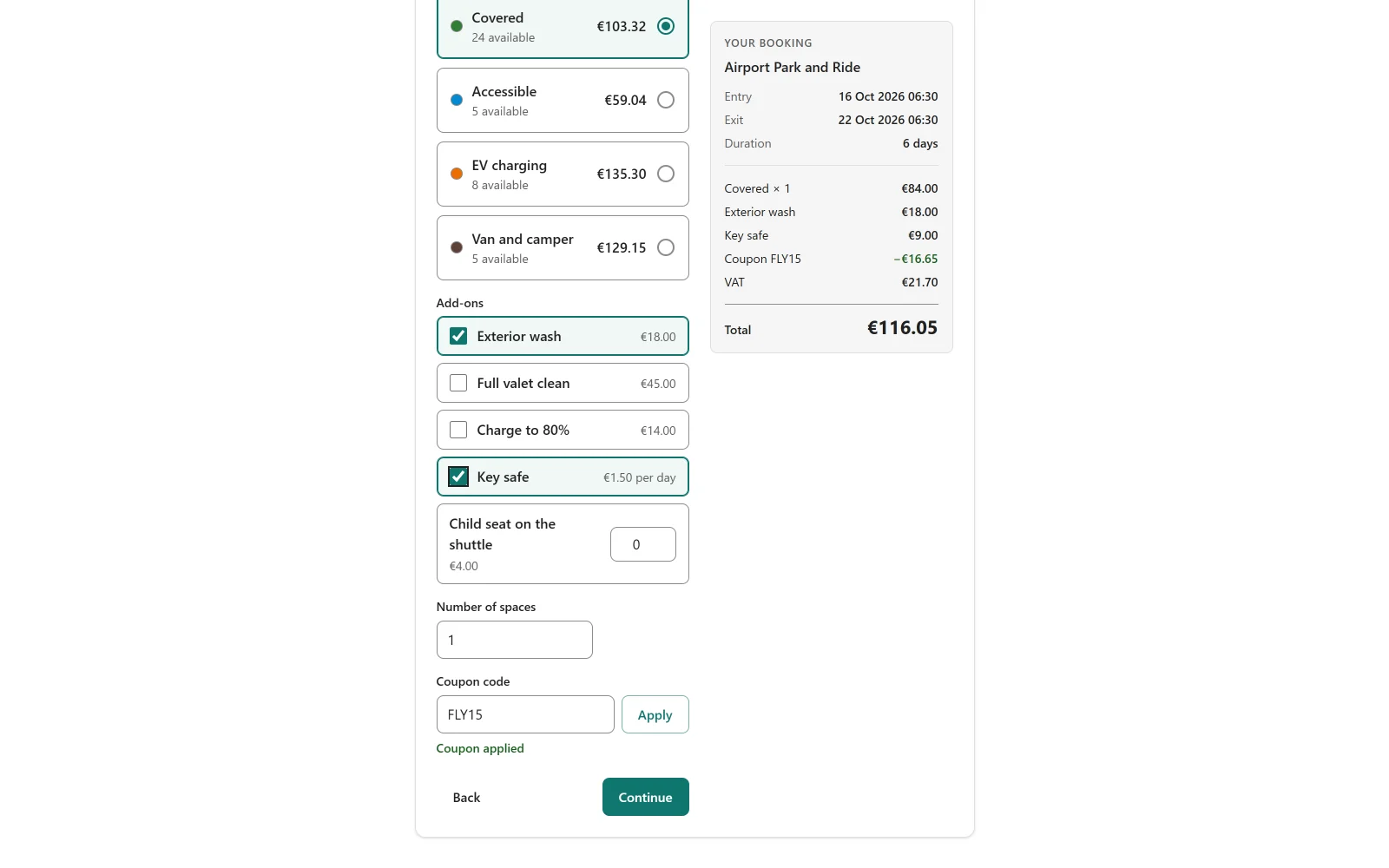
The Coupon code field and its Apply button are on the space step of the booking wizard. Pressing Apply asks the server to price the booking again with the code.
| Result | Message |
|---|---|
| The code took something off | “Coupon applied” |
| The code did not apply | “That code is not valid for this booking.” |
The customer gets the same message whatever the reason, so the form does not reveal whether a code exists, has expired or belongs to another location.
In the admin, the New booking form has its own Coupon code field: “Optional. The price below shows whether it applies.” A coupon is applied when a booking is created; the field is not offered when editing one.
How a code is checked
A code is checked on the server when the booking is priced and again when it is saved. The checks run in this order, and the first one that fails refuses the code.
| Order | Check | Refused when |
|---|---|---|
| 1 | Code | Nothing was typed |
| 2 | Coupon | No coupon has that code, the coupon is in the trash, or its status is Inactive |
| 3 | Valid from | The start is still in the future |
| 4 | Valid until | The end has passed |
| 5 | Usage limit | The coupon has been redeemed that many times |
| 6 | Usage limit per customer | The logged-in customer has redeemed it that many times |
| 7 | Minimum spend | The subtotal is below it |
| 8 | Locations | The booking’s location is not in the list |
| 9 | Space types | The booking’s space type is not in the list |
A code that fails at the moment the booking is saved does not stop the booking. The booking is saved at the full price.
Rate limits
The public routes that take a code are rate limited per IP address, because a “valid” answer is what somebody guessing codes is looking for.
| Request | Limit |
|---|---|
| A quote that carries a coupon code | 30 in 10 minutes |
| The stand-alone code check | 10 in 10 minutes |
Both limits can be changed with the plugixa_carparking_rate_limits filter.
See the REST API.
How usage is counted
When a booking that used a coupon is saved, two things happen:
- The coupon’s Used count goes up by one.
- A row is added to the redemption log with the coupon, the booking, the customer’s account if they were logged in, the amount taken off and the time.
The count is not reduced when a booking is later cancelled, expires or is deleted. To give a code more uses, raise its Usage limit.
Status, trash and restore
Set a coupon to Inactive to stop it at once without losing its history. Deleting a coupon moves it to the trash; switch the list to Trash to Restore it. A trashed coupon keeps holding its code until it is deleted permanently.
Bookings that already redeemed a coupon keep their discount whatever happens to the coupon afterwards.
What is stored
| Table | Holds |
|---|---|
{prefix}plugixacarparking_coupons |
One row per coupon, with its running usage count. |
{prefix}plugixacarparking_coupon_usage |
One row per redemption. Appended to, never edited. |