

Contents
On this page
Stripe - Plugixa Boat Rental
Stripe PRO is a way to pay that sends the customer to Stripe Checkout, the payment page hosted by Stripe, and brings them back to their booking once they have paid. Card details are typed on Stripe’s page and never reach your site. Customers see it as Credit / debit card (Stripe).
Stripe is also what runs monthly payments and the security hold a boat can ask for. Both are covered on the deposits page.
Set it up under Plugixa Boat Rental -> Settings -> Stripe. Everything on Payments about the payments panel, refunds and payment statuses applies to Stripe payments too.
Stripe is an app in the App manager, on by default in Pro. If the Stripe tab is missing from Settings, switch the app on.
Setting it up
1. Save your secret key
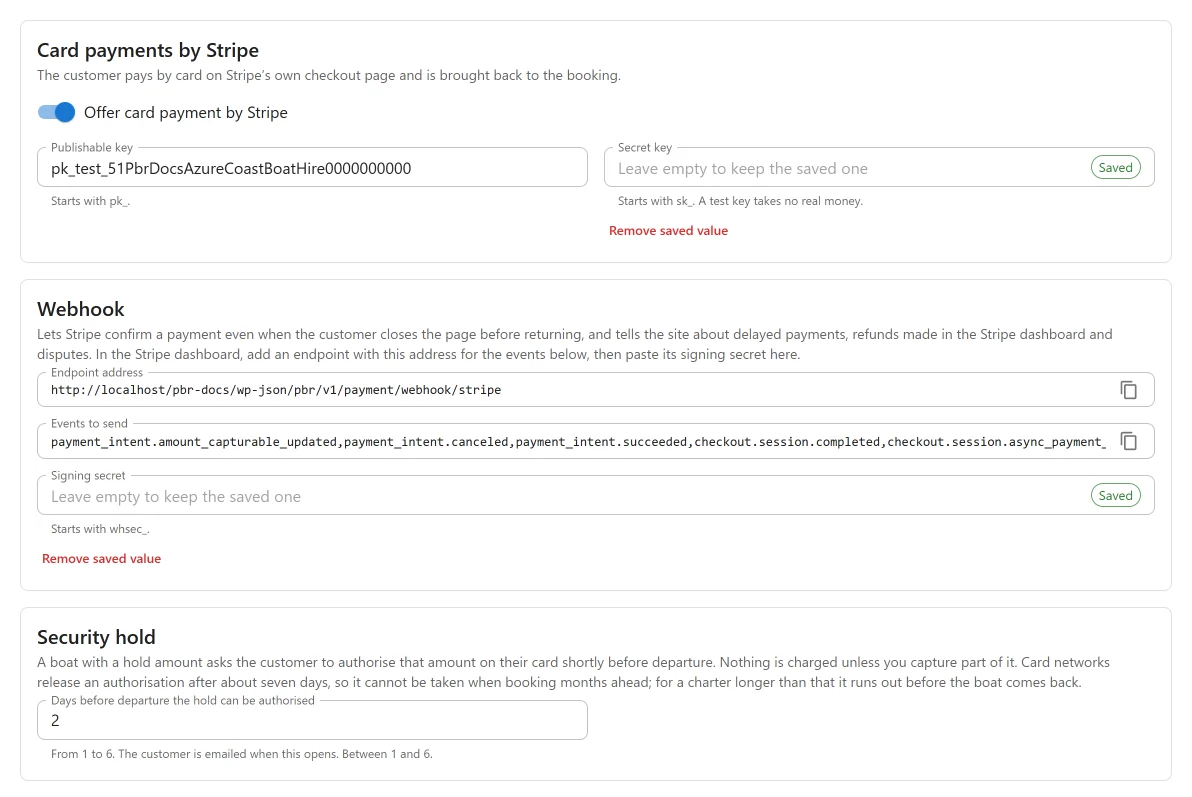
The first card is Card payments by Stripe: “The customer pays by card on Stripe’s own checkout page and is brought back to the booking.”
| Field | Notes |
|---|---|
| Offer card payment by Stripe | The switch that offers Stripe to customers. Off on a new site. |
| Publishable key | “Starts with pk_.” Not needed to take payments: the payment page is Stripe’s own, and no Stripe script is loaded on your pages. You can leave it empty. |
| Secret key | “Starts with sk_. A test key takes no real money.” This is the key that matters. |
Copy the secret key from the developers section of your Stripe dashboard. With the switch on and no secret key, the card warns: “Stripe is switched on but has no secret key, so a card payment cannot start.”
Every field on this tab is saved with the Settings page’s Save button.
2. Add the webhook
The second card is Webhook: “Lets Stripe confirm a payment even when the customer closes the page before returning, and tells the site about delayed payments, refunds made in the Stripe dashboard and disputes.”
-
Copy the Endpoint address with the copy button beside it. It is built from your site’s REST address and looks like this:
https://example.com/wp-json/pbr/v1/payment/webhook/stripeOn a site with plain permalinks the address is different, so always copy it from this screen rather than typing it.
-
In the Stripe dashboard, add a webhook endpoint with that address.
-
Select the events listed under Events to send. The field holds the whole list, comma separated, ready to copy. These are the events the plugin acts on:
Event What the plugin does checkout.session.completedRecords the card payment. A delayed method (a bank debit, for example) completes unpaid and is only announced as processing checkout.session.async_payment_succeededRecords a delayed payment once the money arrives checkout.session.async_payment_failedRecords a Failed payment row; the booking stays unpaid checkout.session.expiredNothing recorded; announced refund.created,refund.updated,refund.failedRecords a refund made in the Stripe dashboard once it has gone through; a failed refund is announced charge.dispute.created,charge.dispute.closedNothing recorded; announced invoice.paidRecords one month of a monthly payment plan invoice.payment_failedMarks a monthly plan as overdue and tells you and the customer customer.subscription.deletedNotes that a monthly plan has ended payment_intent.amount_capturable_updated,payment_intent.canceled,payment_intent.succeededFollow a security hold. A hold is never recorded as money paid “Announced” means the action
plugixa_boatrental_payment_noticefires, so a snippet can alert you. See Hooks. -
Copy the endpoint’s signing secret from Stripe and paste it into Signing secret (“Starts with whsec_.”). Press Save.
3. Test, then go live
There is no separate test mode switch. The mode follows the key: an sk_test_ key works
against Stripe’s test data, an sk_live_ key takes real money. Test and live endpoints have
different signing secrets, so replace both when you go live.
Make a booking through your booking form and pay with one of Stripe’s test cards. Check that the booking turns Paid (or Confirmed, when only a deposit was paid) and that the payment appears on the booking’s payments panel.
How the keys are kept
The secret key and the signing secret are secret fields: they are never sent back to the browser. Once one is saved, its field shows that a key is stored instead of the key itself. Type a new value and press Save to replace it.
What the customer sees
- On the payment step of the booking form, the customer chooses Credit / debit card (Stripe) among the ways to pay you offer. If the location takes a deposit, they also choose how much to pay now.
- The booking is saved first, as pending, and the boat is held for it (30 minutes on a new site, see Settings -> Bookings). Then the customer is sent to Stripe Checkout.
- The Checkout page shows one line, “Boat booking” followed by the booking reference, for the amount due now. The customer’s email address is filled in.
- After paying, the customer comes back to the booking’s page on your site.
If the customer leaves Stripe’s page with its back link, nothing is charged and the booking stays pending and unpaid until its hold runs out.
If the customer starts paying a second time, for example from another tab, the plugin closes the first Stripe page before opening a new one. If that first page was paid in the meantime, the payment is recorded instead and no second page opens. Once nothing is owed, or the customer has cancelled, a Stripe page still open for the booking is closed.
How a payment is confirmed
A payment is recorded in two independent ways, and either is enough:
| Route | What happens |
|---|---|
| The customer’s return | Stripe sends the browser back with the Checkout session’s id. The plugin asks Stripe, with your secret key, whether that session is paid, and records the payment only if Stripe says so. |
| The webhook | Stripe posts checkout.session.completed to your endpoint. The plugin checks the signature with your signing secret, then records the payment. |
Both normally arrive. The payment is still recorded once: it is identified by Stripe’s payment id, and a payment already on the booking is not written again. The amount recorded is the amount Stripe reports, never a figure from the browser.
Without a signing secret
Leave the signing secret empty and every webhook is ignored: nothing can be verified, so nothing is believed. Payments are then recorded only when the customer comes back to your site, and a customer who pays and closes the tab leaves a booking that is paid at Stripe and unpaid on your site. Set the signing secret.
A webhook with a wrong signature, one signed more than five minutes ago, or one for an event not in the list, is ignored.
Refunds
A refund of a Stripe payment made from the booking’s payments panel is sent to Stripe first. If Stripe refuses it, nothing is recorded and Stripe’s message is shown, or “Stripe did not make the refund.” Stripe then reports the same refund to the webhook, and it is recognised and not recorded twice.
A refund made in the Stripe dashboard arrives by webhook and is recorded against the booking whose payment it refunds.
Switching Stripe off
The App manager will not switch Stripe off while it would leave money in the air. It tells you why:
- a booking has a security hold on a card: release or capture it first;
- a booking is being paid by the month through Stripe: let the plan finish or cancel the booking;
- a payment through Stripe is still waiting for an answer.
Amounts and currencies
- The currency is the booking’s own. It must be a currency your Stripe account accepts.
- Amounts are sent in the currency’s smallest unit. These zero-decimal currencies are sent as whole numbers: BIF, CLP, DJF, GNF, JPY, KMF, KRW, MGA, PYG, RWF, UGX, VND, VUV, XAF, XOF, XPF. BHD, JOD, KWD, OMR and TND are sent in thousandths.
What is sent to Stripe
The plugin talks to Stripe’s API (api.stripe.com) from your server, and the customer’s browser
visits Stripe’s own payment page. Nothing is sent until you have saved a secret key and switched
Stripe on, and then only to take, check or refund a payment.
| When a payment starts | |
|---|---|
| Amount and currency | The amount due now |
| Booking reference | As the line’s name, the client reference and metadata |
| Booking id and payment type | As metadata |
| Customer email | When the booking has one |
| Return and cancel addresses | On your site |
A refund sends Stripe’s payment id and the amount. No name, phone number or address is sent by the plugin. Stripe’s terms and privacy policy apply. See also Privacy and uninstall.
Developers can adjust the Checkout session with the plugixa_boatrental_stripe_checkout_params
filter, for example to set a locale or a statement descriptor. The mode, the amounts, the
metadata and the return address cannot be changed that way.
Quick Links
Share