

Contents
On this page
Payments - Plugixa Boat Rental
The free plugin takes bookings without charging anything online: the customer books now and pays you at the marina. You then record what they paid on the booking. This page covers that, the payments ledger, how a price is made, the payment link and the booking summary page. Payments are part of the core and cannot be switched off.
To take money online, Pro adds Stripe PRO, PayPal PRO, Mollie, Adyen and Klarna PRO, deposits and monthly payments (Deposits and balance) PRO, and WooCommerce checkout PRO.
Pay on arrival
Pay on arrival is the payment method every build has. Nothing is charged online. The booking is placed unpaid, and the customer is shown your instructions once the booking is made and on its summary page.
Set it up in Plugixa Boat Rental -> Settings -> Payments:
| Setting | Default | What it does |
|---|---|---|
| Let customers pay on arrival | On | Offers the method on the booking form. |
| Instructions for the customer | “Please pay on arrival at the marina.” | Shown once a booking is placed, and on its summary. |
The instructions are free text, so if you take bank transfers, put your bank details here. The text can be translated with WPML (see Multilingual).
A pay-on-arrival booking that stays Pending keeps its boat only for the hold time in Settings -> Bookings (30 minutes by default). Set Status of a new booking to Confirmed, or confirm bookings as they come in, so that unpaid bookings do not expire. See Bookings.
The payments ledger
Plugixa Boat Rental -> Payments, in the Sales group, lists every payment and refund on the site.
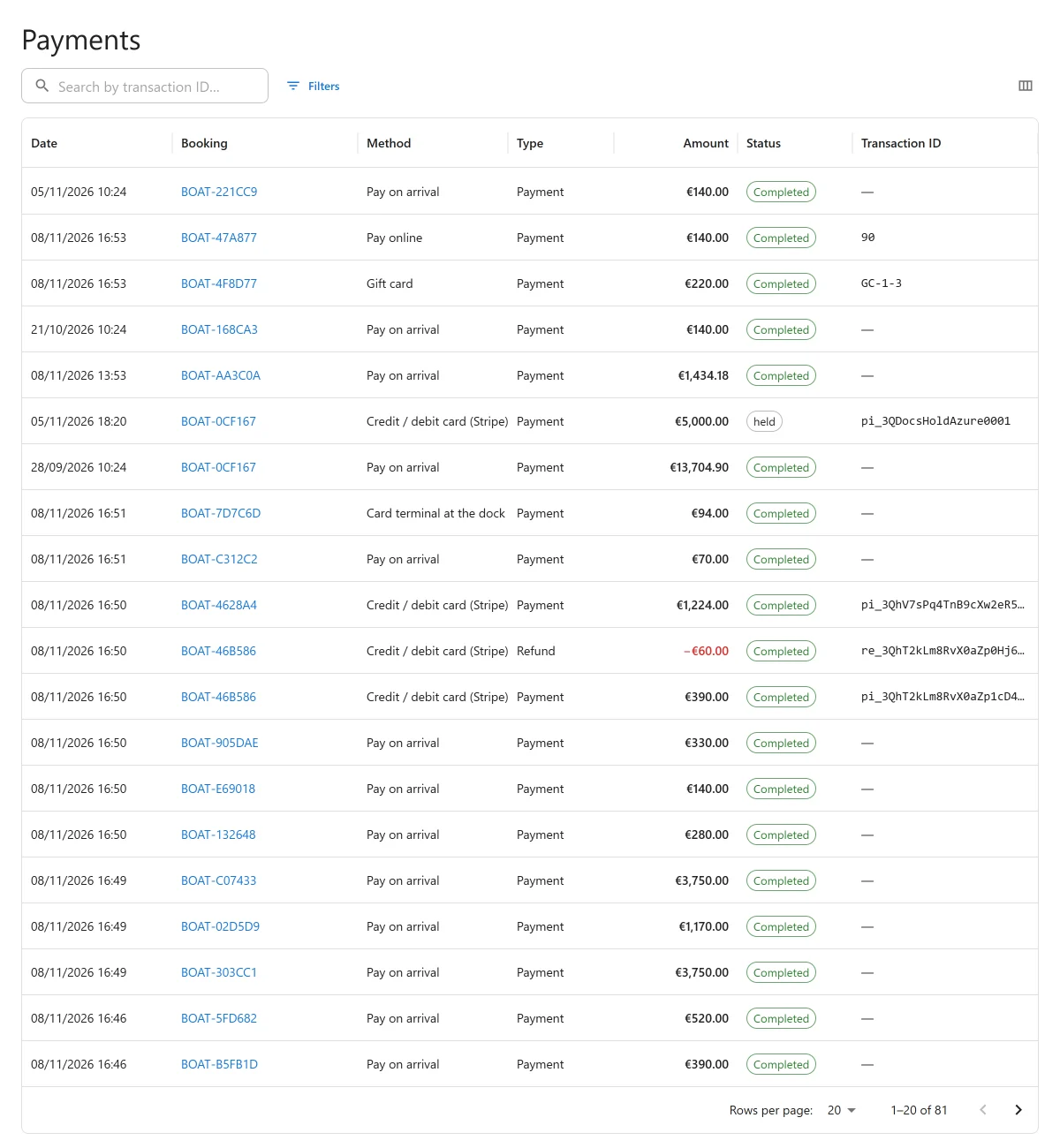
| Column | Shows |
|---|---|
| Date | When the money moved. |
| Booking | The booking it belongs to. |
| Method | How it was paid, such as Pay on arrival, or a provider with Pro. |
| Type | Full payment, deposit, balance, or refund. |
| Amount | The amount. A refund reads as money out. |
| Status | Completed, pending or failed. |
| Transaction ID | The provider’s reference, when there is one. |
Search by transaction ID with Search by transaction ID…. A refund is always a row of its own: the payment it answers stays as it was.
A booking’s Payments panel
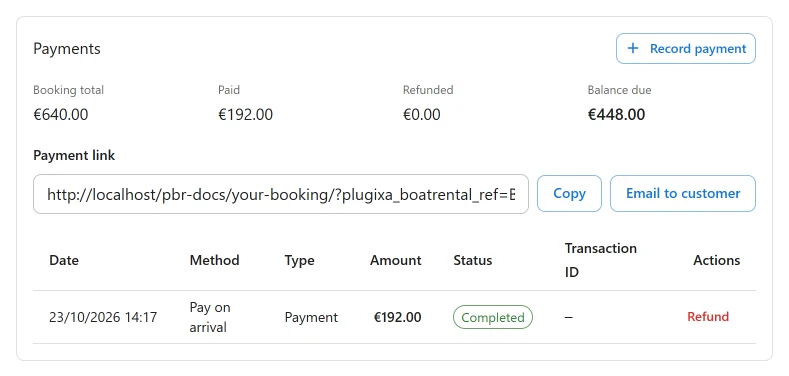
Each booking’s page has a Payments panel. At the top it sums up the Booking total, what has been Paid, what has been Refunded, and the Balance due. Below is every payment and refund on the booking.
Recording a payment
When the customer pays you at the dock, by cash, card terminal or bank transfer:
- Open the booking.
- In Payments, click Record payment.
- The Amount starts at what is still owed. Change it if they paid part.
- Click Record payment.
The booking’s payment state follows: a booking paid in full becomes Paid, and one paid in part becomes Confirmed with the payment shown as Part paid. When a booking becomes paid in full, the customer is sent the Payment received email (see Emails and alerts).
Recording a payment needs permission to create and edit; see Roles and staff access.
Refunding
Click Refund on a completed payment and enter the amount. You can refund up to what the booking holds now, that is its payments less earlier refunds.
- For a payment recorded by hand, the refund is only recorded. Give the money back the way you took it.
- For a payment taken online through a Pro payment app that can refund, the refund is made at the provider first, then recorded PRO.
When everything paid is refunded, a paid or confirmed booking becomes Refunded. Cancelling a booking never refunds anything by itself.
Overpayments
If a booking receives more than its total, or any payment while it is cancelled, the payment is kept and counted: it is real money. The row is marked Overpayment, the panel shows Overpaid, to refund in place of the balance, and the site administrator is emailed. Nothing is refunded automatically. Refund the excess from the panel, and the booking stays paid in full.
How a price is made
A booking’s price is built from the boat’s prices (see Boats):
- The billing unit. The boat’s Priced setting says whether it is priced per hour, per half day, per day, per week or per seat. A boat that does not say uses its marina’s billing unit.
- How many units. The trip’s length is counted in that unit, and a part unit is rounded up, with a minimum of one. A 90-minute trip on a boat priced per hour is two hours. A half day is six hours, so 09:00 to 13:00 is one half day and 09:00 to 17:00 is two. A per-seat price counts the guests instead of the time.
- The rate. The number of units times the boat’s price for that unit. A price you added for one location under Prices at one location replaces the base price there.
- The one-off fee. A boat’s One-off fee is added once per booking, on top of the time.
A fixed departure with its own Price (optional) in the boat’s Departure timetable is charged that price for the whole boat, plus the one-off fee. See Booking modes.
When several units of a boat are booked together, each is charged. Pro can add pricing rules PRO, extras and fuel PRO, coupons PRO and tax PRO on top.
The price is fixed when the booking is saved. Changing a boat’s prices later does not change bookings already made. Moving a booking to other dates prices it again.
Currency
Each marina has its own currency, and a booking is priced in its marina’s. How amounts are written (symbol, its position, separators and decimals) is set in Settings -> General.
The payment link
A booking that still owes money shows a Payment link box on its Payments panel. Use it for a booking taken by phone, or for a customer who lost the email.
- Copy puts the link on your clipboard, to send it any way you like.
- Email to customer emails it, saying how much is due. The answer says whether the mail was actually sent.
The link opens the booking’s summary page, which offers the ways to pay. In the free plugin that is Pay on arrival with your instructions; with a Pro payment app the customer can pay online there PRO. The link does not expire.
No link is offered when the booking owes nothing, is cancelled, expired, refunded or a no-show, or when a payment provider is holding the customer’s money PRO. Such a booking’s summary page offers no way to pay either, so an old link cannot take money it should not.
The link needs a booking summary page. Without one, the box says “To send a payment link, choose a booking summary page under Settings, Bookings.”
Email to customer is sent whenever you click it, whatever the automatic emails are set to, as long as the Notifications app is on. Its wording:
Subject: Payment for your booking {booking_ref}

Hello {customer_name},

There is {amount_due} to pay for your booking {booking_ref} at {location_name}.
Departure: {start_datetime}

You can pay here:
{summary_url}
The booking summary page
The booking summary is the page a customer opens from the link in their emails. It shows the booking, its price lines and what is still to pay, with the ways to pay. It needs no login: the link carries a token that only your site can make, so knowing a booking reference is not enough to open it.
To set it up:
-
Create a page, for example “Your booking”, and add the shortcode:
[plugixa_boat_rental_summary] -
Choose that page in Settings -> Bookings -> Pages -> Booking summary page.
Without a summary page, emails carry no link to the booking and no payment link can be sent. Business name in Settings -> General is printed as the company on the summary.
PDF invoices, with your tax details and invoice numbers, come with Pro. See Tax and PDF invoices PRO.
Quick Links
Share