

Contents
On this page
Waivers, documents and the passenger manifest - Plugixa Boat Rental
Waivers and documents PRO collects what you need from a customer before they reach the dock: a signed waiver, an ID or passport, a boating licence with its expiry date, and a list of who is coming with an emergency contact. Staff check the documents in one queue, and the dock sees what is missing.
It is an app, on by default in Pro. Its settings are under Plugixa Boat Rental -> Settings -> Waivers and documents, and its screens are Documents to check and Passenger manifest in the Bookings menu group.
This app records what the software does. Whether your waiver’s wording, or a signature made this way, is good enough in your market is a question for you and your lawyer.
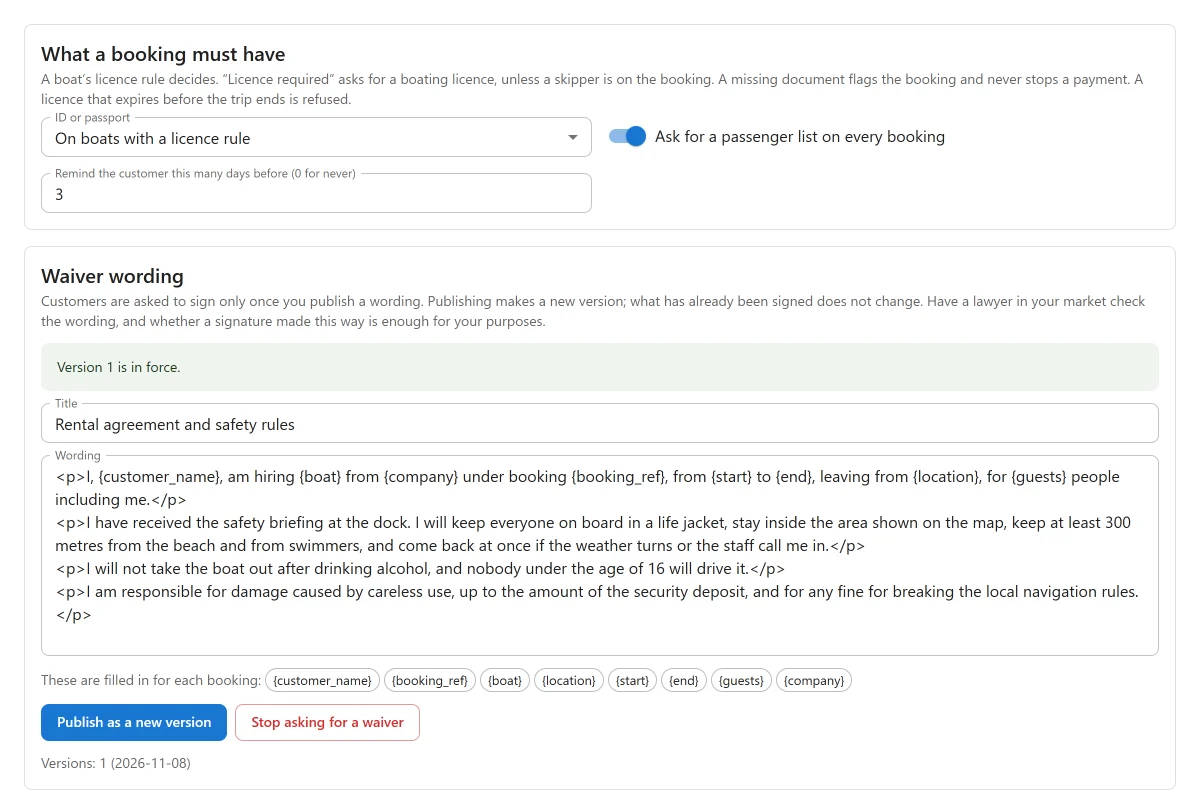
What a booking must have
What a booking needs depends on the boat’s licence rule (No licence needed, Licence required or Skipper mandatory, on the boat’s form) and on the settings:
| Waiver | ID or passport | Boating licence | Passenger list | |
|---|---|---|---|---|
| No licence needed | Once a wording is published | Only if ID or passport is On every boat | No | If asked for |
| Licence required | Once a wording is published | Unless ID or passport is Never | Yes, unless a skipper is on the booking | If asked for |
| Skipper mandatory | Once a wording is published | Unless ID or passport is Never | No | If asked for |
The settings card What a booking must have:
| Setting | Default | What it does |
|---|---|---|
| ID or passport | On boats with a licence rule | On every boat, On boats with a licence rule or Never. |
| Ask for a passenger list on every booking | On | Asks for each person’s name and age, and an emergency contact. |
| Remind the customer this many days before (0 for never) | 3 | An email reminder while something is missing. |
A booking with a skipper on it never needs a licence.
A missing document never blocks a booking
The booking is made and paid for as usual. A missing or unchecked document flags the booking. The booking page says “Not cleared yet. Payment is not held up by this.” Staff see the flag on the booking, in Documents to check, on the manifest and on the run sheet. Once everything is in and checked, it reads “Cleared: everything needed is in and checked.”
A licence that expires before the trip ends is refused at upload and never clears a booking. If a booking is later moved past a licence’s expiry, the licence reads as expired.
Writing the waiver
In the Waiver wording card, give the waiver a Title and its Wording. The card lists the placeholders filled in for each booking. Press Publish as a new version.
Nobody is asked to sign until you publish a wording. Until then, the card shows a sample to start from and says “No wording is published, so nobody is asked to sign.” Once published, it says which version is in force.
Publishing again makes a new version. What has already been signed never changes. Stop asking for a waiver withdraws it.
Where customers fill it in
There are two places, with the same form:
- Right after booking. After the booking is made and before any payment page, the booking form shows a documents step: “A few things are needed before you reach the dock.” The customer can sign, upload and add passengers, or press Continue and do it later.
- The private link. Each booking has a private page for its documents. The customer is emailed the link. Staff can copy it from the booking with Copy the customer’s private link. It needs no summary page and no shortcode.
On a request to book, nothing is asked for until you approve.
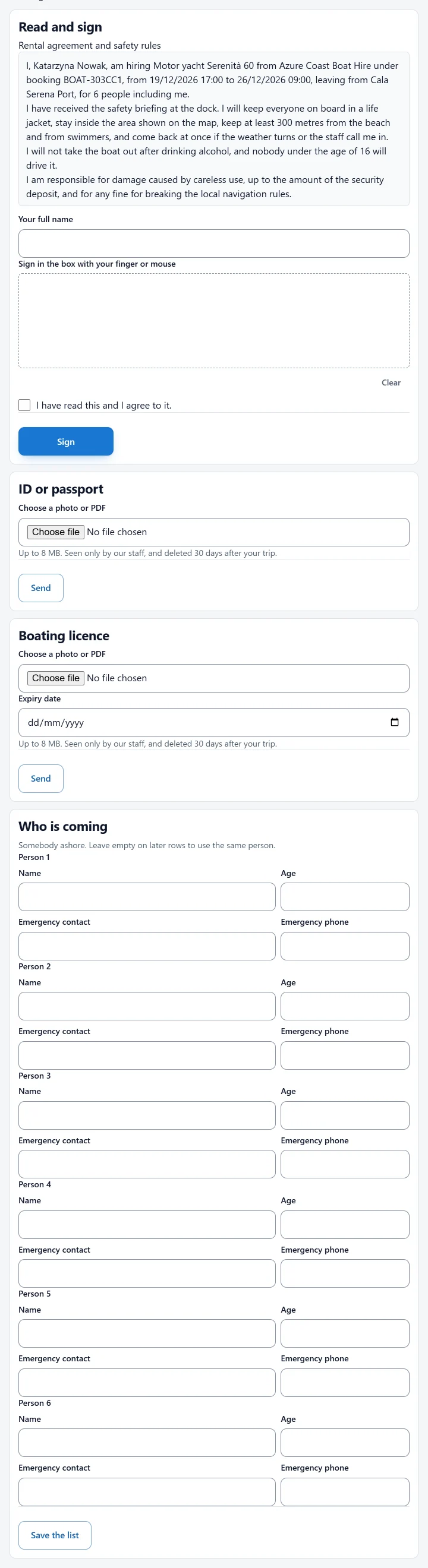
The form has these parts:
- Read and sign: the waiver. The customer ticks “I have read this and I agree to it.”, types their full name and signs in the box with a finger or mouse. They can download their signed copy as a PDF.
- ID or passport and Boating licence: a photo or PDF, up to 8 MB. The licence asks for its Expiry date.
- Who is coming: each person’s Name and Age, with an Emergency contact and Emergency phone (somebody ashore).
Checking documents
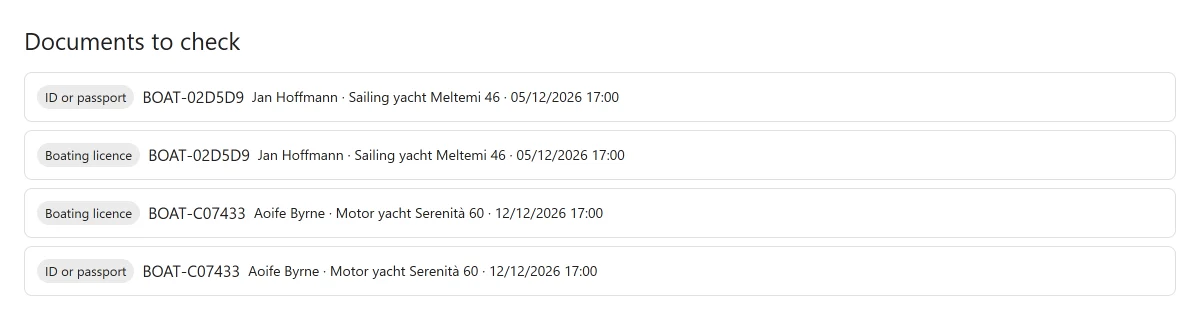
Documents to check lists every uploaded document waiting for a look, soonest trip first: the kind of document, the booking reference, the customer, the boat and the departure. The reference opens the booking, where the Waivers and documents panel lets you Download the document, then Verify it or Reject it with “What is wrong? The customer is told.”
On the booking’s page, the panel Waivers and documents shows each item’s state: Missing, To check, Verified, Rejected, Expired, Signed or Incomplete. Staff can Add a document at the desk from there, and edit the passenger list (Save the list). A signed waiver shows who signed, when, from which IP address and which wording version.
The passenger manifest
Passenger manifest lists everybody leaving the dock on one day, trip by trip, with names, ages, emergency contacts and what is still missing. Use Previous day and Next day, and Open to print or for a phone for a printable page.
How files are kept
Documents are encrypted and stored in a private folder under random names. They are served only to staff, always as a download. A customer’s link can read their own signed waiver PDF, never an ID or a licence.
Uploads are checked: only JPEG, PNG, WebP or PDF. Images are redrawn, which removes their metadata. Files holding scripts or active PDF content are refused.
The Where documents are kept card has Check now, which tests whether your server
refuses direct requests for the folder. On nginx, add a rule refusing the folder, or set
PLUGIXA_BOATRENTAL_PRIVATE_DIR in wp-config.php to a folder outside the web root.
Back up the database and the folder together. The key that decrypts the files is kept in the database. Losing it loses every file.
How long things are kept
The card How long things are kept:
| Setting | Default |
|---|---|
| ID and licence files: days after the trip | 30 |
| Passenger lists: days after the trip | 365 |
| Signed waivers: days after signing | 2555 (7 years) |
A rejected or replaced file is deleted at once. When a file is deleted at the end of its period, the booking says so. These defaults are a starting point, not legal advice.
WordPress’s personal data export and erase tools include these records. Erasing removes ID, licence and passenger list for trips that are over, and keeps everything for a trip still to come, and signed waivers. See Privacy and uninstall.
At the dock
The dock app warns at check-out when a booking is not cleared. Staff can go ahead with a reason, or tick “I have checked these papers in person”.
Current limits
- One ID and one licence per booking, not per passenger.
- One waiver wording per site, not per language.
- The customer’s account page has no link to the documents form; they use the emailed link.
Quick Links
Share