

Contents
On this page
Bookings - Plugixa Boat Rental
Every booking, whether a customer made it on your site or your team took it over the phone, lands in one list. This page covers that list, a booking’s own page, the statuses a booking moves through, and the trash. Bookings are part of the free plugin and cannot be switched off.
Open Plugixa Boat Rental -> Bookings. It is the first item of the Bookings group in the app’s sidebar.
The bookings list
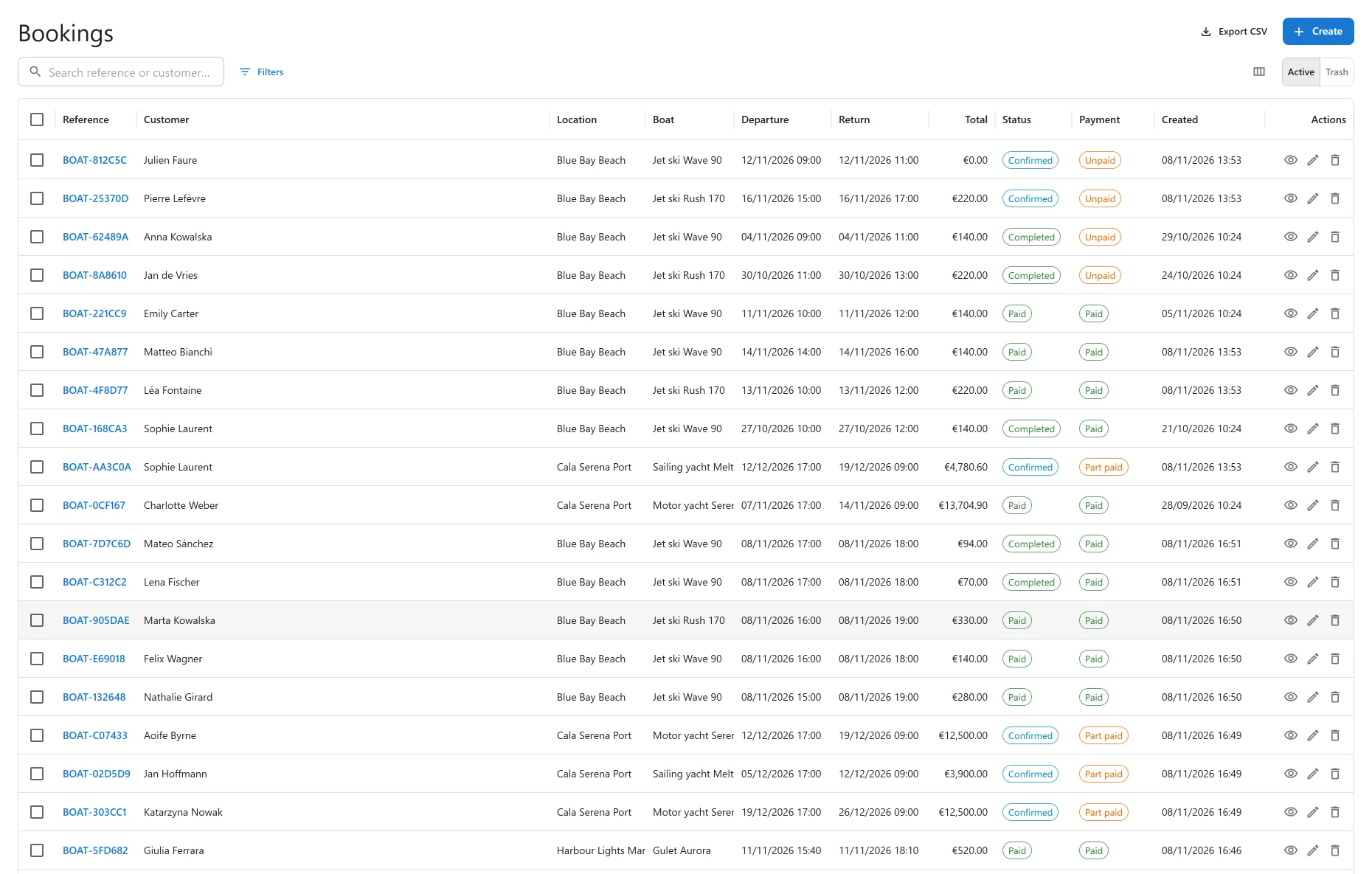
Each row is one booking:
| Column | Shows |
|---|---|
| Reference | The booking reference, such as BOAT-7F3A9. Click it to open the booking. |
| Customer | The customer’s name. |
| Location | The marina. |
| Boat | The boat booked. |
| Departure, Return | When the trip starts and ends, on the marina’s clock. |
| Total | The booking’s price, in the marina’s currency. |
| Status | Where the booking is in its life (see Statuses). |
| Payment | Unpaid, Part paid or Paid. |
| Created | When the booking was made. |
On a narrow screen the list drops Created, Boat, Location and Payment first. Columns lets you choose which columns are shown.
At the end of each row, the eye icon opens the booking and the pencil opens its edit form.
Search
Type in Search reference or customer… to find a booking by its reference, the customer’s name or their email address. The search box in the app’s top bar finds bookings too: type a whole reference there to jump straight to that booking.
Filters
Filters opens a panel where you add one condition per field and click Apply. A booking must meet all of them.
| Field | Compare by |
|---|---|
| Status | One or more statuses. |
| Payment status | Unpaid, part paid or paid. |
| Location | A marina. |
| Boat | A boat. |
| Departure, Return | A date, a range, before or after. These are the marina’s dates. |
| Total | An amount, more or less than an amount, or a range. |
| Created, Modified | A date or range. |
The applied filters show as chips above the list. Clear all removes them.
Export to CSV
Export CSV downloads the list as a spreadsheet file. The file matches the screen: the search, the filters, and whether you are looking at the active list or the trash all apply. The button shows only to people allowed to export (see Roles and staff access).
For an export by dates, marina and status, with customers and payments as separate files, use the Export screen instead. See Import and export.
Changing many bookings at once
Tick the boxes at the start of the rows to select bookings. Above the list you can then:
- Set status: give every selected booking the same status.
- Move to trash: trash them all. You are asked to confirm first.
When some of the bookings cannot be changed, the app says how many were done, skipped and failed.
A booking’s page
Click a reference to open the booking.
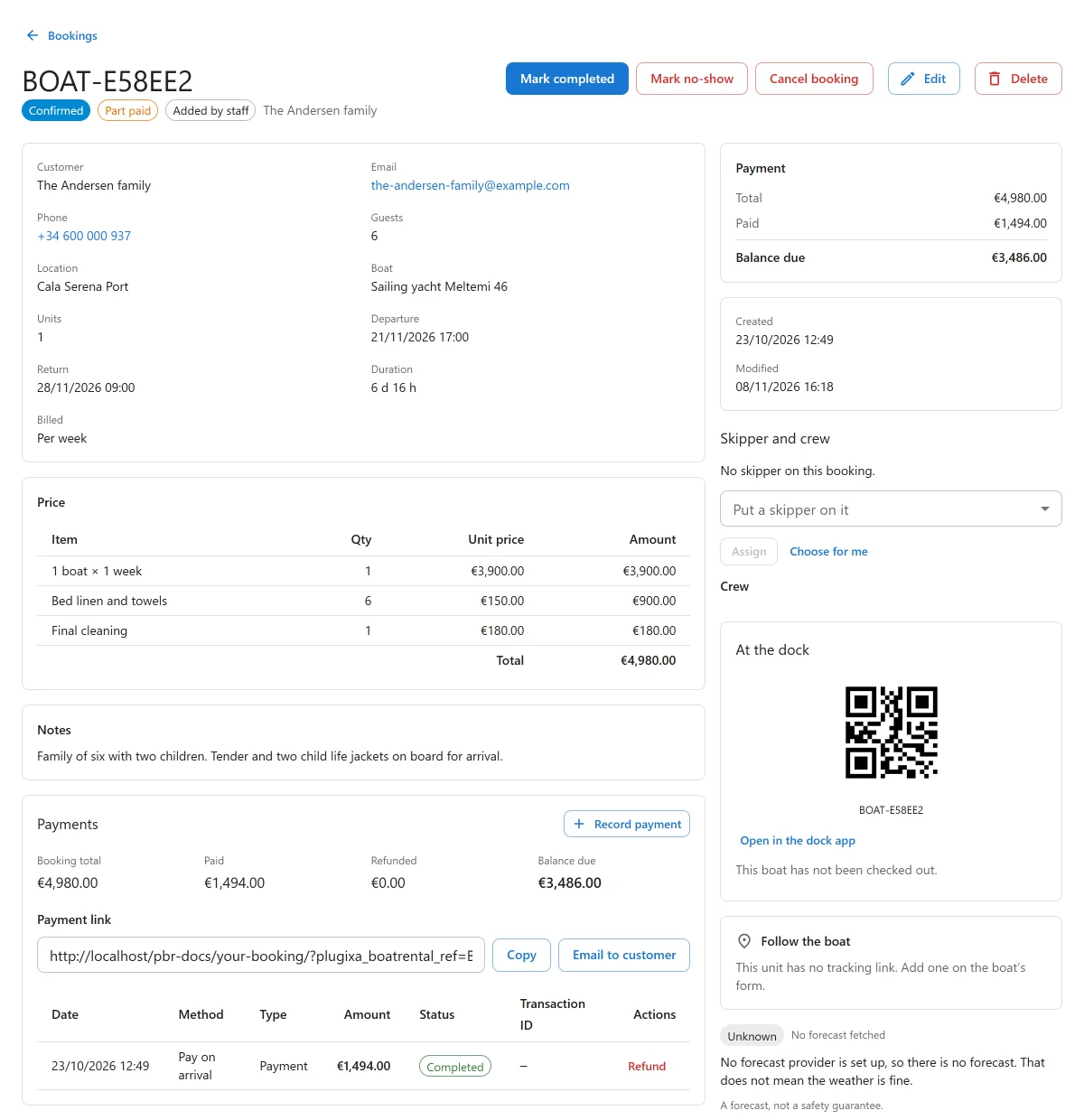
At the top are the reference, its status, and a chip that says how the booking was made:
- Added by staff: a member of your team recorded it.
- Customer account: the customer made it while signed in to their account.
- Guest: made without an account. The customer reaches it with the reference and their email address.
The details below are Customer, Email, Phone, Guests, Location, Boat, Units, Departure, Return, Duration and Billed (per hour, per day and so on). While a booking is pending and unpaid, Boat held until says when it will give its boat up.
Beside them, Payment shows the Total, what has been Paid and the Balance due.
Further down:
- Price: the lines the total is made of, with Item, Qty, Unit price and Amount.
- Additional details: the answers to the extra questions on your booking form, under the label each question had when the customer answered it.
- Notes: notes for your team. Customers never see them.
- Payments: every payment and refund, with Record payment and Refund. See Payments.
- Message log: every email sent about this booking and whether it went. See Emails and alerts.
Pro apps add their own panels here, such as documents PRO or the skipper PRO.
Moving a booking along
The booking’s page offers the next steps as buttons, depending on where it is:
| Status now | Buttons |
|---|---|
| Pending | Confirm, Cancel booking |
| Confirmed, Paid | Mark completed, Mark no-show, Cancel booking |
| Cancelled, Expired, No-show | Reinstate |
Cancel booking asks first: “Its boat becomes free for somebody else to book. Payments already recorded stay as they are.” Cancelling never refunds anything by itself.
Any other change of status is made from the edit form. A move is refused when somebody else changed the booking after you opened it: click Reload and try again.
When a move would put the booking back on a boat that is no longer free, or at a time the marina is closed, the app says so. If you are allowed to, Do it anyway saves it all the same.
Taking a booking yourself
Click New booking on the list to record a booking taken by phone or at the dock.
| Section | Fields |
|---|---|
| At the top | Status and Guests. Left on Default for new bookings, the status is the one set in Settings -> Bookings. |
| Rental | Location, Boat, Units, Departure and Return. Departure and return are on the location’s own clock, whatever timezone you are in. |
| Customer | Name, Email, Phone, and the Additional details of your booking form. |
| Notes | For your team. Customers do not see these. |
Price works the total out once you have chosen a location, a boat and the dates. The price is fixed when the booking is saved. As with a booking made on your site, the booking emails are sent (see Emails and alerts).
The booking engine checks a booking you enter the same way as one made online: the boat must be free, and the marina open. When the boat is full or the marina is closed at that time, a warning appears with Save it anyway, even though the location is full or closed at that time. Two limits cannot be overridden: a departure in the past or sooner than the Shortest notice, and one further ahead than Furthest ahead (both in Settings).
Statuses
A booking is always in one status. The names can be changed under Settings -> Bookings -> Status names, but not the statuses themselves.
| Status | Means | Holds the boat |
|---|---|---|
| Pending | Placed, waiting for you or for a payment. | Yes, for the hold time |
| Confirmed | Accepted. A part-paid booking is confirmed. | Yes |
| Paid | Paid in full. | Yes |
| Completed | The trip took place. | Yes |
| Cancelled | Called off by you or the customer. | No |
| Refunded | Everything paid was given back. | No |
| No-show | The customer did not turn up. | No |
| Expired | A pending booking whose hold ran out. | No |
Which statuses hold a boat is a setting: Statuses that hold a boat, under Settings -> Bookings.
What changes a status by itself
- A new booking starts as Pending or Confirmed, as Status of a new booking in the settings says.
- A pending booking keeps its boat for Hold an unconfirmed booking for (minutes), 30 minutes by default. After that the boat is free for others at once, and an hourly job marks the booking Expired.
- When money is recorded, a booking paid in full becomes Paid, and a part-paid one becomes Confirmed. Once it holds money, it no longer expires.
- When everything paid is refunded, a paid or confirmed booking becomes Refunded.
- A cancelled or completed booking keeps its status whatever money moves afterwards.
- A payment that arrives after the hold ran out, for a boat somebody else has since booked, leaves the booking Expired. The money stays on its Payments panel and you are emailed, so you can refund it or offer another boat.
The trash
Moving a booking to the trash takes it off the list and gives its boat back. Nothing is deleted.
Switch the list to Trash to see trashed bookings. There you can:
- Restore a booking. The boat is checked again first. If it has been booked since, or the marina is closed at that time, the app explains why it was not restored, and Restore anyway puts it back without a free boat: the boat may then be double-booked.
- Delete permanently. This cannot be undone.
Trashing and deleting need the delete permission; see Roles and staff access. A trashed booking still holds the customer’s details, so WordPress’s personal data tools include it. See Privacy and uninstall.
Quick Links
Share