

Contents
On this page
Walk-up sales and damage reports - Plugixa Boat Rental
Walk-up sales PRO let dock staff sell a boat to a customer standing in front of them, from the dock app, and go straight into the check-out. The damage report PDF puts a boat’s check-out and check-in, the damage and the photos in one document you can download or email to the customer.
Both are part of the Dock app and switch off with it.
Selling a boat at the dock
On the dock app’s home, press Walk-up sale.
- Marina: if you work at more than one, choose it. The screen lists the boats free to leave now, and says what time it is at the marina.
- Choose a boat. Each card shows “Up to 8 guests” and “Can leave at 14:15”.
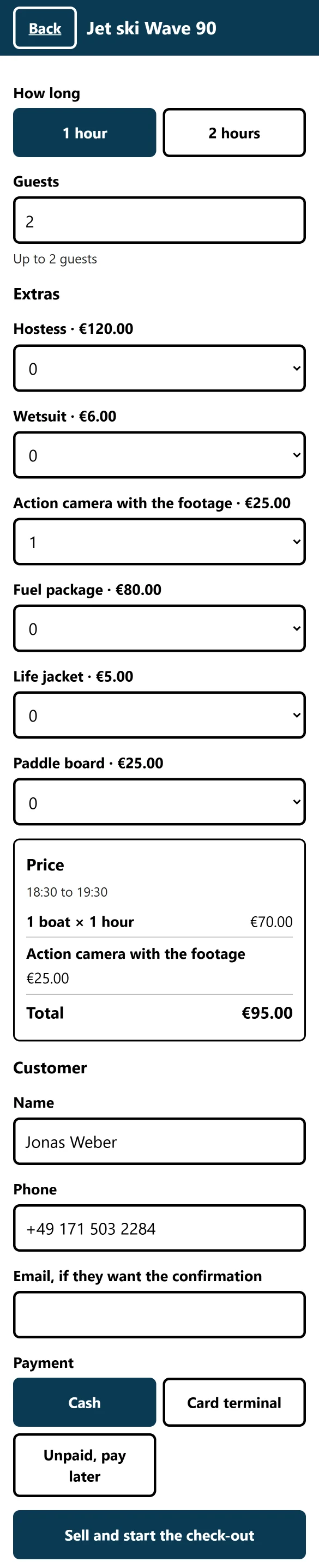
- Fill in the sale:
- How long: the lengths that are free now;
- Guests and Extras;
- Customer: Name and Phone (required), and Email, if they want the confirmation;
- Payment: Cash, Card terminal or Unpaid, pay later. With a card terminal, add the Terminal reference, if there is one;
- the security deposit, if the boat asks for one (below).
- Check the Price and press Sell and start the check-out.
The app says “Sold. The check-out starts now.” and opens that booking’s check-out.
What is offered “now”
Times are on the marina’s clock, after your site’s minimum notice for bookings.
| Booking mode | What the walk-up sale offers |
|---|---|
| Free duration | A start at the next quarter hour. Lengths from the boat’s minimum, then every whole hour on its step, up to its maximum or 8 hours. At most 8 choices. |
| Full day | From the next quarter hour to the default end time under Settings -> Bookings. |
| Fixed departures | Today’s departures that leave within the next 60 minutes. |
| Multi-day charter, Sold by the seat | Not sold at the dock. |
Each length is checked as an online booking would be: the boat’s rules, opening hours, a free unit, buffers, maintenance blocks, imported calendar dates and, where the boat needs one, a free skipper. A boat with no length left is not listed. When no boat is free, the screen says so and offers Look again.
Price
The price is worked out by the same engine as the booking form, with the boat, the time, the guests and the extras. Coupons and gift cards are not taken at the dock.
Two phones, one boat
If two people sell the last free unit at the same moment, one gets the booking and the other sees “Just sold: somebody else has taken this boat for that time. Choose another.”, with a button back to the boats. Pressing the sell button twice never makes two bookings.
Payment
- Cash or Card terminal: one payment of the total is recorded on the booking, so the ledger, the dashboard and the reports see it. How it was paid and the terminal reference are kept with the sale.
- Unpaid, pay later: the customer is sent the usual payment link by email. This needs their email address, and a booking summary page on your site. See Payments.
A walk-up booking is confirmed as it is made, and becomes paid once paid in full. If an email address was given, the customer gets your usual confirmation email.
Security deposit
When the boat asks for a security deposit, the sale shows “This boat asks for a security deposit of” the amount. Tick Deposit taken (cash or card terminal) and say How the deposit was taken. Nothing is held on a card from the dock: a deposit taken by hand is written on the booking and in the damage report. For card holds, see Deposits, balance and security holds.
Where walk-up sales show
| Where | What |
|---|---|
| Bookings list | The Channel filter: Website, Office, Walk-up, Import. |
| Reports, by channel | “Walk-up at the dock”. |
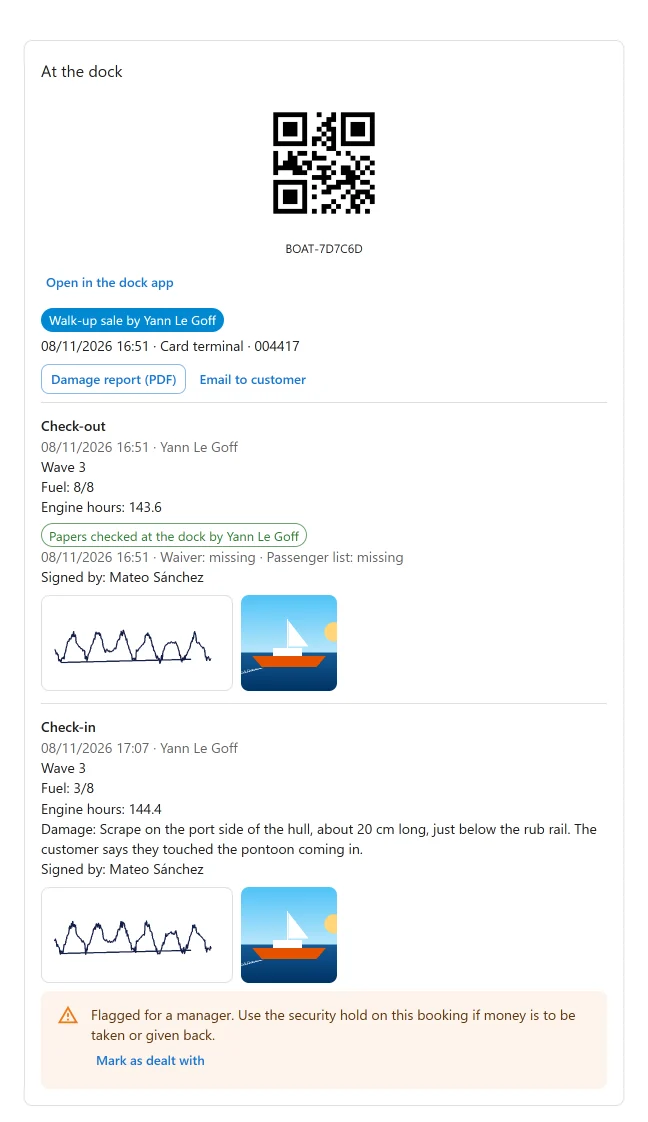
| The booking’s At the dock panel | “Walk-up sale by” the member of staff, when, the payment and reference, and the deposit. |
| The dock app’s booking | The same, as a card. |
Who can sell
Anyone who may work the dock app, at the marinas whose dock they may work. See Roles and staff access.
The damage report PDF
Once a boat is checked in, its booking has a Damage report (PDF). It holds:
- your business name and logo (the invoice name if you set one, else the site name);
- the booking reference, the boat and unit, the customer, the departure and the return;
- the check-out and check-in side by side: when, by whom, fuel, engine hours, the checklist items that differ, who signed and their signatures;
- the damage notes and whether the report was flagged;
- photos: damage photos first, then the other check-in photos, up to 12, with a note of how many more are kept on the booking;
- the deposit (taken at the dock, or the Stripe hold and whether it was captured or released), the total and what was paid.
Photos deleted at the end of their retention period are left out, and the report says so.
Downloading and emailing it
- Download: from the booking’s At the dock panel in the admin app, or from the booking in the dock app. Anyone who can work the dock or read bookings can download it. The PDF is made when asked and never stored.
- Email to customer: from the At the dock panel. It asks “Email the damage report?” and sends the customer a short email with the PDF attached. This needs permission to edit bookings, and the customer’s email address. The email is in the email log.
The email’s subject is “Damage report for your booking {booking_ref}”. You can change its wording like other emails.
The report is not available before the check-in. If the server lacks the PDF library, the panel says “The damage report PDF cannot be made on this server” and the buttons are not offered.
Current limits
- No card pre-authorisation for the deposit at the dock.
- No coupons or gift cards at the dock.
- Charters and seats on shared trips are not sold at the dock.
- A sale needs a signal: there is no offline queue for sales.
Quick Links
Share