

Contents
On this page
- A boat cannot be booked
- A boat is offered but shows no free times
- A boat is missing from the grid or the search
- The booking form does not load, or says it could not reach the server
- Emails do not arrive
- Times are wrong
- Pending bookings turn into Expired
- After paying online, the customer lands on the home page
- No payment link is offered on a booking
- A notice says the database could not be set up
- The admin app is blank
- A screen says the app is switched off
- An app will not switch off
- A trashed booking will not restore
- An import refuses rows
- Deleting the plugin did not erase the data
- Review invitations are not sent PRO
- Browser alerts do not appear PRO
Troubleshooting - Plugixa Boat Rental
This page lists the problems people meet most, what causes each one, and how to fix it. Start with the section that matches what you see.
A boat cannot be booked
Symptom: a boat is not offered on the booking form, or customers cannot pick a marina.
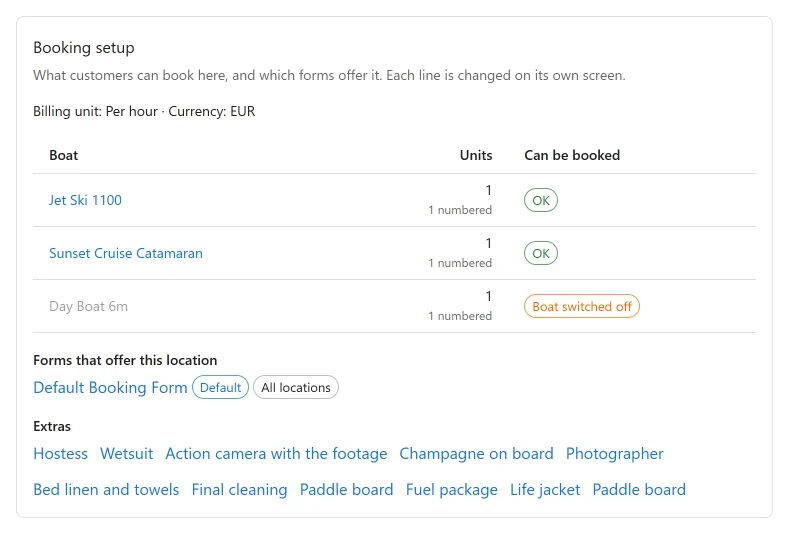
Open the marina in Plugixa Boat Rental -> Locations and look at its Booking setup panel. It lists each boat kept there, how many units the marina has, and whether customers can book it, using the same rules as the booking form itself.
| What the panel says | Cause | Fix |
|---|---|---|
| OK | The boat can be booked here. | If it is still missing, see the next rows of this page. |
| Boat switched off | The boat’s status is not active. | Open the boat in Boats and set it to active. |
| A warning that there is no price for the marina’s billing unit, so customers can’t book it | The boat has no price for the unit it is billed in, such as no day price on a boat priced per day. A price of 0 counts; no price does not. | Add that price on the boat, or change the boat’s Priced setting. See Boats. |
| “No boats yet, so nothing can be booked here.” | The marina has no units of any boat. | Add them in the marina’s Units panel. See Units. |
| “No form offers this location, so customers cannot choose it.” | Every booking form is limited to other marinas, or switched off. | Edit a form in Booking forms and add this marina, or let it offer all locations. See Booking forms. |
| A form marked (switched off) | That form is inactive. | Switch it back on if the page uses it. |
Also check that the marina itself is active: a switched-off marina is offered on no form.
A boat is offered but shows no free times
The booking form only offers times the boat is really free. Check, in this order:
- Opening hours and closures of the marina. A trip must fit inside them.
- Buffers on the boat. The minutes before and after each booking, for refuelling and cleaning, are taken too.
- Other bookings, including Pending ones. A pending booking keeps its boat for the hold time (30 minutes by default) even before it is paid.
- The booking window in Settings -> Bookings: Shortest notice (minutes) and Furthest ahead (days).
- With Pro, a block on the timeline, a service on Maintenance, a calendar imported through Calendar sync, or a boat that needs a skipper when none is free PRO.
The Booking calendar shows every booking by day, which is often the quickest way to see what is in the way.
A boat is missing from the grid or the search
A boat is listed in the boat grid and search only when it is active and has its public page. Then:
- a
locationor Marina filter matches the marina the boat is kept at; - a
guestsor Guests filter needs a boat that takes at least that many; - a Date or price search never finds a boat with no price;
- a Date search finds only boats with some free time that day.
The grid shows 24 boats unless its limit says otherwise.
The booking form does not load, or says it could not reach the server
Symptom: the form stays empty, or the customer sees “We could not reach the server. Check your connection and try again.” or “Something went wrong. Please try again.”
The booking form, the boat search on a date and the customer pages talk to your site
through the WordPress REST API, at /wp-json/pbr/v1/. Visitors who are not signed in must
be able to reach it.
- A security plugin or firewall that blocks the REST API for visitors stops the form.
Allow the
pbr/v1routes, or the REST API for visitors. - A host or CDN firewall may block requests it does not recognise. Check its log for
refused
/wp-json/requests. - Permalinks. Open your site’s address followed by
/wp-json/. If that does not answer, save Settings -> Permalinks once in WordPress. - A page cache or optimisation plugin that combines or delays scripts can stop the form from starting. Exclude the plugin’s scripts, or the booking page, from it.
“Too many requests. Please wait a little while and try again.” means one address made a
very large number of requests in a short time. The limits are set so that several people
booking from the same office or hotel never meet them. A developer can change them with the
plugixa_boatrental_rate_limits filter (see Hooks).
Emails do not arrive
Open the booking and look at its Message log panel.
| What you see | Cause | Fix |
|---|---|---|
| “No message has been sent about this booking yet.” | Nothing was attempted. | Check that Send booking emails is on in Settings -> Notifications, and that the Notifications app is on in the App manager. |
| A row marked Failed, with a reason | WordPress could not hand the mail over. The reason is what WordPress reported. | Most often the server cannot send mail. Install an SMTP plugin and send through a real mail account. |
| A row marked Sent, but nothing arrived | The mail left your site and was dropped or filtered on the way. | Check the customer’s spam folder. Use a Sender address on your own domain, with that domain’s SPF and DKIM records set up, or an SMTP plugin. |
Also worth knowing:
- Payment received is sent only when a booking becomes paid in full, not for a part payment.
- The free plugin sends no email when you confirm, cancel or complete a booking yourself.
- Emails carry no link to the booking until you choose a Booking summary page in Settings -> Bookings.
- Imported bookings never send emails.
See Emails and alerts.
Times are wrong
Every booking is on its marina’s own clock: a 09:00 departure at a marina in Lisbon is 09:00 Lisbon time, whichever timezone you or the customer are in. Times are stored in UTC underneath, so a change to or from summer time cannot move a booking.
- A marina’s times are an hour or more out. Check the marina’s Timezone. Left empty,
it uses the site’s timezone. Write it as Region/City, for example
Europe/Lisbon. - The site’s timezone is set in WordPress, under Settings -> General. Choose a city rather than a fixed offset such as UTC+1: a fixed offset does not follow summer time.
- A time typed in the admin seems to move. It does not: the booking form in the admin is on the marina’s clock too, and says so under the dates.
Pending bookings turn into Expired
A pending booking keeps its boat for Hold an unconfirmed booking for (minutes) in Settings -> Bookings, 30 minutes by default. After that the boat is free for others, and an hourly job marks the booking Expired.
If you take payment on arrival, set Status of a new booking to Confirmed, raise the hold time, or set it to 0 to keep pending bookings until you act. A booking that has any payment recorded never expires.
The hourly job runs on WordPress’s scheduler, which needs visits to your site. If your
host disables it, set up a real cron job for wp-cron.php. Availability does not wait for
the job: a lapsed hold frees the boat at once.
After paying online, the customer lands on the home page
Neither a Booking page nor a Booking summary page is chosen in Settings -> Bookings -> Pages. Choose at least one, so the customer is shown how the payment went.
No payment link is offered on a booking
The Payment link box needs a booking summary page, and a booking that still owes money. It is not offered on a cancelled, expired, refunded or no-show booking, on one with nothing due, or while a payment provider is holding the customer’s money PRO. See Payments.
A notice says the database could not be set up
“Plugixa Boat Rental could not finish setting up its database, so parts of it will not work.” appears in WordPress after activation or an update when a table could not be created. The usual cause is a database user that is not allowed to create tables. Once your host has put that right, click Try again on the notice.
The admin app is blank
If Plugixa Boat Rental opens a page that says the files of the admin app are missing, the plugin’s folder is incomplete, often after an upload that stopped half way. Install the plugin again from its download. Your data is kept.
A screen says the app is switched off
“This app is switched off in the App manager.” means the feature you opened belongs to an app that is off. Click Open the App manager and switch it on. Its data was kept.
An app will not switch off
Some Pro apps refuse while something is in progress, such as a boat that is out and not checked in, or a payment still waiting for an answer. The card says what to finish first. See App manager.
A trashed booking will not restore
Its boat has been booked since, or the marina is closed at that time. The app says which. Restore anyway puts it back without a free boat, so the boat may then be double-booked. See Bookings.
An import refuses rows
Read the Message for each Line after Check the file. The usual causes are a boat or marina named differently from the site, a booking whose boat is already taken at that time, or a reference already used. See Import and export.
Deleting the plugin did not erase the data
That is the default: deleting keeps your data. To erase it, turn on Erase all data when the plugin is deleted under Settings -> Advanced first. Nothing is erased while another copy of the plugin, free or Pro, is still installed. See Privacy and uninstall.
Review invitations are not sent PRO
Check that the Verified reviews and Notifications apps are on. Only bookings that are Confirmed, Paid or Completed and whose trip ended in the last 30 days are asked, once each, after Days after the return to ask. See Verified reviews.
Browser alerts do not appear PRO
Desktop notifications need the site on HTTPS and your permission in the browser. Open Settings -> Browser alerts: it says when the browser has blocked notifications or cannot show them, and Send a test alert checks the result. See Emails and alerts.
Quick Links
Share