

Contents
On this page
Request to book - Plugixa Boat Rental
Request to book PRO turns a customer’s booking into a request that you approve or decline before anything is paid. The boat is held for the customer while you decide, and nothing is charged until you approve. It suits skippered yachts, large parties and any boat you want to check a booking for before you commit.
It is an app, on by default in Pro. If the Request to book section is missing from Settings, switch it on in the App manager. Nothing changes until you set a boat, or the whole site, to On request.
Choosing which boats are booked on request
The site’s default
Go to Plugixa Boat Rental -> Settings -> Request to book.
| Setting | Default | What it does |
|---|---|---|
| Boats are booked | Instant: booked at once | Choose On request: you approve each booking to make every boat a request boat, unless the boat says otherwise. |
| Hours to answer | 24 | How long you have to answer, from 1 to 168 hours. Never later than the departure. |
One boat
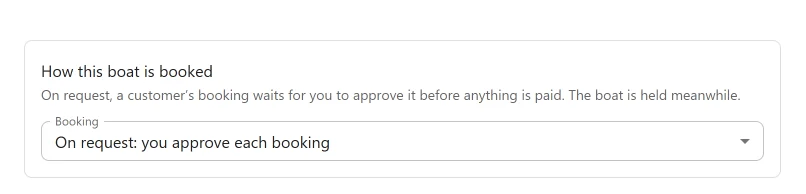
On the boat’s form, the panel How this boat is booked has a Booking field with three choices: The site’s default, Instant: booked at once and On request: you approve each booking. A boat left on the site’s default follows the setting above.
Only bookings that customers make on your site become requests. A booking you make yourself in the office is your own decision, so it is made at once, on any boat.
What the customer sees
On a request boat the booking form shows, under the total: “Booked on request: we reply within 24 hours, and nothing is charged until we accept.” The last button reads Request to book instead of the usual booking button, and no payment page opens.
The confirmation reads Request sent and says when to expect your answer. The customer’s email says the same. They are never sent the usual “booking confirmed” email for a request, because the boat is not theirs yet.
While the request waits:
- the booking’s summary page offers no way to pay;
- a payment link from the office is refused until you approve;
- no deposit or instalment choice is offered, and no gift card is spent;
- a coupon applies at once, because it is part of the price.
If you use Waivers and documents, the customer is only asked for them once you approve.
Answering a request
You are emailed at the administrator address as soon as a request arrives, even if automatic emails are switched off on your site. The email gives the deadline and Approve and Decline links.
From the booking
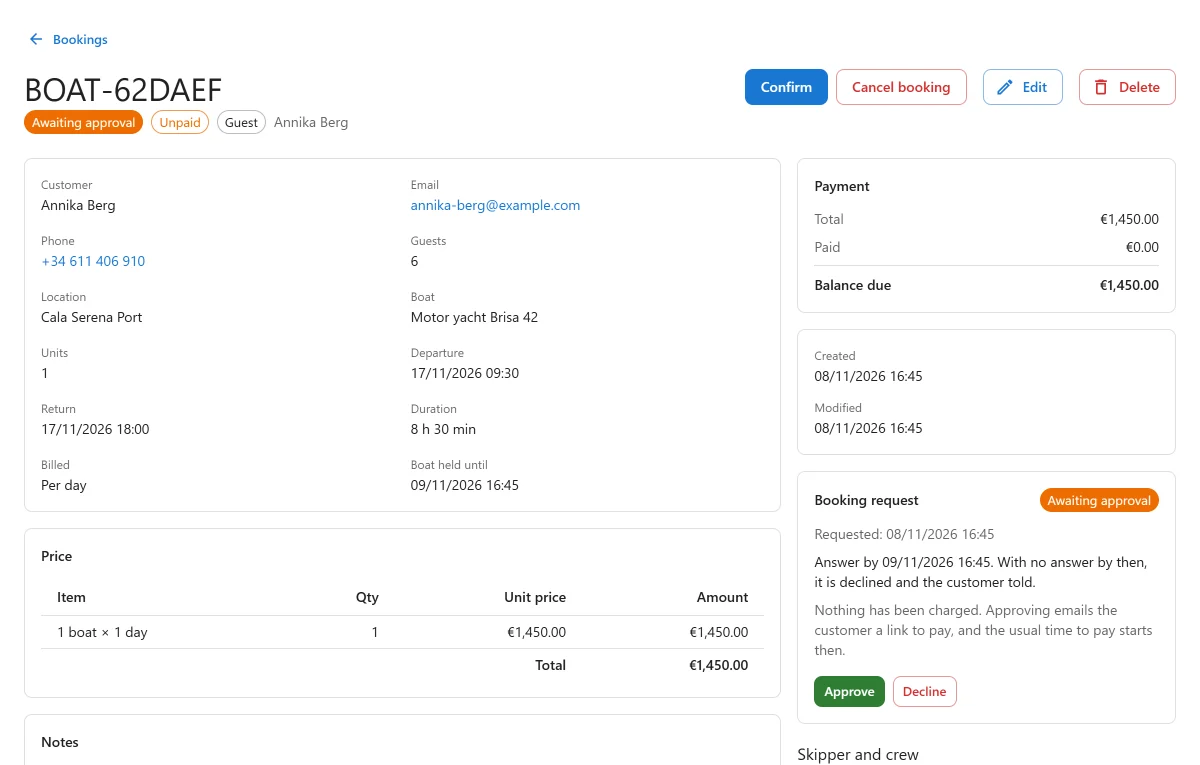
Open the booking. The panel Booking request sits at the top of the side column. It shows when the request was made and “Answer by” with the deadline, and two buttons:
- Approve: the booking takes your site’s usual status for new bookings, and the customer is emailed that it is accepted, with the amount and a link to pay. The usual time to pay starts now.
- Decline: asks for an optional Reason for the customer (optional). The boat is freed at once and the customer is emailed, with your reason if you gave one. They have not been charged.
You need permission to edit bookings to answer.
From the email
The Approve and Decline links in your email work from a phone, without signing in. Opening a link changes nothing: the page shows the request and asks you to confirm with its button. This is on purpose, because some mail scanners open links on their own. Each link works once.
From the dashboard
The Dashboard has a widget, Requests awaiting you, listing waiting requests with the soonest deadline first. Waiting requests are left out of the dashboard’s booked revenue.
When nobody answers
If the deadline passes without an answer, the request is declined automatically within the hour, the boat is freed and the customer is emailed that it was not answered in time. They are not charged. An answer sent after the deadline is refused.
The deadline is the end of the response window, or the departure if that comes sooner.
Other ways a request ends
| What happens | The request |
|---|---|
| The customer cancels it from their account | Closed before an answer |
| You cancel it or move it to the trash | Closed before an answer |
| You record a payment on it by hand | Approved, without the acceptance email (you have spoken to the customer) |
| You try to set it to Confirmed by hand | Refused: approve or decline it from its panel |
| You move it to another date or boat | Still waiting. The deadline becomes the end of the response window or the new departure, whichever is sooner. If that has already passed, it is released and the customer told |
| The customer tries to reschedule it | Refused until you have answered |
A boat cannot be checked out at the dock on a request nobody has approved.
Where requests show
A waiting request reads Awaiting approval instead of its status in the bookings list, on the booking’s page, in the dashboard lists, on the Timeline (as a dashed bar), in the dock app and in the customer’s account. After an answer it reads Approved, Declined, Not answered in time or Closed before an answer.
Emails, SMS and Telegram
The request emails (sent, accepted, declined, not answered in time) go out whatever your
automatic email setting says, as long as the Notifications app is on. Your own templates can
use these placeholders: {request_deadline}, {request_hours}, {decline_reason} and
{pay_by}.
With the SMS and Telegram apps set up, the customer is texted that the request was received and that nothing has been charged, then whether it was accepted (with the payment link) or declined. The staff chat on Telegram is told about each new request and each answer, with a link to the booking’s page. The signed Approve and Decline links are never posted to Telegram, because a group chat can be read and forwarded by anyone in it.
Switching the app off
The App manager will not switch Request to book off while any request is waiting. Answer them first.
When a person asks for their data through WordPress’s privacy tools, their requests are exported with the answer and the reason, and the erase tool clears the reason you wrote.
Quick Links
Share