

Contents
On this page
The dock app - Plugixa Boat Rental
The dock app PRO is a phone screen for the people who hand boats over. Staff scan the customer’s booking, go through the checklist, note the fuel and engine hours, take photos, record any damage and have the customer sign. When the boat comes back they do the same for the check-in. It works in the phone’s browser and can be installed on the home screen like an app.
It is an app called Dock app, on by default in Pro. Its settings are under Plugixa Boat Rental -> Settings -> Dock app.
Where it is
The dock app has its own address on your site:
https://your-site.com/dock/
The exact address is shown under Settings -> Dock app, after “Open it at:”. Copy it from there and open it on the phone.
If your site uses plain permalinks, the app has no address of its own and is at
https://your-site.com/?pbr_dock=1 instead. It works in the browser, but cannot be installed.
While the app is on, a page of your site called dock is replaced by the app. A developer
can move the app to another path with the plugixa_boatrental_dock_path filter. See
Hooks.
Who can open it
The person signs in with their WordPress account, then needs the dock capability:
- Dock staff: a role the plugin adds. It can open the dock app and nothing else: it does not open the admin app or read bookings anywhere else. Give it to the people who work at the dock.
- Administrators always have it.
- Any other role can be given the
plugixa_boatrental_dockcapability. See Roles and staff access.
With staff limited to some marinas, a person sees only the bookings of the marinas whose dock they may work.
Some actions need more than the dock capability: releasing or capturing a security hold, and marking a flag as dealt with, need permission to edit bookings.
Installing it on a phone
The settings card shows whether the app can be installed:
| Setting | Default | What it does |
|---|---|---|
| Allow installing it on a phone | On | Lets the browser offer to add the app to the home screen. Only the app’s own code is kept on the phone, never a booking. Switching it off removes it from each phone the next time the app is opened. |
To install, the site needs HTTPS and a site icon (set in WordPress’s site settings). Without HTTPS the app still works in the browser, and photos open the phone’s own camera instead of the live camera.
The home screen
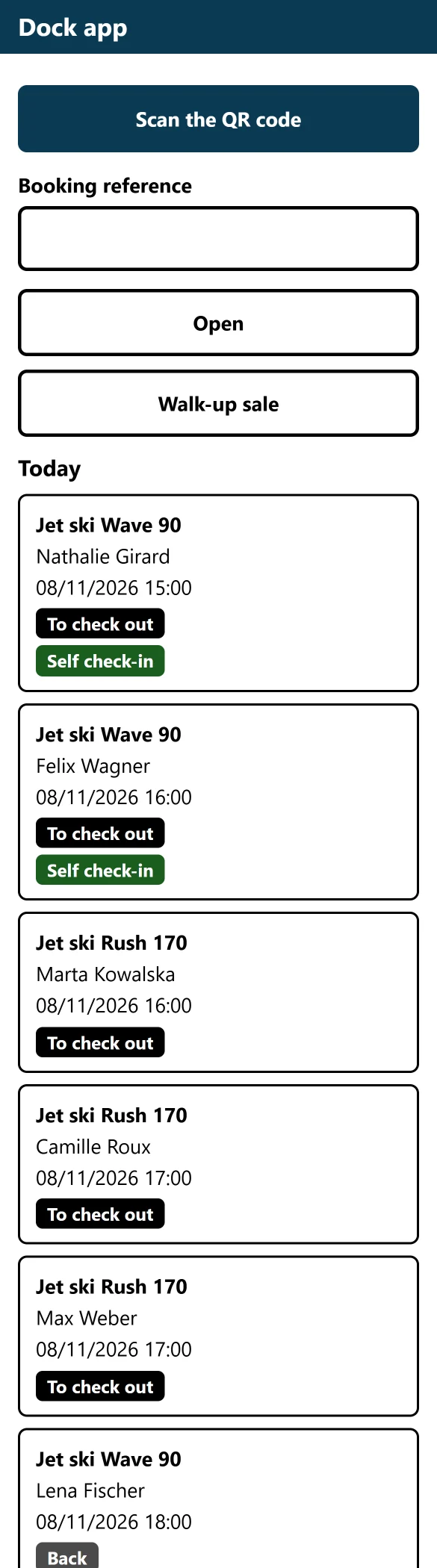
- Scan the QR code: point the camera at the code on the customer’s booking page, or Take a photo of the code. A hand-held scanner works too, typing into the reference field.
- Booking reference: type it and press Open.
- Today: the day’s bookings in one list, each with what comes next: To check out, Out, to check in or Back, and badges such as Self check-in. A boat that is late back is listed first, with a badge.
- Walk-up sale: sell a boat to a customer standing at the dock. See Walk-up sales and damage reports.
- A link to take engine readings, when the Maintenance app is on.
The QR code holds only the booking reference. It is shown on the booking in the admin app and on the customer’s booking summary page. It is not in emails. If your site has no summary page, staff type the reference or pick the booking from the day’s list.
Checking a boat out
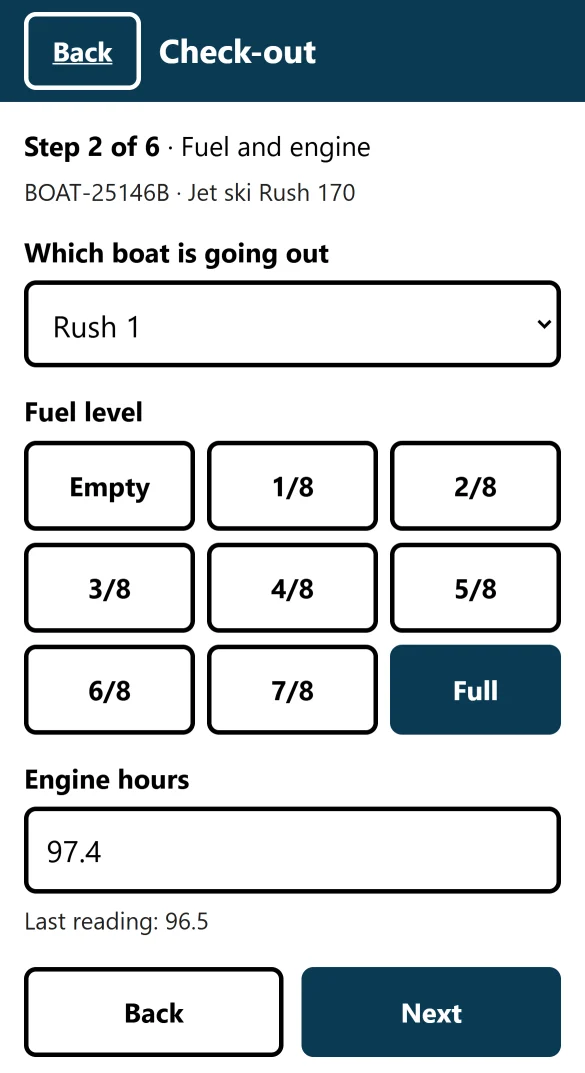
Open a booking and press Start check-out. The steps are:
- Checklist: tick each item.
- Fuel and engine: the Fuel level from Empty to Full, and the Engine hours on the meter, with the last reading shown.
- Photos: “Before it leaves: all sides, and anything already marked.”
- Damage and notes.
- Signature: the Name of the person signing, and the customer signs on the screen. A check-out needs a signature.
- Check and send.
On a boat with several units, the first step asks Which boat is going out. With only one unit at the marina, it is chosen for you.
The app warns, and asks for an answer, when something is not right:
- the booking is for another day (a tick to go ahead);
- the booking is not cleared by Waivers and documents (a typed reason, or “I have checked these papers in person”);
- a service is overdue on that unit (a typed reason);
- the engine hours are lower than the last reading (“Why is it lower? For example, the meter was replaced.”).
Every answer is kept on the report as “Went ahead despite a warning”.
Checking a boat in
Open the booking and press Start check-in. The steps are the same, with photos “As it came back: all sides, and any damage.” If fuel is charged on return (see Extras and fuel), the fuel step works out what is owed and adds it to what the customer owes. Nothing is taken from the card at the dock.
On damage, tick These photos show damage on the photos and Flag this for a manager, saying what the damage is. If the customer is not there to sign, tick The customer is not here to sign and say why.
Sending the check-in sets the booking to completed.
After the check-in, the Money card shows the Total, what was Paid, what is Still owed and what is To give back. If the booking has a Stripe security hold, a manager can Release the hold or Capture for damage from here, with a second tap to confirm. See Deposits, balance and security holds.
Working with a weak signal
If the signal drops, nothing is lost from what you typed: the report stays on the phone and the app says nothing has been saved to the server yet. Send it again when you have signal: a report cannot be recorded twice. A draft is kept on that phone for 14 days, per user, and goes once the report is sent. The signature is never kept in the draft.
Photos not yet sent survive a dropped signal, but not a closed tab. The screen says so.
Late returns
A boat checked out and not checked in by its end time, plus a grace period, is late:
| Setting | Default | What it does |
|---|---|---|
| Count a boat as late after its end time plus, in minutes | 30 | From 0 to 1440. |
A late boat is listed first on the dock app’s home and shows a red alert on its booking, with the next booking on that unit. On the Timeline its bar is drawn in red up to now. The office booking’s At the dock panel shows an alert. The admin address is emailed once per late booking.
It is a flag only: nothing is charged and no booking is changed. A boat never checked out at the dock is never counted late.
While a boat is out
From check-out to check-in, the booking is protected:
- a later return is allowed, through the usual checks and price;
- moving the start, an earlier return, another boat or unit is refused;
- cancelling, refunding, marking no-show or trashing it is refused.
In the admin app
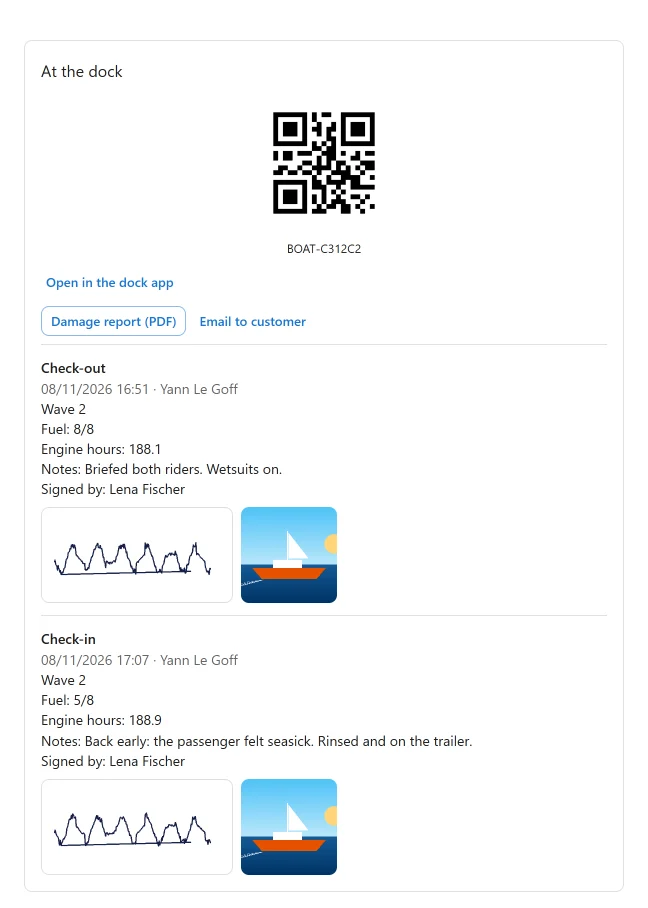
On a booking’s page, the At the dock panel shows the check-out and the check-in: when and by whom, fuel, engine hours, the checklist items not ticked, photos, damage, notes and the signature. Open in the dock app opens the booking on the phone app, and the panel shows the booking’s QR code. A flagged report shows Mark as dealt with.
Following the boat on its GPS tracker
The app Boat tracking link PRO, off by default, keeps the address of each unit’s GPS tracker page, from whatever tracking service you use. Switch it on in the App manager.
- On the boat’s form, the panel Tracking links has a Tracking link per unit. It must
be a full address starting with
https://. - On a booking, the side panel Follow the boat has a Track link to the tracker of the unit on that booking.
- The dock app shows the same Track link on the booking.
The link is for staff only. Customers never see it.
Settings
| Setting | Default | What it does |
|---|---|---|
| Checklist, one item a line | Empty | Leave empty for the standard list. A report keeps the wording it was done with. |
| Keep photos and signatures for, in days after the trip | 365 | After that, photos and signatures are deleted. The report keeps its figures. |
WordPress’s personal data export and erase tools include the dock reports. Erasing keeps what belongs to a boat that is out or a trip still to come, and says so.
Quick Links
Share