

Contents
On this page
Demo data - Plugixa Boat Rental
Demo data PRO fills your site with a ready-made boat rental business in one click, so you can see the booking form, the admin screens and the reports with real-looking records before you enter your own. Three businesses are offered. When you are done, one more click removes every record the demo made, and nothing of yours.
Opening it
Demo data is the Demo data app in the App manager, on by default when Pro is installed. Open Plugixa Boat Rental -> Settings -> Demo. Only people who may manage the settings can install or remove demo data.
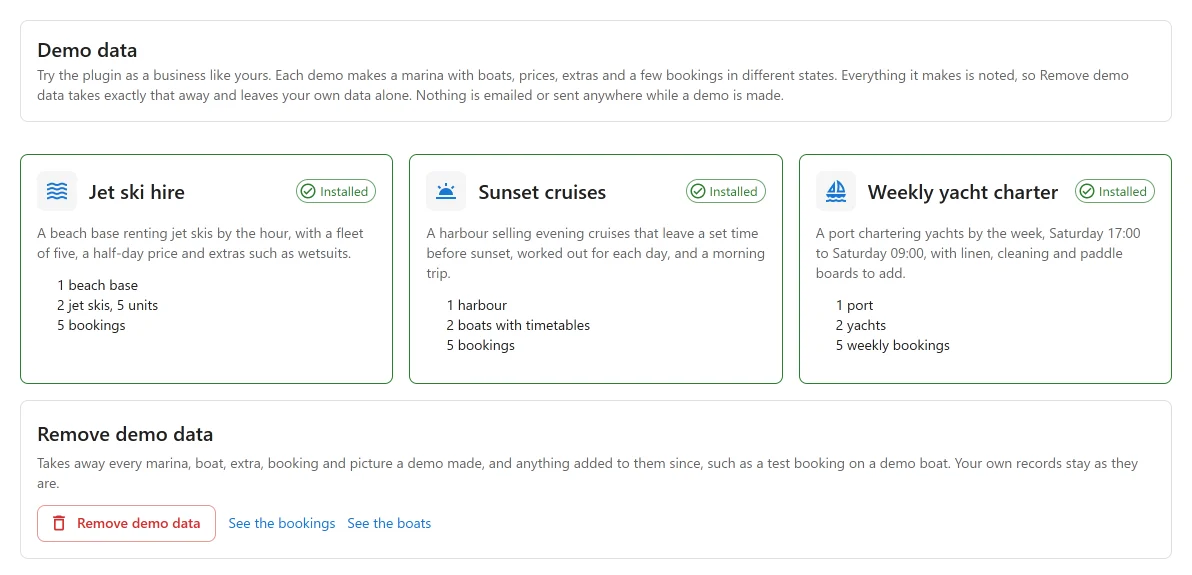
The three demo businesses
| Demo | Marina | Boats | How they are sold | Extras |
|---|---|---|---|---|
| Jet ski hire | Blue Bay Beach (demo), open 09:00 to 19:00 | Jet ski Wave 90 (3 units) and Jet ski Rush 170 (2 units) | By the hour, 1 to 4 hours (Rush: up to 3) in 30 minute steps, with 15 minutes between rentals. An hour price, and a half-day price on the Wave 90. | Wetsuit (per person), Action camera with the footage |
| Sunset cruises | Harbour Lights Marina (demo), in Nice | Catamaran Lumière and Gulet Aurora | Fixed departures. The catamaran has a morning trip, 10:00 to 13:00, and a two hour trip leaving an hour before sunset. The gulet leaves ninety minutes before sunset, for two and a half hours. | Champagne on board, Photographer |
| Weekly yacht charter | Cala Serena Port (demo), in Palma | Sailing yacht Meltemi 46 and Motor yacht Serenità 60 | Charters by the week, Saturday 17:00 to Saturday 09:00, whole weeks only. | Bed linen and towels (per person), Final cleaning, Paddle board (per day) |
The extras are offered only on the demo’s own boats. The names of the demo marinas end in “(demo)” so you can tell them apart from your own.
Each demo also makes five bookings, dated from today on your site’s clock: one paid in full,
one part paid and confirmed, one pending, one cancelled, and one completed in the past. The
customers are invented names with example.com email addresses, and the bookings belong to no
WordPress account.
Each boat gets a simple picture drawn on your server and added to the media library. Nothing is downloaded. If your server’s PHP has no GD image library, the boats simply have no picture.
Apps the demos need
- Sunset cruises needs the Sunset departures app. See Sunset departures.
- Weekly yacht charter needs the Charters app. See Multi-day charters.
While the app a demo needs is off, its card says Needs the … app. Switch it on in the App Manager first. and its button is disabled.
Installing a demo
Click Install this demo on a card. It takes a few seconds while the marina, boats, pictures and bookings are made. When it is done the card shows Installed, with links to See the boats and See the bookings.
- All or nothing. If something fails halfway, everything the demo made so far is removed at once and the card shows the reason, with Try again.
- Quiet. While a demo is being installed, no email is sent, no webhook fires and no outside service is called, so the demo bookings are not announced to anybody. Once installed they are ordinary bookings: remove the demo before you connect calendar sync or webhooks to a live system.
- One at a time. While one window is installing or removing demo data, the screen in another window says so and waits.
You can install one, two or all three demos.
Removing demo data
Click Remove demo data. A dialog lists what will go and asks you to confirm. Removal cannot be undone.
Removal takes away exactly what the demos made, and anything hanging off it:
- every marina, boat, unit, extra, price and booking the demos made, and their pictures;
- records added later to a demo boat or a demo booking, such as a test booking you made on a demo jet ski, its payments, or its dock reports;
- settings the demos added, unless they have changed since.
It does not touch your own marinas, boats and bookings, even ones made while the demo was being installed. A boat of yours whose home marina was a demo marina stays, with no home marina.
A good way to use it
- Install the demo closest to your business.
- Open the booking form on a page and book one of the demo boats, to see what your customers will see. The form is described in Booking forms.
- Look at the Dashboard, the Bookings and the Reports with the demo records in them.
- Remove the demo data before you add your own fleet and open for bookings.
Quick Links
Share